A theme sets the colors of the Wireshark user interface: the selection in the packet list and in every other list, marked and ignored packets, the “Follow Stream” client and server text, display filter highlighting, expert information, graphs and the Welcome Page. It can also set the general window and list colors, and the regular and the monospace font. The packet coloring rules are not part of a theme; they belong to the configuration profile (see Section 11.3, “Packet colorization”).
Wireshark comes with a set of bundled themes, and you can add personal themes of your own. Most people pick a bundled theme, or copy one and change one or two colors. The Theme Designer is made for exactly that: you click the part of the user interface you want to change, and it selects the color that paints it. A complete theme of your own is possible as well, but it takes more care, because Wireshark computes many colors from the few that a theme sets.
This section covers:
- how themes work and where their colors come from (Section 11.7.1, “How themes work”),
- how to select, create, share and remove themes (Section 11.7.2, “Managing themes”),
- the Theme Designer (Section 11.7.3, “The Theme Designer”),
- how to design a theme, with a worked example (Section 11.7.4, “Designing a theme”),
- the theme file format, for editing by hand (Section 11.7.5, “Editing theme files by hand”),
- what to do when a theme does not look as expected (Section 11.7.6, “Troubleshooting themes”).
A theme is a single .jsonc file, which is JSON that may contain // and /* */ comments.
The file is made of sections:
-
metaholds the name of the theme, and optionally its author and a one-line description. -
brandandaccentare required.brand.primaryis the main color of the theme. The four accent colorsaccent.success,accent.warning,accent.errorandaccent.infomark states, for example a valid or an invalid display filter. -
expert,packets,conversation,paletteandfilterare optional. They set the expert information backgrounds, the packet list states (selected, marked, ignored), the “Follow Stream” client and server colors, the general window, list and selection colors, and the display filter highlighting. -
separator,graphsandfontsare optional as well.
Every color has two values: one for the light and one for the dark appearance. The Appearance mode preference (see Section 11.6.4, “Theme”) decides which of the two is in use. A theme therefore always describes two color schemes, and changing one side of a color leaves the other side as it is.
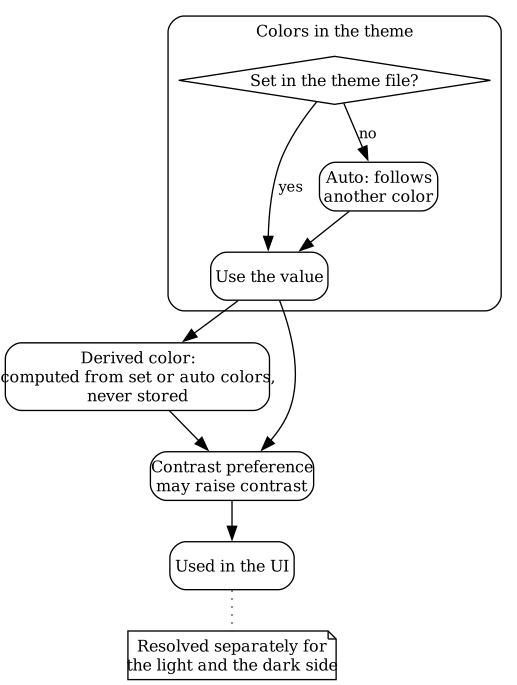
Each color of a theme is in one of three states:
- Set
- The theme file contains a value for the color, and Wireshark uses it.
- Auto
-
The theme file could contain a value, but it does not.
The color then follows another color.
For example, when
packets.selectionis not set, it is a light tint ofbrand.primaryover the list background. - Derived
- The color cannot be stored in a theme file at all. Wireshark computes it from set or auto colors, for example the Welcome Page header, which is a darker shade of the selection color, or text that is made black or white to stay readable on its background.
The Contrast preference raises the contrast of the colors Wireshark computes. Text on a selection or on a packet list state is kept readable on its background even when the theme sets that text color.
Theme colors and system colors.
Wireshark used to take its colors from the operating system.
Today the general colors (window, list background, text and buttons) still start from a baseline palette: on macOS, and on Windows with Wireshark built with Qt 6.8 or later, this is the palette of the operating system; on Linux and on older Windows builds it is a light and a dark palette of Wireshark’s own, because the Linux platform themes do not follow a light or dark mode chosen by an application.
The palette section of a theme replaces only the roles it sets; every other role keeps the baseline.
The bundled Wireshark Default theme sets no palette role, so apart from the colors below it looks like the system.
The selection color, the link color and the accent color always come from the theme.
On macOS and Windows 11, a theme that sets palette.window also tints the title bar of the windows, and on macOS also the toolbars.
Windows 10, Linux and themes without palette.window keep the native title bar and toolbars.
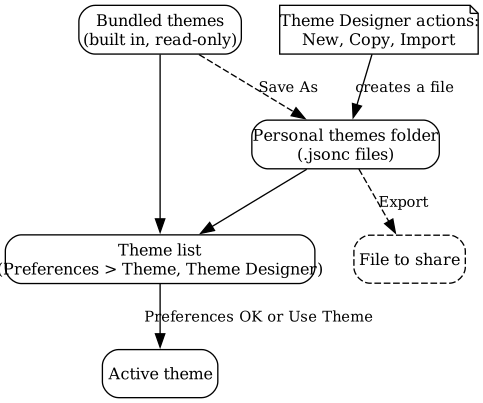
Bundled themes are built into Wireshark and cannot be changed. Personal themes are .jsonc files in your personal themes folder (see Section 11.7.2.1, “Personal themes”). Both kinds are listed in the Theme setting of the preferences and in the Theme Designer.
To choose the active theme, open → , go to → , select the theme in the Theme setting, and accept the preferences with . The preview on that page shows the selected theme in the selected appearance mode before you apply it. In the Theme Designer opened from → → , makes the selected theme the active one.

New themes are created in the Theme Designer:
- copies the brand and accent colors of the default theme; every other color is auto.
- keeps every color the selected theme sets.
So a copy of Wireshark Default keeps its blue packets.selection, and changing only brand.primary in that copy changes no selection color at all, while a new theme lets the selection colors follow brand.primary (see Section 11.7.4.1, “Selection and hover colors”).
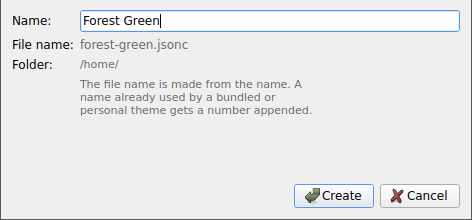
Both buttons ask for a name and show the file name the theme is stored in (made from the name as you type) and its folder. The dialog has no field for the author; you enter it in the designer after the theme is created. The file name of a personal theme is made from its name; a name already used by a bundled or personal theme gets a number appended. The dialog of is titled Copy Theme and additionally names the theme it copies.
changes the name of a personal theme and its file name as well. removes the file of a personal theme after asking; this cannot be undone. Bundled themes cannot be renamed or deleted.
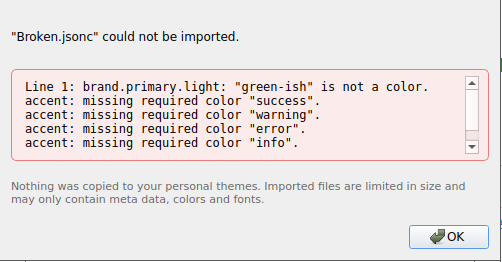
Themes are shared as files. saves the selected theme to a file, and copies a theme file into the personal themes folder. Imported files are normalized and are limited to 1 MiB. An import is refused when the file is not a theme, when a color value is not a color, when a top-level section is unknown or when a required color is missing; a dialog lists the reasons, and nothing is copied. Unknown colors inside a known section are skipped, and the import reports them as notes. You can also copy a theme file into the personal themes folder yourself.
In addition to the themes bundled with the application, Wireshark looks for user-supplied themes in a personal themes directory:
- On Unix-like systems: $HOME/.local/lib/wireshark/themes
- On Windows: %APPDATA%\Wireshark\themes
(For Stratoshark, replace wireshark / Wireshark with stratoshark / Stratoshark.)
Personal themes are single .jsonc files dropped directly into that directory — there is no per-theme subdirectory. The filename (without the .jsonc extension) becomes the theme’s internal name and is what appears in the Theme dropdown. For example, midnight.jsonc shows up as a selectable theme named midnight.
The exact path can also be seen under → in the Folders tab, labelled Personal Themes. → opens it in the file manager and offers to create it when it does not exist yet.
The file format is identical to the bundled themes; see the README.md next to the built-in default theme in the source distribution for the schema and the list of supported color tokens.
If a personal theme file shares a name with a built-in theme (for example default.jsonc), the built-in copy wins and the personal file is ignored with a warning on stderr. This guarantees that core themes the application falls back to can never be accidentally shadowed by a broken override.
The Theme Designer creates and edits personal themes without editing the .jsonc files by hand. It is opened with the button on the Theme preferences page or with → → .

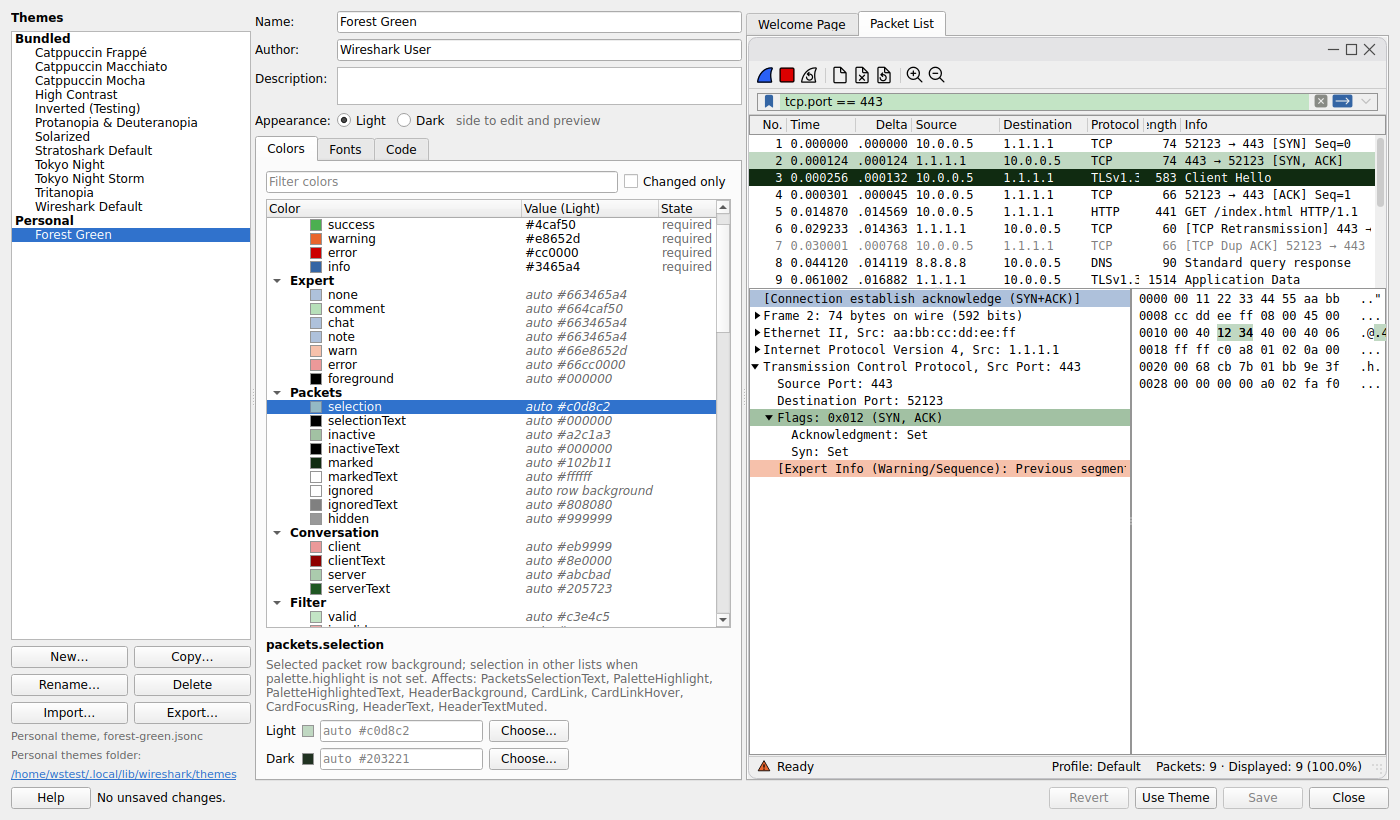
The dialog has three columns:
- The theme list shows the available themes in two groups, Bundled and Personal, with the buttons , , , , and . When a bundled theme is selected, the notice Bundled themes cannot be modified appears below the list. The path of the personal themes folder is a link that opens the folder.
- The editor has the Name, Author and Description fields, the Appearance selection of Light or Dark, and the tabs Colors, Fonts and Code. The description is a single line; it wraps in the field.
- The tabs Welcome Page and Packet List show samples of the draft theme.
The Appearance selection only chooses which side of the theme is edited and shown in the samples. It does not change the appearance mode of the application.
Bundled themes are read-only. Editing a bundled theme creates a draft, and stores it as a new personal theme. Personal themes can be edited and saved in place, renamed and deleted. How and differ is described in Section 11.7.2, “Managing themes”.
Clicking a part of a sample selects its color in the Colors tab. Hovering over a sample names the color under the mouse pointer. The context menu of a sample lists all colors of that spot, toggles Show Coloring Rules for the packet list sample and saves the sample as an image. A part that no theme color paints selects nothing, and the status line says Not a theme color. Links have no color of their own; clicking a link selects the color it follows.
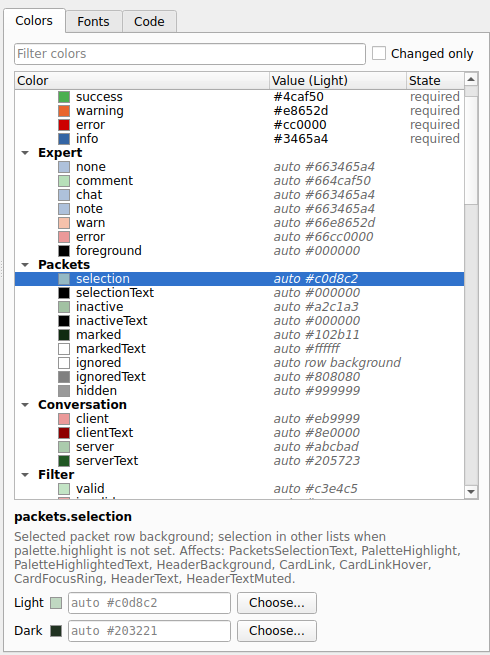
The Colors tab shows the colors that a theme file can set. Type in Filter colors to show only the colors whose name contains the text. The description below the list explains where the selected color is used and which other colors it affects.
A color that is not set in the theme shows auto and its current value; it follows another color until you set it, and Go to in its context menu selects that color.
Every other color the user interface needs is derived: Wireshark computes it from one or more set colors, for example a darker shade of the highlight color for the Welcome Page header, or black or white text chosen to stay readable on a background. Derived colors are listed under Derived (read-only). They cannot be edited or stored in a theme file; the description below the list names the colors each one is computed from. To change a derived color, change its source: the context menu of a derived color has a Go to entry that selects the source color, such as Go to highlight, and entries such as Also uses window or Also uses HeaderText (derived) that select further sources. An Also uses entry that ends in (derived) leads to another derived color, from which you follow its Go to entry again.
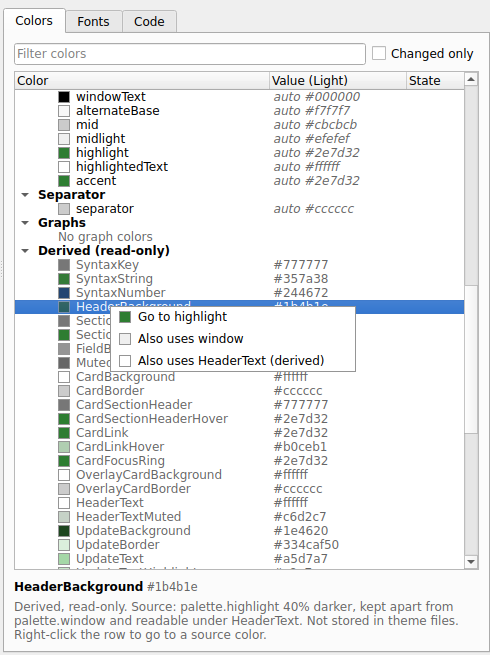
So the way from “this looks wrong” to the color to change is: click the element in a sample; if the selected color is auto or derived, follow Go to until you reach a color you can set.
A selected color shows its light and its dark value. Type a value as #rrggbb or pick it with . A value that is not a color is marked, and the theme cannot be saved until it is fixed. removes a set value, so that the color follows its source again; the required brand and accent colors are marked required and cannot be removed. The graphs group holds the graph colors, which are added and removed with and .
A color you changed is marked edited, and a color whose value changed as a consequence of your edits is marked changed. Changed only shows only edited and changed colors. next to the light or dark value of an edited color restores that value, and Revert Color in the context menu of an edited color restores both. The status line counts the edited and changed colors.
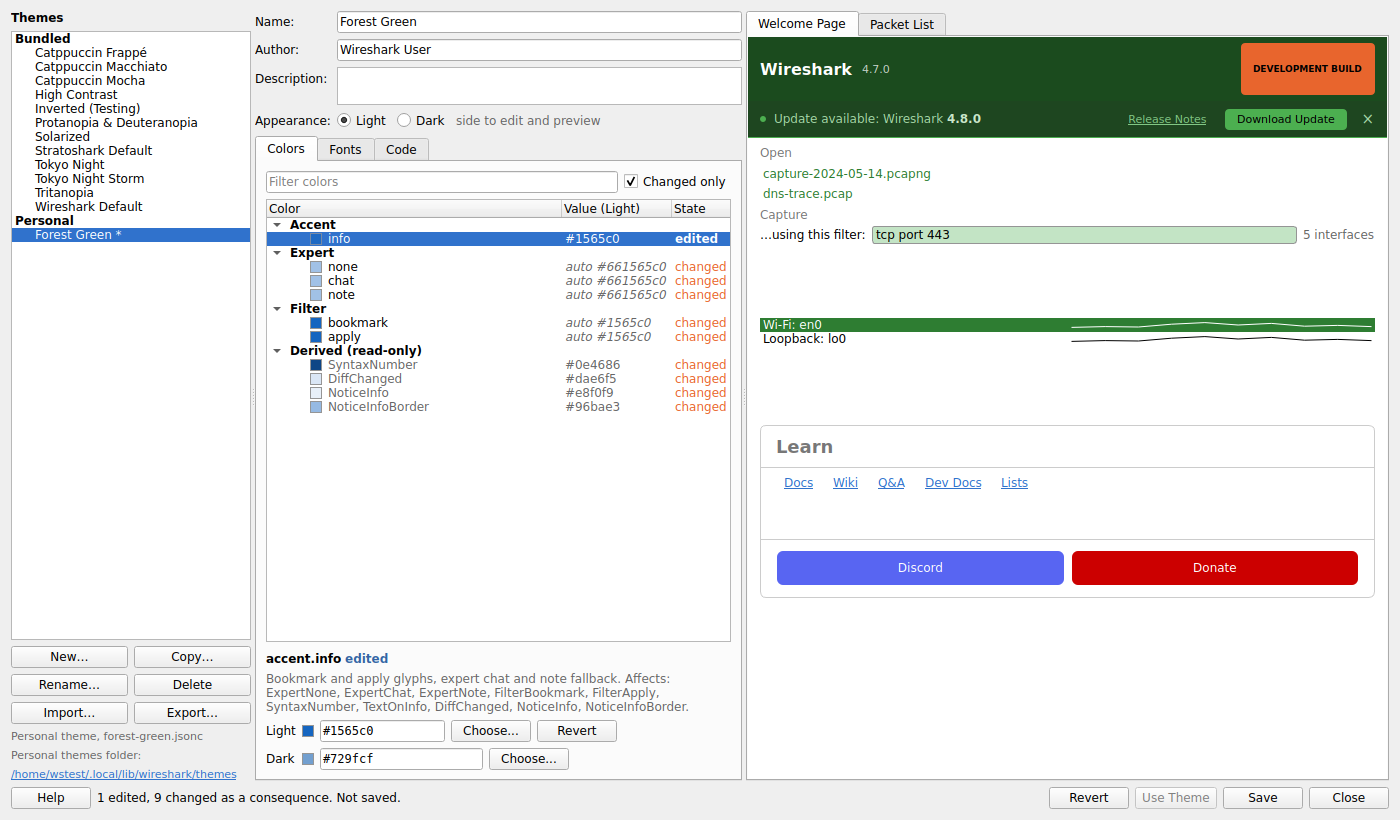
Unsaved changes are marked with an asterisk in the window title and in the theme list. saves a personal theme in place; for a bundled theme the button is and stores a new personal theme. Ctrl+S (Cmd+S on macOS) saves like ; pressing Enter in a field does not save. at the bottom of the dialog discards all unsaved changes. Closing the dialog or selecting another theme asks whether to save unsaved changes.
When the dialog was opened from the Internals menu, saves nothing but makes the selected theme the active one. It is available only when the theme has no unsaved changes. In this case, saving the active theme applies the change right away. When the dialog was opened from the preferences, there is no button. The theme saved in the designer is selected on the preferences page and becomes active when the preferences are accepted with . Cancelling the preferences keeps the theme that is currently active. If you delete the active theme from the preferences and then cancel them, the deletion takes effect for the running application on the next start, when Wireshark falls back to the default theme.
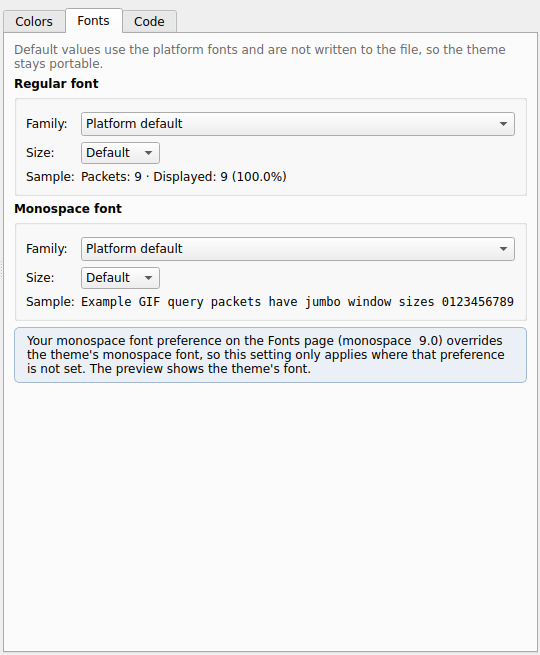
The Fonts tab sets the regular and the monospace font of the theme. Default values use the platform fonts and are not written to the file, so the theme stays portable. Revert Font in the context menu of a changed font restores it. If a monospace font is chosen on the Fonts preferences page, that font overrides the monospace font of the theme, and the Fonts tab says so in an information box that names the preferred font, for example “monospace 9.0”. That note appears whenever a monospace font preference is set, including the one a fresh profile already has.
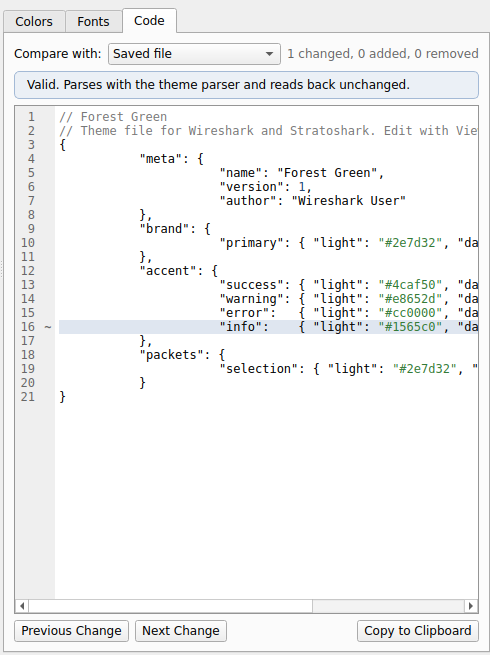
The Code tab shows the theme file as it will be written, and whether it is valid. Compare with selects the theme or saved file the changes are counted against, and and step through them. copies the file text.
Start from the theme closest to what you want:
- To change one or two colors of a theme you like, select it and use .
-
To build a palette around one color, use and set
brand.primary; the selection colors, the packet states and many other colors follow it.
Then change one color at a time. Click the element you want to change in a sample, follow Go to until you reach a color you can set, set it, and look at both samples. Check both sides, light and dark, before you use the theme (see Section 11.7.4.4, “Checking light and dark”).
The packet list has selection colors of its own; every other view uses the selection color of the palette.
| View | Selection color | Hover color |
|---|---|---|
Packet list rows, while the packet list has the focus |
| derived from |
Packet list rows, while another pane or window has the focus |
| derived from |
Packet details, packet bytes pane, and every other list, tree and table, such as the profile list, the interface list on the Welcome Page and the lists in dialogs |
| derived from |
When these colors are not set, they follow other colors:
-
An unset
packets.selectionis a light tint ofbrand.primaryover the list background. -
An unset
packets.inactiveis a tint ofbrand.primaryover the window color. -
An unset
palette.highlightispackets.selectionwhen the theme setspackets.selection, elsebrand.primaryitself. An autopackets.selectiondoes not count here.
The hover color of each view is a tint of that view’s selection color over the list background, so it changes with the selection. The packet list shows a hover color only when Enable mouse-over colorization is selected on the Layout preferences page. Links follow the selection color of the palette as well, adjusted to stay readable.
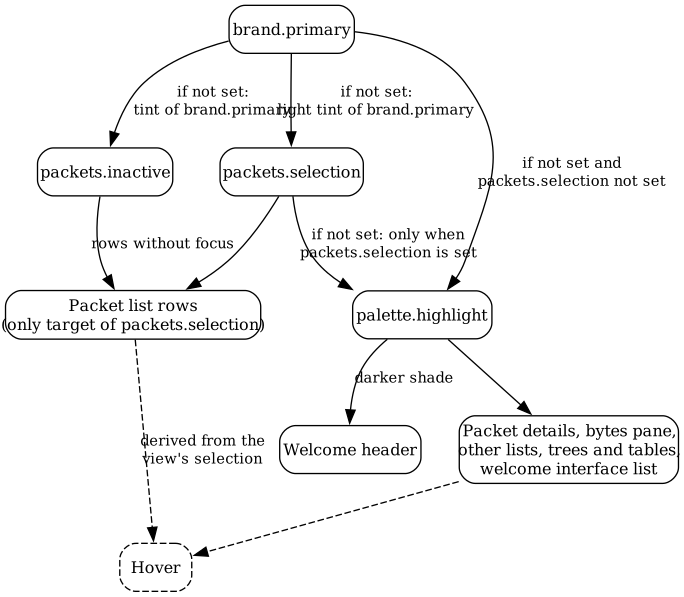
The consequence: in a theme that sets only brand.primary, the packet list selects with a pale tint of that color, while every other list selects with brand.primary itself.
To make all views use the same selection color, set packets.selection; palette.highlight then follows it.
To give the packet list a selection of its own, set palette.highlight as well; the packet list then uses packets.selection and every other view palette.highlight.
This example builds a green theme and shows why the packet list and the other lists can select in different greens, and how to make them match.
-
Open → → and click .
Name the theme
Forest Greenand click . Enter your name in Author. -
In the Colors tab, select
brand.primaryand set the light value to#2e7d32and the dark value to#2f6b35. Click . -
Look at the samples. In the Packet List sample, the selected packet is a pale green:
packets.selectionis auto, a light tint ofbrand.primary. In the Welcome Page sample, the header and the selected interface are full green:palette.highlightis auto: it followspackets.selectiononly when the theme sets it, so here it isbrand.primaryitself.
-
Click the selected packet in the Packet List sample.
The designer selects
packets.selection, which shows auto. Set its light value to#2e7d32and its dark value to#2f6b35, and click . -
Now the packet list selects in the same full green as the other lists, and the hover colors follow. The Welcome Page sample does not change:
palette.highlightnow followspackets.selection, which has the same green.
- Click to make the theme active.
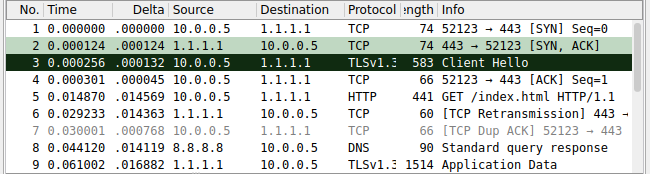
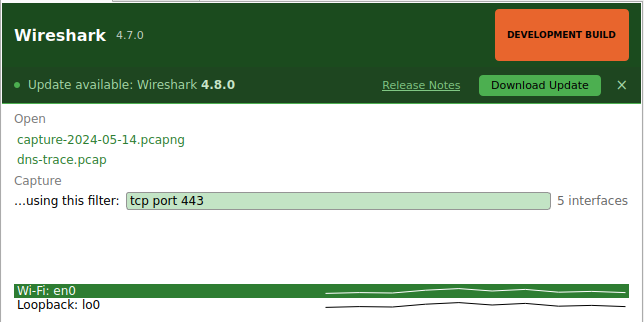
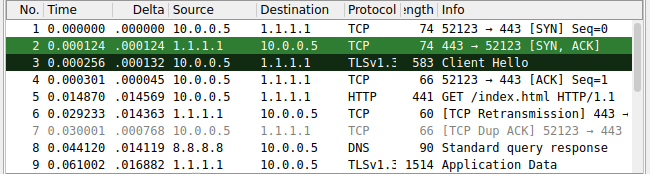
The Packet List sample paints its bytes pane in the packet list selection, while the packet bytes pane of the main window uses palette.highlight.
The saved file forest-green.jsonc in the personal themes folder looks like this:
// Forest Green
// Theme file for Wireshark and Stratoshark. Edit with View > Internals > Theme Designer.
{
    "meta": {
        "name": "Forest Green",
        "version": 1,
        "author": "Wireshark User"
    },
    "brand": {
        "primary": { "light": "#2e7d32", "dark": "#2f6b35" }
    },
    "accent": {
        "success": { "light": "#4caf50", "dark": "#8ae234" },
        "warning": { "light": "#e8652d", "dark": "#fcaf3e" },
        "error":   { "light": "#cc0000", "dark": "#ef2929" },
        "info":    { "light": "#3465a4", "dark": "#729fcf" }
    },
    "packets": {
        "selection": { "light": "#2e7d32", "dark": "#2f6b35" }
    }
}
The accent colors are the ones copied from the default theme.
To keep a packet list selection that differs from the other lists, for example one that suits your coloring rules, also set palette.highlight to the green and give packets.selection the color you want for the packet list.
The header of the Welcome Page has no color of its own and no gradient.
It is derived: a darker shade of the selection color of the palette (palette.highlight), kept apart from the window color and readable under its title.
The title is the selection text color when that is readable on the header, else black or white.
To change the header, change the color it follows: palette.highlight if the theme sets it, else packets.selection if the theme sets it, else brand.primary (see Section 11.7.4.1, “Selection and hover colors”).
In the designer, select the header color under Derived (read-only) or click the header in the Welcome Page sample, and use Go to.
Every color has a light and a dark value, and every edit changes only the side selected in Appearance. To review the other side, select Dark (or Light) in the designer; the samples switch to that side. This does not change the appearance mode of the application.
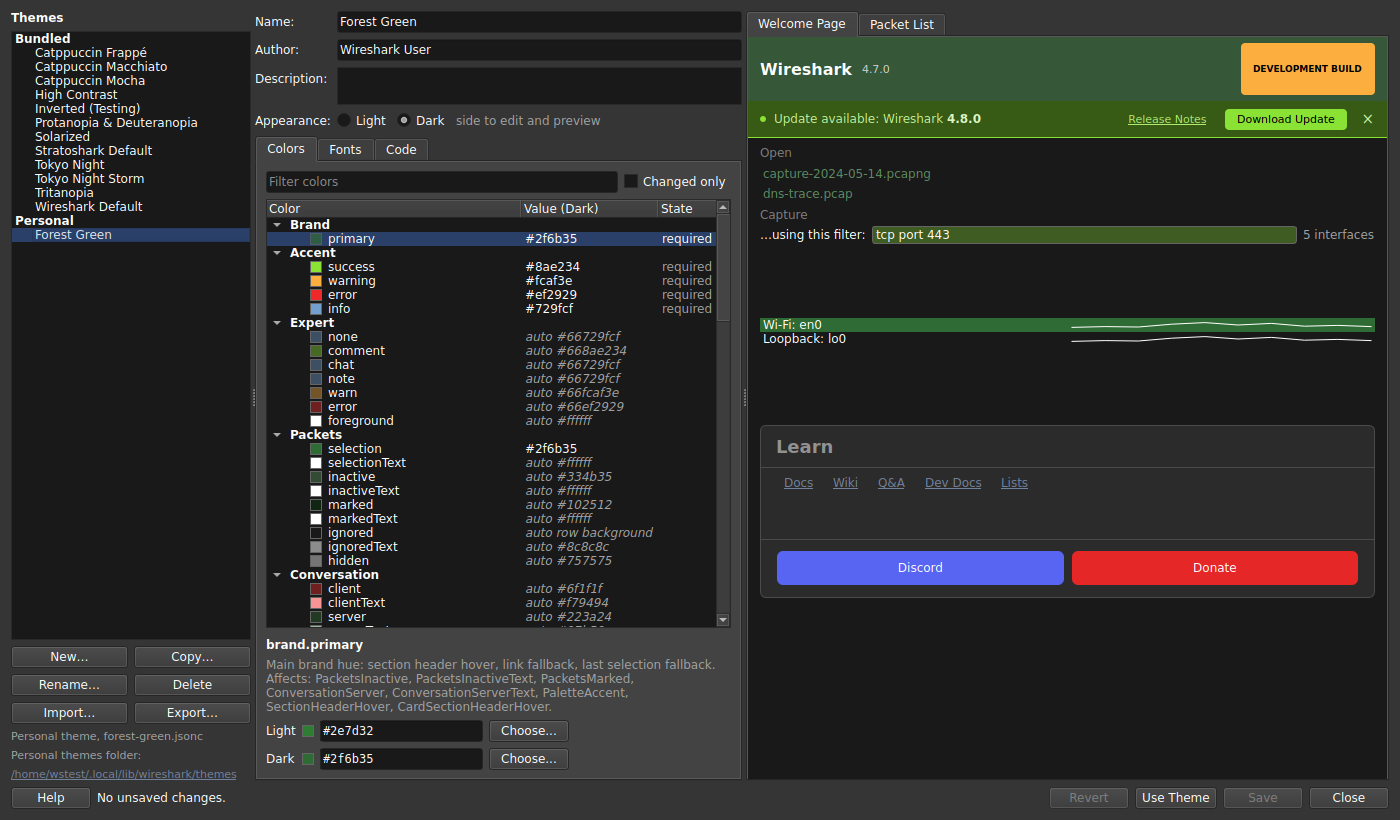
A color that reads well on a light background can be too bright or too dull on a dark one, so check both sides of every color you set. Then use the theme and set Appearance mode on the Theme preferences page to Light and to Dark to see it in the whole application.
Theme files are plain text and can be edited in any editor.
Personal theme files are in the personal themes folder (see Section 11.7.2.1, “Personal themes”).
A minimal theme contains the meta section and the required brand and accent colors:
{
    // Shown in the Theme setting
    "meta": { "name": "My Theme", "version": 1 },
    "brand": {
        "primary": { "light": "#1a73e8", "dark": "#8ab4f8" }
    },
    "accent": {
        "success": { "light": "#2e7d32", "dark": "#66bb6a" },
        "warning": { "light": "#ed6c02", "dark": "#ffa726" },
        "error":   { "light": "#d32f2f", "dark": "#f44336" },
        "info":    { "light": "#0288d1", "dark": "#29b6f6" }
    }
}
Every color is an object with a light and a dark value, written as #rrggbb or, with transparency, #aarrggbb.
Every other color can be added to its section; what you leave out is auto or derived.
The full list of colors and sections is in resources/themes/README.md and the JSON schema resources/themes/theme.schema.json in the Wireshark sources.
An editor that supports JSON schemas can use the schema to complete and check theme files.
Wireshark does not watch theme files for changes. The active theme is read at start and again each time the preferences are accepted with . The Theme Designer reads a theme file each time the theme is selected in its list.
- An import is refused
-
The file contains a value that is not a color, an unknown top-level section, or misses a required brand or accent color. The error dialog lists the reasons, one per line with the line number where there is one; fix the file and import it again. A section that is present but empty, such as
"accent": {}, is reported once for every required color it lacks, so one mistake can produce several lines.
- An import reports notes
-
Unknown colors inside a known section are skipped, and the import succeeds with “Imported with N notes.”; the notes are in the tool tip of the status line.
This happens for example with
brand.deepfrom older theme files, which is no longer a theme color. - A theme loads with problems
- A theme file that contains invalid entries still loads, and the invalid entries are left out when the theme is saved again. If the active theme cannot be loaded at all, Wireshark falls back to the default theme.
- A personal theme does not appear
- A personal theme whose file name (without .jsonc) equals the name of a bundled theme is ignored. Rename the file.
- is disabled
- The theme has unsaved changes, or it is already the active theme. Save or revert the changes first.
- My lists use different selection colors
- The packet list and the other views use different colors; see Section 11.7.4.1, “Selection and hover colors” and the example Section 11.7.4.2, “Example: a “Forest Green” theme”.
- The dark side looks wrong
- Every color has its own dark value; see Section 11.7.4.4, “Checking light and dark”.
- The title bar or the toolbars keep the system colors
-
Only macOS and Windows 11 tint the title bar, and only macOS the toolbars, and only for themes that set
palette.window(see Section 11.7.1, “How themes work”). - Which color is where?
- → → shows the colors of the active theme and how they were derived. In the Theme Designer, click the element in a sample (see Section 11.7.3.1, “Finding the color of an element”).