Table of Contents
- Preface
- I. Wireshark Build Environment
- 1. Introduction
- 2. Setup and Build Instructions
- 3. Work with the Wireshark sources
- 3.1. Introduction
- 3.2. The Wireshark Git repository
- 3.3. Browsing And Searching The Source Code
- 3.4. Obtaining The Wireshark Sources
- 3.5. Update Your Wireshark Sources
- 3.6. Build Wireshark
- 3.7. Run Your Version Of Wireshark
- 3.8. Debug Your Version Of Wireshark
- 3.9. Make Changes To The Wireshark Sources
- 3.10. Contribute Your Changes
- 3.11. Binary Packaging
- 3.12. Mime Types
- 4. Tool Reference
- 4.1. Introduction
- 4.2. Chocolatey
- 4.3. CMake
- 4.4. GNU Compiler Toolchain (UNIX And UNIX-like Platforms)
- 4.5. Microsoft compiler toolchain (Windows native)
- 4.6. Documentation Toolchain
- 4.7. Debugger
- 4.8. bash
- 4.9. Python
- 4.10. Flex
- 4.11. Git client
- 4.12. Git Powershell Extensions (Optional)
- 4.13. Git GUI Client (Optional)
- 4.14. Perl (Optional)
- 4.15. Windows: NSIS (Optional)
- 4.16. Windows: WiX Toolset (Optional)
- 4.17. Windows: PortableApps (Optional)
- 5. Library Reference
- 5.1. Introduction
- 5.2. Windows Automated Library Download
- 5.3. Qt
- 5.4. GLib And Supporting Libraries
- 5.5. c-ares
- 5.6. SMI (Optional)
- 5.7. zlib (Optional)
- 5.8. libpcap or Npcap (Optional, But Strongly Recommended)
- 5.9. GnuTLS (Optional)
- 5.10. Libgcrypt
- 5.11. Kerberos (Optional)
- 5.12. Lua (Optional)
- 5.13. MaxMindDB (Optional)
- 5.14. WinSparkle (Optional)
- II. Wireshark Development
- 6. Introduction
- 7. How Wireshark Works
- 8. Packet Capture
- 9. Packet Dissection
- 10. Wiretap
- 11. Plugins
- 12. Lua Support in Wireshark
- 13. Wireshark’s Lua API Reference Manual
- 13.1. Utility Functions
- 13.2. GUI Support
- 13.3. Functions For New Protocols And Dissectors
- 13.4. Obtaining Dissection Data
- 13.5. Obtaining Packet Information
- 13.6. Functions For Handling Packet Data
- 13.7. Adding Information To The Dissection Tree
- 13.8. Post-Dissection Packet Analysis
- 13.9. Saving Capture Files
- 13.10. Wtap Functions For Handling Capture File Types
- 13.11. Custom File Format Reading And Writing
- 13.12. Directory Handling Functions
- 13.13. Handling 64-bit Integers
- 13.14. Binary encode/decode support
- 13.15. Gcrypt symmetric cipher functions
- 13.16. PCRE2 Regular Expressions
- 13.17. Bitwise Operations
- 14. Lua Debugger
- 15. User Interface
- 16. Wireshark Tests
- 17. Creating ASN.1 Dissectors
- 17.1. About ASN.1
- 17.2. ASN.1 Dissector Requirements
- 17.3. Understanding Error Messages
- 17.4. Hand-Massaging The ASN.1 File
- 17.5. Command Line Syntax
- 17.6. Generated Files
- 17.7. Step By Step Instructions
- 17.8. Hints For Using Asn2wrs
- 17.9. Simple ASN.1-Based Dissector
- 17.10. Conformance (.cnf) Files
- 17.11. Conformance File Directive Reference
- 18. This Document’s License (GPL)
List of Figures
List of Tables
Table of Contents
This book tries to give you a guide to start your own experiments into the wonderful world of Wireshark development.
Developers who are new to Wireshark often have a hard time getting their development environment up and running. This is especially true for Windows developers, as a lot of the tools and methods used when building Wireshark are much more common in the UNIX world than on Windows.
The first part of this book will describe how to set up the environment needed to develop Wireshark.
The second part of this book will describe how to change the Wireshark source code.
We hope that you find this book useful, and look forward to your comments.
The intended audience of this book is anyone going into the development of Wireshark.
This book is not intended to explain the usage of Wireshark in general. Please refer the Wireshark User’s Guide about Wireshark usage.
By reading this book, you will learn how to develop Wireshark. It will hopefully guide you around some common problems that frequently appear for new (and sometimes even advanced) developers of Wireshark.
The authors would like to thank the whole Wireshark team for their assistance. In particular, the authors would like to thank:
- Gerald Combs, for initiating the Wireshark project.
- Guy Harris, for many helpful hints and his effort in maintaining the various contributions on the mailing lists.
-
Frank Singleton from whose
README.idl2wrsSection 9.8, “idl2wrs: Creating dissectors from CORBA IDL files” is derived.
The authors would also like to thank the following people for their helpful feedback on this document:
- XXX - Please give feedback :-)
And of course a big thank you to the many, many contributors of the Wireshark development community!
This book was developed by Ulf Lamping, updated for VS2013 by Graham Bloice, and updated for later versions of Visual Studio by various contributors.
It is written in AsciiDoc.
The latest copy of this documentation can always be found at https://www.wireshark.org/docs/wsdg_html_chunked/.
Should you have any feedback about this document, please send it to the authors through wireshark-dev[AT]wireshark.org.
The following table shows the typographic conventions that are used in this guide.
Table 1. Typographic Conventions
| Style | Description | Example |
|---|---|---|
Italic |
File names, folder names, and extensions |
C:\Development\wireshark. |
|
Commands, flags, and environment variables |
CMake’s |
|
Commands that should be run by the user |
Run |
Dialog and window buttons |
Press to go to the Moon. |
|
Key |
Keyboard shortcut |
Press Ctrl+Down to move to the next packet. |
Menu item |
Select → to move to the next packet. |
Important and notable items are marked as follows:
![[Warning]](images/warning.svg) |
This is a warning |
|---|---|
|
You should pay attention to a warning, otherwise data loss might occur. |
![[Caution]](images/caution.svg) |
This is a caution |
|---|---|
|
Act carefully (i.e., exercise care). |
![[Important]](images/important.svg) |
This is important information |
|---|---|
|
RTFM - Read The Fine Manual |
![[Tip]](images/tip.svg) |
This is a tip |
|---|---|
|
Tips are helpful for your everyday work using Wireshark. |
![[Note]](images/note.svg) |
This is a note |
|---|---|
|
A note will point you to common mistakes and things that might not be obvious. |
Bourne shell, normal user.
$ # This is a comment
$ git config --global log.abbrevcommit true
Bourne shell, root user.
# # This is a comment
# ninja install
Command Prompt (cmd.exe).
>rem This is a comment
>cd C:\Development
PowerShell.
PS$># This is a comment
PS$> choco list -l
C Source Code.
#include "config.h"

/* This method dissects foos */
static int
dissect_foo_message(tvbuff_t *tvb, packet_info *pinfo _U_, proto_tree *tree _U_, void *data _U_)
{
    /* TODO: implement your dissecting code */
    return tvb_captured_length(tvb);
}
The first part describes how to set up the tools, libraries and sources needed to generate Wireshark and how to do some typical development tasks.
Table of Contents
- 1. Introduction
- 2. Setup and Build Instructions
- 3. Work with the Wireshark sources
- 3.1. Introduction
- 3.2. The Wireshark Git repository
- 3.3. Browsing And Searching The Source Code
- 3.4. Obtaining The Wireshark Sources
- 3.5. Update Your Wireshark Sources
- 3.6. Build Wireshark
- 3.7. Run Your Version Of Wireshark
- 3.8. Debug Your Version Of Wireshark
- 3.9. Make Changes To The Wireshark Sources
- 3.10. Contribute Your Changes
- 3.11. Binary Packaging
- 3.12. Mime Types
- 4. Tool Reference
- 4.1. Introduction
- 4.2. Chocolatey
- 4.3. CMake
- 4.4. GNU Compiler Toolchain (UNIX And UNIX-like Platforms)
- 4.5. Microsoft compiler toolchain (Windows native)
- 4.6. Documentation Toolchain
- 4.7. Debugger
- 4.8. bash
- 4.9. Python
- 4.10. Flex
- 4.11. Git client
- 4.12. Git Powershell Extensions (Optional)
- 4.13. Git GUI Client (Optional)
- 4.14. Perl (Optional)
- 4.15. Windows: NSIS (Optional)
- 4.16. Windows: WiX Toolset (Optional)
- 4.17. Windows: PortableApps (Optional)
- 5. Library Reference
- 5.1. Introduction
- 5.2. Windows Automated Library Download
- 5.3. Qt
- 5.4. GLib And Supporting Libraries
- 5.5. c-ares
- 5.6. SMI (Optional)
- 5.7. zlib (Optional)
- 5.8. libpcap or Npcap (Optional, But Strongly Recommended)
- 5.9. GnuTLS (Optional)
- 5.10. Libgcrypt
- 5.11. Kerberos (Optional)
- 5.12. Lua (Optional)
- 5.13. MaxMindDB (Optional)
- 5.14. WinSparkle (Optional)
Table of Contents
Well, if you want to start Wireshark development, you might already know what Wireshark is doing. If not, please have a look at the Wireshark User’s Guide, which will provide a lot of general information about it.
Wireshark currently runs on most UNIX-like platforms and various Windows platforms. It requires Qt, GLib, libpcap and some other libraries in order to run.
As Wireshark is developed in a platform independent way and uses libraries (such as the Qt GUI library) which are available for many different platforms, it’s thus available on a wide variety of platforms.
If a binary package is not available for your platform, you should download the source and try to build it. Please report your experiences to wireshark-dev[AT]wireshark.org.
Binary packages are available for the following platforms along with many others:
- Apple macOS
- FreeBSD
- HP-UX
- IBM AIX
- NetBSD
- OpenBSD
- Oracle Solaris
Wireshark supports Windows natively via the Windows API. Note that in this documentation and elsewhere we tend to use the terms “Win32”, “Win”, and “Windows” interchangeably to refer to the Windows API. “Win64” refers to the Windows API on 64-bit platforms. Wireshark runs on and can be compiled on the following Windows versions:
- Windows 11 / Windows Server 2022
- Windows 10 / Windows Server 2016 / Windows Server 2019
- Windows 8.1 / Windows Server 2012 R2
- Windows 8 / Windows Server 2012
Development on Windows 7, Server 2008 R2, Vista, Server 2008, and older versions may be possible but is not supported.
Some versions of Windows support case sensitive directories. We don’t officially support building or running Wireshark in this environment, but we will accept patches to fix any issues that might arise.
Wireshark was initially developed by Gerald Combs. Ongoing development and maintenance of Wireshark is handled by the Wireshark core developers, a loose group of individuals who fix bugs and provide new functionality.
There have also been a large number of people who have contributed protocol dissectors and other improvements to Wireshark, and it is expected that this will continue. You can find a list of the people who have contributed code to Wireshark by checking the About dialog box of Wireshark, or have a look at the https://www.wireshark.org/about.html#authors page on the Wireshark web site.
The communication between the developers is usually done through the developer mailing list, which can be joined by anyone interested in the development activities. At the time this document was written, more than 500 persons were subscribed to this mailing list!
It is strongly recommended to join the developer mailing list, if you are going to do any Wireshark development. See Section 1.7.6, “Mailing Lists” about the different Wireshark mailing lists available.
Most of Wireshark is implemented in C. A notable exception is the code in ui/qt, which is written in C++.
The typical task for a new Wireshark developer is to extend an existing dissector, or write a new dissector for a specific network protocol. Most dissectors are written in C11, so a good knowledge of C will be sufficient for Wireshark development in almost any case. Dissectors can also be written in Lua, which might be more suitable for your specific needs. As noted above, if you’re going to modify Wireshark’s user interface you will need a knowledge of C++.
Modifying the build system and support tooling might requires knowledge of CMake, Python, PowerShell, Bash, or Perl. Note that these are required to build Wireshark, but not to run it. If Wireshark is installed from a binary package, none of these helper tools are needed on the target system.
Wireshark is an open source software (OSS) project, and is released under the GNU General Public License (GPL). You can freely use Wireshark on any number of computers you like, without worrying about license keys or fees or such. In addition, all source code is freely available under the GPL. Because of that, it is very easy for people to add new protocols to Wireshark, either as plugins, or built into the source, and they often do!
You are welcome to modify Wireshark to suit your own needs, and it would be appreciated if you contribute your improvements back to the Wireshark community.
You gain three benefits by contributing your improvements back to the community:
- Other people who find your contributions useful will appreciate them, and you will know that you have helped people in the same way that the developers of Wireshark have helped you and other people.
- The developers of Wireshark might improve your changes even more, as there’s always room for improvement. Or they may implement some advanced things on top of your code, which can be useful for yourself too.
- The maintainers and developers of Wireshark will maintain your code as well, fixing it when API changes or other changes are made, and generally keeping it in tune with what is happening with Wireshark. So if Wireshark is updated (which is done often), you can get a new Wireshark version from the website and your changes will already be included without any effort for you.
The Wireshark source code and binary packages for some platforms are all available on the download page of the Wireshark website: https://www.wireshark.org/download.html.
Official Wireshark releases can be found at https://www.wireshark.org/download.html. Minor releases typically happen every six weeks and typically include bug fixes and security updates. Major releases happen about once a year and include new features and new protocol support. Official releases include binary packages for Windows and macOS along with source code.
The Wireshark development team would like to make it as easy as possible for people to obtain and use Wireshark. This means that we need to support the software installation systems that different operating systems provide. We currently offer the following types of precompiled packages as part of each official release:
- Windows .exe installer. This is an executable file that installs Wireshark, and optionally Npcap and USBPcap, created using NSIS. It is the most popular installation method on Windows.
- Windows PortableApps .paf.exe file. This is a self-contained package that can be run from anywhere, either standalone or under the PortableApps.com Platform.
- Windows .msi installer. This installs Wireshark using Microsoft’s Installer Database, created using the WiX toolset. It does not yet include Npcap or USBPcap and is somewhat experimental.
- macOS .dmg. This is a disk image which includes a drag-installable Wireshark application bundle along with utility packages for installing ChmodBPF and adding Wireshark to your PATH environment variable.
Most Linux and UNIX distributions have their own packaging systems which usually include Wireshark. The Wireshark sources include support for creating the following types of packages:
- Debian .deb files. Packaging assets can be found in the debian directory in the Wireshark sources.
- Red Hat .rpm files. Packaging assets can be found in the packaging/rpm directory in the Wireshark sources.
You can also create your own binary packages. See Section 3.11, “Binary Packaging” for details.
Wireshark is and will always be open source. You’re welcome to download a source tarball, build it, and modify it under the terms of the GPLv2. However, it’s usually much easier to use a binary package if you want to get up and running quickly in a production environment.
Source tarballs are commonly used for building the binary packages for UNIX and UNIX-like platforms. However, if you are going to modify the Wireshark sources, e.g. to contribute changes back or to develop an in-house version of Wireshark we recommend that you use the latest Git sources. For details about the different ways to get the Wireshark source code see Section 3.4, “Obtaining The Wireshark Sources”.
Before building Wireshark from a source distribution, make sure you have all the tools and libraries required to build. Later chapters describe the required tools and libraries in detail.
The Wireshark development team uses GitLab’s continuous integration (CI) system to automatically build Wireshark for each Git merge request and commit. Automated builds provide several useful services:
- Cross-platform testing. Inbound merge requests and commits can be tested on each of our supported platforms, which ensures that a developer on one platform doesn’t break the build on other platforms.
- A health indicator for the source code. The CI badges at https://gitlab.com/wireshark/wireshark can quickly tell you how healthy the latest code is. Green is good, red is bad.
- Fast code delivery. After a change is committed to the repository, an installer is usually available within an hour at https://www.wireshark.org/download/automated/. This can be quite helpful for resolving issues, e.g. a bug reporter can easily verify a bugfix by installing a recent build.
- Automated regression tests. We run a comprehensive test suite as part of each build and continuously run fuzz tests that try to crash the dissection engine.
GitLab’s CI operates by running a series of steps and reporting success or failure. A typical CI job might do the following:
- Check out Wireshark from the source repository.
- Build Wireshark.
- Create a source tarball, binary package, or installer.
- Run regression tests.
GitLab’s CI marks successful jobs with a green checkmark and failed jobs with a red “X”. Jobs provide a link to the corresponding console logfile which provides additional information.
Release packages are built on the following platforms:
- Windows Server 2022 x64, Visual Studio 2022
- Windows 11 Arm64, Visual Studio 2022
- Ubuntu 24.04 x64, gcc and clang
- macOS x64, clang
- macOS Arm64, clang
Static code analysis and fuzz tests are run on the following platforms:
- Visual Studio Code Analysis, Visual Studio 2022
- Clang Code Analysis, Coverity Scan, and fuzz tests, clang
If you have problems, or need help with Wireshark, there are several places that may be of interest to you (well, beside this guide of course).
You will find lots of useful information on the Wireshark homepage at https://www.wireshark.org/.
The Wireshark Wiki at https://wiki.wireshark.org/ provides a wide range of information related to Wireshark and packet capturing in general. You will find a lot of information not part of this developer’s guide. For example, there is an explanation how to capture on a switched network, an ongoing effort to build a protocol reference and a lot more.
And best of all, if you would like to contribute your knowledge on a specific topic (maybe a network protocol you know well), you can edit the Wiki pages by simply using your webbrowser.
The "Frequently Asked Questions" will list often asked questions and the corresponding answers.
Before sending any mail to the mailing lists below, be sure to read the FAQ, as it will often answer any questions you might have. This will save yourself and others a lot of time. Keep in mind that a lot of people are subscribed to the mailing lists.
You will find the FAQ inside Wireshark by clicking the menu item Help/Contents and selecting the FAQ page in the upcoming dialog.
An online version is available at the Wireshark website: https://www.wireshark.org/faq.html. You might prefer this online version as it’s typically more up to date and the HTML format is easier to use.
If you don’t find the information you need inside this book, there are various other sources of information:
- The file doc/README.developer and all the other README.xxx files in the source code. These are various documentation files on different topics.
|
Read the README |
|---|---|
|
README.developer is packed full with all kinds of details relevant to the developer of Wireshark source code. Its companion file README.dissector advises you around common pitfalls, shows you basic layout of dissector code, shows details of the APIs available to the dissector developer, etc. |
- The Wireshark source code
- Tool documentation of the various tools used (e.g. manpages of sed, gcc, etc.)
- The different mailing lists. See Section 1.7.6, “Mailing Lists”
The Wireshark Q&A site at https://ask.wireshark.org/ offers a resource where questions and answers come together. You have the option to search what questions were asked before and what answers were given by people who knew about the issue. Answers are graded, so you can pick out the best ones easily. If your issue isn’t discussed before you can post one yourself.
There are several mailing lists available on specific Wireshark topics:
- wireshark-announce
- This mailing list will inform you about new program releases, which usually appear about every 4-8 weeks.
- wireshark-users
- This list is for users of Wireshark. People post questions about building and using Wireshark, others (hopefully) provide answers.
- wireshark-dev
- This list is for Wireshark developers. People post questions about the development of Wireshark, others (hopefully) provide answers. If you want to start developing a protocol dissector, join this list.
- wireshark-bugs
- This list is for Wireshark developers. Every time a change to the bug database occurs, a mail to this mailing list is generated. If you want to be notified about all the changes to the bug database, join this list. Details about the bug database can be found in Section 1.7.7, “Bug Database (GitLab Issues)”.
- wireshark-commits
- This list is for Wireshark developers. Every time a change to the Git repository is checked in, a mail to this mailing list is generated. If you want to be notified about all the changes to the Git repository, join this list. Details about the Git repository can be found in Section 3.2, “The Wireshark Git repository”.
You can subscribe to each of these lists from the Wireshark web site: https://www.wireshark.org/lists/. From there, you can choose which mailing list you want to subscribe to by clicking on the Subscribe/Unsubscribe/Options button under the title of the relevant list. The links to the archives are included on that page as well.
|
The archives are searchable |
|---|---|
|
You can search in the list archives to see if someone previously asked the same question and maybe already got an answer. That way you don’t have to wait until someone answers your question. |
The Wireshark community collects bug reports in an issues database at https://gitlab.com/wireshark/wireshark/-/issues. This database is filled with manually filed bug reports, usually after some discussion on wireshark-dev, and automatic bug reports from continuous integration jobs.
|
Test with the latest version |
|---|---|
|
Before reporting any problems, please make sure you have installed the latest version of Wireshark. Reports on older maintenance releases are usually met with an upgrade request. |
If you report problems, provide as much information as possible. In general, just think about what you would need to find that problem, if someone else sends you such a problem report. Also keep in mind that people compile/run Wireshark on a lot of different platforms.
When reporting problems with Wireshark, it is helpful if you supply the following information:
-
The version number of Wireshark and the dependent libraries linked with
it, e.g. Qt, GLib, etc. You can obtain this with the command
wireshark -v. - Information about the platform you run Wireshark on.
- A detailed description of your problem.
- If you get an error/warning message, copy the text of that message (and also a few lines before and after it, if there are some), so others may find the build step where things go wrong. Please don’t give something like: "I get a warning when compiling x" as this won’t give any direction to look at.
|
Don’t send large files |
|---|---|
|
Do not send large files (>100KB) to the mailing lists, just place a note that further data is available on request. Large files will only annoy a lot of people on the list who are not interested in your specific problem. If required, you will be asked for further data by the persons who really can help you. |
|
Don’t send confidential information |
|---|---|
|
If you send captured data to the mailing lists, or add it to your bug report, be sure it doesn’t contain any sensitive or confidential information, such as passwords. Visibility of such files can be limited to certain groups in the GitLab Issues database by marking the issue confidential. |
When reporting crashes with Wireshark, it is helpful if you supply the traceback information (besides the information mentioned in Section 1.7.8, “Reporting Problems”).
You can obtain this traceback information with the following commands:
$ gdb `whereis wireshark | cut -f2 -d: | cut -d' ' -f2` core >& bt.txt
backtrace
^D
$
|
Using GDB |
|---|---|
|
Type the characters in the first line verbatim. Those are back-tics there.
If you do not have |
You should mail the traceback to wireshark-dev[AT]wireshark.org or attach it to your bug report.
You can download Windows debugging symbol files (.pdb) from the following locations:
- 64-bit Windows: https://www.wireshark.org/download/win64/all-versions/
Files are named "Wireshark-pdb-winbits-x.y.z.zip" to match their corresponding "Wireshark-winbits-x.y.z.exe" installer packages.
Table of Contents
If you want a guided setup for dependencies and git hooks, run the helper scripts in the source tree root:
-
Linux:
tools/setup-dev.shconfigures the commit template and hooks, then offers to run the distro-specific install script (Debian-based by default; Alpine, Arch, and RPM-based distros are auto-detected when possible). -
macOS:
tools/setup-dev.shconfigures hooks and asks whether to run the Homebrew setup (tools/macos-setup-brew.sh, default) or the non-Homebrew script (tools/macos-setup.sh). -
Windows / MSYS2 / MinGW: use
tools/setup-dev.ps1(PowerShell) to configure hooks; follow Section 2.3, “Windows” for platform setup details.
The following must be installed in order to build Wireshark:
- A C compiler and a C++ compiler;
- The Flex lexical analyzer;
- Python 3;
- CMake;
- Several required libraries.
Either make or Ninja can be used to build Wireshark; at least one of those must be installed.
To build the manual pages, Developer’s Guide and User’s Guide, Asciidoctor, Xsltproc, and DocBook must be installed.
Perl is required to generate some code and run some code analysis checks.
Some features of Wireshark require additional libraries to be installed. The processes for doing so on various UN*X families is shown here.
There are shell scripts in the tools directory to install the packages
and libraries required to build Wireshark. Usage is available with the
--help option. root permission is required to run the scripts.
The available scripts and their options for a given family of UN*Xes are
shown in the section for that family.
Alpine Linux
The setup script is tools/alpine-setup.sh; its options are:
-
--install-optionalinstall optional software as well -
--install-allinstall everything -
[other]other options are passed as-is to apk
Arch Linux and pacman-based systems
The setup script is tools/arch-setup.sh; its options are:
-
--install-optionalinstall optional software as well -
--install-test-depsinstall packages required to run all tests -
--install-allinstall everything -
[other]other options are passed as-is to pacman
BSD systems such as FreeBSD, NetBSD, OpenBSD, and DragonFly BSD
The setup script is tools/bsd-setup.sh; its options are:
-
--install-optionalinstall optional software as well -
[other]other options are passed as-is to pkg manager
Debian, and Linux distributions based on Debian, such as Ubuntu
The setup script is tools/debian-setup.sh; its options are:
-
--install-optionalinstall optional software as well -
--install-deb-depsinstall packages required to build the .deb file -
--install-test-depsinstall packages required to run all tests -
--install-qt6-depsforce installation of packages required to use Qt6 -
--install-allinstall everything -
[other]other options are passed as-is to apt
RPM-based Linux distributions such as Red Hat, Centos, Fedora, and openSUSE
The setup script is tools/rpm-setup.sh; its options are:
-
--install-optionalinstall optional software as well -
--install-rpm-depsinstall packages required to build the .rpm file -
--install-qt6-depsforce installation of packages required to use Qt6 -
--install-allinstall everything -
[other]other options are passed as-is to the packet manager
macOS
You must first install Xcode.
As with Windows we provide pre-built third party libraries which will be automatically installed if you set the WIRESHARK_BASE_DIR CMake variable to a directory that is writable by you, such as /opt/wireshark-third-party or wireshark-libraries at the same level as your Wireshark source code directory.
We recommend this instead of using Homebrew’s libraries, since it’s easy, it’s what we use to create the official packages, and our pre-built libraries are universal and support older versions of macOS.
You can use tools/macos-setup-brew.sh to install CMake, Ninja, and other tools required to build Wireshark using the Homebrew package manager, and optionally to install third party libraries as an alternative to setting WIRESHARK_BASE_DIR.
-
--install-requiredinstall third party libraries required to build Wireshark. Not needed if you setWIRESHARK_BASE_DIR. -
--install-optionalinstall optional third party libraries. Not needed if you setWIRESHARK_BASE_DIR. -
--install-dmg-depsinstall packages required to build the .dmg file -
--install-sparkle-depsinstall the Sparkle automatic updater. Not needed if you setWIRESHARK_BASE_DIR. -
--install-allinstall everything -
--install-stratosharkinstall libraries required to build Stratoshark and the Falco Events plugin -
[other]other options are passed as-is to brew
Running tools/macos-setup-brew.sh with no options will install CMake, Ninja, pgkconf, and ccache.
In the past, tools/macos-setup.sh could be used to build third party libraries locally.
It is now deprecated, and can only be used to install the tools required to build Wireshark or to remove any previously installed libraries.
It supports the following options:
-
-ndry run; don’t build or install any tools -
-pspecify the installation prefix; /usr/local is the default -
-uuninstall packages
You will also have to install Qt 6. To install Qt, go to the Download Qt for open source use page, select “macOS” if it’s not already selected, and then select “Qt online installer for macOS“. This will download a .dmg for the installer; launch the installer. It will require that you log into your Qt account; if you don’t have an account, select “Sign up“ to create one. The next page will require you to accept the LGPL (Lesser GNU Public License); do so. Continue to the “Installation Folder“ page of the installer screen, and select the “Custom installation“ option. On the “Select Components“ screen of the installer, select your desired Qt version. We recommend using the same Qt version used to build the official Wireshark packages, which at the time of this writing is Qt 6.10.3. Select the following components:
- Desktop
- Qt 5 Compatibility Module
- Qt Debug Information Files (contains dSYM files which can be used for debugging)
Optionally, under "Additional Libraries" also select the following components:
- Qt Multimedia (to support advanced controls for playing back streams in the RTP Player dialog)
You can deselect all of the other the components such as “Qt Charts” or “Android xxxx” as they aren’t required.
If you don’t want register for the Qt Online Installer for macOS, you can install Qt from the command line using Another (unofficial) Qt CLI Installer. The AQt command to install Qt and the modules recommended above would look something like the following:
aqt install-qt mac desktop 6.10.3 clang_64 --modules qt5compat qtmultimedia debug_info
Before building:
On macOS, you will need to set the Qt installation directory in the environment:
CMAKE_PREFIX_PATH=/Users/your_username/Qt/6.10.3/macos
export CMAKE_PREFIX_PATH
If you want to append a custom string to the package version, run the command
WIRESHARK_VERSION_EXTRA=-YourExtraVersionInfo
export WIRESHARK_VERSION_EXTRA
The recommended (and fastest) way to build Wireshark is with CMake and Ninja. Building with make took nearly 2x time as Ninja in one experiment.
CMake builds are best done in a separate build directory, such as a
build subdirectory of the top-level source directory.
|
Tip |
|---|---|
|
Wireshark ships a |
If that directory is a subdirectory of the top-level source directory, to generate the build files, change to the build directory and enter the following command:
cmake ..
to use make as the build tool or
cmake -G Ninja ..
to use Ninja as the build tool.
If you created the build directory in the same directory that contains the top-level Wireshark source directory, to generate the build files, change to the build directory and enter the following command:
cmake ../{source directory}
to use make as the build tool or
cmake -G Ninja ../{source directory}
to use Ninja as the build tool.
{source directory} is the name of the
top-level Wireshark source directory.
If you need to build with a non-standard configuration, you can run
cmake -LH ../{source directory}
to see what options you have. Some notable options include:
| Option | Description |
|---|---|
|
Inject custom welcome page banner slides at build time. See Section 15.3, “Welcome Page Banner Slides”. |
You can then run Ninja or make to build Wireshark.
ninja
# or
make
Once you have build Wireshark with ninja or make above, you should be able to test it
by entering run/wireshark.
Install Wireshark in its final destination:
make install
Once you have installed Wireshark with make install above, you should be able
to run it by entering wireshark.
To build the Wireshark User’s Guide and the Wireshark Developer’s Guide,
build the all_guides target, e.g. make all_guides or ninja
all_guides. Detailed information to build these guides can be found in
the file doc/README.documentation.adoc in the Wireshark sources.
You can create packages using the following build targets and commands:
- Source code tarball
-
Build the
disttarget. - deb (Debian) package
-
Create a symlink named debian in the top-level source directory to packaging/debian, then run
dpkg-buildpackage. - RPM package
-
Build the
wireshark_rpmtarget. - AppImage package
-
Build the
wireshark_appimagetarget. - macOS .dmg package containing an application bundle
-
Build the
wireshark_dmgorstratoshark_dmgtargets.
Installable packages typically require building Wireshark first.
A number of errors can occur during the build and installation process. Some hints on solving these are provided here.
If the cmake stage fails you will need to find out why. You can check the
file CMakeOutput.log and CMakeError.log in the build directory to find
out what failed. The last few lines of this file should help in determining the
problem.
The standard problems are that you do not have a required development package on your system or that the development package isn’t new enough. Note that installing a library package isn’t enough. You need to install its development package as well.
If you cannot determine what the problems are, send an email to the
wireshark-dev mailing list explaining your problem. Include the output from
cmake and anything else you think is relevant such as a trace of the
make stage.
A quick setup guide for Windows development with recommended configurations.
|
Warning |
|---|---|
|
Unless you know exactly what you are doing, you should strictly follow the recommendations below. They are known to work and if the build breaks, please re-read this guide carefully. Known traps are:
|
While this is a huge download, the Community Editions of Visual Studio are free (as in beer) and include the (great) Visual Studio integrated debugger. Visual Studio is also used to create official Wireshark builds for Windows, so it will likely have fewer development-related problems.
Download and install “Microsoft Visual Studio 2026 Community Edition”. The examples below are for Visual Studio 2026 but can be adapted for Visual Studio 2022 or 2019.
Check the checkbox for “Desktop development with C++”. The default component list is fine. You may uncheck components that you don’t require, but keep at least:
- “MSVC Build Tools for x64/x86 (Latest)”
- “Windows 11 SDK (XXXXX)”
- “C++ CMake tools for Windows”
It might be possible to build Wireshark using clang-cl, but this has not been tested. Compiling with plain gcc or Clang is not recommended and will certainly not work (at least not without a lot of advanced tweaking). For further details on this topic, see Section 4.4, “GNU Compiler Toolchain (UNIX And UNIX-like Platforms)”. This may change in future as releases of Visual Studio add more cross-platform support.
Get a Python 3 installer from https://python.org/download/ and install Python. Its installation location varies depending on the options selected in the installer and on the version of Python that you are installing.
The official command-line installer is available at https://git-scm.com/download/win.
While installing, select :
- (recommended) Select components : Uncheck "Windows integration"
- Adjusting your PATH environment : Git from the command line and also from 3rd-party software. Do not select the Use Git and optional Unix tools from the Windows Command Prompt option.
- (recommended) Choosing the SSH executable : Use external OpenSSH
- (recommended) Choosing HTTPS transport backend : Use the native Windows Secure Channel library
- (recommended) Configure the line ending conversions : Checkout Windows-style, commit Unix-style line endings
- Configuring the terminal emulator : Use Windows' default console window
- (recommended) Choose a credential helper : None
The main Wireshark application uses the Qt windowing toolkit.
|
Qt’s LTS branch |
|---|---|
|
As of of Qt 6, the Qt Company does not provide binary packages of Long Term Support (LTS) releases for open source use, and source packages are provided at a one year delay from the commercial LTS release. Thus the LTS branch is likely not an available option. To avoid unexpected bugs and regressions, we generally recommend using the same version of Qt used in the official Wireshark packages. For the current stable release at the time of this writing, that is 6.10.3. If you use another version, note that the last patch release of a Qt minor version is generally more stable than the first release of the next minor version, e.g. Qt 6.9.3 vs 6.10.0. |
Using the official Qt installer (see Section 2.3.1.4.2, “Install Qt using the official installer”) requires creating an account. A workaround is to use Another (unofficial) Qt CLI Installer instead.
You can choose installation folder of Qt. In the following example, we’re using C:\Development\Qt
mkdir C:\Development\Qt
cd C:\Development\Qt
curl.exe -LOJ https://github.com/miurahr/aqtinstall/releases/download/v3.3.0/aqt_x64.exe
.\aqt_x64.exe install-qt windows desktop 6.10.3 win64_msvc2022_64 -m qt5compat debug_info qtmultimedia
Go to the "Download Qt for open source use” page, select "Download the Qt Online Installer" in the "Looking for Qt Binaries" section, select "Windows x86" or "Windows ARM64" as appropriate for your system, and download "Qt Online Installer for Windows (x64)" or "Qt Online Installer for Windows (ARM64)". When executing it, sign up or log in, and use Next button to proceed. When you are asked to select packages to be installed, select "Custom installation".
In the "Select Components" page, select your desired Qt version. We recommend using the same Qt version shipped with the Windows installers for the current stable Wireshark release, which at the time of this writing is Qt 6.10.3. Select the following components:
- MSVC 2022 64-bit or MSVC 2022 ARM64
- Qt 5 Compatibility Module
- Qt Debug Information Files (contains PDB files which can be used for debugging)
Optionally, under "Additional Libraries" also select the following components:
- Qt Multimedia (to support advanced controls for playing back streams in the RTP Player dialog)
You can deselect all of the other the components such as “Qt Charts” or “Android xxxx” as they aren’t required.
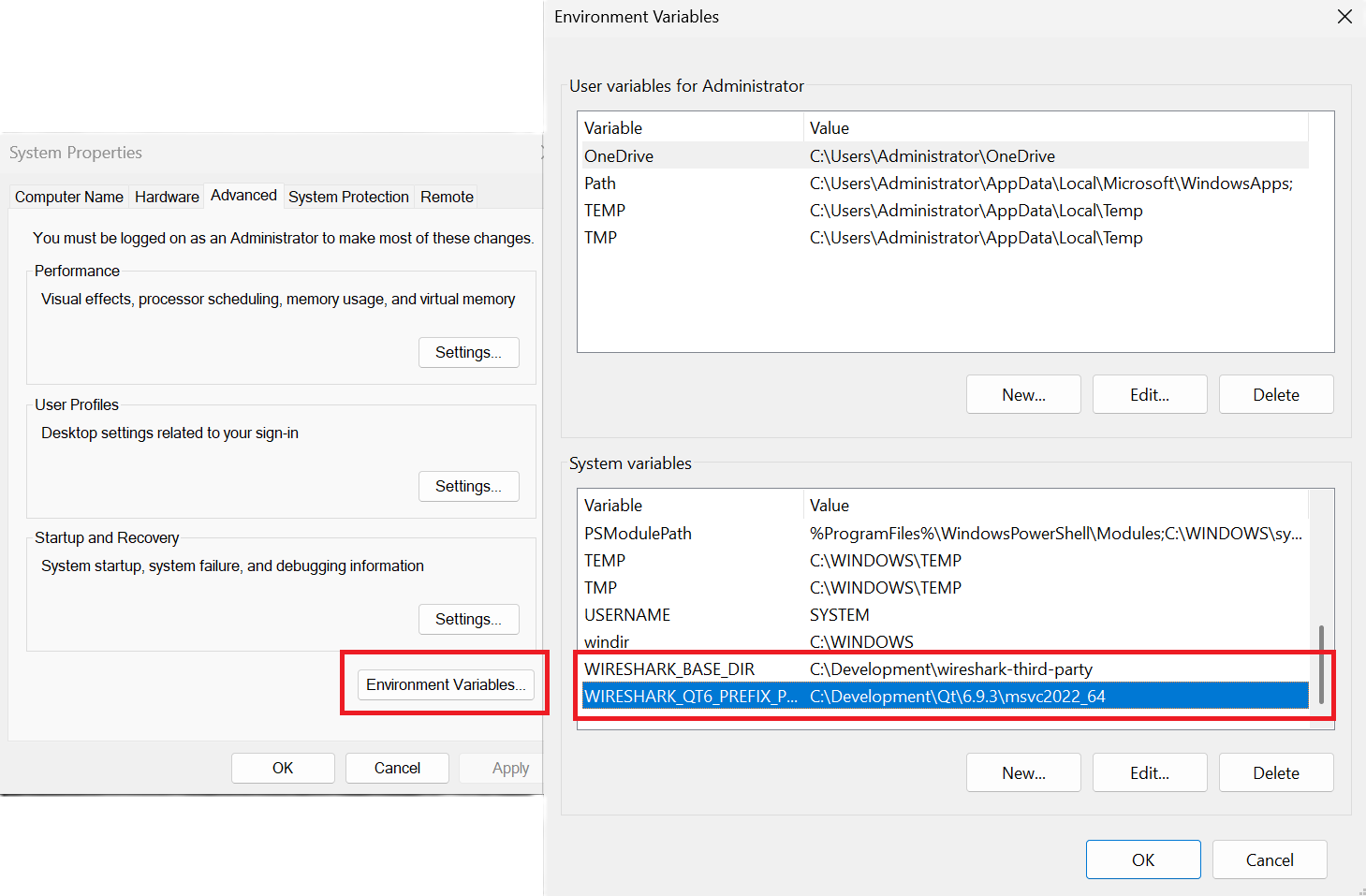
You need to set two configuration variables to be able to build wireshark:
-
WIRESHARK_BASE_DIR : where the third party libraries will be downloaded, e.g.
C:\Development\wireshark-third-party -
WIRESHARK_QT6_PREFIX_PATH (or CMAKE_PREFIX_PATH) (see
https://doc.qt.io/qt-6/cmake-get-started.html) : pointing towards the Qt installation directory, e.g.C:\Development\Qt\6.10.3\msvc2022_64
The easiest way is to set those variables globally, search for "Edit the System Environment Variables" in Windows > Environment Variables
 |
|
Make sure everything works |
|---|---|
|
It’s a good idea to make sure Wireshark compiles and runs at least once before you start hacking the Wireshark sources for your own project. |
Download the wireshark sources into C:\Development\wireshark using either the command line :
cd C:\Development
git clone https://gitlab.com/wireshark/wireshark.git
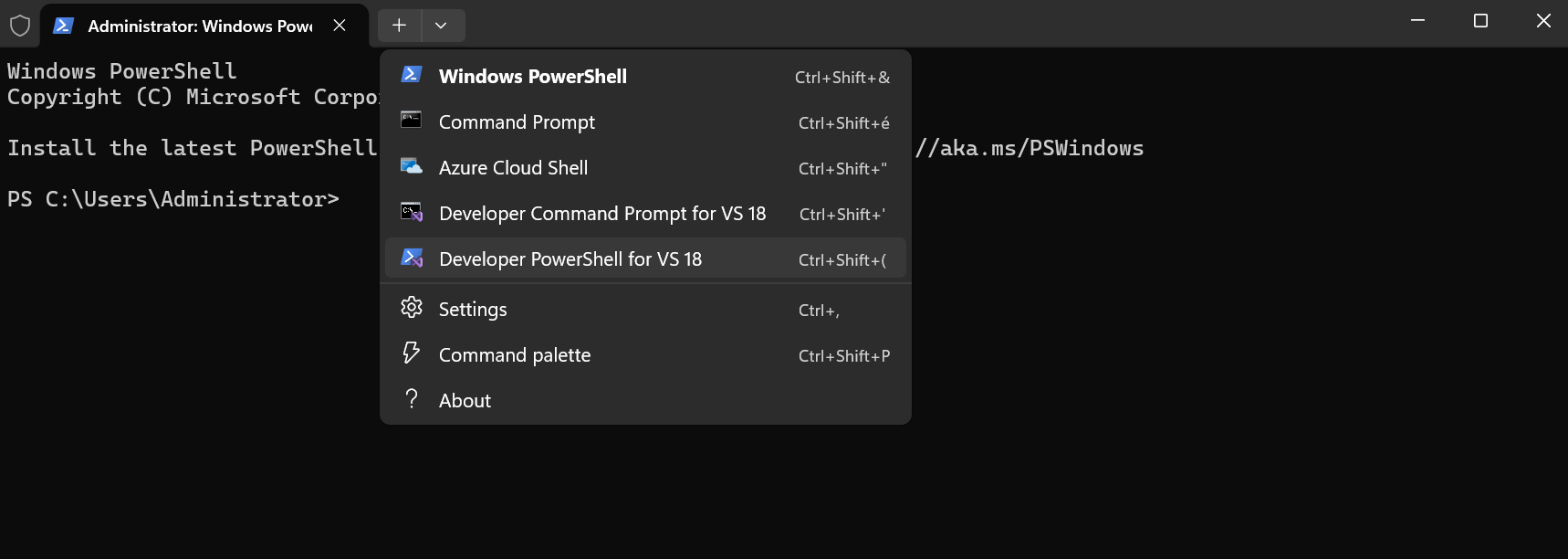
From the Start Menu (or Start Screen), open the “Windows Terminal”, then ”Developer PowerShell for VS 18” using the dropdown.
 |
If you have not already done so globally in Section 2.3.1.5, “Configure environment variables”, you can set the following environment variables, using paths and values suitable for your installation :
# Let CMake determine the library download directory name under WIRESHARK_BASE_DIR.
$env:WIRESHARK_BASE_DIR="C:\Development\wireshark-third-party"
# Set the Qt installation directory
$env:CMAKE_PREFIX_PATH="C:\Qt\6.10.3\msvc2022_64"
# Append a custom string to the package version. Optional.
$env:WIRESHARK_VERSION_EXTRA="-YourExtraVersionInfo"
Setting these variables could be added to a batch file to be run after you open the Visual Studio Tools Command Prompt.
They can also be passed directly to CMake, e.g. cmake -DWIRESHARK_BASE_DIR=…
CMake is best used in an out-of-tree build configuration where the build is done in a separate directory from the source tree, leaving the source tree in a pristine state. 64 and 32 bit builds require a separate build directory.
mkdir C:\Development\wsbuild64
cd C:\Development\wsbuild64
to create and jump into the build directory.
The build directory can be deleted at any time and the build files regenerated as detailed in Section 2.3.1.9, “Generate the build files”.
CMake is used to process the CMakeLists.txt files in the source tree and produce build files appropriate for your system.
To generate the build files enter the following at the Visual Studio command prompt (adjusting the path to the Wireshark source tree as required) :
cd C:\Development\wsbuild64
cmake -G "Visual Studio 18 2026" -A x64 ..\wireshark
The initial generation step is only required the first time a build directory is created. Subsequent builds will regenerate the build files as required.
To use a different generator modify the -G parameter.
cmake -G lists all the CMake supported generators, but only Visual Studio is supported for Wireshark builds.
32-bit builds are no longer supported.
The CMake generation process will download the required 3rd party libraries (apart from Qt) as required, then test each library for usability before generating the build files.
At the end of the CMake generation process the following should be displayed:
-- Configuring done
-- Generating done
-- Build files have been written to: C:/Development/wsbuild64
If you get any other output, there is an issue in your environment that must be rectified before building.
Check the parameters passed to CMake, especially the -G option and the path to the Wireshark sources and
the environment variables WIRESHARK_BASE_DIR and CMAKE_PREFIX_PATH.
Now it’s time to build Wireshark!
|
Solution File Format |
|---|---|
|
Microsoft Visual Studio introduced a new XML-based solution file format, SLNX,
which became available in Visual Studio 2022 and is the default on Visual Studio
2026. If you are using the older file format, which is the default in Visual
Studio 2022 and earlier, replace |
-
Navigate to
C:\Development\wsbuild64 -
Open
Wireshark.slnx -
Choose the
RelWithDebInfoconfiguration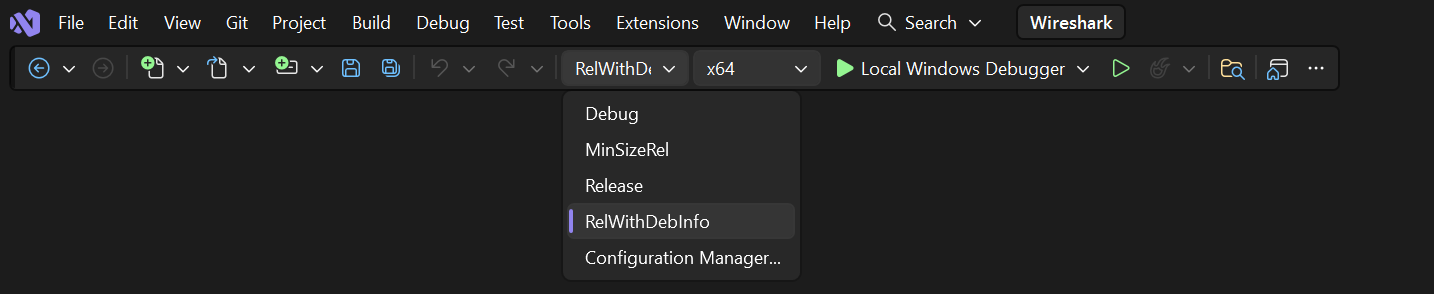
- Press Ctrl+Shift+B or Build > Build Solution
- Wait for Wireshark to compile. This will take a while, and there will be a lot of text output in the command prompt window
- Run C:\Development\wsbuild64\run\RelWithDebInfo\Wireshark.exe and make sure it starts.
- Open → . If it shows your "private" program version, e.g.: Version 4.7.2-myprotocol123 congratulations! You have compiled your own version of Wireshark!
You may also build Wireshark from Visual Studio command line, using :
cd C:\Development\wsbuild64
msbuild /m /p:Configuration=RelWithDebInfo Wireshark.slnx
|
Tip |
|---|---|
|
If compilation fails for suspicious reasons after you changed some source
files try to clean the build files by doing |
The build files produced by CMake will regenerate themselves if required by changes in the source tree.
You can debug using the Visual Studio Debugger or WinDbg. See the section on using the Debugger Tools.
To build the Wireshark User’s Guide and the Wireshark Developer’s Guide,
build the all_guides target, e.g.
cd C:\Development\wsbuild64
msbuild doc\all_guides.vcxproj
Detailed information to build these guides can be found in the file doc/README.documentation.adoc in the Wireshark sources.
Building the documentation requires Xsltproc as an additional dependency :
Asciidoctor, xsltproc, and DocBook are required to build the documentation. CMake will download a pre-built version of Asciidoctor and DocBook on Windows, but xsltproc must be installed manually. You can install it using Chocolatey (https://chocolatey.org/install):
choco install -y xsltproc
Note: You should have successfully built Wireshark before doing the following.
If you want to build your own Wireshark-4.7.2-myprotocol123-x64.exe, you’ll need NSIS. You can download it from http://nsis.sourceforge.net.
Note that the 32-bit version of NSIS will work for both 64-bit and 32-bit versions of Wireshark. NSIS version 3 is required.
If you’ve closed the Visual Studio Command Prompt prepare it again. Run
msbuild /m /p:Configuration=RelWithDebInfo wireshark_nsis_prep.vcxproj
msbuild /m /p:Configuration=RelWithDebInfo wireshark_nsis.vcxproj
to build a Wireshark installer. If you sign your executables you should do so between the “wireshark_nsis_prep” and “wireshark_nsis” steps. To sign your installer you should place the signing batch script on the path. It must be named "sign-wireshark.bat". It should be autodetected by CMake, to always require signing set the -DENABLE_SIGNED_NSIS=On CMake option.
Run
packaging\nsis\wireshark-4.7.2-myprotocol123-x64.exe
to test your new installer. It’s a good idea to test on a different machine than the developer machine.
MSYS2 comes with different environments/subsystems and the first thing you have to decide is which one to use. The differences among the environments are mainly environment variables, default compilers/linkers, architecture, system libraries used etc. If you are unsure, go with UCRT64.
- Open the shell for the selected 64-bit environment.
- Download the Wireshark source code using Git, if you haven’t done so already, and cd into that directory.
-
Install needed dependencies:
tools/msys2-setup.sh --install-all
-
Build using CMake + Ninja:
mkdir build && cd build
# Ninja generator is the default
cmake -DENABLE_CCACHE=On ..
ninja
ninja test        # optional, to run the test suite
ninja install     # optional, install to the MSYS2 shell path
The application should be launched using the same shell.
- Follow the instructions above to compile Wireshark from source.
-
Build the NSIS installer target.
ninja wireshark_nsis_prep
ninja wireshark_nsis
If successful the installer can be found in $CMAKE_BINARY_DIR/packaging/nsis.
Alternatively you can also use the PKGBUILD included in the Wireshark source distribution to compile Wireshark into a binary package that can be installed using pacman.
The official Wireshark Windows installer is compiled using Microsoft Visual Studio (MSVC). Currently the MSYS2 build has the following limitations compared to the build using MSVC:
- Lua does not have custom UTF-8 patches.
- The Event Tracing for Windows (ETW) extcap cannot be compiled using MinGW-w64.
- Enhanced Kerberos dissection with decryption is not available.
Using WSL2 on a Windows machine can provide a quick and easy way for beginners
to get started. This section will focus on using the official Debian
distribution installed from the wsl CLI command or Windows App Store.
This will allow for a quick and easy way to build Wireshark. Please note that while this guide is sufficient for an environment to build and test minor changes, some changes and enhancements will still need to be built and tested for Windows as described in the sections above.
To install WSL2 for the first time and Debian via the CLI run (as administrator):
wsl --install
wsl --install -d Debian
Please see the documentation on WSL for help with installation.
From here following the build guide for Debian based Un*x systems should finish the setup of the build environment. See Section 2.2, “UN*X” for details on compiling, building, and running Wireshark on Debian. WSL2 supports both X11 and Wayland to enable the use of GUI applications without any additional requirements. Please see the WSL2 reference of GUIs for more detail.
|
For First Time Contributors |
|---|---|
|
It is highly recommended to review the source control process before attempting to build any changes. Please see: For a description of the process. |
It is possible to compile Wireshark for Microsoft Windows using Linux and MinGW. This way developers can deploy Wireshark on Windows systems without requiring a Windows host machine. Building for Windows using a Linux host is also easier for devs already familiar with Linux, the build itself is faster and it uses a very mature C/C++ compiler (GCC) and debugger (GDB).
Fedora Linux provides the best out-of-the-box support for MinGW cross-compilation. Fedora is what the project uses to test the build and it’s what we recommend. While any other reasonably modern Linux distribution can be used, that will make the process more time consuming and involve some trial and error to setup.
The build instructions on Fedora follow the familiar recipe for building Wireshark using Linux.
-
Install needed dependencies:
tools/mingw-rpm-setup.sh --install-all
-
Build using CMake + Ninja:
mkdir build && cd build
mingw64-cmake -G Ninja -DENABLE_CCACHE=Yes -DFETCH_lua=Yes ..
ninja
Note that currently it is not possible to run the test-suite when cross-compiling.
-
Build the NSIS installer
ninja wireshark_nsis_prep
ninja wireshark_nsis
If successful the installer can be found in $CMAKE_BINARY_DIR/packaging/nsis.
- Only the MSVCRT C library for Microsoft Windows can be used. Support for the UCRT (Universal C Runtime) library on Fedora Linux is in the initial stages of deployment and not ready for prime-time (at the time of this writing).
- Some optional dependencies are missing from Fedora repositories and must be compiled from source if desired. An up-to-date complete list can be found in the bug tracker (issue 19108).
- Lua does not have custom UTF-8 patches.
- The Event Tracing for Windows (ETW) extcap cannot be compiled using MinGW-w64.
- Enhanced Kerberos dissection with decryption is not available.
Arch Linux has good support for MinGW using packages from the AUR. Note that the mingw-w64 AUR packages sometimes break. If that happens you may be required to fix it or skip the package until it is fixed by the maintainer, if it’s an optional dependency. You may also want to consider using an unofficial user repository (such as the ownstuff repository) to provide pre-compiled packages. This will greatly simplify the initial setup and subsequent upgrades.
|
Caution |
|---|---|
|
AUR packages and unofficial user repositories are user-produced content. These packages are completely unofficial and have not been thoroughly vetted. It is your decision whether to trust their maintainers and you take full responsibility for choosing to use them. |
You will need to install an AUR helper.
This guide assumes paru is being used.
-
Install required dependencies from official repositories:
pacman -S mingw-w64 nsis lemon qt6-tools ccache
-
Install required dependencies from the AUR:
paru -S mingw-w64-cmake
paru -S mingw-w64-glib2
paru -S mingw-w64-libgcrypt
paru -S mingw-w64-libxml2
paru -S mingw-w64-c-ares
paru -S mingw-w64-speexdsp
paru -S mingw-w64-libpcap
-
Install Qt6:
paru -S mingw-w64-qt6-base mingw-w64-qt6-5compat mingw-w64-qt6-multimedia
-
Install optional dependencies:
paru -S mingw-w64-gnutls
paru -S mingw-w64-lz4
paru -S mingw-w64-snappy
paru -S mingw-w64-opus
paru -S mingw-w64-opencore-amr
paru -S mingw-w64-libnghttp2
paru -S mingw-w64-libssh
paru -S mingw-w64-minizip
Search the AUR for other dependencies not listed above.
-
Build Wireshark using CMake + Ninja. From the directory containing the Wireshark source tree run:
mkdir build && cd build
x86_64-w64-mingw32-cmake -G Ninja -DENABLE_CCACHE=Yes -DFETCH_lua=Yes \
      -DMINGW_SYSROOT=/usr/x86_64-w64-mingw32 ..
ninja
This will automatically download and build Lua as a static library.
To reconfigure the CMake build you may to do it explicitly by running
x86_64-w64-mingw32-cmake .in the build directory, instead of lettingninjado it for you automatically. -
Build the NSIS installer
ninja wireshark_nsis_prep
ninja wireshark_nsis
If everything goes well the installer can be found in $CMAKE_BINARY_DIR/packaging/nsis.
The same notes as the build using Fedora apply.
Table of Contents
- 3.1. Introduction
- 3.2. The Wireshark Git repository
- 3.3. Browsing And Searching The Source Code
- 3.4. Obtaining The Wireshark Sources
- 3.5. Update Your Wireshark Sources
- 3.6. Build Wireshark
- 3.7. Run Your Version Of Wireshark
- 3.8. Debug Your Version Of Wireshark
- 3.9. Make Changes To The Wireshark Sources
- 3.10. Contribute Your Changes
- 3.11. Binary Packaging
- 3.12. Mime Types
This chapter will explain how to work with the Wireshark source code. It will show you how to:
- Get the source
- Compile it on your machine
- Submit changes for inclusion in the official release
This chapter will not explain the source file contents in detail, such as where to find specific functionality. This is done in Section 6.1, “Source overview”.
Git is used to keep track of the changes made to the Wireshark source code. The official repository is hosted at GitLab, and incoming changes are evaluated and reviewed there. For more information on GitLab see their documentation.
Why Git? Git is a fast, flexible way of managing source code. It allows large scale distributed development and ensures data integrity.
Why GitLab? GitLab makes it easy to contribute. You can make changes locally and push them to your own work area at gitlab.com, or if your change is minor you can make changes entirely within your web browser.
Historical trivia: GitLab is the fourth iteration of our source code repository and code review system. Wireshark originally used Concurrent Versions System (CVS) and migrated to Subversion in July 2004. We migrated from Subversion to Git and Gerrit in January 2014, and from Gerrit to GitLab in August 2020.
Using Wireshark’s GitLab project you can:
- Keep your private sources up to date with very little effort.
- Receive notifications about code reviews and issues.
- Get the source files from any previous release (or any other point in time).
- Browse and search the source code using a web interface.
- See which person changed a specific piece of code.
Like most revision control systems, Git uses branching to manage different copies of the source code and allow parallel development. Wireshark releases use the following branch naming conventions:
master. Main feature development and odd-numbered development releases.
release-x.y. Stable release maintenance. For example, release-4.6 is used to manage the 4.6.x official releases.
Tags for major Wireshark releases and release candidates consist of a “v” followed by a version number such as “v4.6.1” or “v4.6.3rc0”. Prior to October 2025, major releases additionally had a tag prefixed with “wireshark-” followed by a version number, such as “wireshark-4.4.0”.
Tags for major Stratoshark releases and release candidates consist of an “ssv” followed by a version number such as “ssv1.2.3” or “ssv1.3.4rc0”.
Tags created after August 1, 2024 are signed using SSH. This includes the tags for versions 4.4.0rc1, 4.4.0, 4.2.7, and 4.0.17. If you wish to verify these tags, you must have gpg.ssh.allowedSignersFile configured and have the following entry in your “allowed signers” file:
[email protected] namespaces="git" ssh-ed25519 AAAAC3NzaC1lZDI1NTE5AAAAIBHe1qOxwBietT54lZ3qawTc8B9unWP+T3JVR9l2rQaP
Tags were signed using GPG prior to August 2024.
If you need a quick look at the Wireshark source code you can browse the repository files in GitLab at
https://gitlab.com/wireshark/wireshark/-/tree/master
You can view commit logs, branches, and tags, find files and search the repository contents. You can also download individual files.
There are two primary ways to obtain Wireshark’s source code: Git and compressed .tar archives. Each is described in more detail below. We recommend using Git for day to day development, particularly if you wish to contribute changes back to the project. The age mentioned in the following sections indicates the age of the most recent change in that set of the sources.
This method is strongly recommended for day to day development.
You can use a Git client to download the source code from Wireshark’s code review system. Anyone can clone from the anonymous HTTP git URL:
https://gitlab.com/wireshark/wireshark.git
If you have a GitLab account you can also clone using SSH:
[email protected]:wireshark/wireshark.git
If wish to make changes to Wireshark you must create a GitLab account, create a fork of the official Wireshark repository, update your fork, and create a merge request. See Section 3.10, “Contribute Your Changes” for details.
The following example shows how to get up and running on the command line. See Section 4.11, “Git client” for information on installing and configuring graphical Git clients.
-
Now on to the command line. First, make sure
gitworks:$ git --version
-
If this is your first time using Git, make sure your username and email address are configured. This is particularly important if you plan on uploading changes:
$ git config --global user.name "Henry Perry"
$ git config --global user.email [email protected]
-
Next, clone the Wireshark repository:
# If you have a GitLab account, you can use the SSH URL:
$ git clone -o upstream [email protected]:wireshark/wireshark.git
# If you don't you can use the HTTPS URL:
$ git clone -o upstream https://gitlab.com/wireshark/wireshark.git
# You can speed up cloning in either case by adding --shallow-since=1year or --depth=5000.
The clone only has to be done once. This will copy all the sources (including directories) from the server to your machine and check out the latest version.
The
-o upstreamflag uses the origin name “upstream” for the repository instead of the default “origin” as described in the GitLab documentation.Cloning may take some time depending on the speed of your internet connection.
The
--shallow-since=1yearoption limits cloned commits to the last 1 year.The
--depth=5000option limits cloned commits to the last 5000.
This method is useful for one-off builds or if Git is inaccessible (e.g. because of a restrictive firewall).
Our GitLab CI configuration automatically generates development packages, including source packages. They can be found at https://www.wireshark.org/download/automated/src/. Packages are available for recent commits in the master branch and each release branch.
This method is recommended for building downstream release packages.
The official source releases can be found at https://www.wireshark.org/download.html. You should use these sources if you want to build Wireshark on your platform based on an official release with minimal or no changes, such as Linux distribution packages.
After you’ve obtained the Wireshark sources for the first time, you might want to keep them in sync with the sources at the upstream Git repository.
|
Take a look at the recent commits first |
|---|---|
|
As development evolves, the Wireshark sources are compilable most of the time — but not always. You should take a look at https://gitlab.com/wireshark/wireshark/-/commits/master before fetching or pulling to make sure the builds are in good shape. |
The sources contain several documentation files. It’s a good idea to read these files first. After obtaining the sources, tools and libraries, the first place to look at is doc/README.developer. Inside you will find the latest information for Wireshark development for all supported platforms.
|
Build Wireshark before changing anything |
|---|---|
|
It is a very good idea to first test your complete build environment (including running and debugging Wireshark) before making any changes to the source code (unless otherwise noted). |
Building Wireshark for the first time depends on your platform.
Follow the build procedure in Section 2.2, “UN*X” to build Wireshark.
Follow the build procedure in Section 2.3, “Windows” to build Wireshark.
After the build process has successfully finished, you should find a
Wireshark.exe and some other files in the run\RelWithDebInfo directory.
CMake can compile Wireshark for several different build types:
Table 3.1. Build Types
| Type | Compiler Flags | Description |
|---|---|---|
|
|
Build with optimizations and generate debug symbols. Disables assertions and disables debug level logs |
|
|
For development, no optimization. Enables assertions and debug level logs |
|
|
Optimized for speed, no debug symbols or debug level logs or assertions |
|
|
Optimized for size, no debug symbols or debug level logs or assertions |
The default is RelWithDebInfo, which provides a good compromise of
some optimization (-O2) along with including debug symbols (-g)
for release builds. For normal development coding you probably want to be
using Debug build type or set -DENABLE_DEBUG=On, to enable full
logging capabilities and debug code.
CMake will automatically add the -DNDEBUG option to certain build types. This macro is used to disable assertions but it can be overruled using ENABLE_ASSERT, which can be used to unconditionally enable assertions if defined.
To change the build type, set the CMake variable CMAKE_BUILD_TYPE, e.g.:
$ cmake .. -DCMAKE_BUILD_TYPE=Debug
or on Windows,
> msbuild /m /p:Configuration=Debug Wireshark.slnx
|
Beware of multiple Wiresharks |
|---|---|
|
An already installed Wireshark may interfere with your newly generated version in various ways. If you have any problems getting your Wireshark running the first time, it might be a good idea to remove the previously installed version first. |
After a successful build you can run Wireshark right from the run directory.
There’s no need to install it first.
$ ./run/wireshark
There’s no need to run Wireshark as root user, but depending on your platform you might not be able to capture. Running Wireshark this way can be helpful since debugging output will be displayed in your terminal. You can also change Wireshark’s behavior by setting various environment variables. See the ENVIRONMENT VARIABLES section of the Wireshark man page for more details.
On macOS, Wireshark is built as an application bundle (run/Wireshark.app) by default, and run/wireshark will be a wrapper script that runs Wireshark.app/Contents/MacOS/Wireshark.
Along with running ./run/wireshark as shown above you can also run it on the command line with open run/Wireshark.app.
By default the CMake-generated Visual C++ project places all of the files necessary to run Wireshark in the subdirectory run\RelWithDebInfo.
As with the Unix-like build described above, you can run Wireshark from the build directory without installing it first.
> .\run\RelWithDebInfo\Wireshark
Optimization can make debugging a bit more difficult, e.g. by changing the
execution order of statements. To disable optimization, set the
build type to Debug.
Full debug logs can be invaluable to investigate any issues with the code.
By default full debug level logs are only enabled with Debug build type. You
can enable full debug logs and extra debugging code by configuring the
ENABLE_DEBUG CMake option. This in turn will define the macro symbol
WS_DEBUG and enable the full range of debugging code in Wireshark.
There is an additional CMake knob called ENABLE_DEBUG_UTF_8 that can be used to control specifically the extra validation Wireshark performs internally for invalid UTF-8 encodings in internal strings, which should never happen and can be somewhat expensive to check during normal usage.
Conversely, the Release or MinSizeRel build types can be used to optimize
further for speed or size, but do not include debug symbols for use with
debuggers, inhibits part of the debug code
and asserts, optimizing away the code path. Ensure that you have not built with
one of those types before attempting debugging.
Wireshark has a flexible logging system to assist in development and troubleshooting. Logging configuration takes into account what, when and where to output diagnostic messages.
- The 'what generates log messages' is defined through logging domain(s).
- The 'when it generates log messages' is defined through the logging level.
- The 'where it outputs log messages' is defined through the output channel(s).
The details to configure and use the logging system are explained in the following sections.
Any part of Wireshark can be assigned a logging domain. This is already done for most of the internals of Wireshark,
e.g., "Main", "Capture", "Epan", "GUI". The domains are defined in the ws_log_defs.h header but dissectors should
define their own logging domain. Any string can be used as ID for a logging domain.
The following logging levels are defined from highest to lowest:
- error
- critical
- warning
- message
- info
- debug
- noisy
By default logging output is generated for logging level "message" and above. If the logging level is lowered or raised all log output generated at or above this level is sent to the log output.
Note that if the build type is not set to Debug
then by default all log output for the logging levels "debug" and
"noisy" will be optimized away by the compiler and cannot be emitted to the log
output, regardless of the logging settings. To enable debug logging for all build
types, set the CMake variable -DENABLE_DEBUG=ON.
The always-on "echo" logging level is used exclusively for temporary debugging print outs (usually
via the WS_DEBUG_HERE macro).
By default logging output is sent to stderr. In addition to that it is possible to configure a log file. This collects all log output to the file, besides the normal output streams. The output can then be read in a text editor or used with other text processing tools.
A program can also register its own log writer when the standard facilities are insufficient or special handling is required.
Logging can be configured through either environment variables or command line parameters.
The following environment variables and command line parameters are used by the logging system:
- WIRESHARK_LOG_DOMAIN, WIRESHARK_LOG_DOMAINS, or --log-domain, --log-domains
- This is a filter for the domain(s) which are to generate log messages.
- WIRESHARK_LOG_LEVEL, or --log-level
- This is the level (below critical) for which log messages are to be generated. This is used for all configured domains.
- WIRESHARK_LOG_DEBUG, or --log-debug
- These domain(s) will generate debug level log messages regardless of the log level and log domains configured.
- WIRESHARK_LOG_NOISY, or --log_noisy
- These domain(s) will generate noisy level log messages regardless of the log level and log domains configured.
|
Note |
|---|---|
|
Multiple domains can be concatenated using commas or semicolons. The match can be inverted by prefixing the domain(s) list with an exclamation mark. |
The log output is normally send to stderr. The log output can also be saved in a file using the --log-file=<path>
command line option.
Sometimes it can be helpful to abort the program right after a log message of a certain level or a certain domain is output.
The following environment variables are used to configure a trap by the logging system:
- WIRESHARK_LOG_FATAL, or --log-fatal
- This is the level for which log messages are fatal. This can either be "critical" or "warning" level.
- WIRESHARK_LOG_FATAL_COUNT, or --log-fatal-count
- This is the amount of fatal log messages which may pass before the program is trapped.
- WIRESHARK_LOG_FATAL_DOMAIN, WIRESHARK_LOG_FATAL_DOMAINS, or --log-fatal-domain, --log-fatal-domains
- These are the domain(s) where output of a log message is fatal. This is less commonly used than the fatal log level setting above.
The logging API can be found in wsutil/wslog.h.
To use the logging API for your code add the definition of the ID of your logging domain right after including config.h. For example:
/* My code doing something awesome */
#include "config.h"
#define WS_LOG_DOMAIN "MyCode"

#include <wireshark.h>

...
Populate your code with the applicable function calls to generate log messages when enabled. The following convenience macros are provided:
-
ws_error() -
ws_critical() -
ws_warning() -
ws_message() -
ws_info() -
ws_debug() -
ws_noisy()
All these take printf() style parameters. There is also a WS_DEBUG_HERE macro that is always active and outputs to a special "echo"
domain for temporary debug print outs. WS_DEBUG_HERE should be used for development purposes only and not appear in final delivery of the code.
To get more direct access to the logging system various ws_log() type function are available, providing more fine grained control
over the logging functionality. Note these are exempt from the build time optimization, and will be built in regardless of build type.
You can debug using command-line debuggers such as gdb, dbx, or lldb. If you prefer a graphic debugger, you can use an IDE or debugging frontend such as Qt Creator, CLion, or Eclipse.
Additional traps can be set on Wireshark, see Section 3.8.2, “Traps Set By Logging”
Wireshark’s wmem memory management framework makes it easy to allocate
memory in pools with a certain scope that is freed automatically at
a certain point (such as the end of dissecting a packet or when closing
a file), even if a dissector raises an exception after allocating the
memory. Memory in a pool is also freed collectively, which can be
considerably faster than calling free() individually on each individual
allocation. Proper use of wmem makes a dissector faster and less prone
to memory leaks with unexpected data, which happens frequently with
capture files.
However, wmem’s block allocation can obscure issues that memory checkers
might otherwise catch. Fortunately, the WIRESHARK_DEBUG_WMEM_OVERRIDE
environment variable can be set at runtime to instruct wmem to use a specific
memory allocator for all allocations, some of which are more compatible with
memory checkers:
-
simple- Usesmalloc()only, no block allocation, compatible with Valgrind -
strict- Finds invalid memory via canaries and scrubbing freed memory -
block- Standard block allocator for file and epan scopes -
block_fast- Block allocator for short-lived scope, e.g. packet, (free()is a no-op)
The simple allocator produces the most accurate results with tools like
Valgrind and can be enabled as follows:
$ export WIRESHARK_DEBUG_WMEM_OVERRIDE=simple
Wireshark uses GLib’s GSlice memory allocator, either indirectly via wmem or via various GLib API calls.
GLib provides a G_SLICE environment variable that can be set to always-malloc (similar to simple) or debug-blocks (similar to strict).
See https://docs.gtk.org/glib/running.html for details.
The C libraries on FreeBSD, Linux, and macOS also support memory allocation debugging via various environment variables.
You can enable many of them by running source tools/debug-alloc.env in a POSIX shell.
If you’re encountering memory safety bugs, you might want to build with Address Sanitizer (ASAN) so that Wireshark will immediately alert you to any detected issues. It works with GCC or Clang, provided that the appropriate libraries are installed.
$ cmake .. -G Ninja -DENABLE_ASAN=1
$ source ../tools/debug-alloc.env
$ ./run/tshark ...
|
Tip |
|---|---|
|
ASAN slows things down by a factor of 2 (or more), so having a different build directory for an ASAN build can be useful. |
ASAN will catch more errors when run with either the simple or strict
wmem allocator than with the defaults. (It is more compatible with the
strict allocator and the analogous GSlice debug-blocks option than
Valgrind is.)
For additional instrumentation, ASAN supports a number of options.
For further investigating memory leaks, the following can be useful:
# This slows things down a lot more but results in more precise backtraces,
# especially when calling third party libraries (such as the C++ standard
# library):
$ export ASAN_OPTIONS=fast_unwind_on_malloc=0
# This causes LeakSanitizer to print the addresses of leaked objects for
# inspection in a debugger:
$ export LSAN_OPTIONS=report_objects=1
LeakSanitizer and AddressSanitizer can detect issues in third-party libraries
that you cannot do anything about. For example, internal Qt library calls to
the fontconfig library can produce leaks. To ignore them, create a
suppressions file with an appropriate entry, e.g. leak:libfontconfig.
If you are just interested in memory safety checking, but not memory leak debugging, disable the included LeakSanitizer with:
$ export ASAN_OPTIONS=detect_leaks=0
You can debug using the Visual Studio Debugger or WinDbg. See the section on using the Debugger Tools.
There are several reasons why you might want to change Wireshark’s sources:
- Add support for a new protocol (i.e., add a new dissector)
- Change or extend an existing dissector
- Fix a bug
- Implement a glorious new feature
Wireshark’s developers work on a variety of different platforms and use a variety of different development environments. Although we don’t enforce or recommend a particular environment, your editor should support EditorConfig in order to make sure you pick up the correct indentation style for any files that you might edit.
The internal structure of the Wireshark sources are described in Part II, “Wireshark Development”.
|
Ask the wireshark-dev[AT]wireshark.org mailing list before you start a new development task. |
|---|---|
|
If you have an idea what you want to add or change it’s a good idea to contact the developer mailing list (see Section 1.7.6, “Mailing Lists”) and explain your idea. Someone else might already be working on the same topic, so a duplicated effort can be reduced. Someone might also give you tips that should be thought about (like side effects that are sometimes very hard to see). |
If you have finished changing the Wireshark sources to suit your needs, you might want to contribute your changes back to the Wireshark community. You gain the following benefits by contributing your improvements:
It’s the right thing to do. Other people who find your contributions useful will appreciate them, and you will know that you have helped people in the same way that the developers of Wireshark have helped you.
You get free enhancements. By making your code public, other developers have a chance to make improvements, as there’s always room for improvements. In addition someone may implement advanced features on top of your code, which can be useful for yourself too.
You save time and effort. The maintainers and developers of Wireshark will maintain your code as well, updating it when API changes or other changes are made, and generally keeping it in tune with what is happening with Wireshark. So if Wireshark is updated (which is done often), you can get a new Wireshark version from the website and your changes will already be included without any effort for you.
There’s no direct way to push changes to the main repository. Only a few people are authorised to actually make changes to the source code (check-in changed files). If you want to submit your changes, you should upload them to the code review system at https://gitlab.com/wireshark/wireshark/-/merge_requests. This requires you to set up git as described at Section 3.4.1, “Git Over SSH Or HTTPS”.
GitLab uses a forking workflow, which looks like this:
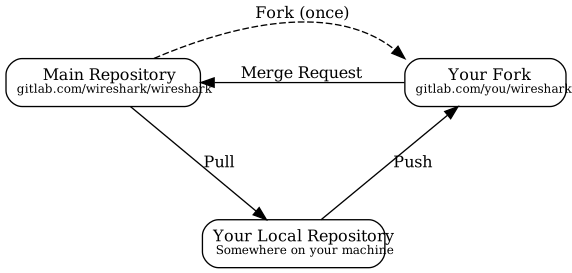
The major steps of the diagram above are:
- Fork: Create your own repository to work on. You only need to do this once.
- Pull: You should pull from the main repository on a regular basis in order to ensure that your sources are current.
- Push: You should push any time you want to make a merge request or otherwise make your code public.
- Merge Request: submit your change to be included in the Wireshark project.
Let’s look at these steps in more detail.
First, you need to set up your environment. For the steps below we’ll pretend that your username is “henry.perry”.
- Sign in to https://gitlab.com/wireshark/wireshark by clicking “Sign in / Register” in the upper right corner of the web page and following the login instructions.
- Add an SSH key to your account as described in the GitLab documentation.
- Make sure you have a clone of the main repository as described in Section 3.4.1, “Git Over SSH Or HTTPS”.
-
Create your own personal fork of the Wireshark project by pressing the “Fork” button at https://gitlab.com/wireshark/wireshark.
Warning If you want to make merge requests you must keep your fork public. Making it private will disassociate it from the main Wireshark repository.
-
Add a remote for your personal repository in your source code checkout. The main repository remote is named “upstream”, so we’ll name this one “downstream”.
$ git remote add downstream [email protected]:henry.perry/wireshark.git
-
Double-check your remotes:
$ git remote -v
downstream	[email protected]:henry.perry/wireshark.git (fetch)
downstream	[email protected]:henry.perry/wireshark.git (push)
upstream	[email protected]:wireshark/wireshark.git (fetch)
upstream	[email protected]:wireshark/wireshark.git (push)
Before you begin it’s a good idea to synchronize your local repository with the main repository. This is the Pull part of the workflow. Simply re-run the command in Section 3.5.1, “Update Using Git”. You should do this periodically in order to stay up to date and avoid merge conflicts later on.
Now you’re ready to create a merge request (the Push and Merge Request parts of the workflow above).
-
Create a branch for your change:
$ git checkout -b my-glorious-new-feature upstream/master
Note Always work from branches; never work directly on
master. It will be much easier to keep abreast of upstream changes this way. - Write some code! See Section 3.10.6, “Some Tips For A Good Patch” and Section 3.10.8, “Code Requirements” for details.
-
Commit your changes. See Section 3.10.7, “Writing a Good Commit Message” for details.
$ git commit -a
-
Push your changes to your personal repository.
$ git push downstream HEAD
-
Go to https://gitlab.com/wireshark/wireshark/-/merge_requests. You should see a “Create merge request” button. Press it.
- In the merge request page, make sure “Allow commits from members who can merge to the target branch” is selected so that core developers can rebase your change.
- You might want to select “Delete source branch when merge request is accepted” as well.
- Click the “Submit merge request” button.
At this point various automated tests will be run and someone will review your change. If you need to make changes you can do so by force-pushing it to the same branch in your personal repository.
-
Make changes in your local repository.
# First, make sure you're on the right branch.
$ git status
On branch my-glorious-new-feature
- Update your code.
- Rebuild and test your work to be sure it still does what it should.
-
Push your changes to your personal repository.
# Modify the current commit and force-push...
$ git commit --amend ...
$ git push downstream +HEAD
# ...or keep the current commit as-is add another commit on top of it
$ git commit ...
$ git push downstream HEAD
The
+sign is shorthand for forcing the push (-f).
The Wireshark upstream source code is likely to see other changes while you’re doing your work. Git allows you to adapt your in-progress work to these upstream updates, in a process known as rebasing.
Although GitLab provides a button, you have more control over the process if you do it from the command line:
- Synchronize your local repository with the command from Section 3.5.1, “Update Using Git”.
-
Switch back to your working branch:
git checkout my-glorious-new-feature -
Rebase your working branch:
git rebase masterTip At this stage you may experience a merge conflict, which is when you’ve changed code which has also changed upstream. The rebase will pause to allow you to resolve the conflict. Once you’ve edited the code and reconciled the changes, resume the rebase with the command
git rebase --continue. - Rebuild and test your work to ensure it hasn’t been adversely affected by the upstream changes. (This is especially important if there were any merge conflicts.)
- Push your changes to your personal repository as described above.
When the Wireshark developer team is ready to accept your merge request, they may first ask you to squash your changes. This means taking all of the commits you’ve made on your working branch, and combining them into one commit. Here’s how to do it from the command line:
- Check out your working branch, if you aren’t already on it.
-
Run this command:
# Perform an "interactive rebase"
$ git rebase -i master
- A text editor will appear, listing all of the commits that are in your branch. Each commit will have the word “pick” at the start of the line.
- Leave the first “pick” alone. In every following line replace “pick” with “squash”.
- Save your changes and exit your editor.
- A new editor will appear for you to tailor the commit message of the squashed commit.
- Once you’re done, push your changes to your personal repository as described above.
Some tips that will make the merging of your changes into Git much more likely (and you want exactly that, don’t you?):
Use the latest Git sources. It’s a good idea to work with the same sources that are used by the other developers. This usually makes it much easier to apply your patch. For information about the different ways to get the sources, see Section 3.4, “Obtaining The Wireshark Sources”.
Update your sources just before making a patch. For the same reasons as the previous point.
Inspect your patch carefully.
Run git diff or git show as appropriate and make sure you aren’t adding, removing, or omitting anything you shouldn’t.
Give your branch a brief but descriptive name. Short, specific names such as snowcone-machine-protocol are preferred.
Don’t put unrelated things into one large change. Merge requests should be limited in scope. For example, updates to the Snowcone Machine Protocol dissector and the Coloring Rules dialog box should be in separate merge requests.
In general, making it easier to understand and apply your patch by one of the maintainers will make it much more likely (and faster) that it will actually be applied.
Thank you in advance for your patience. Wireshark is a volunteer effort. As a result, we can’t guarantee a quick turnaround time.
Preview the final product. Wireshark’s GitLab CI jobs are disabled by default for forks, but if you need to test any CI jobs you can do so under the “Pipelines” section in your repository. For example, if your change might affect Debian (apt) packaging you can run the “build:debian-stable” job.
When running git commit, you will be prompted to describe your change.
Here are some guidelines on how to make that message more useful to other people (and to scripts that may try to parse it):
Provide a brief description (under 60 characters or so) of the change in the first line. If the change is specific to a single protocol, start this line with the abbreviated name of the protocol and a colon. If the change is not yet complete prefix the line with “WIP:” to inform this change not to be submitted yet. This be removed when the change is ready to be merged.
Insert a single blank line after the first line. This is required by various formatting tools and helpful to humans.
Provide a detailed description of the change in the lines that follow. Break paragraphs where needed. Limit each line to 80 characters.
Keep in mind that the commit’s diffs will show precisely what was changed. The most useful commit messages provide a concise overview, explain why the change was made (if it is not obvious), and give more in-depth explanation where needed.
You can also reference and close issues in a commit message by prefixing the issue number with a number sign. For example, “closes #5” will close issue number 5.
Other GitLab-specific references are ! for a merge request and the short (8 character) hash for a commit.
We also ask contributors to disclose whether AI tools were used when authoring the change. Add a trailer such as
AI-Assisted: yes (Claude)
or
AI-Assisted: no
to commit messages and mention the same in merge requests. This notice is adapted with thanks from the Seerr project’s AI usage statement (https://github.com/seerr-team/seerr/blob/develop/CONTRIBUTING.md).
Putting all that together, we get the following example:
MIPv6: Fix dissection of Service Selection Identifier

APN field is not encoded as a dotted string so the first character is not a
length. Closes #10323.

AI-Assisted: no
To ensure Wireshark’s code quality and to reduce friction in the code review process, there are some things you should consider before submitting a patch:
Follow the Wireshark source code style guide. Wireshark runs on many platforms, and can be compiled with a number of different compilers. It’s easy to write code that compiles on your machine, but doesn’t compile elsewhere. The guidelines at Section 6.2, “Coding Style” describe the techniques and APIs that you can use to write high-quality, portable, and maintainable code in our environment.
Submit dissectors as built-in whenever possible. Developing a new dissector as a plugin can make compiling and testing quicker, but it’s usually best to convert it to built-in before submitting for review. This reduces the number of files that must be installed with Wireshark and ensures your dissector will be available on all platforms.
Dissectors vary, so this is not a hard-and-fast rule. Most dissectors are single C modules that can easily be put into “the big pile.” Some (most notably ASN.1 dissectors) are generated using templates and configuration files. Others are split across multiple source files and are often more suitable to be placed in a separate plugin directory.
Ensure that the Wireshark Git Pre-Commit Hook is in the repository. In your local repository directory, there will be a .git/hooks/ directory, with sample git hooks for running automatic actions before and after git commands. You can also optionally install other hooks that you find useful.
Enable the shipped Wireshark hooks without copying them by running:
$ git config core.hooksPath tools/git_hooks
This uses the dedicated tools/git_hooks/ directory, so other scripts in tools/ remain untouched.
To include the AI-Assisted trailer automatically, set the commit template with:
$ git config commit.template .gitmessage
The Wireshark pre-commit hook (in tools/git_hooks/) runs Wireshark-specific API and formatting checks and might return false positives.
The commit-msg hook warns if the AI-Assisted trailer is missing.
The wrappers in tools/ remain for compatibility; if you prefer the classic layout you can still copy or symlink from tools/git_hooks/ into .git/hooks/.
If the pre-commit hook is preventing you from committing what you believe is a valid change, you can run git commit --no-verify to skip running the hooks.
Warning: using --no-verify avoids the commit-msg hook, and thus if you have setup this hook it will not run.
Choose a compatible license. Wireshark is released under the GPL version 2 or later, and it is strongly recommended that incoming code use that license. If that is not possible, it must use a compatible license. The following licenses are currently allowed:
- BSD 1, 2, 3 clause
- ISC
- LGPL v2 or later, including v2.1
- MIT / X11
- Public domain
- zlib/libpng
Notable incompatible licenses include Apache 2.0, GPL 3.0, and LGPL 3.0.
Fuzz test your changes. Fuzz testing is a very effective way of finding dissector related bugs. In our case fuzzing involves making random changes to capture files and feeding them to TShark in order to try to make it crash or hang. There are tools available to automatically do this on any number of input files. See https://wiki.wireshark.org/FuzzTesting for details.
When a bug is fixed in the master branch it’s sometimes desirable or necessary to backport the fix to a release branch. You can do this in Git by cherry-picking the change from one branch to another. Suppose you want to backport change 1ab2c3d4 from the master branch to release-4.6. You can do so as follows:
# Create a new topic branch for the backport.
$ git checkout -b backport-1ab2c3d4 upstream/release-4.6

# Cherry-pick the change. "-x" adds the "cherry picked from..." line to the commit message.
$ git cherry-pick -x 1ab2c3d4

# If there are conflicts, fix them.

# Compile and test the change.
$ ninja
$ ...

# OPTIONAL: Add entries to doc/Wireshark_Release_Notes.adoc.
$EDITOR "doc/Wireshark_Release_Notes.adoc"

# If you made any changes, update your commit.
git commit --amend -a

# Push the change to your working repository.
git push downstream +HEAD
The + sign is shorthand for forcing the push (-f).
In the GitLab web UI for creating the Merge Request, use the Change branches control near the top of the page to ensure that your MR is targeted at the intended release branch. Confirm by verifying under Commits that only the one cherry-picked commit is selected for the merge.
You can also cherry-pick changes in the GitLab web UI.
Delivering binary packages makes it much easier for the end-users to install Wireshark on their target system. This section will explain how the binary packages are made.
The following guidelines should be followed by anyone creating and distributing third-party Wireshark packages or redistributing official Wireshark packages.
Spelling And Capitalization
Wireshark is spelled with a capital “W”, and with everything else lower case. “WireShark” in particular is incorrect.
Main URL
The official Wireshark project URL is https://www.wireshark.org/.
Download URLs
Official packages are distributed on the main web server (www.wireshark.org) and a number of download mirrors. The canonical locations for packages are in the all_versions subdirectories on each server.
For example, if your packaging system links to or downloads the source tarball and you want to download from 1.na.dl.wireshark.org, use
https://1.na.dl.wireshark.org/download/src/all-versions/wireshark-4.7.2.tar.xz
instead of
https://1.na.dl.wireshark.org/download/src/wireshark-4.7.2.tar.xz
Staying Current
Wireshark releases are announced on the wireshark-announce mailing list.
If you want to automatically check for the latest version, you can use one of the automatic update URLs for our Windows or macOS packages, such as
https://www.wireshark.org/update/0/Wireshark/0.0.0/Windows/x86-64/en-US/stable.xml
Artwork
Logo and icon artwork can be found in the resources directory in the distribution. This is available online at
https://gitlab.com/wireshark/wireshark/-/tree/master/resources
Licensing
Wireshark is released under the GNU General Public License version 2 or later. Make sure you and your package comply with this license.
Trademarks
Wireshark, Stratoshark, and their respective “fin” logos are trademarks of the Wireshark Foundation. If you have any questions about the use of these trademarks, please contact the foundation.
Privileges
All function calls that require elevated privileges are in dumpcap.
WIRESHARK CONTAINS MILLIONS AND MILLIONS OF LINES OF SOURCE CODE. DO NOT RUN THEM AS ROOT.
Warnings are displayed when Wireshark and TShark are run as root.
There are two configure-time options on non-Windows systems that affect the privileges a normal user needs to capture traffic and list interfaces:
- -DDUMPCAP_INSTALL_OPTION=capabilities
- Install dumpcap with cap_net_admin and cap_net_raw capabilities. Linux only.
- -DDUMPCAP_INSTALL_OPTION=suid
- Install dumpcap setuid root.
These are necessary for non-root users to be able to capture on most
systems, e.g. on Linux or FreeBSD if the user doesn’t have permissions
to access /dev/bpf*. Setcap installation is preferred over setuid on
Linux. If -DDUMPCAP_INSTALL_OPTION=capabilities is used it will
override any setuid settings.
The -DENABLE_CAP option is only useful when dumpcap is installed
setuid. If it is enabled dumpcap will try to drop any setuid privileges
it may have while retaining the CAP_NET_ADMIN and CAP_NET_RAW
capabilities. It is enabled by default, if the Linux capabilities
library (on which it depends) is found.
Note that enabling setcap or setuid installation allows packet capture for ALL users on your system. If this is not desired, you can restrict dumpcap execution to a specific group or user. The following two examples show how to restrict access using setcap and setuid respectively:
# groupadd -g packetcapture
# chmod 750 /usr/bin/dumpcap
# chgrp packetcapture /usr/bin/dumpcap
# setcap cap_net_raw,cap_net_admin+ep /usr/bin/dumpcap

# groupadd -g packetcapture
# chgrp packetcapture /usr/bin/dumpcap
# chmod 4750 /usr/bin/dumpcap
Customization
Custom version information can be added by running
tools/make-version.py. If your package contains significant changes we
recommend that you use this to differentiate it from official Wireshark
releases.
tools/make-version.py --set-release --untagged-version-extra=-{vcsinfo}-FooCorp --tagged-version-extra=-FooCorp .
See tools/make-version.py for details.
The Git version corresponding to each release is in version.h. It’s defined as a string. If you need a numeric definition, let us know.
If you have a question not addressed here, please contact wireshark-dev[AT]wireshark.org.
The Debian Package is built using dpkg-buildpackage, based on information found in the source tree under packaging/debian. You must create a top-level symbolic link to packaging/debian before building. See https://www.debian.org/doc/manuals/maint-guide/build.en.html for a more in-depth discussion of the build process.
In the wireshark directory, type:
ln -snf packaging/debian
export DEB_BUILD_OPTIONS="nocheck"
dpkg-buildpackage -b -us -uc -jauto
to build the Debian Package.
You can build an RPM package using the wireshark_rpm target. If you
are building from a git checkout, the package version is derived from
the current git HEAD. If you are building from source extracted from a
tarball created with git archive (such as those downloaded from
http://www.wireshark.org/download.html), you must place the original
tarball into your build directory.
The package is built using rpmbuild, which comes as standard on many flavours of Linux, including Red Hat, Fedora, and openSUSE. The process creates a clean build environment in ${CMAKE_BINARY_DIR}/packaging/rpm/BUILD each time the RPM is built. The settings that control the build are in ${CMAKE_SOURCE_DIR}/packaging/rpm/wireshark.spec.in. The generated SPEC file contains CMake flags and other settings for the RPM build environment. Many of these come from the parent CMake environment. Notable ones are:
-
prefix is set to CMAKE_INSTALL_PREFIX. By default this is
/usr/local. Pass
-DCMAKE_INSTALL_PREFIX=/usrto create a package that installs into /usr. -
Whether or not to create the “wireshark-qt” package
(
-DBUILD_wireshark). -
Lua, c-ares, nghttp2, and other library support (
-DENABLE_…). -
Building with Ninja (
-G Ninja).
In your build directory, type:
ninja wireshark_rpm
# ...or, if you're using GNU make...
make wireshark_rpm
to build the binary and source RPMs. When it is finished there will be a message stating where the built RPM can be found.
|
This might take a while |
|---|---|
|
This creates a tarball, extracts it, compiles Wireshark, and constructs
a package. This can take quite a long time. You can speed up the process
by using Ninja. If you’re using GNU make you can add the following to
your %_smp_mflags -j %(grep -c processor /proc/cpuinfo) |
Building the RPM package requires quite a few packages and libraries
including GLib, gcc, flex, Asciidoctor, and Qt development
tools such as uic and moc. The required Qt packages can usually be
obtained by installing the qt6-qt*-devel packages. For a complete list of
build requirements, look for the “BuildRequires” lines in
packaging/rpm/wireshark.spec.in.
The macOS Package is built using macOS packaging tools, based on information found in the source tree under packaging/macosx. It requires Asciidoctor and dmgbuild.
In your build directory, type:
ninja wireshark_dmg stratoshark_dmg # (Modify as needed)
# ...or, if you're using GNU make...
make wireshark_dmg stratoshark_dmg # (Modify as needed)
to build the macOS Packages.
The Nullsoft Install System is a free installer generator for Windows systems. Instructions on installing it can be found in Section 4.15, “Windows: NSIS (Optional)”. NSIS is script based. You can find the main Wireshark installer generation script at packaging/nsis/wireshark.nsi.
When building with CMake you must first build the wireshark_nsis_prep target, followed by the wireshark_nsis target, e.g.
> msbuild /m /p:Configuration=RelWithDebInfo wireshark_nsis_prep.vcxproj
> msbuild /m /p:Configuration=RelWithDebInfo wireshark_nsis.vcxproj
Splitting the packaging projects in this way allows for code signing.
|
This might take a while |
|---|---|
|
Please be patient while the package is compressed. It might take some time, even on fast machines. |
If everything went well, you will now find something like: wireshark-setup-4.7.2.exe in the packaging/nsis directory in your build directory.
PortableApps.com is an environment that lets users run popular applications from portable media such as flash drives and cloud drive services.
-
Install the PortableApps.com Platform. Install for “all users”, which
will place it in
C:\PortableApps. -
Add the following apps:
- PortableApps.com Installer
- PortableApps.com Launcher
When building with CMake you must first build the wireshark_nsis_prep target (which takes care of general packaging dependencies), followed by the wireshark_portableapps target, e.g.
> msbuild /m /p:Configuration=RelWithDebInfo wireshark_nsis_prep.vcxproj
> msbuild /m /p:Configuration=RelWithDebInfo wireshark_portableapps.vcxproj
|
This might take a while |
|---|---|
|
Please be patient while the package is compressed. It might take some time, even on fast machines. |
If everything went well, you will now find something like: WiresharkPortable64_4.7.2.paf.exe in the packaging/portableapps directory.
Wireshark uses various mime-types for dragging dropping as well as file formats. This chapter gives an overview over all the mimetypes being used, as well as the data format in which data has to be provided for each individual mimetype.
If not otherwise stated, the data is encoded as a JSON Object.
MimeType: application/vnd.wireshark.displayfilter
Display filters are being dragged and dropped by utilizing this mime type.
{
        "filter": "udp.port == 8080",
        "field": "udp.port",
        "description": "UDP Port"
}
MimeType: application/vnd.wireshark.coloringrules
Coloring Rules are being used for dragging and dropping color rules inside the coloring rules dialog.
{
        "coloringrules" :
        [
                {
                        "disabled": false,
                        "name": "UDP Ports for 8080",
                        "filter": "udp.port == 8080",
                        "foreground": "[0x0000, 0x0000, 0x0000]",
                        "background": "[0xFFFF, 0xFFFF, 0xFFFF]"
                }
        ]
}
MimeType: application/vnd.wireshark.filterlist
Internal Use only - used on the filter list for moving entries within the list
Table of Contents
- 4.1. Introduction
- 4.2. Chocolatey
- 4.3. CMake
- 4.4. GNU Compiler Toolchain (UNIX And UNIX-like Platforms)
- 4.5. Microsoft compiler toolchain (Windows native)
- 4.6. Documentation Toolchain
- 4.7. Debugger
- 4.8. bash
- 4.9. Python
- 4.10. Flex
- 4.11. Git client
- 4.12. Git Powershell Extensions (Optional)
- 4.13. Git GUI Client (Optional)
- 4.14. Perl (Optional)
- 4.15. Windows: NSIS (Optional)
- 4.16. Windows: WiX Toolset (Optional)
- 4.17. Windows: PortableApps (Optional)
This chapter will provide you with information about the various tools needed for Wireshark development. None of the tools mentioned in this chapter are needed to run Wireshark. They are only needed to build it.
Most of these tools have their roots on UNIX or UNIX-like platforms such as Linux, but Windows ports are also available. Therefore the tools are available in different "flavours":
- UNIX and UNIX-like platforms: The tools should be commonly available on the supported UNIX and UNIX-like platforms. Cygwin is unsupported.
- Windows native: Some tools are available as native Windows tools, no special emulation is required. Many of these tools can be installed (and updated) using Chocolatey, a Windows package manager similar to the Linux package managers apt-get or yum.
|
Follow the directions |
|---|---|
|
Unless you know exactly what you are doing, you should strictly follow the recommendations given in Chapter 2, Setup and Build Instructions. |
The following sections give a very brief description of what a particular tool is doing, how it is used in the Wireshark project and how it can be installed and tested.
Documentation for these tools is outside the scope of this document. If you need
further information on using a specific tool you should find lots of useful
information on the web, as these tools are commonly used. You can also get help
for the UNIX based tools with toolname --help or the man page via man
toolname.
You will find explanations of the tool usage for some of the specific development tasks in Chapter 3, Work with the Wireshark sources.
Chocolatey is a Windows package manager that can be used to install (and update) many of the packages required for Wireshark development. Chocolatey can be obtained from the website or from a Command Prompt:
C:\>@powershell -NoProfile -ExecutionPolicy unrestricted -Command "iex ((new-object net.webclient).DownloadString(_https://chocolatey.org/install.ps1_))" && SET PATH=%PATH%;%ALLUSERSPROFILE%\chocolatey\bin
or a Powershell prompt:
PS:\>iex ((new-object net.webclient).DownloadString(_https://chocolatey.org/install.ps1_))
Chocolatey sometimes installs packages in unexpected locations. Python is a notable example. While it’s typically installed in a top-level directory, e.g. C:\Python37 or in %PROGRAMFILES%, e.g. C:\Program Files\Python37, Chocolatey tends to install it under C:\ProgramData\chocolatey or C:\Tools. If you want to avoid this behavior you’ll probably want to install Python using the packages from python.org.
Other package managers for Windows include the Windows Package Manager (winget) and Scoop. As of January 2022 neither option provides all of the packages we require, but that might change in the future.
Wireshark’s build environment can be configured using CMake on various UNIX-like platforms, including Linux, macOS, and *BSD, and on Windows. CMake is designed to support out-of-tree builds - so much so that in-tree builds do not work properly in all cases. Along with being cross-platform, CMake supports many build tools and environments including traditional make, Ninja, and MSBuild.
Building with CMake typically includes creating a build directory and specifying a generator, aka a build tool. For example, to build Wireshark using Ninja in the directory wireshark-ninja you might run the following commands:
# Starting from your Wireshark source directory, create a build directory
# alongside it.
$ cd ..
$ mkdir wireshark-ninja
$ cd wireshark-ninja
# Assumes your source directory is named "wireshark".
$ cmake -G Ninja ../wireshark
$ ninja (or cmake --build .)
Using CMake on Windows is described further in Section 2.3.1.9, “Generate the build files”.
Along with specifying a generator with the -G flag you can set variables
using the -D flag. Useful variables and generators include the following:
- -DBUILD_wireshark=OFF
- Don’t build the Wireshark GUI application. Each command line utility has its own BUILD_xxx flag as well. For example, you can use -DBUILD_mmdbresolve=OFF to disable mmdbresolve.
- -DENABLE_CCACHE=ON
- Build using the ccache compiler cache.
- -DENABLE_CAP=OFF
- Disable the POSIX capabilities check
- -DCMAKE_BUILD_TYPE=Debug
- Enable debugging symbols
- -DCARES_INCLUDE_DIR=/your/custom/cares/include, -DCARES_LIBRARY=/your/custom/cares/lib/libcares.so
- Let you set the path to a locally-compiled version of c-ares. Most optional libraries have xxx_INCLUDE_DIR and xxx_LIB flags that let you control their discovery.
- -DCMAKE_OSX_DEPLOYMENT_TARGET=12.0
- Specify the minimum macOS version for Wireshark and each command line utility. Note that this doesn’t affect the minimum target for third-party libraries.
- -DENABLE_APPLICATION_BUNDLE=OFF
- Disable building an application bundle (Wireshark.app) on macOS
You can list all build variables (with help) by running cmake -LH [options]
../<Name_of_WS_source_dir>. This lists the cache of build variables
after the cmake run. To only view the current cache, add option -N.
Depending on your needs, it might be useful to save your CMake configuration options in a file outside your build directory. CMake supports this via its presets option.
Wireshark ships a CMakePresets.json with a predefined ninja_ccache preset that uses Ninja as the generator and enables ccache.
This preset sets the build directory to ${sourceDir}/build.
You can use it directly:
cmake --preset ninja_ccache
cmake --build build
To customize the build directory or other settings without modifying the shared CMakePresets.json, create a CMakeUserPresets.json file in the source root (it is already listed in .gitignore).
Use inherits to extend the shipped preset and override only what you need.
For example, on macOS or Linux, to use an out-of-tree build directory, enable ccache and set a custom Qt path:
{
  "version": 4,
  "configurePresets": [
    {
      "name": "mydev",
      "displayName": "Local development",
      "inherits": "ninja_ccache",
      "binaryDir": "${sourceDir}/../build",
      "cacheVariables": {
        "ENABLE_CCACHE": "ON"
      },
      "environment": {
        "CMAKE_PREFIX_PATH": "/usr/local/Qt6"
      }
    }
  ]
}
On Windows, you might want to use the Visual Studio generator and a different build directory instead.
The inherits field still pulls in cache variables like ENABLE_CCACHE from the base preset, while letting you override the generator and build path:
{
  "version": 4,
  "configurePresets": [
    {
      "name": "vs-dev",
      "displayName": "Visual Studio development",
      "inherits": "ninja_ccache",
      "generator": "Visual Studio 18 2026",
      "binaryDir": "C:/build"
    }
  ]
}
Then configure and build using your preset:
cmake --preset mydev
cmake --build ../build
If you use VSCode with the CMake Tools extension, select your preset via the command palette (CMake: Select Configure Preset) or set it in .vscode/settings.json:
{
  "cmake.configurePreset": "mydev"
}
|
Note |
|---|---|
|
When a configure preset is active, CMake Tools uses the preset’s |
After running cmake, you can always run make help to see a list of all possible make targets.
Note that CMake honors user umask for creating directories as of now. You should set
the umask explicitly before running the install target.
CMake links:
The home page of the CMake project: https://cmake.org/
Official documentation: https://cmake.org/documentation/
About CMake in general and why KDE4 uses it: https://lwn.net/Articles/188693/
Useful variables: https://gitlab.kitware.com/cmake/community/wikis/doc/cmake/Useful-Variables
Frequently Asked Questions: https://gitlab.kitware.com/cmake/community/wikis/FAQ
If you will be creating or editing CMake files, you will need to be aware of some idioms in use in the Wireshark source code.
|
When in doubt, check the source |
|---|---|
|
As with most open-source software, this documentation can fall behind what’s actually in use. Check the root CMakeLists.txt file and the files in cmake/modules/ to see the most current information. |
Library dependencies. Most dependencies are imported via the CMake find_package() command. The mechanics of finding a particular package foo are often specified in the relevant cmake/modules/FindFoo.cmake file, but they will usually define a variable FOO_INCLUDE_DIRS for helping future CMake commands find the foo header files, along with a FOO_LIBRARIES variable listing the compiled library files for linking. Both variables will be empty if the corresponding dependency is not found.
Most dependencies are intuitively named, but there are some exceptions:
- Lib prefix: Most libraries do not have any added prefix to their names. LIBXML2 and LIBSSH are two notable exceptions.
- Mathematics: The name of this library is simply M (M_INCLUDE_DIRS, M_LIBRARIES).
- Netlink: The name of this library is NL.
The GCC C compiler is available for most UNIX and UNIX-like operating systems.
If GCC isn’t already installed or available as a package for your platform, you can get it at: https://gcc.gnu.org/.
After correct installation, typing at the bash command line prompt:
$ gcc --version
should result in something like
gcc (Ubuntu 4.9.1-16ubuntu6) 4.9.1
Copyright (C) 2014 Free Software Foundation, Inc.
This is free software; see the source for copying conditions.  There is NO
warranty; not even for MERCHANTABILITY or FITNESS FOR A PARTICULAR PURPOSE.
Your version string may vary, of course.
GDB is the debugger for the GCC compiler. It is available for many (if not all) UNIX-like platforms.
If you don’t like debugging using the command line, many GUI frontends for it available, including Qt Creator, CLion, and Eclipse.
If gdb isn’t already installed or available as a package for your platform, you can get it at: https://www.gnu.org/software/gdb/gdb.html.
After correct installation:
$ gdb --version
should result in something like:
GNU gdb (GDB) 8.3
Copyright (C) 2019 Free Software Foundation, Inc.
License GPLv3+: GNU GPL version 3 or later <http://gnu.org/licenses/gpl.html>
This is free software: you are free to change and redistribute it.
There is NO WARRANTY, to the extent permitted by law.
Your version string may vary, of course.
|
GNU make isn’t supported either for Windows |
|---|---|
|
GNU Make is available for most of the UNIX-like platforms. |
If GNU Make isn’t already installed or available as a package for your platform, you can get it at: https://www.gnu.org/software/make/.
After correct installation:
$ make --version
should result in something like:
GNU Make 4.0
Built for x86_64-pc-linux-gnu
Copyright (C) 1988-2013 Free Software Foundation, Inc.
Licence GPLv3+: GNU GPL version 3 or later <http://gnu.org/licenses/gpl.html>
This is free software: you are free to change and redistribute it.
There is NO WARRANTY, to the extent permitted by law.
Your version string may vary, of course.
Ninja is an alternative to make, and is available for many of the UNIX-like platforms. It runs builds faster than make does.
It is designed to have its build files generated by tools such as CMake;
to generate build files for Ninja, run CMake with the -G Ninja flag.
If Ninja isn’t already installed, see the list of suggestions for Ninja packages at: https://github.com/ninja-build/ninja/wiki/Pre-built-Ninja-packages.
If Ninja isn’t already installed and isn’t available as a package for your platform, you can get it from: https://ninja-build.org. You can download the source code or binaries for Linux, macOS, and Windows (we have not tested Ninja on Windows).
To compile Wireshark on Windows using the Microsoft C/C++ compiler (MSVC), you’ll need:
- C compiler (cl.exe)
- Assembler (ml.exe for 32-bit targets and ml64.exe for 64-bit targets)
- Linker (link.exe)
- Resource Compiler (rc.exe)
- C runtime headers and libraries (e.g. stdio.h, vcruntime140.lib)
- Windows platform headers and libraries (e.g. windows.h, WS2_32.lib)
Official releases are or were built with the following Visual C++ versions:
- Wireshark 4.6.7-: Microsoft Visual C++ 2026.
- Wireshark 4.6.0-4.6.6: Microsoft Visual C++ 2022.
- Wireshark 4.4.17-: Microsoft Visual C++ 2026.
- Wireshark 4.4.0-4.4.16: Microsoft Visual C++ 2022.
- Wireshark 4.2.x: Microsoft Visual C++ 2022.
- Wireshark 4.0.x: Microsoft Visual C++ 2022.
- Wireshark 3.6.x: Microsoft Visual C++ 2019.
- Wireshark 3.4.x: Microsoft Visual C++ 2019.
- Wireshark 3.2.x: Microsoft Visual C++ 2019.
- Wireshark 3.0.x: Microsoft Visual C++ 2017.
- Wireshark 2.6.x: Microsoft Visual C++ 2017.
- Wireshark 2.4.x: Microsoft Visual C++ 2015.
- Wireshark 2.2.x: Microsoft Visual C++ 2013.
- Wireshark 2.0.x: Microsoft Visual C++ 2013.
- Wireshark 1.12.x: Microsoft Visual C++ 2010 SP1.
- Wireshark 1.10.x: Microsoft Visual C++ 2010 SP1.
- Wireshark 1.8.x: Microsoft Visual C++ 2010 SP1.
- Wireshark 1.6.x: Microsoft Visual C++ 2008 SP1.
- Wireshark 1.4.x: Microsoft Visual C++ 2008 SP1.
- Wireshark 1.2.x: Microsoft Visual C++ 2008 SP1.
- Wireshark 1.0.x and earlier: Microsoft Visual C++ 6.0.
Using the release compilers is recommended for Wireshark development work.
“Community” editions of Visual Studio such as “Visual Studio Community 2026” can be used to compile Wireshark but any PortableApps packages you create with them might require the installation of a separate Visual C++ Redistributable package on any machine on which the PortableApps package is to be used. See Section 4.5.5, “Visual C++ Runtime “Redistributable” Files” below for more details.
However, you might already have a different Microsoft C++ compiler installed. It should be possible to use any of the following with the considerations listed. You will need to sign up for a Visual Studio Dev Essentials account if you don’t have a Visual Studio (MSDN) subscription. The older versions can be downloaded from https://visualstudio.microsoft.com/vs/older-downloads/.
- IDE + Debugger?
- Yes
- SDK required for 64-bit builds?
- No
CMake Generator: Visual Studio 18
You can use Chocolatey to install Visual Studio, e.g:
PS:\> choco install visualstudiocommunity2026 visualstudio2026-workload-nativedesktop
If you wish to build Arm64 executables you must install the following components:
- Microsoft.VisualStudio.Component.VC.Tools.ARM64
- MSVC v145 - VS 2026 C++ ARM64/ARM64EC build tools (Latest)
- Microsoft.VisualStudio.Component.VC.Runtimes.ARM64.Spectre
- MSVC v145 - VS 2026 C++ ARM64/ARM64EC Spectre-mitigated libs (Latest)
The following table gives an overview of the possible Microsoft toolchain variants and their specific C compiler versions ordered by release date.
Compiler Package |
VC++ |
_MSC_VER |
Visual Studio 2026 (18.6.1) |
14.51 |
1951 |
A description of _MSC_VER and _MSC_FULL_VER, and their relation to Visual Studio and compiler versions,
can be found at
Microsoft-specific predefined macros.
Information on the VC++ version can be found in the file wsutil/version_info.c.
After correct installation of the toolchain, typing at the Visual Studio Command line prompt (cmd.exe):
> cl
should result in something like:
Microsoft (R) C/C++ Optimizing Compiler Version 19.23.28106.4 for x64
Copyright (C) Microsoft Corporation.  All rights reserved.

usage: cl [ option... ] filename... [ /link linkoption... ]
However, the version string may vary.
Documentation on recent versions of the compiler can be found at Microsoft Docs
After correct installation, typing at the Visual Studio Command line prompt (cmd.exe):
> link
should result in something like:
Microsoft (R) Incremental Linker Version 14.23.28106.4
Copyright (C) Microsoft Corporation.  All rights reserved.

 usage: LINK [options] [files] [@commandfile]
 ...
However, the version string may vary.
Documentation on recent versions of the linker can be found at Microsoft Docs
Please note: The following is not legal advice. Ask your preferred lawyer instead. It’s the authors view and this view might be wrong.
Wireshark and its libraries depend on POSIX functions such as fopen() and malloc(). On Windows, these functions are provided by the Microsoft Visual C++ C Runtime (CRT). There are many different versions of the CRT and Visual C++ 2015 and later use the Universal CRT (UCRT).
The Universal CRT comes standard with Windows 10 and is installed as part of Windows Update on earlier versions of Windows. The Wireshark .exe installers include redistributables (vc_redist.x64.exe or vc_redist.arm64.exe) which ensure that the Universal CRT is installed and up to date.
|
Make sure you’re allowed to distribute this file |
|---|---|
|
The files to redistribute must be mentioned in the redist.txt file of the compiler package. Otherwise it can’t be legally redistributed by third parties like us. |
The following Microsoft Docs link is recommended for the interested reader:
Redistributing Visual C++ Files
In all cases where vc_redist.x64.exe or vc_redist.arm64.exe is
downloaded it should be downloaded to the directory into which the
support libraries for Wireshark have been downloaded and installed.
This directory is specified by the WIRESHARK_BASE_DIR environment or CMake variable.
It need not, and should not, be run after being downloaded.
The Windows Platform SDK (PSDK) or Windows SDK is a free (as in beer) download and contains platform specific headers and libraries (e.g. windows.h, WSock32.lib, etc.). As new Windows features evolve in time, updated SDKs become available that include new and updated APIs.
When you purchase a commercial Visual Studio or use the Community Edition, it will include an SDK.
Wireshark’s documentation is located in the doc directory.
It contains man pages, User’s Guide, Developer’s Guide, and the release notes, which are written in Asciidoctor markup.
A bunch of README files in text format can also be found there.
Our various output formats are generated using the following tools. Intermediate formats are in italics.
- Man page roff
- Asciidoctor
- Man page HTML
- Asciidoctor
- Guide HTML
- Asciidoctor → DocBook XML → xsltproc + DocBook XSL
- Guide PDF
- Asciidoctor
- Release notes HTML
- Asciidoctor
Asciidoctor comes in several flavors: a Ruby gem (Asciidoctor), a Java bundle (AsciidoctorJ), and transpiled JavaScript (Asciidoctor.js). The Ruby and Java flavors can be used to build Wireshark’s documentation, but the JavaScript flavor doesn’t support all of the features that we require. CMake will download a pre-built version of Ruby and the Asciidoctor gem on Windows.
The guides and release notes were originally written in DocBook. They were later converted to AsciiDoc and then migrated to Asciidoctor. The man pages were originally in Perl’s POD (Plain Old Documentation) format and were later converted to Asciidoctor. We use Asciidoctor’s modern (>= 1.5.0) syntax.
PDF output requires Asciidoctor’s PDF backend. It is included with AsciidoctorJ but not with Asciidoctor.
Converting from DocBook to HTML requires the DocBook DTD (http://www.sagehill.net/docbookxsl/ToolsSetup.html) and DocBook stylesheets (http://www.sagehill.net/docbookxsl/InstallStylesheets.html). These are available via installable packages on most Linux distributions, Chocolatey, and Homebrew.
xsltproc converts DocBook XML to various formats based on XSL stylesheets. It either ships as part of the operating system or is available via an installable package on most Linux distributions, Chocolatey, and Homebrew.
Using a good debugger can save you a lot of development time.
The debugger you use must match the C compiler Wireshark was compiled with, otherwise the debugger will simply fail or you will only see a lot of garbage.
You can use the integrated debugger of Visual Studio if your toolchain includes it. Open the solution in your build directory and build and debug as normal with a Visual Studio solution.
To set the correct paths for Visual Studio when running Wireshark under the debugger, add the build output directory to the path before opening Visual Studio from the same command prompt, e.g.
C:\Development\wsbuild64>set PATH="%PATH%;C:\Development\wsbuild64\run\RelwithDebInfo"
C:\Development\wsbuild64>wireshark.slnx
for PowerShell use
PS C:\Development\wsbuild64>$env:PATH += ";$(Convert-Path run\RelWithDebInfo)"
PS C:\Development\wsbuild64>wireshark.slnx
When Visual Studio has finished loading the solution, set the executable to be run in the debugger, e.g. Executables\Wireshark, by right clicking it in the Solution Explorer window and selecting "Set as StartUp Project". Also set the Solution Configuration (usually RelWithDebInfo) from the droplist on the toolbar.
|
Note |
|---|---|
|
Currently Visual Studio regards a command line build as incomplete, so will report that some items need to be built when starting the debugger. These can either be rebuilt or ignored as you wish. |
The normal build is an optimised release version so debugging can be a bit difficult as variables are optimised out into registers and the execution order of statements can jump around.
If you require a non-optimised version, then build using a debug configuration.
You can also use the Microsoft Debugging Tools for Windows toolkit, which is a standalone GUI debugger. Although it’s not that comfortable compared to debugging with the Visual Studio integrated debugger it can be helpful if you have to debug on a machine where an integrated debugger is not available.
You can get it free of charge from Microsoft in several ways, see the Debugging tools for Windows page.
You can also use Chocolatey to install WinDbg:
PS:\> choco install windbg
To debug Wireshark using WinDbg, open the built copy of Wireshark using the File → Open Executable… menu, i.e. C:\Development\wsbuild64\run\RelWithDebInfo\Wireshark.exe. To set a breakpoint open the required source file using the File → Open Source File… menu and then click on the required line and press F9. To run the program, press F5.
If you require a non-optimised version, then build using a debug configuration, e.g.
msbuild /m /p:Configuration=Debug Wireshark.slnx. The build products will be found
in C:\Development\wsbuild64\run\Debug\.
The bash shell is needed to run several shell scripts.
Unix
Bash (the GNU Bourne-Again SHell) is available for most UNIX and UNIX-like platforms. If it isn’t already installed or available as a package for your platform, you can get it at https://www.gnu.org/software/bash/bash.html.
After correct installation, typing at the bash command line prompt:
$ bash --version
should result in something like:
GNU bash, version 4.4.12(1)-release (x86_64-pc-linux-gnu)
Copyright (C) 2016 Free Software Foundation, Inc.
Your version string will likely vary.
Python is an interpreted programming language. It is used to generate some source files, documentation, testing and other tasks. Python 3.6 and later is required. Python 2 is no longer supported.
Python is either included or available as a package on most UNIX-like platforms. Windows packages and source are available at https://python.org/download/.
You can also use Chocolatey to install Python:
PS:\> choco install python3
Chocolatey installs Python into C:\Python37 by default. You can verify your Python version by running
$ python3 --version
on UNIX-like platforms and
rem Official package
C:> cd python35
C:Python35> python --version

rem Chocolatey
C:> cd \tools\python3
C:\tools\python3> python --version
on Windows. You should see something like
Python 3.5.1
Your version string may vary of course.
Flex is a lexical analyzer generator used for Wireshark’s display filters, some file formats, and other features.
Unix
Flex is available for most UNIX and UNIX-like platforms. See the next section for native Windows options.
If GNU flex isn’t already installed or available as a package for your platform you can get it at https://www.gnu.org/software/flex/.
After correct installation running the following
$ flex --version
should result in something like:
flex version 2.5.4
Your version string may vary.
Windows
A native Windows version of flex is available in the winflexbison3 Chocolatey package. Note that the executable is named win_flex.
PS:\> choco install winflexbison3
Native packages are available from other sources such as GnuWin. They aren’t officially supported but should work.
The Wireshark project uses its own Git repository to keep track of all the changes done to the source code. Details about the usage of Git in the Wireshark project can be found in Section 3.2, “The Wireshark Git repository”.
If you want to work with the source code and are planning to commit your changes back to the Wireshark community, it is recommended to use a Git client to get the latest source files. For detailed information about the different ways to obtain the Wireshark sources, see Section 3.4, “Obtaining The Wireshark Sources”.
You will find more instructions in Section 3.4.1, “Git Over SSH Or HTTPS” on how to use the Git client.
Unix
Git is available for most UNIX and UNIX-like platforms. If Git isn’t already installed or available as a package for your platform, you can get it at: https://git-scm.com/.
After correct installation, typing at the bash command line prompt:
$ git --version
should result in something like:
git version 2.14.1
Your version will likely be different.
Windows
The Git command line tools for Windows can be found at https://git-scm.com/download/win and can also be installed using Chocolatey:
PS:\> choco install git
After correct installation, typing at the command line prompt (cmd.exe):
> git --version
should result in something like:
git version 2.16.1.windows.1
However, the version string may vary.
A useful tool for command line git on Windows is PoshGit. Poshgit provides git command completion and alters the prompt to indicate the local working copy status. You can install it using Chocolatey:
PS:\> choco install poshgit
Along with the traditional command-line client, several GUI clients are available for a number of platforms. See https://git-scm.com/downloads/guis for details.
Perl is an interpreted programming language. It is used to convert various text files into usable source code, but it it is not required for general Wireshark development. Perl version 5.6 and above should work fine.
Unix
Perl is available for most UNIX and UNIX-like platforms. If it isn’t already installed or available as a package for your platform, you can get it at https://www.perl.org/.
After correct installation, typing perl --version on the command line should result in something like:
This is perl 5, version 26, subversion 0 (v5.26.0) built for x86_64-linux-gnu-thread-multi
(with 62 registered patches, see perl -V for more detail)

Copyright 1987-2017, Larry Wall

Perl may be copied only under the terms of either the Artistic License or the
GNU General Public License, which may be found in the Perl 5 source kit.

Complete documentation for Perl, including FAQ lists, should be found on
this system using "man perl" or "perldoc perl".  If you have access to the
Internet, point your browser at http://www.perl.org/, the Perl Home Page.
However, the version string may vary.
Unless you need to run one of the check or code generation scripts in the tools directory or have a need for Perl outside of Wireshark development you should probably avoid installing it on Windows.
At the time of this writing (early 2025), the two main Windows Perl distributions are problematic for separate reasons. Strawberry Perl includes many components that overlap with and are incompatible with Wireshark’s dependencies. ActiveState Perl might require a license fee depending on your environment.
If you do need to install Perl you can do so by downloading installation packages from the Strawberry Perl site or the ActiveState site, or using Chocolatey:
PS:\> choco install strawberryperl
or
PS:\> choco install activeperl
After correct installation, typing perl --version on the command line should result in something like:
This is perl 5, version 40, subversion 0 (v5.40.0) built for MSWin32-x64-multi-thread

Copyright 1987-2024, Larry Wall
...
However, the version string may vary.
The NSIS (Nullsoft Scriptable Install System) is used to generate Wireshark-4.7.2-x64.exe from all the files needed to be installed, including all required DLLs, plugins, and supporting files.
To install it, download the latest released version from https://nsis.sourceforge.net. NSIS v3 is required. You can also install it using Chocolatey:
PS$> choco install nsis
You can find more instructions on using NSIS in Section 3.11.5, “Windows: NSIS .exe Installer”.
The Wix Toolset can be used to generate Windows Installer (.msi) packages. You can download it from the WiX web site or install it using Chocolatey:
PS$> choco install wixtoolset
This also requires the Visual C++ redistributable merge modules, which can be installed by selecting “Individual Components → C++ 2026 Redistributable MSMs” or “…2022 Redistributable MSMs” as appropriate for your compiler in the Visual Studio installer.
Wireshark’s .msi packaging is currently experimental and the generated packages may be incomplete.
The PortableApps.com Installer is used to generate WiresharkPortable64_4.7.2.paf.exe from all the files needed to be installed, including all required DLLs, plugins, and supporting files.
To install it, do the following:
- Download the latest PortableApps.com Platform release from https://portableapps.com/.
-
Install the following applications in the PortableApps.com environment:
- PortableApps.com Installer
- PortableApps.com Launcher
You can find more instructions on using the PortableApps.com Installer in Section 3.11.6, “Windows: PortableApps .paf.exe Package”.
Table of Contents
- 5.1. Introduction
- 5.2. Windows Automated Library Download
- 5.3. Qt
- 5.4. GLib And Supporting Libraries
- 5.5. c-ares
- 5.6. SMI (Optional)
- 5.7. zlib (Optional)
- 5.8. libpcap or Npcap (Optional, But Strongly Recommended)
- 5.9. GnuTLS (Optional)
- 5.10. Libgcrypt
- 5.11. Kerberos (Optional)
- 5.12. Lua (Optional)
- 5.13. MaxMindDB (Optional)
- 5.14. WinSparkle (Optional)
Like most applications, Wireshark depends on libraries provided by your operating system and by third parties, including the C runtime library, GLib, libpcap, and Qt. While running Wireshark only requires the libraries themselves, building it requires header files, import libraries, and related resources.
Binary libraries are available in different formats and are specific to the target operating system, platform, and compiler. They can be compiled by hand, but are most often installed as pre-built packages.
On most Linux systems, the required binary and development libraries can be installed using your package manager. We provide setup scripts that will install the required packages for most distributions. See Section 2.2.1, “Build environment setup” for details.
On macOS, CMake, Ninja, and other tools required to build Wireshark can be installed using a third party package manager such as Homebrew or MacPorts.
As with Linux, we provide tools/macos-setup-brew.sh, which will install the required Homebrew packages.
We provide several ways to install third party libraries:
-
CMake will automatically install library dependencies if you set the
WIRESHARK_BASE_DIRCMake variable to a directory that is writable by you, such as /opt/wireshark-third-party or wireshark-libraries at the same level as your Wireshark source code directory. -
tools/macos-setup-brew.shinstalls build dependencies (CMake, Ninja, and ccache) using Homebrew by default. -
tools/macos-setup-brew.shcan install third party libraries using Homebrew if you use the--install-requiredand--install-optionalflags. These are not needed if you setWIRESHARK_BASE_DIR. -
tools/macos-setup.shwill will download, build, and install the tools required to build Wireshark (CMake, Ninja, and pkg-config). It installs into /usr/local by default; you can change this with the-pflag. To install library dependencies, setWIRESHARK_BASE_DIR.
Windows doesn’t have a good library package manager at the present time, so we provide our own pre-built libraries which are automatically installed when you run CMake. With the exception of Qt, all libraries required to build Wireshark on Windows are available for download at https://dev-libs.wireshark.org/windows/. See Section 5.2, “Windows Automated Library Download” for details.
The required libraries (apart from Qt) are automatically downloaded as part of the CMake generation step, and subsequently as required when libraries are updated.
The libraries are downloaded into the directory indicated by the environment variable WIRESHARK_BASE_DIR, this must be set appropriately for your environment. The libraries are downloaded and extracted into WIRESHARK_BASE_DIR\wireshark-x64-libs or WIRESHARK_BASE_DIR\wireshark-arm64-libs depending on your target platform.
You may also set the library directory to a custom value with the environment variable WIRESHARK_LIB_DIR, but that is deprecated and support may be removed in the future.
The Qt library is used to build the UI for Wireshark and is used to provide a platform independent UI. Wireshark must be built with Qt 6.2 or later.
For more information on the Qt libraries, see Section 15.2, “The Qt Application Framework”.
Unix
Most Linux distributions provide Qt and its development libraries as standard packages. The required libraries and tools will likely be split across several packages. For example, building on Ubuntu requires qt6-tools-dev, qt6-tools-dev-tools, libqt6svg6-dev, qt6-multimedia-dev, and possibly others.
The Qt Project provides an installation tool for macOS, similar to Windows. It is available at https://www.qt.io/download-open-source/#section-2.
Windows
Qt 6 must be installed manually from the Qt installers page https://www.qt.io/download-open-source/#section-2 using the version of Qt appropriate for your compiler.
The CMake variable CMAKE_PREFIX_PATH (see https://doc.qt.io/qt-6/cmake-get-started.html) should be set to your Qt installation directory, e.g. C:\Qt\6.10.3\msvc2022_64.
Alternatively you can also use the environment variable WIRESHARK_QT6_PREFIX_PATH.
The GLib library is used as a basic platform abstraction library and can be used in both CLI and GUI applications. For a detailed description about GLib see Section 6.3, “The GLib library”.
GLib depends on GNU libiconv, GNU gettext, and other libraries. You will typically not come into contact with these while doing Wireshark development. Wireshark’s build system check for and require both GLib and its dependencies.
Unix
The GLib library is available for most Linux distributions and UNIX flavors. If it isn’t already installed and isn’t available as a package for your platform, you can get it at https://wiki.gnome.org/Projects/GLib.
Windows
GLib is part of our vcpkg-export bundles and is available at https://dev-libs.wireshark.org/windows/packages/.
C-Ares is used for asynchronous DNS resolution and lets us resolve names with a minimal performance impact.
Unix
If this library isn’t already installed or available as a package for your platform, you can get it at https://c-ares.org/.
Windows
C-Ares is built using vcpkg and is available at https://dev-libs.wireshark.org/windows/packages/.
LibSMI is used for MIB and PIB parsing and for OID resolution.
Unix
If this library isn’t already installed or available as a package for your platform, you can get it at https://www.ibr.cs.tu-bs.de/projects/libsmi/.
Windows
Wireshark uses the source libSMI distribution at https://www.ibr.cs.tu-bs.de/projects/libsmi/. LibSMI is cross-compiled using MinGW32. It’s stored in the libsmi zip archives at https://dev-libs.wireshark.org/windows/packages/.
zlib is designed to be a free, general-purpose, legally unencumbered — that is, not covered by any patents — lossless data-compression library for use on virtually any computer hardware and operating system. |
||
| -- The zlib web site https://www.zlib.net/ | ||
Unix
This library is almost certain to be installed on your system. If it isn’t or you don’t want to use the default library you can download it from https://www.zlib.net/.
Windows
zlib is part of our vcpkg-export bundles and is available at https://dev-libs.wireshark.org/windows/packages/.
Libpcap and Npcap provide the packet capture capabilities that are central to Wireshark’s core functionality.
Unix: libpcap
If this library isn’t already installed or available as a package for your platform, you can get it at https://www.tcpdump.org/.
Windows: Npcap
The Windows build environment compiles and links against a libpcap SDK built using vcpkg and includes the Npcap packet capture driver with the .exe installer. Both are automatically downloaded by CMake.
You can download the Npcap Windows packet capture library manually from https://npcap.com/.
|
Npcap has its own license with its own restrictions |
|---|---|
|
Insecure.Com LLC, aka “The Nmap Project” has granted the Wireshark Foundation the right to include Npcap with the installers that we distribute from wireshark.org. If you wish to distribute your own Wireshark installer or any other package that includes Npcap you must comply with the Npcap license and may be required to purchase a redistribution license. Please see https://npcap.com/ for more details. |
The GNU Transport Layer Security Library is used to enable TLS decryption using an RSA private key.
Unix
If this library isn’t already installed or available as a package for your platform, you can get it at https://gnutls.org/.
Windows
We provide packages cross-compiled using MinGW32 at https://dev-libs.wireshark.org/windows/packages/.
Libgcrypt is a low-level cryptographic library that provides support for many ciphers and message authentication codes, such as DES, 3DES, AES, Blowfish, SHA-1, SHA-256, and others.
Unix
If this library isn’t already installed or available as a package for your platform, you can get it at https://gnupg.org/software/libgcrypt/.
Windows
We provide packages for Windows at https://dev-libs.wireshark.org/windows/packages/.
The Kerberos library is used to dissect Kerberos, sealed DCERPC and secure LDAP protocols.
Unix
If this library isn’t already installed or available as a package for your platform, you can get it at https://web.mit.edu/Kerberos/dist/.
Windows
We provide packages for Windows at https://dev-libs.wireshark.org/windows/packages/.
The Lua library is used to add scripting support to Wireshark. Wireshark 4.2.x and earlier support Lua versions 5.1 and 5.2. Recent versions of Wireshark have added support for Lua 5.3 and 5.4 as well.
Unix
If this library isn’t already installed or available as a package for your platform, you can get it at https://www.lua.org/download.html.
Windows
We provide packages for Windows, patched for UTF-8 support, at https://dev-libs.wireshark.org/windows/packages/.
MaxMind Inc. publishes a set of IP geolocation databases and related open source libraries. They can be used to map IP addresses to geographical locations and other information.
If libmaxminddb library isn’t already installed or available as a package for your platform, you can get it at https://github.com/maxmind/libmaxminddb.
We provide packages for Windows at https://dev-libs.wireshark.org/windows/packages/.
WinSparkle is an easy-to-use software update library for Windows developers.
Windows
We provide copies of the WinSparkle package at https://dev-libs.wireshark.org/windows/packages/.
The second part describes how the Wireshark sources are structured and how to change the sources such as adding a new dissector.
Table of Contents
- 6. Introduction
- 7. How Wireshark Works
- 8. Packet Capture
- 9. Packet Dissection
- 10. Wiretap
- 11. Plugins
- 12. Lua Support in Wireshark
- 13. Wireshark’s Lua API Reference Manual
- 13.1. Utility Functions
- 13.2. GUI Support
- 13.3. Functions For New Protocols And Dissectors
- 13.4. Obtaining Dissection Data
- 13.5. Obtaining Packet Information
- 13.6. Functions For Handling Packet Data
- 13.7. Adding Information To The Dissection Tree
- 13.8. Post-Dissection Packet Analysis
- 13.9. Saving Capture Files
- 13.10. Wtap Functions For Handling Capture File Types
- 13.11. Custom File Format Reading And Writing
- 13.12. Directory Handling Functions
- 13.13. Handling 64-bit Integers
- 13.14. Binary encode/decode support
- 13.15. Gcrypt symmetric cipher functions
- 13.16. PCRE2 Regular Expressions
- 13.17. Bitwise Operations
- 14. Lua Debugger
- 15. User Interface
- 16. Wireshark Tests
- 17. Creating ASN.1 Dissectors
- 17.1. About ASN.1
- 17.2. ASN.1 Dissector Requirements
- 17.3. Understanding Error Messages
- 17.4. Hand-Massaging The ASN.1 File
- 17.5. Command Line Syntax
- 17.6. Generated Files
- 17.7. Step By Step Instructions
- 17.8. Hints For Using Asn2wrs
- 17.9. Simple ASN.1-Based Dissector
- 17.10. Conformance (.cnf) Files
- 17.11. Conformance File Directive Reference
- 18. This Document’s License (GPL)
Table of Contents
Wireshark consists of the following major parts:
- Packet dissection - in the /epan/dissectors and /plugins/epan/* directories
- Capture file I/O - using Wireshark’s own wiretap library
- Capture - using the libpcap and Npcap libraries, in dumpcap.c and the /capture directory
- User interface - using Qt and associated libraries
- Utilities - miscellaneous helper code
- Help - using an external web browser and text output
The coding style guides for Wireshark can be found in the “Portability” section of the file doc/README.developer.
GLib is used as a basic platform abstraction library. It doesn’t provide any direct GUI functionality.
To quote the GLib Reference Manual:
GLib provides the core application building blocks for libraries and applications written in C. It provides the core object system used in GNOME, the main loop implementation, and a large set of utility functions for strings and common data structures.
GLib contains lots of useful things for platform independent development. See https://developer.gnome.org/glib/ and https://docs.gtk.org/glib/ for details about GLib.
Table of Contents
The following will give you a simplified overview of Wireshark’s function blocks:
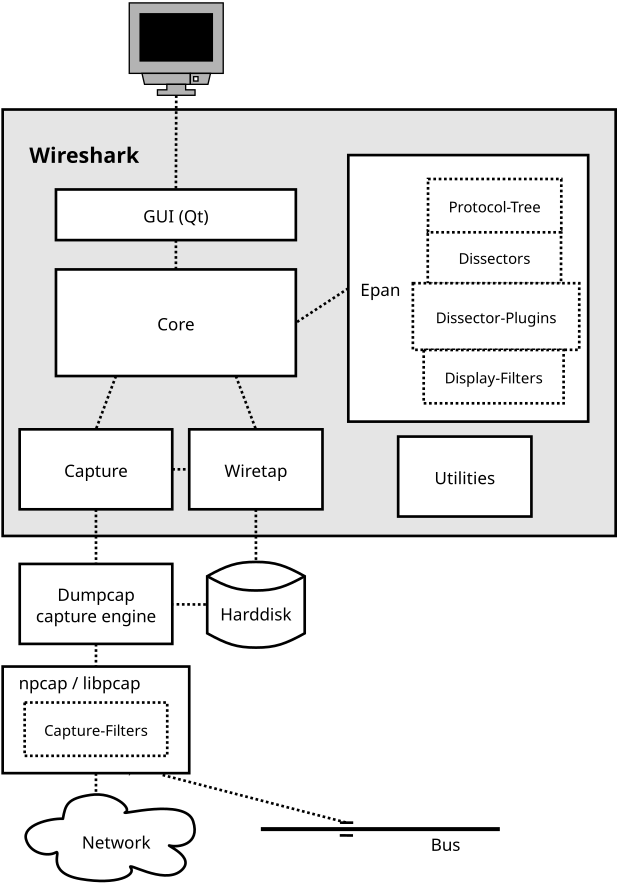
The function blocks in more detail:
- GUI
- Handling of all user input/output (all windows, dialogs and such). Source code can be found in the ui/qt directory.
- Core
- Main "glue code" that holds the other blocks together. Source code can be found in the project root directory.
- Epan
-
Enhanced Packet ANalyzer — the packet analyzing engine. Source code can be found in the epan directory. Epan provides the following APIs:
- Protocol Tree. Dissection information for an individual packet.
- Dissectors. The various protocol dissectors in epan/dissectors.
- Dissector Plugins - Support for implementing dissectors as separate modules. Source code can be found in plugins.
- Display Filters - The display filter engine at epan/dfilter.
- Wiretap
- The wiretap library is used to read and write capture files in libpcap, pcapng, and many other file formats. Source code is in the wiretap directory.
- Capture
- The interface to the capture engine. Source code is in the project root directory.
- Dumpcap
- The capture engine itself. This is the only part that executes with elevated privileges. Source code is in the project root directory.
- Npcap and libpcap
- These are external libraries that provide packet capture and filtering support on different platforms. The filtering in Npcap and libpcap works at a much lower level than Wireshark’s display filters and uses a significantly different mechanism. That’s why there are different display and capture filter syntaxes.
Capturing takes packets from a network adapter and saves them to a file on your hard disk.
Since raw network adapter access requires elevated privileges, these functions
are isolated to the dumpcap program. Placing the capture functionality
into dumpcap allows the rest of the code (dissectors, user interface,
etc.) to run with normal user privileges.
To hide all the low-level machine dependent details from Wireshark, the libpcap and Npcap (see Section 5.8, “libpcap or Npcap (Optional, But Strongly Recommended)”) libraries are used. These libraries provide a general purpose interface to capture packets and are used by a wide variety of applications.
Wireshark can read and write capture files in its natural file formats, pcapng and pcap, which are used by many other network capturing tools, such as tcpdump. Additionally, Wireshark supports reading and writing packet capture files in formats used by other network capture tools. This support is implemented in Wireshark’s wiretap library, which provides a general purpose interface for reading and writing packet capture formats and supports more than twenty packet capture formats.
Wireshark dissects packets in what it calls 'two-pass' dissection.
Wireshark performs a first pass of dissecting all packets as they are loaded from the file. All packets are dissected sequentially and this information is used to populate Wireshark’s packet list pane and to build state and other information needed when displaying the packet.
Wireshark later performs 'second pass' ad-hoc dissections on the packets that it needs data from. This enables Wireshark to fill in fields that require future knowledge, like the 'response in frame #' fields, and correctly calculate reassembly frame dependencies.
For example, Wireshark will perform an ad-hoc dissection when a user selects a packet (to display the packet details), calculates a statistic (so all values are computed), or performs another action that requires packet data. However, because Wireshark may only dissect the packets that are needed, there is no guarantee that Wireshark will dissect all packets again, nor is there any guarantee as to the order that the packets will be dissected after the first pass.
Table of Contents
For this discussion, let’s assume you’re working with libpcap 1.0 or later. You probably don’t want to work with a version older than 1.0, even if whatever OS you’re using happens to include libpcap - older versions are not as friendly towards adding support for devices other than standard network interfaces.
First, read the libpcap documentation on writing a new libpcap module
(It’s currently incomplete, but I’ll be finishing it up over time. If you have contributions, feel free to submit pull requests for it.)
If you had to introduce one or more new DLT_* values, you will
also have to add support in Wireshark for those DLT_* values to
wiretap/pcap-common.c, which might mean adding one or more
WTAP_ENCAP types to wtap.h and to the encap_table[] table in
wiretap/wtap.c. You’d then have to write a dissector or dissectors for
the link-layer protocols or protocols and have them register themselves
with the wtap_encap dissector table, with the appropriate WTAP_ENCAP
values by calling dissector_add_uint().
The extcap interface is a versatile plugin interface that allows external binaries to act as capture interfaces directly in Wireshark. It is used in scenarios, where the source of the capture is not a traditional capture model (live capture from an interface, from a pipe, from a file, etc). The typical example is connecting esoteric hardware of some kind to the main Wireshark app.
Without extcap, a capture can always be achieved by directly writing to a capture file:
Bash example for traditional capture with a capture file.
$ the-esoteric-binary --the-strange-flag --interface=stream1 --file dumpfile.pcap &
$ wireshark dumpfile.pcap
but the extcap interface allows for such a connection to be easily established and configured using the Wireshark GUI.
The extcap subsystem is made of multiple extcap binaries that are automatically called by the GUI in a row. In the following chapters we will refer to them as “the extcaps”.
Extcaps may be any binary or script within the extcap directory. Please note, that scripts need to be executable without prefacing a script interpreter before the call.
|
Important |
|---|---|
|
Windows Users Because of restrictions directly calling the script may not always work. In such a case, a batch file may be provided, which then in turn executes the script. Please refer to Section 8.2.1.4.1, “Execute A Script-based Extcap On Windows” for more information. |
When Wireshark launches an extcap, it automatically adds its installation path (normally C:\Program Files\Wireshark\) to the DLL search path so that the extcap library dependencies can be found (it is not designed to be launched by hand). This is done on purpose. There should only be extcap programs (executables, Python scripts, etc.) in the extcap folder to reduce the startup time and not have Wireshark trying to execute other file types.
The actual capture is run after a setup process that can be done manually by the user or automatically by the GUI. All the steps performed are done for every extcap.
Let’s go through those steps.
In the first step the extcap is queried for its interfaces.
$ extcapbin --extcap-interfaces
This call must print the existing interfaces for this extcap and must return 0. The output must conform to the grammar specified for extcap, and it is specified in the doc/extcap.4 generated man page (in the build dir).
Wireshark 2.9 and later also pass --extcap-version=x.x, which provides the calling Wireshark’s major and minor version.
This can be used to change behavior depending on the Wireshark version in question.
Example call for interface query.
$ extcap_example.py --extcap-interfaces --extcap-version=4.0
extcap {version=1.0}{help=Some help url}
interface {value=example1}{display=Example interface 1 for extcap}
interface {value=example2}{display=Example interface 2 for extcap}
The version for the extcap sentence (which may exist as many times as is needed, but only the last one will be used) will be used for displaying the version information of the extcap interface in the about dialog of Wireshark.
The value for each interface will be used in subsequent calls as the interface name <iface>.
Using the help argument, an interface may provide a generic help URL for the extcap utility.
Next, the extcap binary is queried for all valid DLTs for all the interfaces returned by step 1.
$ extcap_example.py --extcap-dlts --extcap-interface <iface>
This call must print the valid DLTs for the interface specified. This call is made for all the interfaces and must return 0.
Example for the DLT query.
$ extcap_example.py --extcap-interface IFACE --extcap-dlts
dlt {number=147}{name=USER1}{display=Demo Implementation for Extcap}
A binary or script which neither provides an interface list or a DLT list will not show up in the extcap interfaces list.
The extcap binary is next asked for the configuration of each specific interface
$ extcap_example.py --extcap-interface <iface> --extcap-config
Each interface can have custom options that are valid for this interface only. Those config options are specified on the command line when running the actual capture. To allow an end-user to specify certain options, such options may be provided using the extcap config argument.
To share which options are available for an interface, the extcap responds to the command --extcap-config, which shows all the available options (aka additional command line options).
Those options are used to build a configuration dialog for the interface.
Example for interface options.
$ extcap_example.py --extcap-interface <iface> --extcap-config
arg {number=0}{call=--delay}{display=Time delay}{tooltip=Time delay between packages}{type=integer}{range=1,15}{required=true}
arg {number=1}{call=--message}{display=Message}{tooltip=Package message content}{placeholder=Please enter a message here ...}{type=string}
arg {number=2}{call=--verify}{display=Verify}{tooltip=Verify package content}{type=boolflag}
arg {number=3}{call=--remote}{display=Remote Channel}{tooltip=Remote Channel Selector}{type=selector}
arg {number=4}{call=--server}{display=IP address for log server}{type=string}{validation=\\b(?:(?:25[0-5]|2[0-4][0-9]|[01]?[0-9][0-9]?)\\.){3}(?:25[0-5]|2[0-4][0-9]|[01]?[0-9][0-9]?)\\b}
value {arg=3}{value=if1}{display=Remote1}{default=true}
value {arg=3}{value=if2}{display=Remote2}{default=false}
Now the user can click on the options and change them. They are sent to the extcap when the capture is launched.
There are several kind of options available:
|
File |
A path to a file displayed as a text entry and file selector. |
|
Flag |
A boolean value displayed as a checkbox. boolflag for instance expects the option to be present resulting in the corresponding entry set to true or false. |
|
Selection |
A set of fixed values displayed as a combobox, radio group, or selection list. Selections can be presented multiple times in the command line. Subsequent value items must be provided in the config list. |
|
Timestamp |
A time value displayed as a date/time editor. |
|
Value |
A text or numeric value displayed as an entry box. Values are passed as a single value via the command-line call. |
Once the interfaces are listed and configuration is customized by the user the capture can be started.
$ extcap_example.py --extcap-interface <iface> [params] --capture [--extcap-capture-filter <cfilter>]
  --fifo FIFO
To run the capture, the extcap must implement the --capture, --extcap-capture-filter
and --fifo options.
They are automatically added by Wireshark, which opens the fifo for reading. All the other options are automatically added to run the capture. The extcap interface is used like all other interfaces (meaning that capture on multiple interfaces, as well as stopping and restarting the capture is supported).
Although Windows will run batch and PowerShell scripts directly, other scripting languages require extra effort. In most cases this involves creating a wrapper script which runs the appropriate interpreter. For example, in order to run a Python-based extcap, you can create scriptname.bat inside your extcap folder with the following content:
@echo off
C:\Windows\py.exe C:\Path\to\my\extcap.py %*
The extcap interface provides the possibility for generating a GUI dialog to set and adapt settings for the extcap binary.
All options must provide a number, by which they are identified. No number may be provided twice. All options must present the elements call and display, with call specifying the argument’s name on the command line and display specifying the name in the GUI.
Additionally tooltip and placeholder may be provided, which will give the user information about what to enter into this field.
These options do have types, for which the following types are being supported:
|
integer, unsigned, long, double |
This provides a field for entering a numeric value of the given data type. A default value may be provided, as well as a range. arg {number=0}{call=--delay}{display=Time delay}{tooltip=Time delay between packages}{type=integer}{range=1,15}{default=0}
|
|
string |
This provides a field for entering a text value. arg {number=1}{call=--server}{display=IP Address}{tooltip=IP Address for log server}{type=string}{validation=\\b(?:(?:25[0-5]|2[0-4][0-9]|[01]?[0-9][0-9]?)\\.){3}(?:25[0-5]|2[0-4][0-9]|[01]?[0-9][0-9]?)\\b}
|
|
password |
Lets the user provide a masked string to the capture. Password strings are not saved with other capture settings. arg {number=0}{call=--password}{display=The user password}{tooltip=The password for the connection}{type=password}
|
|
boolean, boolflag |
This provides the possibility to set a true/false value. boolflag values will only appear in the command line if set to true, otherwise they will not be added to the command-line call for the extcap interface. arg {number=2}{call=--verify}{display=Verify}{tooltip=Verify package content}{type=boolflag}
|
|
fileselect |
Lets the user provide a file path. If mustexist=true is provided, the GUI shows the user a dialog for selecting a file. When mustexist=false is used, the GUI shows the user a file dialog for saving a file. arg {number=3}{call=--logfile}{display=Logfile}{tooltip=A file for log messages}{type=fileselect}{mustexist=false}
|
|
selector, editselector, radio, multicheck |
Option fields where the user may choose from one or more options. If parent is provided for the value items, the option fields for multicheck and selector are presented in a tree-like structure. selector and radio values must present a default value, which will be the value provided to the extcap binary for this argument. editselector option fields let the user select from a list of items or enter a custom value. arg {number=3}{call=--remote}{display=Remote Channel}{tooltip=Remote Channel Selector}{type=selector}
value {arg=3}{value=if1}{display=Remote1}{default=true}
value {arg=3}{value=if2}{display=Remote2}{default=false}
|
A selector may be reloaded from the configuration dialog of the extcap application within Wireshark. With the reload argument (defaults to false), the entry can be marked as reloadable.
arg {number=3}{call=--remote}{display=Remote Channel}{tooltip=Remote Channel Selector}{type=selector}{reload=true}{placeholder=Load interfaces...}
After this has been defined, the user will get a button displayed in the configuration dialog for this extcap application, with the text "Load interfaces…" in this case, and a generic "Reload" text if no text has been provided.
The extcap utility is then called again with all filled out arguments and the additional parameter --extcap-reload-option <option_name>. It is expected to return a value section for this option, as it would during normal configuration. The provided option list is then presented as the selection, a previous selected option will be reselected if applicable.
Arguments may be set with {required=true} which enforces a value being provided, before
a capture can be started using the extcap options dialog. This is not being checked, if
the extcap is started via a simple double-click. The necessary fields are marked for the
customer, to ensure a visibility for the end customer of the required argument.
Additionally text and number arguments may also be checked using a regular expression, which is provided using the validation attribute (see example above). The syntax for such a check is the same as for Qt RegExp classes. This feature is only active in the Qt version of Wireshark.
An extcap utility can provide configuration for controls to use in an interface toolbar. These controls are bidirectional and can be used to control the extcap utility while capturing.
This is useful in scenarios where configuration can be done based on findings in the capture process, setting temporary values or give other inputs without restarting the current capture.
Example of interface definition with toolbar controls.
$ extcap_example.py --extcap-interfaces
extcap {version=1.0}{display=Example extcap interface}
interface {value=example1}{display=Example interface 1 for extcap}
interface {value=example2}{display=Example interface 2 for extcap}
control {number=0}{type=string}{display=Message}{tooltip=Package message content. Must start with a capital letter.}{validation=[A-Z]+}{required=true}
control {number=1}{type=selector}{display=Time delay}{tooltip=Time delay between packages}
control {number=2}{type=boolean}{display=Verify}{default=true}{tooltip=Verify package content}
control {number=3}{type=button}{display=Turn on}{tooltip=Turn on or off}
control {number=4}{type=button}{role=logger}{display=Log}{tooltip=Show capture log}
value {control=1}{value=1}{display=1 sec}
value {control=1}{value=2}{display=2 sec}{default=true}
All controls will be presented as GUI elements in a toolbar specific to the extcap utility. The extcap must not rely on using those controls (they are optional) because of other capturing tools not using GUI (e.g. tshark, tfshark).
The controls are similar to the arguments, but without the call element. All controls may be given a default value at startup and most can be changed during capture, both by the extcap and the user (depending on the type of control).
All controls must provide a number, by which they are identified. No number may be provided twice. All options must present the elements type and display, where type provides the type of control to add to the toolbar and display providing the name in the GUI.
Additionally tooltip and placeholder may be provided, which will give the user information about what to enter into this field.
All controls, except from the logger, help and restore buttons, may be disabled (and enabled) in GUI by the extcap during capture. This can be because of set-once operations, or operations which takes some time to complete.
All control values which are changed by the user (not equal to the default value) will be sent to the extcap utility when starting a capture. The extcap utility may choose to discard initial values and set new values, depending on implementation.
These types are defined as controls:
|
boolean |
This provides a checkbox which lets the user set a true/false value. The extcap utility can set a default value at startup, and can change (set) and receive value changes while capturing. When starting a capture the GUI will send the value if different from the default value. The payload is one byte with binary value 0 or 1. Valid Commands: Set value, Enable, Disable. |
|
button |
This provides a button with different roles:
|
|
selector |
This provides a combo box with fixed values which can be selected. The extcap utility can set default values at startup, and add and remove values and receive change in value selection while capturing. When starting a capture the GUI will send the value if different from the default value. The payload is a string with the value, and optionally a string with a display value if this is different from the value. This two string values are separated by a null character. Valid Commands: Set selected value, Add value, Remove value, Enable, Disable. If value is empty the Remove command will remove all entries. |
|
string |
This provides a text edit line with the possibility to set a string or any value which can be represented in a string (integer, float, date, etc.). The extcap utility can set a default string value at startup, and can change (set) and receive value changes while capturing. When starting a capture the GUI will send the value if different from the default value. The payload is a string with the value. Maximum length is 32767 bytes. Valid Commands for control: Set value, Enable, Disable. The element VALIDATION allows to provide a regular expression string, which is used to check the user input for validity beyond normal data type or range checks. Back-slashes must be escaped (as in \\b for \b). |
In addition to the controls it’s possible to send a single message from the extcap utility to the user. This message can be put in the status bar or displayed in a information, warning or error dialog which must be accepted by the user. This message does not use the NUMBER argument so this can have any value.
The protocol used to communicate over the control pipes has a fixed size header of 6 bytes and a payload with 0 - 65535 bytes.
Table 8.1. Control packet:
|
|
|
|
|
Sync Pipe Indication. The common sync pipe indication. This protocol uses the value “T”.
Message Length. Payload length + 2 bytes for control number and command.
Control Number. Unique number to identify the control. This number also gives the order of the controls in the interface toolbar.
Table 8.2. Commands and application for controls
| Command Byte | Command Name | Control type |
|---|---|---|
0 |
Initialized |
none |
1 |
Set |
boolean / button / logger / selector / string |
2 |
Add |
logger / selector |
3 |
Remove |
selector |
4 |
Enable |
boolean / button / selector / string |
5 |
Disable |
boolean / button / selector / string |
6 |
Statusbar message |
none |
7 |
Information message |
none |
8 |
Warning message |
none |
9 |
Error message |
none |
The Initialized command will be sent from the GUI to the extcap utility when all
user changed control values are sent after starting a capture. This is an indication
that the GUI is ready to receive control values.
The GUI will only send Initialized and Set commands. The extcap utility shall not
send the Initialized command.
Messages with unknown control number or command will be silently ignored.
Table of Contents
Each dissector decodes its part of the protocol and then hands off decoding to subsequent dissectors for an encapsulated protocol.
Every dissection starts with the Frame dissector which dissects the details of the capture file itself (e.g. timestamps). From there it passes the data on to the lowest-level data dissector, e.g. the Ethernet dissector for the Ethernet header. The payload is then passed on to the next dissector (e.g. IP) and so on. At each stage, details of the packet are decoded and displayed.
Dissectors can either be built-in to Wireshark or written as a self-registering plugin (a shared library or DLL). There is little difference in having your dissector as either a plugin or built-in. You have limited function access through the ABI exposed by functions declared as WS_DLL_PUBLIC.
The big benefit of writing a dissector as a plugin is that rebuilding a plugin is much faster than rebuilding wireshark after editing a built-in dissector. As such, starting with a plugin often makes initial development quicker, while the finished code may make more sense as a built-in dissector.
|
Read README.dissector |
|---|---|
|
The file doc/README.dissector contains detailed information about writing a dissector. In many cases it is more up to date than this document. |
Let’s step through adding a basic dissector. We’ll start with the made up "foo" protocol. It consists of the following basic items.
- A packet type - 8 bits. Possible values: 1 - initialisation, 2 - terminate, 3 - data.
- A set of flags stored in 8 bits. 0x01 - start packet, 0x02 - end packet, 0x04 - priority packet.
- A sequence number - 16 bits.
- An IPv4 address.
The first decision you need to make is if this dissector will be a built-in dissector and included in the main program, or a plugin.
Plugins are easier to write initially, so let’s start with that. With a little care, the plugin can be converted into a built-in dissector. For detailed information about plugins, see Chapter 11, Plugins.
Dissector Initialisation.
#include "config.h"
#include <epan/packet.h>

#define FOO_PORT 1234

static int proto_foo;

static dissector_handle_t foo_handle;
Let’s go through this a bit at a time. First we have some boilerplate include files. These will be pretty constant to start with.
Then a #define for the UDP port that carries foo traffic.
Next we have proto_foo, an int that stores our protocol handle.
This handle will be set when the dissector is registered within the main program.
It’s good practice to make all variables and functions that aren’t exported
static to minimize name space pollution. This normally isn’t a problem unless your
dissector gets so big that it spans multiple files.
Then there’s foo_handle, a structure that holds a handle to
the function which will perform the actual dissection of our protocol.
This will be set at the same time as proto_foo.
Now that we have the basics in place to interact with the main program, we’ll
start with two protocol dissector setup functions: proto_register_XXX and
proto_reg_handoff_XXX.
Each protocol must have a register function with the form "proto_register_XXX".
This function is used to register the protocol in Wireshark.
The code to call the register routines is generated automatically and is
called when Wireshark starts. In this example, the function is named
proto_register_foo.
Dissector Registration.
void
proto_register_foo(void)
{
    proto_foo = proto_register_protocol (
        "FOO Protocol", /* protocol name        */
        "FOO",          /* protocol short name  */
        "foo"           /* protocol filter_name */
        );

    foo_handle = register_dissector_with_description (
        "foo",          /* dissector name           */
        "Foo Protocol", /* dissector description    */
        dissect_foo,    /* dissector function       */
        proto_foo       /* protocol being dissected */
        );
}
proto_register_foo calls proto_register_protocol(), which takes a name,
short name, and filter_name for your protocol. The
name and short name are used in the "Preferences" and "Enabled protocols"
dialogs and the documentation’s generated field name list. The
filter_name is used as the display filter name. proto_register_protocol()
returns a protocol handle, which can be used to refer to the protocol and
obtain a handle to the protocol’s dissector.
|
Note |
|---|---|
|
There is a distinction in Wireshark between the protocol and its dissector. A protocol may have several dissectors — e.g. for handling protocol variants — but they are all under the umbrella of the same protocol. |
We haven’t registered a dissector yet. We do that next with
register_dissector_with_description(). This function takes a short name
for the dissector, a human-readable description of the dissector,
a pointer to the dissection function (which we haven’t created yet),
and the protocol handle we just created.
|
Tip |
|---|---|
|
You can also register your dissector via You will see older code (and documentation) which uses |
The dissector’s short name is how you refer to the dissector from other places
in Wireshark, such as the "Decode As" feature, or when calling it from another
dissector.
In simple cases like ours it’s okay to use the same name for the dissector as
for the protocol.
If you’re writing dissectors for a more complex protocol,
then the dissector names should reflect their use.
For example, if our foo protocol needs different dissection when it’s
carried over UDP than when it’s carried over TCP, then you might choose
foo.udp and foo.tcp for your dissector names.
(The short name for the protocol would still be foo.)
Next we need a handoff routine.
Dissector Handoff.
void
proto_reg_handoff_foo(void)
{
    dissector_add_uint("udp.port", FOO_PORT, foo_handle);
}
A handoff routine associates a protocol handler with the protocol’s
traffic. We do this here by calling
dissector_add_uint() to associate traffic on UDP port FOO_PORT (1234)
with the foo protocol, so that Wireshark will call dissect_foo() when
it receives UDP traffic on port 1234.
|
Tip |
|---|---|
|
Wireshark’s dissector convention is to put |
The next step is to write the dissecting function, dissect_foo().
We’ll start with a basic placeholder.
Dissection.
static int
dissect_foo(tvbuff_t *tvb, packet_info *pinfo, proto_tree *tree _U_, void *data _U_)
{
    col_set_str(pinfo->cinfo, COL_PROTOCOL, "FOO");
    /* Clear the info column */
    col_clear(pinfo->cinfo,COL_INFO);

    return tvb_captured_length(tvb);
}
dissect_foo() is called to dissect the packets presented to it. The packet data
is held in a special buffer referenced here as tvb. The packet_info structure
contains general data about the protocol and we can update
information here. The tree parameter is where the detail dissection takes place.
Note that the _U_ following tree and data signals to the compiler that the
parameters are unused, so that the compiler does not print a warning.
For now we’ll do the minimum we can get away with. col_set_str() is used to set
Wireshark’s Protocol column to "FOO" so everyone can see it’s being
recognised. The
only other thing we do is to clear out any data in the INFO column if it’s being
displayed.
At this point we have a basic dissector ready to compile and install. The dissector doesn’t do anything other than identify the protocol and label it. Here is the dissector’s complete code:
Complete packet-foo.c so far.
#include "config.h"
#include <epan/packet.h>

#define FOO_PORT 1234

static int proto_foo;

static dissector_handle_t foo_handle;

static int
dissect_foo(tvbuff_t *tvb, packet_info *pinfo, proto_tree *tree _U_, void *data _U_)
{
    col_set_str(pinfo->cinfo, COL_PROTOCOL, "FOO");
    /* Clear the info column */
    col_clear(pinfo->cinfo,COL_INFO);

    return tvb_captured_length(tvb);
}

void
proto_register_foo(void)
{
    proto_foo = proto_register_protocol (
        "FOO Protocol", /* protocol name        */
        "FOO",          /* protocol short name  */
        "foo"           /* protocol filter_name */
        );

    foo_handle = register_dissector_with_description (
        "foo",          /* dissector name           */
        "Foo Protocol", /* dissector description    */
        dissect_foo,    /* dissector function       */
        proto_foo       /* protocol being dissected */
        );
}

void
proto_reg_handoff_foo(void)
{
    dissector_add_uint("udp.port", FOO_PORT, foo_handle);
}
To compile this dissector and create a plugin a few support files are required, besides the dissector source in packet-foo.c:
- CMakeLists.txt - Contains the CMake file and version info for this plugin.
- packet-foo.c - Your dissector source.
- plugin.rc.in - Contains the DLL resource template for Windows. (optional)
Samples of these files are available in the gryphon plugin directory (plugins/epan/gryphon). If you copy the files from the gryphon plugin, CMakeLists.txt will need to be updated with the correct plugin name, version info, and the relevant files to compile.
In the main top-level source directory, copy CMakeListsCustom.txt.example to
CMakeListsCustom.txt and add the path of your plugin to the list in
CUSTOM_PLUGIN_SRC_DIR.
Compile the dissector to a DLL or shared library and either run Wireshark from the build directory as detailed in Section 3.7, “Run Your Version Of Wireshark” or copy the plugin binary into the plugin directory of your Wireshark installation and run that.
Now that we have our basic dissector up and running, let’s do something with it. The simplest thing to start with is labeling the payload. We can label the payload by building a subtree to decode our results into. This subtree will hold all the protocol’s details and helps keep things looking nice in the detailed display.
We add the new subtree with proto_tree_add_item(), as is depicted below:
Plugin Packet Dissection.
static int
dissect_foo(tvbuff_t *tvb, packet_info *pinfo, proto_tree *tree, void *data _U_)
{
    col_set_str(pinfo->cinfo, COL_PROTOCOL, "FOO");
    /* Clear out stuff in the info column */
    col_clear(pinfo->cinfo,COL_INFO);

    proto_item *ti = proto_tree_add_item(tree, proto_foo, tvb, 0, -1, ENC_NA);

    return tvb_captured_length(tvb);
}
As the FOO protocol does not encapsulate another protocol, we
consume all of the tvb’s data, from 0 to the end (-1).
The final parameter specifies the "encoding" and is set to
ENC_NA ("not applicable"), as the protocol item doesn’t have
a specific encoding.
When we start dissecting the values of fields in the protocol data,
we’ll have to tell Wireshark about their encoding; for example, integers
can be big endian (ENC_BIG_ENDIAN) or little endian (ENC_LITTLE_ENDIAN).
After adding the call to
proto_tree_add_item()
, there should be a label FOO in the protocol’s detailed display.
Selecting this label will highlight the remaining contents of the packet.
Now let’s go to the next step and add some protocol dissection. To do this
we’ll need to construct tables to define which fields will be present in the
packet and to store the opened/closed state of the subtree. We’ll
add these statically allocated arrays to the beginning of the file
(right after the dissector handle)
and name them
hf_foo_pdu_type ('hf' is short for 'header field') and ett_foo.
The arrays will then registered after the call to
proto_register_protocol() by calling proto_register_field_array()
and proto_register_subtree_array():
Registering data structures.
static int hf_foo_pdu_type;
static int ett_foo;

/* ... */

void
proto_register_foo(void)
{
    static hf_register_info hf[] = {
        { &hf_foo_pdu_type,
            { "FOO PDU Type", "foo.type",
            FT_UINT8, BASE_DEC,
            NULL, 0x0,
            NULL, HFILL }
        }
    };

    /* Setup protocol subtree array */
    static int *ett[] = {
        &ett_foo
    };

    proto_foo = proto_register_protocol (
        "FOO Protocol", /* protocol name        */
        "FOO",          /* protocol short name  */
        "foo"           /* protocol filter_name */
        );

    proto_register_field_array(proto_foo, hf, array_length(hf));
    proto_register_subtree_array(ett, array_length(ett));

    foo_handle = register_dissector_with_description (
        "foo",          /* dissector name           */
        "Foo Protocol", /* dissector description    */
        dissect_foo,    /* dissector function       */
        proto_foo       /* protocol being dissected */
        );
}
As you can see, a field foo.type was defined inside the array of
header fields.
Now we can dissect the FOO PDU Type (referenced as foo.type)
field in dissect_foo() by adding
the FOO Protocol’s subtree with proto_item_add_subtree() and
then calling proto_tree_add_item() to add the field:
Dissector starting to dissect the packets.
    proto_item *ti = proto_tree_add_item(tree, proto_foo, tvb, 0, -1, ENC_NA);
    proto_tree *foo_tree = proto_item_add_subtree(ti, ett_foo);
    proto_tree_add_item(foo_tree, hf_foo_pdu_type, tvb, 0, 1, ENC_BIG_ENDIAN);
As mentioned earlier, the foo protocol begins with an 8-bit packet type
which can have three possible values: 1 - initialisation, 2 - terminate, 3 - data.
Here’s how we can add the packet details:
The proto_item_add_subtree() call has added a child node
to the protocol tree which is where we will do our detail dissection.
The expansion of this node is controlled by the ett_foo
variable. It remembers if the node should be expanded or not as you move
between packets. All subsequent dissection will be added to this tree,
as you can see from the next call.
A call to proto_tree_add_item() in the foo_tree,
this time using the hf_foo_pdu_type to control the formatting
of the item. The pdu type is one byte of data, starting at 0. We assume it is
in network order (also called big endian), so that is why we use ENC_BIG_ENDIAN.
For a 1-byte quantity, there is no order issue, but it is good practice to
make this the same as any multibyte fields that may be present, and as we will
see in the next section, this particular protocol uses network order.
If we look in detail at the hf_foo_pdu_type declaration in
the static array we can see the details of the definition.
static hf_register_info hf[] = {
    { &hf_foo_pdu_type,
        { "FOO PDU Type", "foo.type",
        FT_UINT8, BASE_DEC,
        NULL, 0x0,
        NULL, HFILL }
    }
};
- hf_foo_pdu_type - The node’s index.
- FOO PDU Type - The item’s label, as it will appear in the protocol tree.
-
foo.type - The item’s abbreviated name, for use in the display filter
(e.g.,
foo.type==1). - FT_UINT8 - The item’s type: An 8bit unsigned integer. This tallies with our call above where we tell it to only look at one byte.
- BASE_DEC - For an integer type, this tells it to be printed as a decimal number. It could be hexadecimal (BASE_HEX) or octal (BASE_OCT) if that made more sense.
We’ll ignore the rest of the structure for now.
If you install this plugin and try it out, you’ll see something that begins to look useful.
Now let’s finish off dissecting the simple protocol. We need to add a few more variables to the hfarray, and a couple more procedure calls.
Wrapping up the packet dissection.
...
static int hf_foo_flags;
static int hf_foo_sequenceno;
static int hf_foo_initialip;
...

static int
dissect_foo(tvbuff_t *tvb, packet_info *pinfo, proto_tree *tree, void *data _U_)
{
    int offset = 0;

    ...
    proto_item *ti = proto_tree_add_item(tree, proto_foo, tvb, 0, -1, ENC_NA);
    proto_tree *foo_tree = proto_item_add_subtree(ti, ett_foo);
    proto_tree_add_item(foo_tree, hf_foo_pdu_type, tvb, offset, 1, ENC_BIG_ENDIAN);
    offset += 1;
    proto_tree_add_item(foo_tree, hf_foo_flags, tvb, offset, 1, ENC_BIG_ENDIAN);
    offset += 1;
    proto_tree_add_item(foo_tree, hf_foo_sequenceno, tvb, offset, 2, ENC_BIG_ENDIAN);
    offset += 2;
    proto_tree_add_item(foo_tree, hf_foo_initialip, tvb, offset, 4, ENC_BIG_ENDIAN);
    offset += 4;
    ...

    return tvb_captured_length(tvb);
}

void
proto_register_foo(void) {
    ...
        ...
        { &hf_foo_flags,
            { "FOO PDU Flags", "foo.flags",
            FT_UINT8, BASE_HEX,
            NULL, 0x0,
            NULL, HFILL }
        },
        { &hf_foo_sequenceno,
            { "FOO PDU Sequence Number", "foo.seqn",
            FT_UINT16, BASE_DEC,
            NULL, 0x0,
            NULL, HFILL }
        },
        { &hf_foo_initialip,
            { "FOO PDU Initial IP", "foo.initialip",
            FT_IPv4, BASE_NONE,
            NULL, 0x0,
            NULL, HFILL }
        },
        ...
    ...
}
...
This dissects all the bits of this simple hypothetical protocol. With these extra bits in place, the whole protocol is now dissected.
|
Tip |
|---|---|
|
We’ve introduced a new variable |
We can certainly improve the display of the protocol with a bit of extra data. The first step is to add some text labels. Let’s start by labeling the packet types. There is some useful support for this sort of thing by adding a couple of extra things. First we add a simple table mapping an integer type to a readable name.
Place this code just after all your hf_… declarations:
Naming the packet types.
static const value_string packettypenames[] = {
    { 1, "Initialise" },
    { 2, "Terminate" },
    { 3, "Data" },
    { 0, NULL }
};
This is a handy data structure that can be used to look up a name for a value.
There are routines to directly access this lookup table, but we don’t need to
do that, as the support code already has that added in. We just have to give
these details to the definition of the field in proto_register_foo().
We do this with the VALS macro.
Adding Names to the protocol.
   { &hf_foo_pdu_type,
        { "FOO PDU Type", "foo.type",
        FT_UINT8, BASE_DEC,
        VALS(packettypenames), 0x0,
        NULL, HFILL }
    }
This helps in deciphering the packets, and we can do a similar thing for the flags structure. For this we need to add some more data to the table though.
Adding Flags to the protocol.
#define FOO_START_FLAG      0x01
#define FOO_END_FLAG        0x02
#define FOO_PRIORITY_FLAG   0x04

...
static int hf_foo_startflag;
static int hf_foo_endflag;
static int hf_foo_priorityflag;
...

static int
dissect_foo(tvbuff_t *tvb, packet_info *pinfo, proto_tree *tree, void *data _U_)
{
    ...
        ...
        static int* const bits[] = {
            &hf_foo_startflag,
            &hf_foo_endflag,
            &hf_foo_priorityflag,
            NULL
        };

        proto_tree_add_bitmask(foo_tree, tvb, offset, hf_foo_flags, ett_foo, bits, ENC_BIG_ENDIAN);
        offset += 1;
        ...
    ...
    return tvb_captured_length(tvb);
}

void
proto_register_foo(void) {
    ...
        ...
        { &hf_foo_startflag,
            { "FOO PDU Start Flags", "foo.flags.start",
            FT_BOOLEAN, 8,
            NULL, FOO_START_FLAG,
            NULL, HFILL }
        },
        { &hf_foo_endflag,
            { "FOO PDU End Flags", "foo.flags.end",
            FT_BOOLEAN, 8,
            NULL, FOO_END_FLAG,
            NULL, HFILL }
        },
        { &hf_foo_priorityflag,
            { "FOO PDU Priority Flags", "foo.flags.priority",
            FT_BOOLEAN, 8,
            NULL, FOO_PRIORITY_FLAG,
            NULL, HFILL }
        },
        ...
    ...
}
...
Some things to note here. For the flags, since each bit is a different flag, we use
the type FT_BOOLEAN, as the flag is either on or off. Second, we include the flag
mask in the 7th field of the data, which allows Wireshark to mask the relevant bit.
We’ve also changed the fifth field to 8, to indicate that we are looking at an 8 bit
quantity when the flags are extracted. Then finally we add the extra constructs
to the dissection routine.
This is starting to look fairly full featured now, but there are a couple of other things we can do to make things look even more pretty. At the moment our dissection shows the packets as "Foo Protocol" which whilst correct is a little uninformative. We can enhance this by adding a little more detail.
First, let’s
get hold of the actual value of the protocol type. We can use the handy function
tvb_get_uint8() to do this. With this value in hand, there are a couple of
things we can do. We can set the INFO column of the non-detailed view to
show what sort of PDU it is — which is extremely helpful when looking at
protocol traces. Second, we can also display this information in the dissection
window.
Enhancing the display.
static int
dissect_foo(tvbuff_t *tvb, packet_info *pinfo, proto_tree *tree, void *data _U_)
{
    int offset = 0;
    uint8_t packet_type = tvb_get_uint8(tvb, 0);

    col_set_str(pinfo->cinfo, COL_PROTOCOL, "FOO");
    /* Clear out stuff in the info column */
    col_clear(pinfo->cinfo, COL_INFO);
    col_add_fstr(pinfo->cinfo, COL_INFO, "Type %s",
             val_to_str(pinfo->pool, packet_type, packettypenames, "Unknown (0x%02x)"));

    proto_item *ti = proto_tree_add_item(tree, proto_foo, tvb, 0, -1, ENC_NA);
    proto_item_append_text(ti, ", Type %s",
        val_to_str(pinfo->pool, packet_type, packettypenames, "Unknown (0x%02x)"));
    proto_tree *foo_tree = proto_item_add_subtree(ti, ett_foo);
    proto_tree_add_item(foo_tree, hf_foo_pdu_type, tvb, offset, 1, ENC_BIG_ENDIAN);
    offset += 1;

    ...

    return tvb_captured_length(tvb);
}
So here, after grabbing the value of the first 8 bits, we use it with one of the
built-in utility routines val_to_str(), to lookup the value. If the value
isn’t found we provide a fallback which just prints the value in hex. We use
this twice, once in the INFO field of the columns — if it’s displayed — and
once to append this data to the base of our dissecting tree.
A dissector showing the protocol fields and interpretation of their values is very informative. It can be even more helpful if the dissector can draw your attention to fields where something noteworthy can be seen. This can be something as simple as the start flag of a session, or something more severe as an invalid value.
Here we take our dissector for FOO and add an expert item for the sequence
number being zero (assuming that’s a noteworthy thing for this protocol).
Expert item setup.
#include <epan/expert.h>

static expert_field ei_foo_seqn_zero;

/* ... */

void
proto_register_foo(void)
{
    /* ... */
    expert_module_t* expert_foo;

    /* ... */
    static ei_register_info ei[] = {
        {
            &ei_foo_seqn_zero,
            { "foo.seqn_zero", PI_SEQUENCE, PI_CHAT,
              "Sequence number is zero", EXPFILL }
        }
    };

    /* ... */
    expert_foo = expert_register_protocol(proto_foo);
    expert_register_field_array(expert_foo, ei, array_length(ei));
}
Let’s go through this step by step. The data structures and functions needed for
expert items are found in epan/expert.h, so we have to include that file.
Next we have to allocate an expert_field structure for every type of expert item
we would like to add to the dissection.
We typically declare these right after the ett_… tree handle declarations.
Now we have to register with the protocol we are providing expert info for. Since
we already have a function to register our protocol, we add the expert info
registration there too. This is done by calling expert_register_protocol() with
the handle for the protocol we received earlier in this function.
Next we need to register an array of definitions of expert items that we would like to add to the dissection. This array, not unlike the array of header fields before, contains all the data the dissection engine needs to create and handle the expert items.
The expert item definition consists of a pointer to the expert_field structure
we defined before and a structure with data elements of the expert item itself.
- "foo.seqn_zero" - The display filter for the expert item
- PI_SEQUENCE - The group to which the expert item belongs
- PI_CHAT - The severity of the expert item
- "Sequence number is zero" - The text string added to the dissection
We’ll ignore the rest of the structure for now.
To keep an overview of lots of expert items it helps to categorize them into groups.
Currently there are several types of groups defined, e.g. checksum, sequence,
protocol, etc. All these are defined in the epan/proto.h header file.
Not every noteworthy field value is of equal severity. The start of a session
is nice to know, while an invalid value may be significant error in the protocol.
To differentiate between these severties the expert item is assigned one of them:
comment, chat, note, warn or error. Try to choose the lowest one which
is suitable. The topic you’re currently working on seems probably more important
than it will look like in a few weeks.
With the expert item array setup, we add this to the dissection engine with a
call to expert_register_field_array().
Now that all information of the expert item is defined and registered it’s time to actually add the expert item to the dissection.
Expert item use.
static int
dissect_foo(tvbuff_t *tvb, packet_info *pinfo, proto_tree *tree, void *data _U_)
{
    uint32_t sequenceno = 0xFFFF;

    /* ... */

    ti = proto_tree_add_item_ret_uint(foo_tree, hf_foo_sequenceno,
                                      tvb, offset, 2, ENC_BIG_ENDIAN, &sequenceno);
    if (sequenceno == 0) {
        expert_add_info(pinfo, ti, &ei_foo_seqn_zero);
    }

    /* ... */
}
There’s been a slight alteration to the function used to add the sequence number
dissection. Firstly, proto_tree_add_item() has changed to
proto_tree_add_item_ret_uint() so we can store the actual value of the field in the variable
sequenceno.
We can now use the value of this field to determine whether to add
the expert item.
Secondly, the proto_item returned by the function is saved in previously
defined variable ti.
Adding the expert item is simply done by calling expert_add_info() with reference
to the packet_info structure, the proto item ti to add the expert item to, and
the previously defined and registered expert item information.
Some protocols do clever things with data. They might possibly encrypt the data, or compress data, or part of it. If you know how these steps are taken it is possible to reverse them within the dissector.
As encryption can be tricky, let’s consider the case of compression. These techniques can also work for other transformations of data, where some step is required before the data can be examined.
What basically needs to happen here, is to identify the data that needs conversion, take that data and transform it into a new stream, and then call a dissector on it. Often this needs to be done "on-the-fly" based on clues in the packet. Sometimes this needs to be used in conjunction with other techniques, such as packet reassembly. The following shows a technique to achieve this effect.
Decompressing data packets for dissection.
    uint8_t flags = tvb_get_uint8(tvb, offset);
    offset ++;
    if (flags & FLAG_COMPRESSED) { /* the remainder of the packet is compressed */
        uint16_t orig_size = tvb_get_ntohs(tvb, offset);
        unsigned char *decompressed_buffer = (unsigned char*)wmem_alloc(pinfo->pool, orig_size);
        offset += 2;
        unsigned compr_size = tvb_captured_length_remaining(tvb, offset);
        decompress_packet(tvb_memdup(pinfo->pool, tvb, offset, compr_size),
                compr_size, decompressed_buffer, orig_size);
        /* Now re-setup the tvb buffer to have the new data */
        next_tvb = tvb_new_child_real_data(tvb, decompressed_buffer, orig_size, orig_size);
        add_new_data_source(pinfo, next_tvb, "Decompressed Data");
    } else {
        next_tvb = tvb_new_subset_remaining(tvb, offset);
    }
    offset = 0;
    /* process next_tvb from here on */
The first step here is to recognise the compression. In this case a flag byte alerts us to the fact the remainder of the packet is compressed. Next we retrieve the original size of the packet, which in this case is conveniently within the protocol. If it’s not, it may be part of the compression routine to work it out for you, in which case the logic would be different.
So armed with the size, a buffer is allocated to receive the uncompressed data
using wmem_alloc() in pinfo→pool memory, and the packet is decompressed into
it. The tvb_memdup() function gets a copy of the raw data of the packet from
the offset onwards. The length of the array of bytes has to be specified to
tvb_memdup() and the decompression function; in this case we want the rest of
the bytes present in tvbuffer, which is given by the tvb_captured_length_remaining()
function. (Using tvb_reported_length_remaining() would throw an exception
on a truncated packet. Sometimes that is desired, but here we assume the
decompression function can partially decompress truncated data.)
Next we build a new tvb buffer from this data, using the
tvb_new_child_real_data() call. This data is a child of our original data, so
calling this function also acknowledges that. No need to call
tvb_set_free_cb() as the pinfo→pool was used (the memory block will be
automatically freed when the pinfo pool lifetime expires). Finally we add this
tvb as a new data source, so that the detailed display can show the
decompressed bytes as well as the original.
After this has been set up the remainder of the dissector can dissect the buffer
next_tvb, as it’s a new buffer the offset needs to be 0 as we start again from
the beginning of this buffer. To make the rest of the dissector work regardless
of whether compression was involved or not, in the case that compression was not
signaled, we use tvb_new_subset_remaining() to deliver us a new buffer based
on the old one but starting at the current offset, and extending to the end.
This makes dissecting the packet from this point on exactly the same regardless
of compression.
Some protocols have times when they have to split a large packet across multiple other packets. In this case the dissection can’t be carried out correctly until you have all the data. The first packet doesn’t have enough data, and the subsequent packets don’t have the expect format. To dissect these packets you need to wait until all the parts have arrived and then start the dissection.
The following sections will guide you through two common cases. For a description of all possible functions, structures and parameters, see epan/reassemble.h.
As an example, let’s examine a protocol that is layered on top of UDP that splits up its own data stream. If a packet is bigger than some given size, it will be split into chunks, and somehow signaled within its protocol.
To deal with such streams, we need several things to trigger from. We need to know that this packet is part of a multi-packet sequence. We need to know how many packets are in the sequence. We also need to know when we have all the packets.
For this example we’ll assume there is a simple in-protocol signaling mechanism to give details. A flag byte that signals the presence of a multi-packet sequence and also the last packet, followed by an ID of the sequence and a packet sequence number.
msg_pkt ::= SEQUENCE {
    .....
    flags ::= SEQUENCE {
        fragment    BOOLEAN,
        last_fragment   BOOLEAN,
    .....
    }
    msg_id  INTEGER(0..65535),
    frag_id INTEGER(0..65535),
    .....
}
Reassembling fragments - Part 1.
#include <epan/reassemble.h>
   ...
save_fragmented = pinfo->fragmented;
flags = tvb_get_uint8(tvb, offset); offset++;
if (flags & FL_FRAGMENT) { /* fragmented */
    tvbuff_t* new_tvb = NULL;
    fragment_data *frag_msg = NULL;
    uint16_t msg_seqid = tvb_get_ntohs(tvb, offset); offset += 2;
    uint16_t msg_num = tvb_get_ntohs(tvb, offset); offset += 2;

    pinfo->fragmented = true;
    frag_msg = fragment_add_seq_check(msg_reassembly_table,
        tvb, offset, pinfo,
        msg_seqid, NULL, /* ID for fragments belonging together */
        msg_num, /* fragment sequence number */
        tvb_captured_length_remaining(tvb, offset), /* fragment length - to the end */
        flags & FL_FRAG_LAST); /* More fragments? */
We start by saving the fragmented state of this packet, so we can restore it
later. Next comes some protocol specific stuff, to dig the fragment data out of
the stream if it’s present. Having decided it is present, we let the function
fragment_add_seq_check() do its work. We need to provide this with a certain
amount of parameters:
-
The
msg_reassembly_tabletable is for bookkeeping and is described later. - The tvb buffer we are dissecting.
- The offset where the partial packet starts.
- The provided packet info.
- The sequence number of the fragment stream. There may be several streams of fragments in flight, and this is used to key the relevant one to be used for reassembly.
-
Optional additional data for identifying the fragment. Can be set to
NULL(as is done in the example) for most dissectors. - msg_num is the packet number within the sequence.
- The length here is specified as the rest of the tvb as we want the rest of the packet data.
- Finally a parameter that signals if this is the last fragment or not. This might be a flag as in this case, or there may be a counter in the protocol.
Reassembling fragments part 2.
    new_tvb = process_reassembled_data(tvb, offset, pinfo,
        "Reassembled Message", frag_msg, &msg_frag_items,
        NULL, msg_tree);

    if (frag_msg) { /* Reassembled */
        col_append_str(pinfo->cinfo, COL_INFO,
                " (Message Reassembled)");
    } else { /* Not last packet of reassembled Short Message */
        col_append_fstr(pinfo->cinfo, COL_INFO,
                " (Message fragment %u)", msg_num);
    }

    if (new_tvb) { /* take it all */
        next_tvb = new_tvb;
    } else { /* make a new subset */
        next_tvb = tvb_new_subset_remaining(tvb, offset);
    }
}
else { /* Not fragmented */
    next_tvb = tvb_new_subset_remaining(tvb, offset);
}

.....
pinfo->fragmented = save_fragmented;
Having passed the fragment data to the reassembly handler, we can now check if we have the whole message. If there is enough information, this routine will return the newly reassembled data buffer.
After that, we add a couple of informative messages to the display to show that this is part of a sequence. Then a bit of manipulation of the buffers and the dissection can proceed. Normally you will probably not bother dissecting further unless the fragments have been reassembled as there won’t be much to find. Sometimes the first packet in the sequence can be partially decoded though if you wish.
Now the mysterious data we passed into the fragment_add_seq_check().
Reassembling fragments - Initialisation.
static reassembly_table msg_reassembly_table;

static void
proto_register_msg(void)
{
    reassembly_table_register(&msg_reassembly_table,
        &addresses_ports_reassembly_table_functions);
}
First a reassembly_table structure is declared and initialised in the protocol
initialisation routine. The second parameter specifies the functions that should
be used for identifying fragments. We will use
addresses_ports_reassembly_table_functions in order to identify fragments by
the given sequence number (msg_seqid), the source and destination addresses
and ports from the packet.
Following that, a fragment_items structure is allocated and filled in with a
series of ett items, hf data items, and a string tag. The ett and hf values
should be included in the relevant tables like all the other variables your
protocol may use. The hf variables need to be placed in the structure something
like the following. Of course the names may need to be adjusted.
Reassembling fragments - Data.
...
static int hf_msg_fragments;
static int hf_msg_fragment;
static int hf_msg_fragment_overlap;
static int hf_msg_fragment_overlap_conflicts;
static int hf_msg_fragment_multiple_tails;
static int hf_msg_fragment_too_long_fragment;
static int hf_msg_fragment_error;
static int hf_msg_fragment_count;
static int hf_msg_reassembled_in;
static int hf_msg_reassembled_length;
...
static int ett_msg_fragment;
static int ett_msg_fragments;
...
static const fragment_items msg_frag_items = {
    /* Fragment subtrees */
    &ett_msg_fragment,
    &ett_msg_fragments,
    /* Fragment fields */
    &hf_msg_fragments,
    &hf_msg_fragment,
    &hf_msg_fragment_overlap,
    &hf_msg_fragment_overlap_conflicts,
    &hf_msg_fragment_multiple_tails,
    &hf_msg_fragment_too_long_fragment,
    &hf_msg_fragment_error,
    &hf_msg_fragment_count,
    /* Reassembled in field */
    &hf_msg_reassembled_in,
    /* Reassembled length field */
    &hf_msg_reassembled_length,
    /* Tag */
    "Message fragments"
};
...
static hf_register_info hf[] =
{
...
{&hf_msg_fragments,
    {"Message fragments", "msg.fragments",
    FT_NONE, BASE_NONE, NULL, 0x00, NULL, HFILL } },
{&hf_msg_fragment,
    {"Message fragment", "msg.fragment",
    FT_FRAMENUM, BASE_NONE, NULL, 0x00, NULL, HFILL } },
{&hf_msg_fragment_overlap,
    {"Message fragment overlap", "msg.fragment.overlap",
    FT_BOOLEAN, 0, NULL, 0x00, NULL, HFILL } },
{&hf_msg_fragment_overlap_conflicts,
    {"Message fragment overlapping with conflicting data",
    "msg.fragment.overlap.conflicts",
    FT_BOOLEAN, 0, NULL, 0x00, NULL, HFILL } },
{&hf_msg_fragment_multiple_tails,
    {"Message has multiple tail fragments",
    "msg.fragment.multiple_tails",
    FT_BOOLEAN, 0, NULL, 0x00, NULL, HFILL } },
{&hf_msg_fragment_too_long_fragment,
    {"Message fragment too long", "msg.fragment.too_long_fragment",
    FT_BOOLEAN, 0, NULL, 0x00, NULL, HFILL } },
{&hf_msg_fragment_error,
    {"Message defragmentation error", "msg.fragment.error",
    FT_FRAMENUM, BASE_NONE, NULL, 0x00, NULL, HFILL } },
{&hf_msg_fragment_count,
    {"Message fragment count", "msg.fragment.count",
    FT_UINT32, BASE_DEC, NULL, 0x00, NULL, HFILL } },
{&hf_msg_reassembled_in,
    {"Reassembled in", "msg.reassembled.in",
    FT_FRAMENUM, BASE_NONE, NULL, 0x00, NULL, HFILL } },
{&hf_msg_reassembled_length,
    {"Reassembled length", "msg.reassembled.length",
    FT_UINT32, BASE_DEC, NULL, 0x00, NULL, HFILL } },
...
static int *ett[] =
{
...
&ett_msg_fragment,
&ett_msg_fragments
...
These hf variables are used internally within the reassembly routines to make useful links, and to add data to the dissection. It produces links from one packet to another, such as a partial packet having a link to the fully reassembled packet. Likewise there are back pointers to the individual packets from the reassembled one. The other variables are used for flagging up errors.
A dissector gets a tvbuff_t pointer which holds the payload
of a TCP packet. This payload contains the header and data
of your application layer protocol.
When dissecting an application layer protocol you cannot assume that each TCP packet contains exactly one application layer message. One application layer message can be split into several TCP packets.
You also cannot assume that a TCP packet contains only one application layer message and that the message header is at the start of your TCP payload. More than one message can be transmitted in one TCP packet, so that a message can start at an arbitrary position within a packet.
This sounds complicated, but there is a simple solution.
tcp_dissect_pdus() does all this tcp packet reassembling for you.
This function is implemented in epan/dissectors/packet-tcp.h.
Reassembling TCP fragments.
#include "config.h"

#include <epan/packet.h>
#include <epan/prefs.h>
#include "packet-tcp.h"

...

#define FRAME_HEADER_LEN 8

/* This method dissects fully reassembled messages */
static int
dissect_foo_message(tvbuff_t *tvb, packet_info *pinfo _U_, proto_tree *tree _U_, void *data _U_)
{
    /* TODO: implement your dissecting code */
    return tvb_captured_length(tvb);
}

/* determine PDU length of protocol foo */
static unsigned
get_foo_message_len(packet_info *pinfo _U_, tvbuff_t *tvb, int offset, void *data _U_)
{
    /* TODO: change this to your needs */
    return (unsigned)tvb_get_ntohl(tvb, offset+4); /* e.g. length is at offset 4 */
}

/* The main dissecting routine */
static int
dissect_foo(tvbuff_t *tvb, packet_info *pinfo, proto_tree *tree, void *data)
{
    tcp_dissect_pdus(tvb, pinfo, tree, true, FRAME_HEADER_LEN,
                     get_foo_message_len, dissect_foo_message, data);
    return tvb_captured_length(tvb);
}

...
As you can see this is really simple. Just call tcp_dissect_pdus() in your
main dissection routine and move you message parsing code into another function.
This function gets called whenever a message has been reassembled.
The parameters tvb, pinfo, tree and data are just handed over to
tcp_dissect_pdus(). The 4th parameter is a flag to indicate if the data should
be reassembled or not. This could be set according to a dissector preference as
well. Parameter 5 indicates how much data has to be present for your dissector to be
able to determine the length of the foo message. Parameter 6 is a function
pointer to a method that returns the actual length of the foo message.
It gets called when at least the
number of bytes given in the previous parameter is available. Parameter 7 is a
function pointer to your real message dissector. Parameter 8 is the data
passed in from parent dissector.
Protocols which need more data before the message length can be determined can return zero from their message-length function. Other values smaller than the fixed length will result in an exception.
Adding a Tap interface to a protocol allows it to do some useful things. In particular you can produce protocol statistics from the tap interface.
A tap is basically a way of allowing other items to see what’s happening as a protocol is dissected. A tap is registered with the main program, and then called on each dissection. Some arbitrary protocol specific data is provided with the routine that can be used.
To create a tap, you first need to register a tap. A tap is registered with an
integer handle, and registered with the routine register_tap(). This takes a
string name with which to find it again.
Initialising a tap.
#include <epan/packet.h>
#include <epan/tap.h>

static int foo_tap;

void proto_register_foo(void)
{
       ...
    foo_tap = register_tap("foo");
Whilst you can program a tap without protocol specific data, it is generally not very useful. Therefore it’s a good idea to declare a structure that can be passed through the tap. This needs to be allocated in packet scope as it will be used after the dissection routine has returned. It’s generally best to pick out some generic parts of the protocol you are dissecting into the tap data. A packet type, a priority or a status code maybe. The structure really needs to be included in a header file so that it can be included by other components that want to listen in to the tap.
Once you have these defined, it’s simply a case of populating the protocol
specific structure and then calling tap_queue_packet, probably as the last part
of the dissector.
Calling a protocol tap.
struct FooTap {
    int packet_type;
    int priority;
       ...
};

static int
dissect_foo(tvbuff_t *tvb, packet_info *pinfo, proto_tree *tree, void *data _U_)
{
       ...
    struct FooTap *fooinfo = wmem_new0(pinfo->pool, struct FooTap);
    fooinfo->packet_type = tvb_get_uint8(tvb, 0);
    fooinfo->priority = tvb_get_ntohs(tvb, 8);
       ...
    tap_queue_packet(foo_tap, pinfo, fooinfo);

    return tvb_captured_length(tvb);
}
|
Tip |
|---|---|
|
Allocate your structure using |
This now enables those interested parties to listen in on the details of this protocol conversation.
Given that you have a tap interface for the protocol, you can use this to produce some interesting statistics (well presumably interesting!) from protocol traces.
This can be done in a separate plugin, or in the same plugin that is doing the dissection. The latter scheme is better, as the tap and stats module typically rely on sharing protocol specific data, which might get out of step between two different plugins.
Here is a mechanism to produce statistics from the above TAP interface.
Initialising a stats interface.
#include <epan/stats_tree.h>

void proto_reg_handoff_foo(void) {
       ...
    stats_tree_register("foo", "foo", "Foo" STATS_TREE_MENU_SEPARATOR "Packet Types", 0,
        foo_stats_tree_packet, foo_stats_tree_init, NULL);
}
The interface entry point, proto_reg_handoff_foo(),
calls the stats_tree_register() function, which takes three
strings, an integer, and three callback functions:
-
This is the tap name that was registered using
register_tap(). - An abbreviation of the stats name.
-
The name of the stats module.
STATS_TREE_MENU_SEPARATORcan be used to make sub menus. -
Flags for per-packet callback, taken from
epan/stats_tree.h. - The function that will called to generate the stats.
- A function that can be called to initialise the stats data.
- A function that will be called to clean up the stats data.
In this case we only need the first two functions, as there is nothing specific to clean up.
|
Note |
|---|---|
|
If you are registering statistics from a plugin, then your plugin should have
a plugin interface entry point called |
Initialising a stats session.
static const uint8_t* st_str_packets = "Total Packets";
static const uint8_t* st_str_packet_types = "FOO Packet Types";
static int st_node_packets = -1;
static int st_node_packet_types = -1;

static void foo_stats_tree_init(stats_tree* st)
{
    st_node_packets = stats_tree_create_node(st, st_str_packets, 0, STAT_DT_INT, true);
    st_node_packet_types = stats_tree_create_pivot(st, st_str_packet_types, st_node_packets);
}
In this case we create a new tree node, to handle the total packets, and as a child of that we create a pivot table to handle the stats about different packet types.
Generating the stats.
static tap_packet_status foo_stats_tree_packet(stats_tree* st, packet_info* pinfo, epan_dissect_t* edt, const void* p, tap_flags_t flags)
{
    struct FooTap *pi = (struct FooTap *)p;
    tick_stat_node(st, st_str_packets, 0, false);
    stats_tree_tick_pivot(st, st_node_packet_types,
            val_to_str(pinfo->pool, pi->packet_type, packettypenames, "Unknown packet type (%d)"));
    return TAP_PACKET_REDRAW;
}
In this case the processing of the stats is quite simple. First we call the
tick_stat_node for the st_str_packets packet node, to count packets. Then a
call to stats_tree_tick_pivot() on the st_node_packet_types subtree allows
us to record statistics by packet type.
|
Note |
|---|---|
|
Notice that stats trees and pivots are identified by their name string,
not by the identifier returned by
|
Now that you’re familiar with how taps work, you can also use them to allow your
dissector to follow streams, if your protocol has that concept, using the
→ menu or tshark -z follow.
|
Note |
|---|---|
|
You cannot re-use a previously defined tap for this purpose. You will need to define a separate tap. |
Registering a follow tap.
#include <epan/packet.h>
#include <epan/tap.h>
#include <epan/follow.h>

static int foo_follow_tap;

static int
dissect_foo(tvbuff_t *tvb, packet_info *pinfo, proto_tree *tree, void *data _U_)
{
       ...
    /* We only tap the packet if we're being asked to. */
    if (have_tap_listener(foo_follow_tap)) {

        /* For a follow tap, the userdata argument is
        * the tvbuff containing your protocol's payload data.
        * That may *not* be the entire tvbuff, as it is here.
        */
        tap_queue_packet(foo_follow_tap, pinfo, tvb);
    }

    return tvb_captured_length(tvb);
}

void proto_register_foo(void)
{
       ...
    foo_follow_tap = register_tap("foo_follow");
    register_follow_stream(proto_foo, "foo_follow",
            foo_follow_conv_filter,
            foo_follow_index_filter,
            foo_follow_address_filter,
            foo_port_to_display,
            foo_follow_tap_listener,
            get_foo_stream_count,
            foo_get_substream_id);
The arguments to register_follow_stream() are an integer, a string,
and several callback functions:
-
The integer protocol identifier returned from
proto_register_protocol(). - The string name of your dedicated follow tap.
- A callback function which will return a display filter string. The filter should follow a stream based on the conversation that the current packet belongs to.
- A callback function which will return a display filter string. The filter should follow a stream based on its stream index, if your protocol has such a concept.
- A callback function which will return a display filter string. The filter should follow a stream based on its address/port pairs.
- A callback function that will take a port number and resolve it to a string identifying the service, or else return the port as a string.
- A callback function that will handle reading the tvbuff information provided by the tap when it is called.
-
A callback function that will return the total number of unique
streams of your protocol in the current capture file.
May be
NULL. -
A callback function that will identify whether the current packet
contains a substream of your protocol, if it has such a concept.
May be
NULL.
If your protocol is carried over TCP or UDP, and its streams can be found using IP addresses and ports, then you may be able to use some or all of the standard callback functions defined for this purpose:
Table 9.1. Standard callbacks for following streams
| Argument | TCP Function | UDP Function |
|---|---|---|
3 |
|
|
4 |
|
|
5 |
|
|
6 |
|
|
7 |
|
|
8 |
|
|
9 |
|
|
If your protocol is not carried over TCP or UDP, or if you have more complex needs than these functions can provide, you can create your own callbacks. Refer to the above functions in the source code to see their arguments, return types, and what they do.
Some info about how to use conversations in a dissector can be found in the file doc/README.dissector, chapter 2.2.
Many of Wireshark’s dissectors are automatically generated. This section shows how to generate one from a CORBA IDL file.
As you have probably guessed from the name, idl2wrs takes a user specified IDL
file and attempts to build a dissector that can decode the IDL traffic over
GIOP. The resulting file is “C” code, that should compile okay as a Wireshark
dissector.
idl2wrs parses the data struct given to it by the omniidl compiler,
and using the GIOP API available in packet-giop.[ch], generates get_CDR_xxx
calls to decode the CORBA traffic on the wire.
It consists of 4 main files.
- README.idl2wrs
- This document
- idl2wrs_be.py
- The main compiler backend
- idl2wrs_gen.py
- A helper class, that generates the C code.
- idl2wrs
- A simple shell script wrapper that the end user should use to generate the dissector from the IDL file(s).
It is important to understand what CORBA traffic looks like over GIOP/IIOP, and to help build a tool that can assist in troubleshooting CORBA interworking. This was especially the case after seeing a lot of discussions about how particular IDL types are represented inside an octet stream.
I have also had comments/feedback that this tool would be good for say a CORBA class when teaching students what CORBA traffic looks like “on the wire”.
It is also COOL to work on a great Open Source project such as the case with “Wireshark” (https://www.wireshark.org/).
To use the idl2wrs to generate Wireshark dissectors, you need the following:
- Python must be installed. See https://python.org/
-
omniidlfrom the omniORB package must be available. See http://omniorb.sourceforge.net/ - Of course you need Wireshark installed to compile the code and tweak it if required. idl2wrs is part of the standard Wireshark distribution
To use idl2wrs to generate an Wireshark dissector from an idl file use the following procedure:
-
To write the C code to stdout.
$ idl2wrs <your_file.idl>
e.g.:
$ idl2wrs echo.idl
-
To write to a file, just redirect the output.
$ idl2wrs echo.idl > packet-test-idl.c
You may wish to comment out the register_giop_user_module() code and that will leave you with heuristic dissection.
If you don’t want to use the shell script wrapper, then try steps 3 or 4 instead.
-
To write the C code to stdout.
$ omniidl -p ./ -b idl2wrs_be <your file.idl>
e.g.:
$ omniidl -p ./ -b idl2wrs_be echo.idl
-
To write to a file, just redirect the output.
$ omniidl -p ./ -b idl2wrs_be echo.idl > packet-test-idl.c
You may wish to comment out the register_giop_user_module() code and that will leave you with heuristic dissection.
-
Copy the resulting C code to subdirectory epan/dissectors/ inside your Wireshark source directory.
$ cp packet-test-idl.c /dir/where/wireshark/lives/epan/dissectors/
The new dissector has to be added to CMakeLists.txt in the same directory. Look for the declaration DISSECTOR_SRC and add the new dissector there. For example,
DISSECTOR_SRC = \
        ${CMAKE_CURRENT_SOURCE_DIR}/packet-2dparityfec.c
        ${CMAKE_CURRENT_SOURCE_DIR}/packet-3com-njack.c
        ...
becomes
DISSECTOR_SRC = \
        ${CMAKE_CURRENT_SOURCE_DIR}/packet-test-idl.c       \
        ${CMAKE_CURRENT_SOURCE_DIR}/packet-2dparityfec.c    \
        ${CMAKE_CURRENT_SOURCE_DIR}/packet-3com-njack.c     \
        ...
For the next steps, go up to the top of your Wireshark source directory.
-
Create a build dir
$ mkdir build && cd build
-
Run cmake
$ cmake ..
-
Build the code
$ make
- Good Luck !!
- Exception code not generated (yet), but can be added manually.
- Enums not converted to symbolic values (yet), but can be added manually.
- Add command line options etc
- More I am sure :-)
The -p ./ option passed to omniidl indicates that the idl2wrs_be.py and
idl2wrs_gen.py are residing in the current directory. This may need tweaking
if you place these files somewhere else.
If it complains about being unable to find some modules (e.g. tempfile.py), you may want to check if PYTHONPATH is set correctly.
Table of Contents
Wiretap is a library used for reading and writing capture files in various formats.
Wiretap was initially developed as a library to replace libpcap, the current standard Unix library for packet capturing. Libpcap is great in that it is very platform independent and has a wonderful BPF optimizing engine. But it has some shortcomings as well. These shortcomings came to a head during Wireshark’s development. Wiretap was developed so that:
- The library can easily be amended with new packet filtering objects. Libpcap is very TCP/IP-oriented. I want to filter on IPX objects, SNA objects, etc. I also want any decent programmer to be able to add new filters to the library.
- The library can read file formats from many packet-capturing utilities. Libpcap only reads Libpcap files.
- The library can capture on more than one network interface at a time, and save this trace in one file.
- Network names can be resolved immediately after a trace and saved in the trace file. That way, I can ship a trace of my firewall-protected network to a colleague, and he’ll see the proper hostnames for the IP addresses in the packet capture, even though he doesn’t have access to the DNS server behind my LAN’s firewall.
- I want to look into the possibility of compressing packet data when saved to a file, like Sniffer.
- The packet-filter can be optimized for the host OS. Not all OSes have BPF; SunOS has NIT and Solaris has DLPI, which both use the CMU/Stanford packet-filter pseudomachine. RMON has another type of packet-filter syntax which we could support.
Wiretap is very good at reading many file formats, as per #2 above. Wiretap has no filter capability at present; it currently doesn’t support packet capture, so it wouldn’t be useful there, and filtering when reading a capture file is done by Wireshark, using a more powerful filtering mechanism than that provided by BPF.
As a demonstrative example, let’s create a new wiretap module for the fictional "Data Undergoing Mysterious Breakage" (DUMB) format. The DUMB format starts with the magic text "DUMB" and is a series of single-digit data lengths and then the associated strings.
To add support for the new DUMB capture format, our first step will be to create two new files, dumb.h and dumb.c in the wiretap directory. These will contain the code for handling the new format.
Now we’re ready to begin working on dumb.c. At minimum, it requires a few functions:
-
An
openroutine (dumb_open) to determine if this is the correct parser for this file format -
A
readroutine (dumb_read) that can read a packet from the file. -
A
seek_readroutine (dumb_seek_read) to read a packet from a specific location in the file
/* dumb.c
 *
 * Copyright 2025, Moshe Kaplan
 *
 * SPDX-License-Identifier: GPL-2.0-or-later
 *
 * Sample file for demonstrating new wiretap module
 */

#include "config.h"
#include "dumb.h"

#include <string.h>

#include "wtap_module.h"
#include "file_wrappers.h"

#define MAGIC_SIZE	4

static const unsigned char dumb_magic[MAGIC_SIZE] = {
	'D', 'U', 'M', 'B'
};

static int dumb_file_type_subtype = -1;

void register_dumb(void);

static bool dumb_read(wtap *wth, wtap_rec *rec, int *err, char **err_info, int64_t *data_offset);
static bool dumb_seek_read(wtap* wth, int64_t seek_off, wtap_rec* rec, int* err, char** err_info);
static bool dumb_read_packet(wtap *wth, FILE_T fh, wtap_rec *rec, int *err, char **err_info);

wtap_open_return_val dumb_open(wtap *wth, int *err, char **err_info)
{
    uint8_t filebuf[MAGIC_SIZE];
    int bytes_read;

    /* Read the magic into memory */
    bytes_read = file_read(filebuf, MAGIC_SIZE, wth->fh);
    if (bytes_read < 0) {
        /* Read error. */
        *err = file_error(wth->fh, err_info);
        return WTAP_OPEN_ERROR;
    }

    if (bytes_read < MAGIC_SIZE) {
        /* Not enough bytes */
        return WTAP_OPEN_NOT_MINE;
    }

    if (memcmp(filebuf, dumb_magic, sizeof(dumb_magic)) != 0)
		return WTAP_OPEN_NOT_MINE;

    /* Looks like it's ours! Prepare the data structures: */

    wth->file_type_subtype = dumb_file_type_subtype;
    wth->file_encap = WTAP_ENCAP_JSON;
    wth->file_tsprec = WTAP_TSPREC_SEC;
    wth->subtype_read = dumb_read;
    wth->subtype_seek_read = dumb_seek_read;
    wth->snapshot_length = 0;

    /* And return that it's ours */
    return WTAP_OPEN_MINE;
}

static const struct supported_block_type dumb_blocks_supported[] = {
    /* We support packet blocks, with no comments or other options. */
    { WTAP_ENCAP_PER_PACKET, MULTIPLE_BLOCKS_SUPPORTED, NO_OPTIONS_SUPPORTED }
};

static const struct file_type_subtype_info dumb_info = {
    "Data Undergoing Mysterious Breakage (DUMB) file format", "dumb", "dumb", NULL,
    false, BLOCKS_SUPPORTED(dumb_blocks_supported),
    NULL, NULL, NULL
};

void register_dumb(void)
{
    dumb_file_type_subtype = wtap_register_file_type_subtype(&dumb_info);

    /*
     * Register name for backwards compatibility with the
     * wtap_filetypes table in Lua.
     */
    wtap_register_backwards_compatibility_lua_name("dumb",
                                                   dumb_file_type_subtype);
}

/* Read the next packet */
static bool dumb_read(wtap *wth, wtap_rec *rec, int *err, char **err_info, int64_t *data_offset)
{
    *data_offset = file_tell(wth->fh);
	return dumb_read_packet(wth, wth->fh, rec, err, err_info);
}

static bool dumb_seek_read(wtap* wth, int64_t seek_off, wtap_rec* rec, int* err, char** err_info)
{
    if (file_seek(wth->random_fh, seek_off, SEEK_SET, err) == -1)
        return false;

    return dumb_read_packet(wth, wth->random_fh, rec, err, err_info);
}


static bool dumb_read_packet(wtap *wth, FILE_T fh, wtap_rec *rec, int *err, char **err_info)
{
    uint8_t     payload_raw;    /* Length of the packet's data: Data */
    uint8_t     packet_size;    /* Length of the entire packet: Length + Data */
    uint8_t     *packet_data;   /* Actual data within the packet */

    /* Read the header with the size
       Use wtap_read_bytes_or_eof because we may be at EOF before we start
     */
    if (!wtap_read_bytes_or_eof(fh, &payload_raw, sizeof(payload_raw), err, err_info)) {
        return false;
    }

    /* Validate that the header is between 0 and 9 bytes */
    if (payload_raw < '0' || payload_raw > '9') {
        return false;
    }
    /* Convert digit from an ASCII character to integer */
    packet_size = payload_raw - '0';

    /* Prepare the buffer for our data */
    ws_buffer_assure_space(&rec->data, packet_size);
    ws_buffer_increase_length(&rec->data, packet_size);
    packet_data = ws_buffer_start_ptr(&rec->data);

    /* Read in the packet data
       Use wtap_read_bytes to return an error of WTAP_ERR_SHORT_READ if we hit EOF.
    */
    if (!wtap_read_bytes(fh, packet_data, packet_size, err, err_info)) {
        return false;
    }

    wtap_setup_packet_rec(rec, wth->file_encap);
    rec->block = wtap_block_create(WTAP_BLOCK_PACKET);
    rec->rec_header.packet_header.caplen = packet_size;
    rec->rec_header.packet_header.len = packet_size;
    return true;
}
dumb.h will have the functions exposed to the rest of wiretap. For now, that will only need to be dumb_open:
#ifndef __DUMB_H__
#define __DUMB_H__

#include <glib.h>
#include "wtap.h"

wtap_open_return_val dumb_open(wtap *wth, int *err, char **err_info);

#endif
Now that we have dumb.c and dumb.h, let’s integrate them into Wireshark:
-
In
wiretap/CMakeLists.txt, adddumb.cto the list ofWIRETAP_C_MODULE_FILES -
In
wiretap/file_access.c:-
Add an #include for
dumb.h -
Modify
open_info_basetable to define the DUMB format as being supported by Wireshark and specify thedumb_openroutine. For example:
-
Add an #include for
{ "Data Undergoing Mysterious Breakage (DUMB) file", OPEN_INFO_MAGIC, dumb_open, "dumb", NULL, NULL },
-
Modify the
wireshark_file_type_extensions_basetable so that this format can be selected with the 'open' dialog.
{ "Data Undergoing Mysterious Breakage (DUMB)", true, "dumb" },
With this, we now have added support for a simple DUMB file format to libwiretap. Let’s now review this code in more detail:
We declared our DUMB format by adding an entry to file_access.c’s `open_info_base :
{ "Data Undergoing Mysterious Breakage (DUMB) file", OPEN_INFO_MAGIC, dumb_open, "dumb", NULL, NULL },
open_info_base is an array of open_info objects. open_info objects are specified as the following (from file_access.c):
struct open_info {
    const char *name;                 /* Description */
    wtap_open_type type;              /* Open routine type */
    wtap_open_routine_t open_routine; /* Open routine */
    const char *extensions;           /* List of extensions used for this file type */
    char **extensions_set;            /* Array of those extensions; populated using extensions member during initialization */
    void* wslua_data;                 /* Data for Lua file readers */
};
The important values here are the name, type, and open_routine. The remaining parameters can be NULL.
For convenience, we also added an entry to file_access.c’s `wireshark_file_type_extensions_base table so that this format can be selected with the 'open' dialog.
{ "Data Undergoing Mysterious Breakage (DUMB)", true, "dumb" },
Each entry in this table is an file_extension_info, as defined in wtap.h:
struct file_extension_info {
    /* the file type description */
    const char *name;

    /* true if this is a capture file type */
    bool is_capture_file;

    /* a semicolon-separated list of file extensions used for this type */
    const char *extensions;
};
If is_capture_file is true, then the extensions specified in extensions will be included within Wireshark’s list of known capture file types and so included in Wireshark’s Open Capture File dialog.
Now let’s get to the meat of it in dumb.c, starting with dumb_open. dumb_open reads MAGIC_SIZE (4) bytes from the file and confirms that they are equal to "DUMB". Once the validation is complete, the wtap object in wth is set with the various required values, which most significantly contains the filetype information, encapsulation type (WTAP_ENCAP_JSON), and the functions used for sequential reading (subtype_read), and random access (subtype_seek_read). dumb_open then returns WTAP_OPEN_MINE to indicate that this is the correct handler.
In this example, dumb_read (subtype_read) and dumb_seek_read (subtype_seek_read) are the functions called by the rest of Wireshark to retrieve data from the DUMB capture file format. dumb_read is the general routine used for reading packets from the capture file and will generally be called repeatedly until the entire file is processed. dumb_seek_read would be used later to "seek and read" for individual packets. To avoid repeating the code, both functions call a dumb_read_packet function, which does the heavy lifting of extracting data from the file.
We also needed to add a registration routine of register_dumb. This will be added to wtap_modules.c by make-regs.py as part of the build process.
The register_dumb routine takes a file_type_subtype_info struct and passes it to wtap_register_file_type_subtype.
The file_type_subtype_info includes a descriptive name, a
short name that’s convenient to type on a command line (no blanks or
capital letters, please), common file extensions to open and save,
any block types supported, and pointers to the "can_write_encap" and
if writing that file type is supported (see below), "dump_open" routines
otherwise NULL pointers.
static const struct supported_block_type dumb_blocks_supported[] = {
    /* We support packet blocks, with no comments or other options. */
    { WTAP_ENCAP_PER_PACKET, MULTIPLE_BLOCKS_SUPPORTED, NO_OPTIONS_SUPPORTED }
};

static const struct file_type_subtype_info dumb_info = {
    "Data Undergoing Mysterious Breakage (DUMB) file format", "dumb", "dumb", NULL,
    false, BLOCKS_SUPPORTED(dumb_blocks_supported),
    NULL, NULL, NULL
};

void register_dumb(void)
{
    dumb_file_type_subtype = wtap_register_file_type_subtype(&dumb_info);
...
}
If your "open" routine needs to allocate any memory that persists while the file is open, you will need to save a reference to the allocated memory in the priv member of the wtap structure.
The data referenced directly from this pointer will be automatically freed by wiretap (using g_free()) when the capture file is closed.
However, if this data contains pointers to other memory structures you’ve allocated separately, you’ll need to explicitly free those structures.
To do this, you’ll need to create a "close" routine, and set the wtap 's subtype_close member to point at the routine.
The "read" routine should set the variable data_offset to the byte
offset within the capture file from which the "seek and read" routine
will read. If the capture records consist of:
capture record header
pseudo-header (e.g., for ATM)
frame data
then data_offset should point to the pseudo-header. The first
sequential read pass will process and store the capture record header
data, but it will not store the pseudo-header. Note that the
seek_and_read routine should work with the "random_fh" file handle
of the passed in wtap struct, instead of the "fh" file handle used
in the normal read routine.
To add the ability to write a new capture file format, you have to:
- Add a "can_write_encap" routine that returns an indication of whether a given packet encapsulation format is supported by the new capture file format;
- Add a "dump_open" routine that starts writing a file (writing headers, allocating data structures, etc.);
- Add a "dump" routine to write a packet to a file, and have the "dump_open" routine set the "subtype_write" member of the "wtap_dumper" structure passed to it to point to it;
- Add a "dump_close" routine, if necessary (if, for example, the "dump_open" routine allocates any memory, or if some of the file header can be written only after all the packets have been written), and have the "dump_open" routine set the "subtype_close" member of the "wtap_dumper" structure to point to it;
- Put pointers to the "can_write_encap" and "dump_open" routines in the "file_type_subtype_info" struct passed to wtap_register_file_type_subtypes().
Not yet written. If you would like to fix this, see https://gitlab.com/wireshark/wireshark/-/wikis/Development/SubmittingPatches.
Table of Contents
There are a multitude of plugin options available in Wireshark that allow its its functionality to be extended without changing the source code itself. Using the available APIs gives you the means to do this.
Currently plugin APIs are available for dissectors (epan), capture file types (wiretap), media decoders (codecs) and UI (for Qt). This chapter focuses primarily on dissector plugins; most of the descriptions are applicable to the other plugin types as well.
As noted in Section 9.2.1, “Setting up the dissector”, writing a "plugin" dissector is not very different from writing a standard one. In fact all of the functions described in README.dissector can be used in the plugins exactly as they are used in standard dissectors.
If you’ve chosen "foo" as the name of your plugin (typically, that would be a short name for your protocol, in all lower case), the following instructions tell you how to implement it as a plugin. All occurrences of "foo" below should be replaced by the name of your plugin.
The plugin should be placed in a new plugins/epan/foo directory which should contain at least the following files:
- CMakeLists.txt
- README
The README can be brief but it should provide essential information relevant to developers and users. Optionally AUTHORS and ChangeLog files can be added. Optionally you can add your own plugin.rc.in.
And of course the source and header files for your dissector.
Examples of these files can be found in plugins/epan/gryphon.
Your plugins/epan/foo/CMakeLists.txt file gives directions to CMake for compiling and linking your plugin. For simple cases, you can copy the corresponding file in plugins/epan/gryphon. Replace all occurrences of "gryphon" in those files with "foo" and add your source files to the DISSECTOR_SRC variable.
The important elements of this file are, in order of appearance:
- include(WiresharkPlugin)
- Defines some important macros. Must be the first non-comment line in the file.
- set_module_info(foo 0 0 1 0)
- Defines the name of your library and its major, minor, micro, and extra version numbers.
- set(DISSECTOR_SRC …)
- Defines all source code files that are directly involved in your plugin. Typically these are the files which include the actual registration of your dissector.
- set(DISSECTOR_SUPPORT_SRC …)
- Defines source code files which provide support functions used by your plugin. This is only needed if you have support functions are separate files from those in DISSECTOR_SRC.
- set(DISSECTOR_HEADERS …)
- If your dissector exposes any of its functions in header files, you can list those here. However, add_wireshark_epan_plugin_library() automatically finds and include all header files in the plugin directory, so this is not strictly necessary.
- add_wireshark_epan_plugin_library(foo)
- Informs CMake that your foo plugin is a dissector plugin (ie, epan). This covers the most common cases for dissector plugins. If your plugin is a different type, use the appropriate macro, e.g. add_wireshark_wiretap_plugin_library() for a wiretap plugin. Also, if your plugin is a dissector plugin but it doesn’t fit the common case, you can use add_wireshark_epan_plugin_library() as a starting point and then modify the resulting CMake code as needed.
There are two ways to add your plugin dissector to the build: as a custom extension or as a permanent addition. The custom extension is easy to configure, but won’t be used for inclusion in the distribution if that’s your goal. Setting up the permanent addition is somewhat more involved.
To integrate your plugin with CMake, either pass the custom plugin dir on the CMake generation step command line:
cmake ... -DCUSTOM_PLUGIN_SRC_DIR="plugins/epan/foo"
or copy the top-level file CMakeListsCustom.txt.example to CMakeListsCustom.txt
(also in the top-level source dir) and edit so that CUSTOM_PLUGIN_SRC_DIR is
set() to the relative path of your plugin, e.g.
set(CUSTOM_PLUGIN_SRC_DIR plugins/epan/foo)
and re-run the CMake generation step.
To build the plugin, run your normal Wireshark build step.
If you want to add the plugin to your own Windows installer add a text file named custom_plugins.txt to the packaging/nsis directory, with a "File" statement for NSIS:
File "${STAGING_DIR}\plugins\${MAJOR_VERSION}.${MINOR_VERSION}\epan\foo.dll"
In order to be able to permanently add a plugin take the following steps. You will need to change the following files:
- CMakeLists.txt
- packaging/nsis/wireshark.nsi
You might also want to search your Wireshark development directory for occurrences of an existing plugin name, in case this document is out of date with the current directory structure. For example,
grep -rl gryphon .
could be used from a shell prompt.
Add your plugin (in alphabetical order) to WIRESHARK_PLUGIN_SRC_DIRS or STRATOSHARK_PLUGIN_SRC_DIRS:
if(ENABLE_PLUGINS)
    ...
    set(WIRESHARK_PLUGIN_SRC_DIRS
        ...
        plugins/epan/ethercat
        plugins/epan/foo
        plugins/epan/gryphon
        plugins/epan/irda
        ...
If you want to include your plugin in an installer you have to add lines in the NSIS installer wireshark.nsi file.
Add the relative path of your plugin DLL (in alphabetical order) to the list of "File" statements in the "Dissector Plugins" section:
File "${STAGING_DIR}\plugins\${MAJOR_VERSION}.${MINOR_VERSION}\epan\ethercat.dll" File "${STAGING_DIR}\plugins\${MAJOR_VERSION}.${MINOR_VERSION}\epan\foo.dll" File "${STAGING_DIR}\plugins\${MAJOR_VERSION}.${MINOR_VERSION}\epan\gryphon.dll" File "${STAGING_DIR}\plugins\${MAJOR_VERSION}.${MINOR_VERSION}\epan\irda.dll"
Plugins make some aspects of development easier and some harder.
The first thing is that you’ll have to run cmake once more to setup your
build environment.
The good news is that if you are working on a single plugin then you will find recompiling the plugin MUCH faster than recompiling a dissector and then linking it back into Wireshark. Use "make plugins" to compile just your plugins.
The bad news is that Wireshark will not use the plugins unless the plugins are installed in one of the places it expects them to find.
One way of dealing with this problem is to set an environment variable
when running Wireshark: WIRESHARK_RUN_FROM_BUILD_DIRECTORY=1.
Another way to deal with this problem is to set up a working root for wireshark, say in $HOME/build/root and build Wireshark to install there
cmake -D CMAKE_INSTALL_PREFIX=${HOME}/build/root && make install
then subsequent rebuilds and installs of your plugin can be accomplished by going to the plugins/foo directory and running
make install
To demonstrate the functionality of the plugin interface options, a
demonstration plugin exists named "pluginifdemo". To build it using CMake, the
build option ENABLE_PLUGIN_IFDEMO has to be enabled.
Plugins (as well as built-in dissectors) may implement menus within Wireshark which can be used to trigger options, start tools, open Websites, and other actions.
This menu structure is built using the plugin_if.h interface and its corresponding functions.
The menu items all call a callback provided by the plugin, which takes a pointer to the menuitem entry as data. This pointer may be used to provide userdata to each entry. The pointer must utilize WS_DLL_PUBLIC_DEF and has the following structure:
WS_DLL_PUBLIC_DEF void
menu_cb(ext_menubar_gui_type gui_type, void *gui_data,
        void *user_data _U_)
{
    ... Do something ...
}
The menu entries themselves are generated with the following code structure:
ext_menu_t * ext_menu, *os_menu = NULL;

ext_menu = ext_menubar_register_menu (
        <your_proto_item>, "Some Menu Entry", true );
ext_menubar_add_entry(ext_menu, "Test Entry 1",
        "This is a tooltip", menu_cb, <user_data>);
ext_menubar_add_entry(ext_menu, "Test Entry 2",
        NULL, menu_cb, <user_data>);

os_menu = ext_menubar_add_submenu(ext_menu, "Sub Menu" );
ext_menubar_add_entry(os_menu, "Test Entry A",
        NULL, menu_cb, <user_data>);
ext_menubar_add_entry(os_menu, "Test Entry B",
        NULL, menu_cb, <user_data>);
For a more detailed information, please refer to plugin_if.h.
Due to memory constraints on most platforms, plugin functionality cannot be called directly from a DLL context. Instead special functions will be used, which will implement certain options for plugins to utilize.
The following methods exist so far:
/* Applies the given filter string as display filter */
WS_DLL_PUBLIC void plugin_if_apply_filter
        (const char * filter_string, bool force);

/* Saves the given preference to the main preference storage */
WS_DLL_PUBLIC void plugin_if_save_preference
        (const char * pref_module, const char * pref_key, const char * pref_value);

/* Jumps to the given frame number */
WS_DLL_PUBLIC void plugin_if_goto_frame(uint32_t framenr);
A toolbar may be registered which allows implementing an interactive user interaction with the main application. The toolbar is generated using the following code:
ext_toolbar_t * tb = ext_toolbar_register_toolbar("Plugin Interface Demo Toolbar");
This registers a toolbar, which will be shown underneath "View→Additional Toolbars" in the main menu, as well as the popup action window when right-clicking on any other tool- or menubar.
It behaves identically to the existing toolbars and can be hidden as well as defined to appear specific to selected profiles. The name with which it is being shown is the given name in this function call.
To add items to the toolbar, 4 different types of elements do exist.
- BOOLEAN - a checkbox to select / unselect
- BUTTON - a button to click
- STRING - a text field with validation options
- SELECTOR - a dropdown selection field
To add an element to the toolbar, the following function can be used:
ext_toolbar_add_entry( ext_toolbar_t * parent, ext_toolbar_item_t type, const char *label,
    const char *defvalue, const char *tooltip, bool capture_only, GList * value_list,
    bool is_required, const char * regex, ext_toolbar_action_cb callback, void *user_data)

parent_bar - the parent toolbar for this entry, to be registered by ext_toolbar_register_toolbar
name - the entry name (the internal used one) for the item, used to send updates to the element
label - the entry label (the displayed name) for the item, visible to the user
defvalue - the default value for the toolbar element
    - EXT_TOOLBAR_BOOLEAN - 1 is for a checked element, 0 is unchecked
    - EXT_TOOLBAR_STRING - Text already entered upon initial display
tooltip - a tooltip to be displayed on mouse-over
capture_only - entry is only active, if a capture is active
callback - the action which will be invoked after the item is activated
value_list - a non-null list of values created by ext_toolbar_add_val(), if the item type
    is EXT_TOOLBAR_SELECTOR
valid_regex - a validation regular expression for EXT_TOOLBAR_STRING
is_required - a zero entry for EXT_TOOLBAR_STRING is not allowed
user_data - a user defined pointer, which will be added to the toolbar callback
In case of the toolbar type EXT_TOOLBAR_SELECTOR a value list has to be provided. This list is generated using ext_toolbar_add_val():
GList * entries = 0;
entries = ext_toolbar_add_val(entries, "1", "ABCD", false );
entries = ext_toolbar_add_val(entries, "2", "EFG", false );
entries = ext_toolbar_add_val(entries, "3", "HIJ", true );
entries = ext_toolbar_add_val(entries, "4", "KLM", false );
If an item has been activated, the provided callback is being triggered.
void toolbar_cb(void *toolbar_item, void *item_data, void *user_data)
For EXT_TOOLBAR_BUTTON the callback is triggered upon a click on the button, for EXT_TOOLBAR_BOOLEAN and EXT_TOOLBAR_SELECTOR the callback is triggered with every change of the selection.
For EXT_TOOLBAR_STRING either the return key has to be hit or the apply button pressed.
The parameters of the callback are defined as follows:
- toolbar_item
- an element of the type ext_toolbar_t * representing the item that has been activated
- item_data
- the data of the item during activation. The content depends on the item type:
- EXT_TOOLBAR_BUTTON - the entry is null
- EXT_TOOLBAR_BOOLEAN - the entry is 0 if the checkbox is unchecked and 1 if it is checked
- EXT_TOOLBAR_STRING - a string representing the context of the textbox. Only valid strings are being passed, it can be safely assumed, that an applied regular expression has been checked.
- EXT_TOOLBAR_SELECTOR - the value of the selected entry
- user_data
- the data provided during element registration
A plugin may send updates to the toolbar entry, using one of the following methods. The parameter silent defines, if the registered toolbar callback is triggered by the update or not.
void ext_toolbar_update_value(ext_toolbar_t * entry, void *data, bool silent)
- EXT_TOOLBAR_BUTTON, EXT_TOOLBAR_STRING - the displayed text (on the button or in the textbox) are being changed, in that case data is expected to be a string
- EXT_TOOLBAR_BOOLEAN - the checkbox value is being changed, to either 0 or 1, in both cases data is expected to be an integer sent by GINT_TO_POINTER(n)
- EXT_TOOLBAR_SELECTOR - the display text to be changed. If no element exists with this text, nothing will happen
void ext_toolbar_update_data(ext_toolbar_t * entry, void *data, bool silent)
- EXT_TOOLBAR_SELECTOR - change the value list to the one provided with data. Attention! this does not change the list stored within the item just the one in the displayed combobox
void ext_toolbar_update_data_by_index(ext_toolbar_t * entry, void *data, void *value,
     bool silent)
- EXT_TOOLBAR_SELECTOR - change the display text for the entry with the provided value. Both data and value must be char * pointer.
Table of Contents
Lua is a powerful light-weight programming language designed for extending applications. Wireshark contains an embedded Lua interpreter which can be used to write dissectors, taps, and capture file readers and writers. Wireshark versions 4.2.x and earlier support Lua 5.1 and 5.2, and newer versions support Lua 5.3 and 5.4. The Lua BitOp library is bundled with all version of Wireshark; Lua 5.3 and later also have native support for bitwise operators.
If Lua is enabled, Wireshark will first try to load a file named init.lua
from the global plugins directory.
and then from the user’s
personal plugins directory.
Then all files ending with .lua are loaded from the global plugins
directory and its subdirectories. Then all files ending with .lua in the
personal Lua plugins directory and its subdirectories are loaded. The
files are processed in ASCIIbetical order (compared byte-by-byte, as strcmp),
descending into each subdirectory depth-first in order. A subdirectory in the
global or personal plugin directories containing a init.lua is loaded as a
package, where the init.lua file is the entry-point of the module and
responsible for loading any additional submodules within its directory tree.
Whether or not Lua scripts are enabled can be controlled via the enable_lua variable. Lua scripts are enabled by default. To disable Lua scripts, set the enable_lua variable to false. Wireshark 2.6 and earlier enabled or disabled Lua scripts using the variable disable_lua (deprecated). If both enable_lua and disable_lua are present, disable_lua is ignored.
Example for init.lua.
-- Set enable_lua to false to disable Lua support.
enable_lua = true

if not enable_lua then
    return
end

-- If false and Wireshark was started as (setuid) root, then the user
-- will not be able to execute custom Lua scripts from the personal
-- configuration directory, the -Xlua_script command line option or
-- the Lua Evaluate menu option in the GUI.
-- Note: Not checked on Windows. running_superuser is always false.
run_user_scripts_when_superuser = true
The command line option -X lua_script:file.lua can also be used to load specific Lua scripts. Arguments can be given to a script loaded at the command line with the option -X lua_scriptN:arg, where N is the ordinal index of the script on the command line. For example, if two scripts were loaded on the command line with -X lua_script:my.lua and -X lua_script:other.lua in that order, then -X lua_script1:foo would pass foo to my.lua and -X lua_script2:bar would pass bar to other.lua. Multiple command line options could be passed to my.lua by repeating the option -X lua_script1:. Arguments are available in a script in a global table called arg, similar to when running Lua standalone.
|
Loading order matters |
|---|---|
|
Lua dissectors, unlike compiled protocol dissectors, do not have separate registration and handoff stages yet (see Issue 15907). Each Lua dissector’s registration and handoff is completed before moving to the next Lua file in turn. That means that the order in which Lua files are read is quite important; in order for a Lua dissector to register in a dissector table set up by another dissector, the latter dissector must have been already processed. The easiest way to ensure this is to put Lua dissectors that need to be registered first in files whose name is earlier in ASCIIbetical order (the name of the script does not necessarily need to relate to the name of the dissector.) The Lua code is executed after all compiled dissectors, both built-in and plugin, are initialized and before reading any file. This means that Lua dissectors can add themselves to tables registered by compiled dissectors, but not vice versa; compiled dissectors cannot add themselves to dissector tables registered by Lua dissectors. To align more closely with Lua conventions, Wireshark treats any directory in
either the global or personal plugin directory that contains a |
Wireshark for Windows uses a modified Lua runtime (lua-unicode) to support Unicode (UTF-8) filesystem paths. This brings consistency with other platforms (for example, Linux and macOS).
The code below adds a menu "Lua Dialog Test" under the Tools menu. When selected, it opens a dialog prompting the user for input and then opens a text window with the output.
-- Define the menu entry's callback
local function dialog_menu()
    local function dialog_func(person,eyes,hair)
        local window = TextWindow.new("Person Info");
        local message = string.format("Person %s with %s eyes and %s hair.", person, eyes, hair);
        window:set(message);
    end

    new_dialog("Dialog Test",dialog_func,"A Person","Eyes","Hair")
end

-- Create the menu entry
register_menu("Lua Dialog Test",dialog_menu,MENU_TOOLS_UNSORTED)

-- Notify the user that the menu was created
if gui_enabled() then
   local splash = TextWindow.new("Hello!");
   splash:set("Wireshark has been enhanced with a useless feature.\n")
   splash:append("Go to 'Tools->Lua Dialog Test' and check it out!")
end
local p_multi = Proto("multi", "MultiProto");

local vs_protos = {
        [2] = "mtp2",
        [3] = "mtp3",
        [4] = "alcap",
        [5] = "h248",
        [6] = "ranap",
        [7] = "rnsap",
        [8] = "nbap"
}

local f_proto = ProtoField.uint8("multi.protocol", "Protocol", base.DEC, vs_protos)
local f_dir = ProtoField.uint8("multi.direction", "Direction", base.DEC, { [1] = "incoming", [0] = "outgoing"})
local f_text = ProtoField.string("multi.text", "Text")

p_multi.fields = { f_proto, f_dir, f_text }

local data_dis = Dissector.get("data")

local protos = {
        [2] = Dissector.get("mtp2"),
        [3] = Dissector.get("mtp3"),
        [4] = Dissector.get("alcap"),
        [5] = Dissector.get("h248"),
        [6] = Dissector.get("ranap"),
        [7] = Dissector.get("rnsap"),
        [8] = Dissector.get("nbap"),
        [9] = Dissector.get("rrc"),
        [10] = DissectorTable.get("sctp.ppi"):get_dissector(3), -- m3ua
        [11] = DissectorTable.get("ip.proto"):get_dissector(132), -- sctp
}

function p_multi.dissector(buf, pkt, tree)

        local subtree = tree:add(p_multi, buf(0,2))
        subtree:add(f_proto, buf(0,1))
        subtree:add(f_dir, buf(1,1))

        local proto_id = buf(0,1):uint()

        local dissector = protos[proto_id]

        if dissector ~= nil then
                -- Dissector was found, invoke subdissector with a new Tvb,
                -- created from the current buffer (skipping first two bytes).
                dissector:call(buf(2):tvb(), pkt, tree)
        elseif proto_id < 2 then
                subtree:add(f_text, buf(2))
                -- pkt.cols.info:set(buf(2, buf:len() - 3):string())
        else
                -- fallback dissector that just shows the raw data.
                data_dis:call(buf(2):tvb(), pkt, tree)
        end

end

local wtap_encap_table = DissectorTable.get("wtap_encap")
local udp_encap_table = DissectorTable.get("udp.port")

wtap_encap_table:add(wtap.USER15, p_multi)
wtap_encap_table:add(wtap.USER12, p_multi)
udp_encap_table:add(7555, p_multi)
-- This program will register a menu that will open a window with a count of occurrences
-- of every address in the capture

local function menuable_tap()
	-- Declare the window we will use
	local tw = TextWindow.new("Address Counter")

	-- This will contain a hash of counters of appearances of a certain address
	local ips = {}

	-- this is our tap
	local tap = Listener.new();

	local function remove()
		-- this way we remove the listener that otherwise will remain running indefinitely
		tap:remove();
	end

	-- we tell the window to call the remove() function when closed
	tw:set_atclose(remove)

	-- this function will be called once for each packet
	function tap.packet(pinfo,tvb)
		local src = ips[tostring(pinfo.src)] or 0
		local dst = ips[tostring(pinfo.dst)] or 0

		ips[tostring(pinfo.src)] = src + 1
		ips[tostring(pinfo.dst)] = dst + 1
	end

	-- this function will be called once every few seconds to update our window
	function tap.draw(t)
		tw:clear()
		for ip,num in pairs(ips) do
			tw:append(ip .. "\t" .. num .. "\n");
		end
	end

	-- this function will be called whenever a reset is needed
	-- e.g. when reloading the capture file
	function tap.reset()
		tw:clear()
		ips = {}
	end

	-- Ensure that all existing packets are processed.
	retap_packets()
end

-- using this function we register our function
-- to be called when the user selects the Tools->Test->Packets menu
register_menu("Test/Packets", menuable_tap, MENU_TOOLS_UNSORTED)
Lua plugins that depend on protocols, dissectors, dissector tables, and other items registered with Wireshark by other Lua scripts can access those through the Wireshark Lua API. The key is ensuring that the providing script is read first, as previously mentioned.
It is also possible to depend on Lua functions defined in other Lua scripts.
The recommended method is to load those scripts as
modules via
require.
Modules preferably should avoid defining globals, and should return a
table containing functions indexed by name. Globals defined in modules will
leak into the global namespace when require() is used, and name collisions
can cause unexpected results. (As an aside, local variables are faster in
Lua because global variables require extra table lookups.) Directories
containing loaded Lua scripts (including those specified on the command line
with -X lua_script:my.lua) are automatically added to the require()
search path.
For example, suppose there is a Lua script in the personal plugins directory named bar.lua as follows:
-- bar.lua
-- Converts an integer representing an IPv4 address into its dotted quad
-- string representation.

-- This is the module object, which will be returned at the end of this file.
local M = {
}

M.GetIPAddressString = function(ip)
    -- Lua BitOp library, included in all versions of Wireshark
    --local octet1 = bit.rshift(bit.band(0xFF000000, ip), 24)
    --local octet2 = bit.rshift(bit.band(0x00FF0000, ip), 16)
    --local octet3 = bit.rshift(bit.band(0x0000FF00, ip), 8)
    --local octet4 = bit.band(0x000000FF, ip)

    -- Lua >= 5.3 native bit operators, supported in Wireshark >= 4.4
    local octet1 = ip >> 24
    local octet2 = ip >> 16 & 0xFF
    local octet3 = ip >> 8 & 0xFF
    local octet4 = ip & 0xFF

    return octet1 .. "." .. octet2 .. "." .. octet3 .. "." .. octet4
end

-- Return the table we've created, which will be accessible as the return
-- value of require() or dofile(), and at the global package.loaded["bar"]
return M
Other Lua plugins that wish to use the module can then require() it
(note that the .lua extension is not used in require(), unlike the
similar dofile()):
-- Foo dissector
local p_foo = Proto("foo", "Foo")

local bar = require("bar")

local f_ip = ProtoField.ipv4("foo.ip", "IP")
local f_ipint = ProtoField.uint32("foo.ipint", "IP as Uint32")
local f_ipstr = ProtoField.string("foo.ipstr", "IP as String")

p_foo.fields = { f_ip, f_ipint, f_ipstr }

function p_foo.dissector(tvbuf, pktinfo, tree)

    -- Set the protocol column to show this name
    pktinfo.cols.protocol:set("FooMessage")

    local pktlen = tvbuf:reported_length_remaining()

    local subtree = tree:add(p_foo, tvbuf:range(0,pktlen))

    local child, ipaddr = subtree:add_packet_field(f_ip, tvbuf(8, 4), ENC_BIG_ENDIAN)
    local child, ipint = subtree:add_packet_field(f_ipint, tvbuf(8, 4), ENC_BIG_ENDIAN)

    -- These two are the same string
    subtree:add(f_ipstr, tvbuf(8,4), bar.GetIPAddressString(ipint))
    subtree:add(f_ipstr, tvbuf(8,4), tostring(ipaddr))

    return pktlen
end

DissectorTable.get("udp.port"):add(2012, p_foo)
Using require() is another way to control the order in which files are loaded.
Lua require() ensures that a module is only executed once. Subsequent calls
will return the same table already loaded.
|
Avoid duplicate registration |
|---|---|
|
In versions of Wireshark before 4.4, the initial loading of Lua plugins in the
plugins directory does not register them in the table of already loaded modules
used by In 4.4 and later, scripts in the plugin directories are loaded using the same
internal methods as |
Lua scripts loaded on the command line are sandboxed into their own environment
and globals defined in them do not leak in the general global environment.
Modules loaded via require() within those scripts can escape that sandboxing,
however. Plugins in the personal (but not global) directory had similar
sandboxing prior to Wireshark 4.4, but now globals defined in plugins in the
personal directory will enter the global namespace for other plugins, as has
always been the case for plugins in the global plugin directory.
Table of Contents
- 13.1. Utility Functions
- 13.2. GUI Support
- 13.3. Functions For New Protocols And Dissectors
- 13.4. Obtaining Dissection Data
- 13.5. Obtaining Packet Information
- 13.6. Functions For Handling Packet Data
- 13.7. Adding Information To The Dissection Tree
- 13.8. Post-Dissection Packet Analysis
- 13.9. Saving Capture Files
- 13.10. Wtap Functions For Handling Capture File Types
- 13.11. Custom File Format Reading And Writing
- 13.12. Directory Handling Functions
- 13.13. Handling 64-bit Integers
- 13.14. Binary encode/decode support
- 13.15. Gcrypt symmetric cipher functions
- 13.16. PCRE2 Regular Expressions
- 13.17. Bitwise Operations
This Part of the User Guide describes the Wireshark specific functions in the embedded Lua.
Classes group certain functionality, the following notational conventions are used:
- Class.function() represents a class method (named function) on class Class, taking no arguments.
- Class.function(a) represents a class method taking one argument.
- Class.function(…) represents a class method taking a variable number of arguments.
- class:method() represents an instance method (named method) on an instance of class Class, taking no arguments. Note the lowercase notation in the documentation to clarify an instance.
- class.prop represents a property prop on the instance of class Class.
Trying to access a non-existing property, function or method currently gives an error, but do not rely on it as the behavior may change in the future.
Set a Lua table with meta-data about the plugin, such as version.
The passed-in Lua table entries need to be keyed/indexed by the following:
- "version" with a string value identifying the plugin version (required)
- "description" with a string value describing the plugin (optional)
- "author" with a string value of the author’s name(s) (optional)
- "repository" with a string value of a URL to a repository (optional)
Not all of the above key entries need to be in the table. The 'version' entry is required, however. The others are not currently used for anything, but might be in the future and thus using them might be useful. Table entries keyed by other strings are ignored, and do not cause an error.
    local my_info = {
        version = "1.0.1",
        author = "Jane Doe",
        repository = "https://github.com/octocat/Spoon-Knife"
    }

    set_plugin_info(my_info)
Arguments
- table
- The Lua table of information.
Formats an absolute timestamp into a human readable date.
Arguments
- timestamp
- A timestamp value to convert.
Returns
A string with the formated date
Formats a relative timestamp in a human readable time.
Arguments
- timestamp
- A timestamp value to convert.
Returns
A string with the formated time
Get a preference value.
Arguments
- preference
- The name of the preference.
Returns
The preference value, or nil if not found.
Set a preference value.
Arguments
- preference
- The name of the preference.
- value
- The preference value to set.
Returns
true if changed, false if unchanged or nil if not found.
Reset a preference to default value.
Arguments
- preference
- The name of the preference.
Returns
true if valid preference
Loads a Lua file and executes it as a Lua chunk, similar to the standard dofile but searches additional directories. The search order is the current directory, followed by the user’s personal configuration directory, and finally the global configuration directory.
|
The configuration directories are not the plugin directories. |
|---|---|
|
The configuration directories searched are not the global and personal plugin
directories. All Lua files in the plugin directories are loaded at startup;
|
Arguments
- filename
- Name of the file to be run. If the file does not exist in the current directory, the user and system directories are searched.
Loads a Lua file and compiles it into a Lua chunk, similar to the standard loadfile but searches additional directories. The search order is the current directory, followed by the user’s personal configuration directory, and finally the global configuration directory.
    -- Assume foo.lua contains definition for foo(a,b). Load the chunk
    -- from the file and execute it to add foo(a,b) to the global table.
    -- These two lines are effectively the same as dofile('foo.lua').
    local loaded_chunk = assert(loadfile('foo.lua'))
    loaded_chunk()

    -- ok to call foo at this point
    foo(1,2)
Arguments
- filename
- Name of the file to be loaded. If the file does not exist in the current directory, the user and system directories are searched.
Creates and manages a modal progress bar. This is intended to be used with coroutines, where a main UI thread controls the progress bar dialog while a background coroutine (worker thread) yields to the main thread between steps. The main thread checks the status of the button and if it’s not set, returns control to the coroutine.

The legacy (GTK+) user interface displayed this as a separate dialog, hence the “Dlg” suffix. The Qt user interface shows a progress bar inside the main status bar.
Creates and displays a new ProgDlg progress bar with a button and optional title.
It is highly recommended that you wrap code that uses a ProgDlg instance because it does not automatically close itself upon encountering an error.
Requires a GUI.
    if not gui_enabled() then return end

    local p = ProgDlg.new("Constructing", "tacos")

    -- We have to wrap the ProgDlg code in a pcall in case some unexpected
    -- error occurs.
    local ok, errmsg = pcall(function()
            local co = coroutine.create(
                    function()
                            local limit = 100000
                            for i=1,limit do
                                    print("co", i)
                                    coroutine.yield(i/limit, "step "..i.." of "..limit)
                            end
                    end
            )

            -- Whenever coroutine yields, check the status of the cancel button to determine
            -- when to break. Wait up to 20 sec for coroutine to finish.
            local start_time = os.time()
            while coroutine.status(co) ~= 'dead' do
                    local elapsed = os.time() - start_time

                    -- Quit if cancel button pressed or 20 seconds elapsed
                    if p:stopped() or elapsed > 20 then
                            break
                    end

                    local res, val, val2 = coroutine.resume(co)
                    if not res or res == false then
                            if val then
                                    debug(val)
                            end
                            print('coroutine error')
                            break
                    end

                    -- show progress in progress dialog
                    p:update(val, val2)
            end
    end)

    p:close()

    if not ok and errmsg then
            report_failure(errmsg)
    end
Arguments
- title (optional)
- Title of the progress bar. Defaults to "Progress".
- task (optional)
- Optional task name, which will be appended to the title. Defaults to the empty string ("").
Returns
The newly created ProgDlg object.
Sets the progress dialog’s progress bar position based on percentage done.
Arguments
- progress
- Progress value, e.g. 0.75. Value must be between 0.0 and 1.0 inclusive.
- task (optional)
- Task name. Currently ignored. Defaults to empty string ("").
Errors
- GUI not available
- Cannot be called for something not a ProgDlg
- Progress value out of range (must be between 0.0 and 1.0)
Creates and manages a text window. The text can be read-only or editable, and buttons can be added below the text.
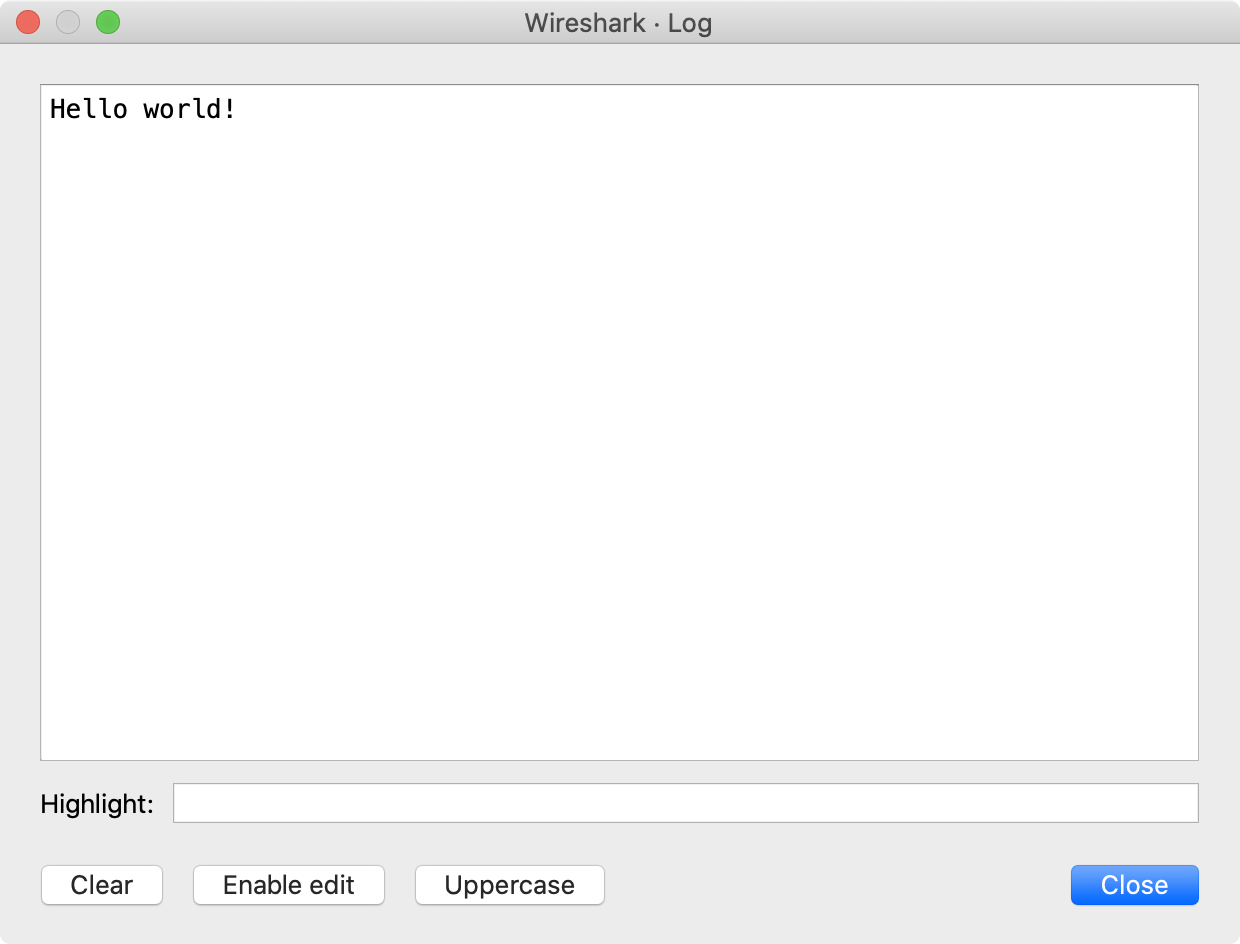
Creates a new TextWindow text window and displays it.
Requires a GUI.
    if not gui_enabled() then return end

    -- create new text window and initialize its text
    local win = TextWindow.new("Log")
    win:set("Hello world!")

    -- add buttons to clear text window and to enable editing
    win:add_button("Clear", function() win:clear() end)
    win:add_button("Enable edit", function() win:set_editable(true) end)

    -- add button to change text to uppercase
    win:add_button("Uppercase", function()
            local text = win:get_text()
            if text ~= "" then
                    win:set(string.upper(text))
            end
    end)

    -- print "closing" to stdout when the user closes the text window
    win:set_atclose(function() print("closing") end)
Arguments
- title (optional)
- Title of the new window. Optional. Defaults to "Untitled Window".
Returns
The newly created TextWindow object.
Errors
- GUI not available
Set the function that will be called when the text window closes.
Arguments
- action
- A Lua function to be executed when the user closes the text window.
Returns
The TextWindow object.
Errors
- GUI not available
Sets the text to be displayed.
Arguments
- text
- The text to be displayed.
Returns
The TextWindow object.
Errors
- GUI not available
Appends text to the current window contents.
Arguments
- text
- The text to be appended.
Returns
The TextWindow object.
Errors
- GUI not available
Prepends text to the current window contents.
Arguments
- text
- The text to be prepended.
Returns
The TextWindow object.
Errors
- GUI not available
Checks if we’re running inside a GUI (i.e. Wireshark) or not.
Returns
Boolean true if a GUI is available, false if it isn’t.
Register a menu item in one of the main menus. Requires a GUI.
Arguments
- name
- The name of the menu item. Use slashes to separate submenus. (e.g. → ). (string)
- action
- The function to be called when the menu item is invoked. The function must take no arguments and return nothing.
- group (optional)
-
Where to place the item in the menu hierarchy. If omitted, defaults to MENU_STAT_GENERIC. Valid packet (Wireshark) items are:
- MENU_PACKET_ANALYZE_UNSORTED:
- MENU_PACKET_STAT_UNSORTED:
- MENU_STAT_GENERIC: , first section
- MENU_STAT_RESPONSE_TIME: →
- MENU_STAT_RSERPOOL: →
- MENU_TELEPHONY_UNSORTED:
- MENU_TELEPHONY_ANSI: →
- MENU_TELEPHONY_GSM: →
- MENU_TELEPHONY_3GPP_UU: →
- MENU_TELEPHONY_MTP3: →
- MENU_TELEPHONY_SCTP: →
- MENU_TOOLS_UNSORTED:
Valid log (Stratoshark) items are:
- MENU_LOG_ANALYZE_UNSORTED:
- MENU_LOG_STAT_UNSORTED:
The following are deprecated and shouldn’t be used in new code:
- MENU_ANALYZE_CONVERSATION_FILTER, → registration is not yet supported in Lua
- MENU_STAT_CONVERSATION_LIST, → registration is not yet supported in Lua
- MENU_STAT_ENDPOINT_LIST, → registration is not yet supported in Lua
- MENU_ANALYZE_UNSORTED, superseded by MENU_PACKET_ANALYZE_UNSORTED
- MENU_ANALYZE_CONVERSATION, superseded by MENU_ANALYZE_CONVERSATION_FILTER
- MENU_STAT_CONVERSATION, superseded by MENU_STAT_CONVERSATION_LIST
- MENU_STAT_ENDPOINT, superseded by MENU_STAT_ENDPOINT_LIST
- MENU_STAT_RESPONSE, superseded by MENU_STAT_RESPONSE_TIME
- MENU_STAT_UNSORTED, superseded by MENU_PACKET_STAT_UNSORTED
- MENU_STAT_TELEPHONY, superseded by MENU_TELEPHONY_UNSORTED
- MENU_STAT_TELEPHONY_ANSI, superseded by MENU_TELEPHONY_ANSI
- MENU_STAT_TELEPHONY_GSM, superseded by MENU_TELEPHONY_GSM
- MENU_STAT_TELEPHONY_3GPP_UU, superseded by MENU_TELEPHONY_3GPP_UU
- MENU_STAT_TELEPHONY_MTP3, superseded by MENU_TELEPHONY_MTP3
- MENU_STAT_TELEPHONY_SCTP, superseded by MENU_TELEPHONY_SCTP
Register a menu item in the packet list.
Arguments
- name
- The name of the menu item. Use slashes to separate submenus. (e.g. level1/level2/name). (string)
- action
- The function to be called when the menu item is invoked. The function must take a variable number of arguments and return nothing. The arguments will be FieldInfo objects, one for each field present in the selected packet.
- required_fields (optional)
- A comma-separated list of packet fields (e.g., http.host,dns.qry.name) which all must be present for the menu to be displayed. If omitted, the packet menu will be displayed for all packets.
Displays a dialog, prompting for input. The dialog includes an button and button. Requires a GUI.
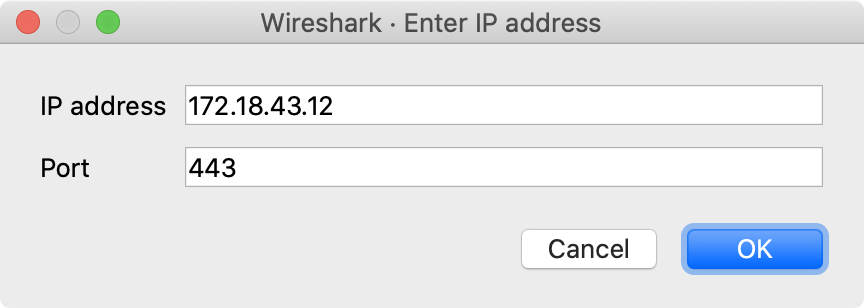
    if not gui_enabled() then return end

    -- Prompt for IP and port and then print them to stdout
    local label_ip = "IP address"
    local label_port = "Port"
    local function print_ip(ip, port)
            print(label_ip, ip)
            print(label_port, port)
    end
    new_dialog("Enter IP address", print_ip, label_ip, label_port)

    -- Prompt for 4 numbers and then print their product to stdout
    new_dialog(
            "Enter 4 numbers",
            function (a, b, c, d) print(a * b * c * d) end,
            "a", "b", "c", "d"
            )
Arguments
- title
- The title of the dialog.
- action
- Action to be performed when the user presses .
- …
- Strings to be used as labels of the dialog’s fields. Each string creates a new labeled field. The first field is required. Instead of a string it is possible to provide tables with fields 'name' and 'value' of type string. Then the created dialog’s field will be labeled with the content of name and prefilled with the content of value.
Errors
- GUI not available
- At least one field required
Rescans all packets and runs each tap listener without reconstructing the display.
Copy a string into the clipboard. Requires a GUI.
Arguments
- text
- The string to be copied into the clipboard.
Open and display a capture file. Requires a GUI.
Arguments
- filename
- The name of the file to be opened.
- filter
- The display filter to be applied once the file is opened.
Get the display filter from the filter toolbar. This may not be the currently active display filter.
Returns
The display filter string in the filter toolbar.
Errors
- GUI not available
Set (Prepare) the display filter in the filter toolbar.
Arguments
- text
- The filter’s text.
Errors
- GUI not available
Apply the display filter in the filter toolbar. Requires a GUI.
|
Warning |
|---|---|
|
Avoid calling this from within a dissector function or else an infinite loop can occur if it causes the dissector to be called again. This function is best used in a button callback (from a dialog or text window) or menu callback. |
Errors
- GUI not available
Gets the current packet coloring rule (by index) for the current session. Wireshark reserves 10 slots for these coloring rules. Requires a GUI.
Arguments
- row
- The index (1-10) of the desired color filter value in the temporary coloring rules list.
Table 13.1. Default background colors
| Index | RGB (hex) | Color |
|---|---|---|
1 |
ffc0c0 |
pink 1 |
2 |
ffc0ff |
pink 2 |
3 |
e0c0e0 |
purple 1 |
4 |
c0c0ff |
purple 2 |
5 |
c0e0e0 |
green 1 |
6 |
c0ffff |
green 2 |
7 |
c0ffc0 |
green 3 |
8 |
ffffc0 |
yellow 1 |
9 |
e0e0c0 |
yellow 2 |
10 |
e0e0e0 |
gray |
Sets a packet coloring rule (by index) for the current session. Wireshark reserves 10 slots for these coloring rules. Requires a GUI.
Arguments
- row
- The index (1-10) of the desired color in the temporary coloring rules list. The default foreground is black and the default backgrounds are listed below.
Table 13.2. Default background colors
| Index | RGB (hex) | Color |
|---|---|---|
1 |
ffc0c0 |
pink 1 |
2 |
ffc0ff |
pink 2 |
3 |
e0c0e0 |
purple 1 |
4 |
c0c0ff |
purple 2 |
5 |
c0e0e0 |
green 1 |
6 |
c0ffff |
green 2 |
7 |
c0ffc0 |
green 3 |
8 |
ffffc0 |
yellow 1 |
9 |
e0e0c0 |
yellow 2 |
10 |
e0e0e0 |
gray |
The color list can be set from the command line using two unofficial preferences: gui.colorized_frame.bg and gui.colorized_frame.fg, which require 10 hex RGB codes (6 hex digits each), e.g.
wireshark -o gui.colorized_frame.bg:${RGB0},${RGB1},${RGB2},${RGB3},${RGB4},${RGB5},${RGB6},${RGB7},${RGB8},${RGB9}
For example, this command yields the same results as the table above (and with all foregrounds set to black):
wireshark -o gui.colorized_frame.bg:ffc0c0,ffc0ff,e0c0e0,c0c0ff,c0e0e0,c0ffff,c0ffc0,ffffc0,e0e0c0,e0e0e0 -o gui.colorized_frame.fg:000000,000000,000000,000000,000000,000000,000000,000000,000000,000000
- text
- The display filter for selecting packets to be colorized .
Reload the current capture file. Requires a GUI.
|
Warning |
|---|---|
|
Avoid calling this from within a dissector function or else an infinite loop can occur if it causes the dissector to be called again. This function is best used in a button callback (from a dialog or text window) or menu callback. |
Redissect all packets in the current capture file. Requires a GUI.
|
Warning |
|---|---|
|
Avoid calling this from within a dissector function or else an infinite loop can occur if it causes the dissector to be called again. This function is best used in a button callback (from a dialog or text window) or menu callback. |
Opens an URL in a web browser. Requires a GUI.
|
Warning |
|---|---|
|
Do not pass an untrusted URL to this function. It will be passed to the system’s URL handler, which might execute malicious code, switch on your Bluetooth-connected foghorn, or any of a number of unexpected or harmful things. |
Arguments
- url
- The url.
Open a file located in the data directory (specified in the Wireshark preferences) in the web browser. If the file does not exist, the function silently ignores the request. Requires a GUI.
|
Warning |
|---|---|
|
Do not pass an untrusted URL to this function. It will be passed to the system’s URL handler, which might execute malicious code, switch on your Bluetooth-connected foghorn, or any of a number of unexpected or harmful things. |
Arguments
- filename
- The file name.
The classes and functions in this chapter allow Lua scripts to create new protocols for Wireshark.
Proto protocol objects can have Pref preferences, ProtoField fields for filterable values that can be displayed in a details view tree, functions for dissecting the new protocol, and so on.
The dissection function can be hooked into existing protocol tables through DissectorTable so that the new protocol dissector function gets called by that protocol, and the new dissector can itself call on other, already existing protocol dissectors by retrieving and calling the Dissector object.
A Proto dissector can also be used as a post-dissector, at the end of every frame’s dissection, or as a heuristic dissector.
A reference to a dissector, used to call a dissector against a packet or a part of it.
Obtains a dissector reference by name.
Arguments
- name
- The name of the dissector.
Returns
The Dissector reference if found, otherwise nil.
Gets a Lua array table of all registered Dissector names.
Note: This is an expensive operation, and should only be used for troubleshooting.
Returns
The array table of registered dissector names.
Calls a dissector against a given packet (or part of it).
Arguments
- tvb
- The buffer to dissect.
- pinfo
- The packet info.
- tree
- The tree on which to add the protocol items.
Returns
Number of bytes dissected. Note that some dissectors always return number of bytes in incoming buffer, so be aware.
Calls a dissector against a given packet (or part of it).
Arguments
- tvb
- The buffer to dissect.
- pinfo
- The packet info.
- tree
- The tree on which to add the protocol items.
Calls a dissector against a given packet (or part of it).
Arguments
- tvb
- The buffer to dissect.
- pinfo
- The packet info.
- tree
- The tree on which to add the protocol items.
Returns
Number of bytes dissected and decrypted content
Calls a dissector against a given packet (or part of it).
Arguments
- tvb
- The buffer to dissect.
- pinfo
- The packet info.
- tree
- The tree on which to add the protocol items.
Mode: Retrieve only.
Human-readable description of the dissector (same string returned by tostring/print).
A table of subdissectors of a particular protocol (e.g. TCP subdissectors like http, smtp, sip are added to table "tcp.port").
Useful to add more dissectors to a table so that they appear in the “Decode As…” dialog.
Creates a new DissectorTable for your dissector’s use.
Arguments
- tablename
- The short name of the table. Use lower-case alphanumeric, dot, and/or underscores (e.g., "ansi_map.tele_id" or "udp.port").
- uiname (optional)
-
The name of the table in the user interface.
Defaults to the name given in
tablename, but can be any string.
- type (optional)
-
One of
ftypes.UINT8,ftypes.UINT16,ftypes.UINT24,ftypes.UINT32,ftypes.STRING,ftypes.NONE, orftypes.GUID. Defaults toftypes.UINT32.
- base (optional)
-
One of
base.NONE,base.DEC,base.HEX,base.OCT,base.DEC_HEXorbase.HEX_DEC. Defaults tobase.DEC.
- proto (optional)
-
The
Protoobject that uses this dissector table.
Returns
The newly created DissectorTable.
Creates a new heuristic DissectorTable for your dissector’s use. Returns true if table was created successfully.
- XXX - Currently it always returns nil.
Since: 4.2.0
Arguments
- tablename
- The short name of the table. Use lower-case alphanumeric, dot, and/or underscores.
- uiname (optional)
-
The name of the table in the user interface.
Defaults to the name given in
tablename, but can be any string.
- proto
-
The
Protoobject that uses this dissector table.
Returns
The newly created DissectorTable.
Gets a Lua array table of all DissectorTable names - i.e., the string names you can use for the first argument to DissectorTable.get().
Note: This is an expensive operation, and should only be used for troubleshooting.
Returns
The array table of registered DissectorTable names.
Gets a Lua array table of all heuristic list names - i.e., the string names you can use for the first argument in Proto:register_heuristic().
Note: This is an expensive operation, and should only be used for troubleshooting.
Returns
The array table of registered heuristic list names
Try all the dissectors in a given heuristic dissector table.
Arguments
- listname
- The name of the heuristic dissector.
- tvb
- The buffer to dissect.
- pinfo
- The packet info.
- tree
- The tree on which to add the protocol items.
Returns
True if the packet was recognized by the sub-dissector (stop dissection here).
Obtain a reference to an existing dissector table.
Arguments
- tablename
- The short name of the table.
Returns
The DissectorTable reference if found, otherwise nil.
Add a Proto with a dissector function or a Dissector object to the dissector table.
Arguments
- pattern
- The pattern to match (either an integer, a integer range or a string depending on the table’s type).
Clear all existing dissectors from a table and add a new dissector or a range of new dissectors.
Arguments
- pattern
- The pattern to match (either an integer, a integer range or a string depending on the table’s type).
Remove a dissector or a range of dissectors from a table.
Arguments
- pattern
- The pattern to match (either an integer, a integer range or a string depending on the table’s type).
Try to call a dissector from a table.
Arguments
- pattern
- The pattern to be matched (either an integer or a string depending on the table’s type).
- tvb
-
The
Tvbto dissect.
- pinfo
-
The packet’s
Pinfo.
- tree
-
The
TreeItemon which to add the protocol items.
Returns
Number of bytes dissected. Note that some dissectors always return number of bytes in incoming buffer, so be aware.
Try to obtain a dissector from a table.
Arguments
- pattern
- The pattern to be matched, depending on the table’s type.
Returns
The Dissector handle if found, otherwise nil
Add the given Proto to the “Decode as…” list for this DissectorTable.
The passed-in Proto object’s dissector() function is used for dissecting.
Arguments
- proto
-
The
Prototo add.
Returns a short label of the form
DissectorTable: <name> type=<type_name> and appends
base=<n> for integer tables or ` (Decode As only)` for
FT_NONE tables. The previous form ended in a colon and
embedded a literal newline, which was confusing in
single-line listings like the debugger Variables view.
Returns
A short label identifying the table.
Mode: Retrieve only.
The registered name of the DissectorTable (e.g. "tcp.port").
Mode: Retrieve only.
The human-readable UI name of the DissectorTable, or nil if one was not registered.
Mode: Retrieve only.
The selector ftype (ftenum
value) for value-indexed tables, or -1 for heuristic tables. Use
DissectorTable.type_name for the human-readable string.
A preference of a Proto.
Creates a boolean preference to be added to a Proto.prefs Lua table.
    -- create a Boolean preference named "bar" for Foo Protocol
    -- (assuming Foo doesn't already have a preference named "bar")
    proto_foo.prefs.bar = Pref.bool( "Bar", true, "Baz and all the rest" )
Arguments
- label
- The Label (text in the right side of the preference input) for this preference.
- default
- The default value for this preference.
- description
- A description of this preference.
Creates an (unsigned) integer preference to be added to a Proto.prefs Lua table.
Arguments
- label
- The Label (text in the right side of the preference input) for this preference.
- default
- The default value for this preference.
- description
- A description of what this preference is.
Creates a string preference to be added to a Proto.prefs Lua table.
Arguments
- label
- The Label (text in the right side of the preference input) for this preference.
- default
- The default value for this preference.
- description
- A description of what this preference is.
Creates an enum preference to be added to a Proto.prefs Lua table.
    local OUTPUT_OFF        = 0
    local OUTPUT_DEBUG      = 1
    local OUTPUT_INFO       = 2
    local OUTPUT_WARN       = 3
    local OUTPUT_ERROR      = 4

    local output_tab = {
            { 1, "Off"              , OUTPUT_OFF },
            { 2, "Debug"            , OUTPUT_DEBUG },
            { 3, "Information"      , OUTPUT_INFO },
            { 4, "Warning"          , OUTPUT_WARN },
            { 5, "Error"            , OUTPUT_ERROR },
    }

    -- Create enum preference that shows as Combo Box under
    -- Foo Protocol's preferences
    proto_foo.prefs.outputlevel = Pref.enum(
            "Output Level",                 -- label
            OUTPUT_INFO,                    -- default value
            "Verbosity of log output",      -- description
            output_tab,                     -- enum table
            false                           -- show as combo box
    )

    -- Then, we can query the value of the selected preference.
    -- This line prints "Output Level: 3" assuming the selected
    -- output level is _INFO.
    debug( "Output Level: " .. proto_foo.prefs.outputlevel )
Arguments
- label
- The Label (text in the right side of the preference input) for this preference.
- default
- The default value for this preference.
- description
- A description of what this preference is.
- enum
- An enum Lua table.
- radio
- Radio button (true) or Combobox (false).
Creates a range (numeric text entry) preference to be added to a Proto.prefs Lua table.
Arguments
- label
- The Label (text in the right side of the preference input) for this preference.
- default
- The default value for this preference, e.g., "53", "10-30", or "10-30,53,55,100-120".
- description
- A description of what this preference is.
- max
- The maximum value.
Creates a static text string to be added to a Proto.prefs Lua table.
Arguments
- label
- The static text.
- description
- The static text description.
Creates an uat preference to be added to a Proto.prefs Lua table, or
read an existent uat table content, and returns in a table, all returned cell conent is in string format.
    local fieldlist = {
        {"field 1", "Description 1"},
        {"field 2", "Description 2"},
    }

    -- Create a uat preference that appears as a button on the Foo Protocol preference page.
    -- The user accessible table can be edited with this button.
    proto_foo.prefs.preference_uat_name = Pref.uat("Label", fieldlist, "Description", "uat_filename")

    -- Value checker:

    -- Create a file in Personal Lua plugins directory named as preferences_uat_callbacks.lua
    -- Create a checker function named as uat_update_cb:
    -- The uat editor will call this function for checks the values.
    function uat_update_cb(records, uat_filename)
        print("UAT filename: " .. uat_filename)
        print("UAT record 0 = " .. records[0])
        print("UAT record 1 = " .. records[1])
        local result = true
        local errstring = ""
        -- do not allow 5 in the "field 1
        if (tonumber(records[0]) == 5) then
            result = false
            errstring = "Firsct collumn cannot be 5!"
        end
        print("Check result = " .. tostring(result))
        -- return check result as boolean and errstring if needed
        return result, errstring
    end

    -- Reading existent uat:

    proto_foo.prefs.preference_existent_uat_name = Pref.uat("Protobuf Search Paths")
    for i, row in ipairs(proto_foo.prefs.preference_existent_uat_name) do
        local row_str = ""
        for j, value in ipairs(row) do
            row_str = row_str .. value .. "\t"
        end
        print(row_str)
    end
Arguments
- label
- The Label for this preference. In case of existent uat table reading, this argument contains the uat name, and all other argument is omitted.
- field_config (optional)
- Fields names and description table.
- description (optional)
- A description of what this preference is.
- file_name (optional)
- The name of the uat file.
Returns a short label of the form
Pref: <name> type=<type> value=<value> (e.g.
Pref: mypref type=bool value=true). Unregistered prefs
(created by Pref.bool() etc. but not yet assigned into a
Prefs table) render as
Pref: (unregistered) type=<type> value=<value>.
Returns
The string.
Mode: Retrieve only.
The preference type as the raw pref_type_e
enum value (integer). Use Pref.type_name for the human-readable short
string ("bool", "uint", "string", "enum", "range", "statictext",
"uat").
Mode: Retrieve only.
Human-readable short string matching the Pref.type enum: "bool", "uint", "string", "enum", "range", "statictext", "uat", or "unknown".
The table of preferences of a protocol.
Creates a new preference.
Arguments
- name
- The abbreviation of this preference.
- pref
- A valid but still unassigned Pref object.
Errors
- Unknown Pref type
    -- print the value of Foo's preference named "bar"
    debug( "bar = " .. proto_foo.prefs.bar )
Arguments
- name
- The abbreviation of this preference.
Returns
The current value of the preference.
Errors
- Unknown Pref type
A new protocol in Wireshark. Protocols have several uses. The main one is to dissect a protocol, but they can also be dummies used to register preferences for other purposes.
Creates a new Proto object.
Arguments
- name
- The name of the protocol.
- description
- A Long Text description of the protocol (usually lowercase).
Returns
The newly created Proto object.
Creates a Proto object.
Arguments
- name
- The name of the protocol.
- description
- A Long Text description of the protocol (usually lowercase).
Returns
The new Proto object.
Registers a heuristic dissector function for this Proto protocol,
for the given heuristic list name.
When later called, the passed-in function will be given:
The function must return true if the payload is for it, else false.
The function should perform as much verification as possible to ensure the payload is for it, and dissect the packet (including setting TreeItem info and such) only if the payload is for it, before returning true or false.
Since version 1.99.1, this function also accepts a Dissector object as the second argument,
to allow re-using the same Lua code as the function proto.dissector(…). In this case,
the Dissector must return a Lua number of the number of bytes consumed/parsed: if 0 is returned,
it will be treated the same as a false return for the heuristic; if a positive or negative
number is returned, then the it will be treated the same as a true return for the heuristic,
meaning the packet is for this protocol and no other heuristic will be tried.
Arguments
- listname
- The heuristic list name this function is a heuristic for (e.g., "udp" or "infiniband.payload").
- func
- A Lua function that will be invoked for heuristic dissection.
Mode: Retrieve or assign.
The protocol’s dissector, a function you define.
When later called, the function will be given:
Mode: Assign only.
The preferences changed routine of this dissector, a Lua function you define.
The function is called when the protocol’s preferences are changed. It is passed no arguments.
Mode: Assign only.
The init routine of this dissector, a function you define.
The init function is called when the a new capture file is opened or when the open capture file is closed. It is passed no arguments.
Mode: Retrieve or assign.
The Lua table of this dissector’s ProtoFields.
ProtoFields added to this table are registered to the Proto (and any
removed are deregistered if previously registered.)
A Protocol expert info field, to be used when adding items to the dissection tree.
Creates a new ProtoExpert object to be used for a protocol’s expert information notices.
Arguments
- abbr
- Filter name of the expert info field (the string that is used in filters).
- text
- The default text of the expert field.
- group
-
Expert group type: one of:
expert.group.CHECKSUM,expert.group.SEQUENCE,expert.group.RESPONSE_CODE,expert.group.REQUEST_CODE,expert.group.UNDECODED,expert.group.REASSEMBLE,expert.group.MALFORMED,expert.group.DEBUG,expert.group.PROTOCOL,expert.group.SECURITY,expert.group.COMMENTS_GROUP,expert.group.DECRYPTION,expert.group.ASSUMPTION,expert.group.DEPRECATED,expert.group.RECEIVE, orexpert.group.INTERFACE.
- severity
-
Expert severity type: one of:
expert.severity.COMMENT,expert.severity.CHAT,expert.severity.NOTE,expert.severity.WARN, orexpert.severity.ERROR.
Returns
The newly created ProtoExpert object.
Returns a short label of the form
ProtoExpert: <abbrev> severity=<severity> text="<text>"
where <severity> is the human-readable severity name
(matching ProtoExpert.severity). Replaces the previous
integer-only dump of every internal id, which is still
reachable via the individual abbrev/text/group/
severity attributes.
Mode: Retrieve only.
The expert group as a descriptive string (matches expert.group.*).
A Protocol field (to be used when adding items to the dissection tree).
It must be registered via being added to a Proto.fields table.
Creates a new ProtoField object to be used for a protocol field.
Arguments
- name
- Actual name of the field (the string that appears in the tree).
- abbr
- Filter name of the field (the string that is used in filters).
- type
-
Field Type: one of:
ftypes.BOOLEAN,ftypes.CHAR,ftypes.UINT8,ftypes.UINT16,ftypes.UINT24,ftypes.UINT32,ftypes.UINT64,ftypes.INT8,ftypes.INT16,ftypes.INT24,ftypes.INT32,ftypes.INT64,ftypes.FLOAT,ftypes.DOUBLE,ftypes.ABSOLUTE_TIME,ftypes.RELATIVE_TIME,ftypes.STRING,ftypes.STRINGZ,ftypes.UINT_STRING,ftypes.ETHER,ftypes.BYTES,ftypes.UINT_BYTES,ftypes.IPv4,ftypes.IPv6,ftypes.IPXNET,ftypes.FRAMENUM,ftypes.PCRE,ftypes.GUID,ftypes.OID,ftypes.PROTOCOL,ftypes.REL_OID,ftypes.SYSTEM_ID,ftypes.EUI64orftypes.NONE.
- valuestring (optional)
-
A table containing the text that
corresponds to the values, or a table containing tables of range string values that
corresponds to the values ({min, max, "string"}) if the base is
base.RANGE_STRING, or a table containing unit name for the values if base isbase.UNIT_STRING, or one offrametype.NONE,frametype.REQUEST,frametype.RESPONSE,frametype.ACKorframetype.DUP_ACKif field type is ftypes.FRAMENUM.
- base (optional)
-
The representation, one of:
base.NONE,base.DEC,base.HEX,base.OCT,base.DEC_HEXorbase.HEX_DEC. It can be ORed withbase.UNIT_STRING,base.RANGE_STRINGorbase.SPECIAL_VALS.
- mask (optional)
- The bitmask to be used.
- description (optional)
- The description of the field.
Returns
The newly created ProtoField object.
Creates a ProtoField of an 8-bit ASCII character.
Arguments
- abbr
- Abbreviated name of the field (the string used in filters).
- name (optional)
- Actual name of the field (the string that appears in the tree).
- base (optional)
-
One of
base.NONE,base.HEXorbase.OCT. It can be ORed with bothbase.RANGE_STRINGandbase.SPECIAL_VALS.
- valuestring (optional)
-
A table containing the text that corresponds to the values, or a table containing tables of range string values that correspond to the values ({min, max, "string"}) if the base is
base.RANGE_STRING.
- mask (optional)
- Integer mask of this field.
- description (optional)
- Description of the field.
Returns
A ProtoField object to be added to a table set to the Proto.fields attribute.
Creates a ProtoField of an unsigned 8-bit integer (i.e., a byte).
Arguments
- abbr
- Abbreviated name of the field (the string used in filters).
- name (optional)
- Actual name of the field (the string that appears in the tree).
- base (optional)
-
One of
base.DEC,base.HEX,base.OCT,base.DEC_HEXorbase.HEX_DEC. It can be ORed withbase.UNIT_STRING,base.RANGE_STRINGorbase.SPECIAL_VALS.
- valuestring (optional)
-
A table containing the text that corresponds to the values, or a table containing tables of range string values that correspond to the values ({min, max, "string"}) if the base is
base.RANGE_STRING, or a table containing the unit name for the values if base isbase.UNIT_STRING.
- mask (optional)
- Integer, String or UInt64 mask of this field.
- description (optional)
- Description of the field.
Returns
A ProtoField object to be added to a table set to the Proto.fields attribute.
Creates a ProtoField of an unsigned 16-bit integer.
Arguments
- abbr
- Abbreviated name of the field (the string used in filters).
- name (optional)
- Actual name of the field (the string that appears in the tree).
- base (optional)
-
One of
base.DEC,base.HEX,base.OCT,base.DEC_HEXorbase.HEX_DEC. It can be ORed withbase.UNIT_STRING,base.RANGE_STRINGorbase.SPECIAL_VALS.
- valuestring (optional)
-
A table containing the text that corresponds to the values, or a table containing tables of range string values that correspond to the values ({min, max, "string"}) if the base is
base.RANGE_STRING, or a table containing unit name for the values if base isbase.UNIT_STRING.
- mask (optional)
- Integer, String or UInt64 mask of this field.
- description (optional)
- Description of the field.
Returns
A ProtoField object to be added to a table set to the Proto.fields attribute.
Creates a ProtoField of an unsigned 24-bit integer.
Arguments
- abbr
- Abbreviated name of the field (the string used in filters).
- name (optional)
- Actual name of the field (the string that appears in the tree).
- base (optional)
-
One of
base.DEC,base.HEX,base.OCT,base.DEC_HEXorbase.HEX_DEC. It can be ORed withbase.UNIT_STRING,base.RANGE_STRINGorbase.SPECIAL_VALS.
- valuestring (optional)
-
A table containing the text that corresponds to the values, or a table containing tables of range string values that correspond to the values ({min, max, "string"}) if the base is
base.RANGE_STRING, or a table containing the unit name for the values if base isbase.UNIT_STRING.
- mask (optional)
- Integer, String or UInt64 mask of this field.
- description (optional)
- Description of the field.
Returns
A ProtoField object to be added to a table set to the Proto.fields attribute.
Creates a ProtoField of an unsigned 32-bit integer.
Arguments
- abbr
- Abbreviated name of the field (the string used in filters).
- name (optional)
- Actual name of the field (the string that appears in the tree).
- base (optional)
-
One of
base.DEC,base.HEX,base.OCT,base.DEC_HEXorbase.HEX_DEC. It can be ORed withbase.UNIT_STRING,base.RANGE_STRINGorbase.SPECIAL_VALS.
- valuestring (optional)
-
A table containing the text that corresponds to the values, or a table containing tables of range string values that correspond to the values ({min, max, "string"}) if the base is
base.RANGE_STRING, or a table containing the unit name for the values if base isbase.UNIT_STRING.
- mask (optional)
- Integer, String or UInt64 mask of this field.
- description (optional)
- Description of the field.
Returns
A ProtoField object to be added to a table set to the Proto.fields attribute.
Creates a ProtoField of an unsigned 64-bit integer.
Arguments
- abbr
- Abbreviated name of the field (the string used in filters).
- name (optional)
- Actual name of the field (the string that appears in the tree).
- base (optional)
-
One of
base.DEC,base.HEX,base.OCT,base.DEC_HEXorbase.HEX_DEC. It can be ORed withbase.UNIT_STRING,base.RANGE_STRINGorbase.SPECIAL_VALS.
- valuestring (optional)
-
A table containing the text that corresponds to the values, or a table containing tables of range string values that correspond to the values ({min, max, "string"}) if the base is
base.RANGE_STRING, or a table containing the unit name for the values if base isbase.UNIT_STRING.
- mask (optional)
- Integer, String or UInt64 mask of this field.
- description (optional)
- Description of the field.
Returns
A ProtoField object to be added to a table set to the Proto.fields attribute.
Creates a ProtoField of a signed 8-bit integer (i.e., a byte).
Arguments
- abbr
- Abbreviated name of the field (the string used in filters).
- name (optional)
- Actual name of the field (the string that appears in the tree).
- base (optional)
-
Must be
base.DEC, optionally ORed withbase.UNIT_STRING,base.RANGE_STRINGorbase.SPECIAL_VALS.
- valuestring (optional)
-
A table containing the text that corresponds to the values, or a table containing tables of range string values that correspond to the values ({min, max, "string"}) if the base is
base.RANGE_STRING, or a table containing unit name for the values if base isbase.UNIT_STRING.
- mask (optional)
- Integer, String or UInt64 mask of this field.
- description (optional)
- Description of the field.
Returns
A ProtoField object to be added to a table set to the Proto.fields attribute.
Creates a ProtoField of a signed 16-bit integer.
Arguments
- abbr
- Abbreviated name of the field (the string used in filters).
- name (optional)
- Actual name of the field (the string that appears in the tree).
- base (optional)
-
Must be
base.DEC, optionally ORed withbase.UNIT_STRING,base.RANGE_STRINGorbase.SPECIAL_VALS.
- valuestring (optional)
-
A table containing the text that corresponds to the values, or a table containing tables of range string values that correspond to the values ({min, max, "string"}) if the base is
base.RANGE_STRING, or a table containing unit name for the values if base isbase.UNIT_STRING.
- mask (optional)
- Integer, String or UInt64 mask of this field.
- description (optional)
- Description of the field.
Returns
A ProtoField object to be added to a table set to the Proto.fields attribute.
Creates a ProtoField of a signed 24-bit integer.
Arguments
- abbr
- Abbreviated name of the field (the string used in filters).
- name (optional)
- Actual name of the field (the string that appears in the tree).
- base (optional)
-
Must be
base.DEC, optionally ORed withbase.UNIT_STRING,base.RANGE_STRINGorbase.SPECIAL_VALS.
- valuestring (optional)
-
A table containing the text that corresponds to the values, or a table containing tables of range string values that correspond to the values ({min, max, "string"}) if the base is
base.RANGE_STRING, or a table containing unit name for the values if base isbase.UNIT_STRING.
- mask (optional)
- Integer, String or UInt64 mask of this field.
- description (optional)
- Description of the field.
Returns
A ProtoField object to be added to a table set to the Proto.fields attribute.
Creates a ProtoField of a signed 32-bit integer.
Arguments
- abbr
- Abbreviated name of the field (the string used in filters).
- name (optional)
- Actual name of the field (the string that appears in the tree).
- base (optional)
-
Must be
base.DEC, optionally ORed withbase.UNIT_STRING,base.RANGE_STRINGorbase.SPECIAL_VALS.
- valuestring (optional)
-
A table containing the text that corresponds to the values, or a table containing tables of range string values that correspond to the values ({min, max, "string"}) if the base is
base.RANGE_STRING, or a table containing unit name for the values if base isbase.UNIT_STRING.
- mask (optional)
- Integer, String or UInt64 mask of this field.
- description (optional)
- Description of the field.
Returns
A ProtoField object to be added to a table set to the Proto.fields attribute.
Creates a ProtoField of a signed 64-bit integer.
Arguments
- abbr
- Abbreviated name of the field (the string used in filters).
- name (optional)
- Actual name of the field (the string that appears in the tree).
- base (optional)
-
Must be
base.DEC, optionally ORed withbase.UNIT_STRING,base.RANGE_STRINGorbase.SPECIAL_VALS.
- valuestring (optional)
-
A table containing the text that corresponds to the values, or a table containing tables of range string values that correspond to the values ({min, max, "string"}) if the base is
base.RANGE_STRING, or a table containing unit name for the values if base isbase.UNIT_STRING.
- mask (optional)
- Integer, String or UInt64 mask of this field.
- description (optional)
- Description of the field.
Returns
A ProtoField object to be added to a table set to the Proto.fields attribute.
Creates a ProtoField for a frame number (for hyperlinks between frames).
Arguments
- abbr
- Abbreviated name of the field (the string used in filters).
- name (optional)
- Actual name of the field (the string that appears in the tree).
- base (optional)
-
Only
base.NONEis supported for framenum.
- frametype (optional)
-
One of
frametype.NONE,frametype.REQUEST,frametype.RESPONSE,frametype.ACKorframetype.DUP_ACK.
- mask (optional)
- Integer, String or UInt64 mask of this field, which must be 0 for framenum.
- description (optional)
- Description of the field.
Returns
A ProtoField object to be added to a table set to the Proto.fields attribute.
Creates a ProtoField for a boolean true/false value.
Arguments
- abbr
- Abbreviated name of the field (the string used in filters).
- name (optional)
- Actual name of the field (the string that appears in the tree).
- display (optional)
-
How wide the parent bitfield is (
base.NONEis used for NULL-value).
- valuestring (optional)
- A table containing the text that corresponds to the values.
- mask (optional)
- Integer, String or UInt64 mask of this field.
- description (optional)
- Description of the field.
Returns
A ProtoField object to be added to a table set to the Proto.fields attribute.
Creates a ProtoField of a time_t structure value.
Arguments
- abbr
- Abbreviated name of the field (the string used in filters).
- name (optional)
- Actual name of the field (the string that appears in the tree).
- base (optional)
-
One of
base.LOCAL,base.UTCorbase.DOY_UTC.
- description (optional)
- Description of the field.
Returns
A ProtoField object to be added to a table set to the Proto.fields attribute.
Creates a ProtoField of a time_t structure value.
Arguments
- abbr
- Abbreviated name of the field (the string used in filters).
- name (optional)
- Actual name of the field (the string that appears in the tree).
- description (optional)
- Description of the field.
Returns
A ProtoField object to be added to a table set to the Proto.fields attribute.
Creates a ProtoField of a floating point number (4 bytes).
Arguments
- abbr
- Abbreviated name of the field (the string used in filters).
- name (optional)
- Actual name of the field (the string that appears in the tree).
- valuestring (optional)
- A table containing unit name for the values.
- description (optional)
- Description of the field.
Returns
A ProtoField object to be added to a table set to the Proto.fields attribute.
Creates a ProtoField of a double-precision floating point (8 bytes).
Arguments
- abbr
- Abbreviated name of the field (the string used in filters).
- name (optional)
- Actual name of the field (the string that appears in the tree).
- valuestring (optional)
- A table containing unit name for the values.
- description (optional)
- Description of the field.
Returns
A ProtoField object to be added to a table set to the Proto.fields attribute.
Creates a ProtoField of a string value.
Arguments
- abbr
- Abbreviated name of the field (the string used in filters).
- name (optional)
- Actual name of the field (the string that appears in the tree).
- display (optional)
-
One of
base.ASCIIorbase.UNICODE.
- description (optional)
- Description of the field.
Returns
A ProtoField object to be added to a table set to the Proto.fields attribute.
Creates a ProtoField of a zero-terminated string value.
Arguments
- abbr
- Abbreviated name of the field (the string used in filters).
- name (optional)
- Actual name of the field (the string that appears in the tree).
- display (optional)
-
One of
base.ASCIIorbase.UNICODE.
- description (optional)
- Description of the field.
Returns
A ProtoField object to be added to a table set to the Proto.fields attribute.
Creates a ProtoField for an arbitrary number of bytes.
Arguments
- abbr
- Abbreviated name of the field (the string used in filters).
- name (optional)
- Actual name of the field (the string that appears in the tree).
- display (optional)
-
One of
base.NONE,base.DOT,base.DASH,base.COLONorbase.SPACE.
- description (optional)
- Description of the field.
Returns
A ProtoField object to be added to a table set to the Proto.fields attribute.
Creates a ProtoField for an arbitrary number of unsigned bytes.
Arguments
- abbr
- Abbreviated name of the field (the string used in filters).
- name (optional)
- Actual name of the field (the string that appears in the tree).
- display (optional)
-
One of
base.NONE,base.DOT,base.DASH,base.COLONorbase.SPACE.
- description (optional)
- Description of the field.
Returns
A ProtoField object to be added to a table set to the Proto.fields attribute.
Creates a ProtoField of an unstructured type.
Arguments
- abbr
- Abbreviated name of the field (the string used in filters).
- name (optional)
- Actual name of the field (the string that appears in the tree).
- description (optional)
- Description of the field.
Returns
A ProtoField object to be added to a table set to the Proto.fields attribute.
Creates a ProtoField of an IPv4 address (4 bytes).
Arguments
- abbr
- Abbreviated name of the field (the string used in filters).
- name (optional)
- Actual name of the field (the string that appears in the tree).
- description (optional)
- Description of the field.
Returns
A ProtoField object to be added to a table set to the Proto.fields attribute.
Creates a ProtoField of an IPv6 address (16 bytes).
Arguments
- abbr
- Abbreviated name of the field (the string used in filters).
- name (optional)
- Actual name of the field (the string that appears in the tree).
- description (optional)
- Description of the field.
Returns
A ProtoField object to be added to a table set to the Proto.fields attribute.
Creates a ProtoField of an Ethernet address (6 bytes).
Arguments
- abbr
- Abbreviated name of the field (the string used in filters).
- name (optional)
- Actual name of the field (the string that appears in the tree).
- description (optional)
- Description of the field.
Returns
A ProtoField object to be added to a table set to the Proto.fields attribute.
Creates a ProtoField for a Globally Unique IDentifier (GUID).
Arguments
- abbr
- Abbreviated name of the field (the string used in filters).
- name (optional)
- Actual name of the field (the string that appears in the tree).
- description (optional)
- Description of the field.
Returns
A ProtoField object to be added to a table set to the Proto.fields attribute.
Creates a ProtoField for an ASN.1 Organizational IDentified (OID).
Arguments
- abbr
- Abbreviated name of the field (the string used in filters).
- name (optional)
- Actual name of the field (the string that appears in the tree).
- description (optional)
- Description of the field.
Returns
A ProtoField object to be added to a table set to the Proto.fields attribute.
Creates a ProtoField for a sub-protocol.
Arguments
- abbr
- Abbreviated name of the field (the string used in filters).
- name (optional)
- Actual name of the field (the string that appears in the tree).
- description (optional)
- Description of the field.
Returns
A ProtoField object to be added to a table set to the Proto.fields attribute.
Creates a ProtoField for an ASN.1 Relative-OID.
Arguments
- abbr
- Abbreviated name of the field (the string used in filters).
- name (optional)
- Actual name of the field (the string that appears in the tree).
- description (optional)
- Description of the field.
Returns
A ProtoField object to be added to a table set to the Proto.fields attribute.
Creates a ProtoField for an OSI System ID.
Arguments
- abbr
- Abbreviated name of the field (the string used in filters).
- name (optional)
- Actual name of the field (the string that appears in the tree).
- description (optional)
- Description of the field.
Returns
A ProtoField object to be added to a table set to the Proto.fields attribute.
Creates a ProtoField for an EUI64.
Arguments
- abbr
- Abbreviated name of the field (the string used in filters).
- name (optional)
- Actual name of the field (the string that appears in the tree).
- description (optional)
- Description of the field.
Returns
A ProtoField object to be added to a table set to the Proto.fields attribute.
Returns a short label of the form
ProtoField: <abbrev> type=<type> base=<base> name="<name>"
and appends mask=0x<mask> when a non-zero mask is set. The
previous form leaked the raw value-string pointer (%p) and
dumped the whole description blob; both are now reachable
via the description/vs attributes for callers that need
them. The internal hfid is an implementation detail and is
exposed via the hfid attribute instead of the label.
Make the TCP-layer invoke the given Lua dissection function for each PDU in the TCP segment, of the length returned by the given get_len_func function.
This function is useful for protocols that run over TCP and that are
either a fixed length always, or have a minimum size and have a length
field encoded within that minimum portion that identifies their full
length. For such protocols, their protocol dissector function can invoke
this dissect_tcp_pdus() function to make it easier to handle dissecting
their protocol’s messages (i.e., their protocol data unit (PDU)). This
function should not be used for protocols whose PDU length cannot be
determined from a fixed minimum portion, such as HTTP or Telnet.
Arguments
- tvb
- The Tvb buffer to dissect PDUs from.
- tree
-
TreeItemobject passed to thedissect_func.
- min_header_size
- The number of bytes in the fixed-length part of the PDU.
- get_len_func
-
A Lua function that will be
called for each PDU, to determine the full length of the
PDU. The called function will be given (1) the
Tvbobject of the wholeTvb(possibly reassembled), (2) thePinfoobject, and (3) an offset number of the index of the first byte of the PDU (i.e., its first header byte). The Lua function must return a Lua number of the full length of the PDU.
- dissect_func
-
A Lua function that will be
called for each PDU, to dissect the PDU. The called
function will be given (1) the
Tvbobject of the PDU’sTvb(possibly reassembled), (2) thePinfoobject, and (3) theTreeItemobject. The Lua function must return a Lua number of the number of bytes read/handled, which would typically be theTvb:len().
- desegment (optional)
- Whether to reassemble PDUs crossing TCP segment boundaries or not. (default=true)
Make a Proto protocol (with a dissector function) a post-dissector.
It will be called for every frame after dissection.
Arguments
- proto
- The protocol to be used as post-dissector.
- allfields (optional)
- Whether to generate all fields. Note: This impacts performance (default=false).
TLS protocol will be started after this fame
Arguments
- tls_handle
- the tls dissector
- pinfo
-
The packet’s
Pinfo.
- app_handle
- The app dissector
TLS protocol is started with this frame
Arguments
- tls_handle
- the tls dissector
- pinfo
-
The packet’s
Pinfo.
- app_handle
- The app dissector
A Field extractor to obtain field values. A Field object can only be created outside of
the callback functions of dissectors, post-dissectors, heuristic-dissectors, and taps.
Once created, it is used inside the callback functions, to generate a FieldInfo object.
Create a Field extractor.
Arguments
- fieldname
- The filter name of the field (e.g. ip.addr)
Returns
The field extractor
Errors
- A Field extractor must be defined before Taps or Dissectors get called
Gets a Lua array table of all registered field filter names.
|
Note |
|---|---|
|
This is an expensive operation, and should only be used for troubleshooting. |
Returns
The array table of field filter names
An extracted Field from dissected packet data. A FieldInfo object can only be used within
the callback functions of dissectors, post-dissectors, heuristic-dissectors, and taps.
A FieldInfo can be called on either existing Wireshark fields by using either Field.new()
or Field() before-hand, or it can be called on new fields created by Lua from a ProtoField.
Obtain the Value of the field.
Previous to 1.11.4, this function retrieved the value for most field types,
but for ftypes.UINT_BYTES it retrieved the ByteArray of the field’s entire TvbRange.
In other words, it returned a ByteArray that included the leading length byte(s),
instead of just the value bytes. That was a bug, and has been changed in 1.11.4.
Furthermore, it retrieved an ftypes.GUID as a ByteArray, which is also incorrect.
If you wish to still get a ByteArray of the TvbRange, use fieldinfo.range
to get the TvbRange, and then use tvbrange:bytes() to convert it to a ByteArray.
Checks whether the end byte of lhs is before the end of rhs.
Errors
- Data source must be the same for both fields
Checks whether the end byte of lhs is before the beginning of rhs.
Errors
- Data source must be the same for both fields
Mode: Retrieve only.
The internal field type, a number which
matches one of the ftype values.
Mode: Retrieve only.
The source Tvb object the FieldInfo is derived
from, or nil if there is none.
Mode: Retrieve only.
The TvbRange covering the bytes of this field in a Tvb or nil if there is none.
Mode: Retrieve only.
Whether this field was marked as generated (boolean).
Mode: Retrieve only.
Whether this field was marked as being a URL (boolean).
Mode: Retrieve only.
Whether this field is little-endian encoded (boolean).
Mode: Retrieve only.
Whether this field is big-endian encoded (boolean).
Obtain all fields from the current tree. Note this only gets whatever fields the underlying dissectors have filled in for this packet at this time - there may be fields applicable to the packet that simply aren’t being filled in because at this time they’re not needed for anything. This function only gets what the C-side code has currently populated, not the full list.
Errors
- Cannot be called outside a listener or dissector
Request one or multiple fields by their filter names.
This function tells Wireshark to populate the specified fields during dissection. For performance reasons, Wireshark dissectors don’t add all possible fields to the dissection tree by default - they only add fields that are explicitly requested (e.g., via display filters, taps, or this function). This significantly reduces memory usage and improves dissection speed, especially for fields that are expensive to compute or rarely needed.
Without calling this function (or Field.new()), fields may exist in the protocol but won’t be available in the dissection tree when you try to access them via all_field_infos() or other field extraction methods.
This function must be called outside of callback functions (dissectors, taps, etc.).
Example
       -- Request a single field
       request_fields("ip.src")

       -- Request multiple fields
       request_fields({"ip.src", "ip.dst", "tcp.port"})
@param fieldnames A string or table (array) of field filter names to request (e.g. "ip.src" or {"ip.src", "tcp.port"}) Since: 4.7.0
Arguments
- fieldnames
- String or table of field filter names
Request all fields from one or more specified protocols.
This function tells Wireshark to populate all fields from the specified protocol(s) during dissection. Normally, Wireshark dissectors use a "lazy" approach and only add fields to the dissection tree when they are actually needed (e.g., when a display filter references them, or when Field.new() explicitly requests them). This optimization dramatically improves performance and reduces memory consumption, especially for protocols with many fields or computationally expensive field values.
By calling this function, you’re telling Wireshark: "I need ALL fields from protocol X, so please populate them all during dissection, even if they’re not otherwise needed."
Use this function carefully with protocols that have many fields, as it can impact performance. For better performance, prefer request_fields() to request only specific fields you actually need.
This function must be called outside of callback functions (dissectors, taps, etc.).
Returns a table (array) of protocol names that were successfully requested. Unknown protocol names are ignored.
Example
       -- Request all fields from a single protocol
       request_protocol_fields("http")

       -- Request all fields from multiple protocols
       request_protocol_fields({"ip", "tcp", "udp"})
@param protocols A string or table (array) of protocol names (e.g. "ip" or {"ip", "tcp", "http"}) Since: 4.7.0
Arguments
- protocols
- String or table of protocol names
Represents an address.
Creates an Address Object representing an IPv4 address.
Arguments
- hostname
- The address or name of the IP host.
Returns
The Address object.
Creates an Address Object representing an IPv6 address.
Arguments
- hostname
- The address or name of the IP host.
Returns
The Address object
Creates an Address Object representing an Ethernet address.
Arguments
- eth
- The Ethernet address.
Returns
The Address object.
Mode: Retrieve only.
The address type as an integer from
the address_type enum (e.g. AT_IPv4 == 2, AT_IPv6 == 3, AT_ETHER
== 1). AT_NONE (0) indicates an unset/empty address. Use
Address.type_name for the human-readable "AT_*" name.
Mode: Retrieve only.
Human-readable "AT_*" string
matching Address.type (e.g. "AT_IPv4", "AT_ETHER"). Returns
"unknown" for enum values this build does not recognise.
A Column in the packet list.
Appends text to a Column.
Arguments
- text
- The text to append to the Column.
- sep (optional)
- An optional separator to use as prefix if the column is not empty.
The Columns of the packet list.
Returns a short preview of the form
Columns: number="1" protocol="TCP" info="…". Only the
three columns most useful for a quick "what packet is this"
glance are included; per-Column iteration via pairs(cols)
exposes the full set. As with Column.__tostring, an empty
value can mean the column is unconfigured, hasn’t been
written yet, or that cinfo is NULL (e.g. while dissecting
for the details pane). Returns Columns: (no cinfo) when
there is no column_info to inspect at all.
Returns
The preview string.
Sets the text of a specific column. Some columns cannot be modified, and no error is raised if attempted. The columns that are known to allow modification are "info" and "protocol".
Arguments
- column
- The name of the column to set. Valid values are:
| Name | Description |
|---|---|
number |
Frame number |
abs_time |
Absolute timestamp |
utc_time |
UTC timestamp |
cls_time |
CLS timestamp |
rel_time |
Relative timestamp |
date |
Absolute date and time |
date_doy |
Absolute year, day of year, and time |
utc_date |
UTC date and time |
utc_date_doy |
UTC year, day of year, and time |
delta_time |
Delta time from previous packet |
delta_time_displayed |
Delta time from previous displayed packet |
src |
Source address |
src_res |
Resolved source address |
src_unres |
Numeric source address |
dl_src |
Source data link address |
dl_src_res |
Resolved source data link address |
dl_src_unres |
Numeric source data link address |
net_src |
Source network address |
net_src_res |
Resolved source network address |
net_src_unres |
Numeric source network address |
dst |
Destination address |
dst_res |
Resolve destination address |
dst_unres |
Numeric destination address |
dl_dst |
Destination data link address |
dl_dst_res |
Resolved destination data link address |
dl_dst_unres |
Numeric destination data link address |
net_dst |
Destination network address |
net_dst_res |
Resolved destination network address |
net_dst_unres |
Numeric destination network address |
src_port |
Source port |
src_port_res |
Resolved source port |
src_port_unres |
Numeric source port |
dst_port |
Destination port |
dst_port_res |
Resolved destination port |
dst_port_unres |
Numeric destination port |
protocol |
Protocol name |
info |
General packet information |
packet_len |
Packet length |
cumulative_bytes |
Cumulative bytes in the capture |
direction |
Packet direction |
vsan |
Virtual SAN |
tx_rate |
Transmit rate |
rssi |
RSSI value |
dce_call |
DCE call |
pinfo.cols['info'] = 'foo bar'
— syntactic sugar (equivalent to above) pinfo.cols.info = 'foo bar'
- text
- The text for the column.
Get a specific Column.
Conversation object, used to attach conversation data or a conversation dissector
Searches for a Conversation instance matching criteria. If one does not exist and 'create'
is true, one will be created, otherwise nil will be returned. Note that, although there are
'first' and 'second' addresses and ports, a conversation does not distinguish between source
or destination. These are effectively matching criteria that wireshark uses to flag a packet as
belonging to the conversation.
Arguments
- framenum
- The number of a frame within the conversation. If a new conversation is created, this will be used as the first frame of the conversation.
- ctype
-
Conversation Type. One of:
convtypes.NONE,convtypes.SCTP,convtypes.TCP,convtypes.UDP,convtypes.DCCP,convtypes.IPX,convtypes.NCP,convtypes.EXCHG,convtypes.DDP,convtypes.SBCCS,convtypes.IDP,convtypes.TIPC,convtypes.USB,convtypes.I2C,convtypes.IBQP,convtypes.BLUETOOTH,convtypes.TDMOP,convtypes.DVBCI,convtypes.ISO14443,convtypes.ISDN,convtypes.H223,convtypes.X25,convtypes.IAX2,convtypes.DLCI,convtypes.ISUP,convtypes.BICC,convtypes.GSMTAP,convtypes.IUUP,convtypes.DVBBBF,convtypes.IWARP_MPA,convtypes.BT_UTP,convtypes.LOG,convtypes.LTP,convtypes.MCTP,convtypes.NVME_MI,convtypes.BP,convtypes.SNMP,convtypes.QUIC,convtypes.IDN,convtypes.IP,convtypes.IPV6,convtypes.ETH,convtypes.ETH_NN,convtypes.ETH_NV,convtypes.ETH_IN,convtypes.ETH_IV,convtypes.VSPC_VMOTION,convtypes.OPENVPN,convtypes.PROXY,convtypes.DNP3
- addr1
-
First
Addressof the conversation.
- addr2 (optional)
-
Second
Addressof theconversation. (defaults to nil)
- port1 (optional)
-
First port. A value of
nilor0is treated as 'ignore' (default)
- port2 (optional)
-
Second port. A value of
nilor0is treated as 'ignore' (default)
- create (optional)
- Boolean. If conversation doesn’t exist, create it (default true)
Returns
The found or created Conversation instance.
Searches for a Conversation object by id. If one does not exist and 'create' is true, one
will be created, otherwise nil will be returned. This is typically used if a protocol
encapsulates multiple 'sessions' or 'channels' in a single connection, and denotes this with
a 'channel id' or equivalent.
Arguments
- framenum
- The number of a frame within the conversation. If a new conversation is created, this will be used as the first frame of the conversation.
- ctype
-
Conversation Type. One of:
convtypes.NONE,convtypes.SCTP,convtypes.TCP,convtypes.UDP,convtypes.DCCP,convtypes.IPX,convtypes.NCP,convtypes.EXCHG,convtypes.DDP,convtypes.SBCCS,convtypes.IDP,convtypes.TIPC,convtypes.USB,convtypes.I2C,convtypes.IBQP,convtypes.BLUETOOTH,convtypes.TDMOP,convtypes.DVBCI,convtypes.ISO14443,convtypes.ISDN,convtypes.H223,convtypes.X25,convtypes.IAX2,convtypes.DLCI,convtypes.ISUP,convtypes.BICC,convtypes.GSMTAP,convtypes.IUUP,convtypes.DVBBBF,convtypes.IWARP_MPA,convtypes.BT_UTP,convtypes.LOG,convtypes.LTP,convtypes.MCTP,convtypes.NVME_MI,convtypes.BP,convtypes.SNMP,convtypes.QUIC,convtypes.IDN,convtypes.IP,convtypes.IPV6,convtypes.ETH,convtypes.ETH_NN,convtypes.ETH_NV,convtypes.ETH_IN,convtypes.ETH_IV,convtypes.VSPC_VMOTION,convtypes.OPENVPN,convtypes.PROXY,convtypes.DNP3
- id
- Conversation or session specific ID
- create (optional)
- Boolean. If conversation doesn’t exist, create it (default true)
Returns
The found or created Conversation instance.
Searches for a Conversation object matching a pinfo. If one does not exist and 'create' is
true, one will be created, otherwise nil will be returned. Note that this is a shortcut for
Conversation.find(), where a pinfo structure is conveniently decomposed into individual
components for you. If you’re not sure which Conversation.find method to use, most of the
time this will the the correct choice.
Arguments
- pinfo
-
A
Pinfoobject.
- create (optional)
- Boolean. If conversation doesn’t exist, create it (default true)
Returns
The found or created Conversation instance.
Compares two Conversation objects.
Returns
True if both objects refer to the same underlying conversation structure. False otherwise.
Returns a short label of the form
Conversation: id=<idx> src=<addr1>:<port1>
dst=<addr2>:<port2> type=<convtype>
. Replaces the previous
pointer-leaking Conversation object (0x…) rendering. The
endpoints are labelled src/dst to match Pinfo’s rendering,
even though Conversation itself is directionless; addr1/addr2
follow the order in the underlying conversation key.
Addresses default to ? and ports are omitted when zero
(matching the wildcard options exposed by Conversation.find).
The convtype is the trailing component of the matching
convtypes.* enum (e.g. TCP, UDP); see convtype_enums
above.
Returns
A string representation of the object.
Sets protocol data for a specific protocol
Arguments
- index
-
The protocol index to set. Must be a
Proto
- value
- The protocol data to set (any valid lua object)
Get protocol data for a specific protocol
Arguments
- index
-
The protocol index to get. Must be a
Proto
Returns
Previously assigned conversation data, or nil.
NSTime represents a nstime_t. This is an object with seconds and nanoseconds.
Creates a new NSTime object.
Arguments
- seconds (optional)
- Seconds.
- nseconds (optional)
- Nano seconds.
Returns
The new NSTime object.
Creates a NSTime object.
Arguments
- seconds (optional)
- Seconds.
- nseconds (optional)
- Nanoseconds.
Returns
The new NSTime object.
Packet information.
Mode: Retrieve only.
Number of seconds passed since the last captured packet.
Mode: Retrieve only.
Number of seconds passed since the last displayed packet.
Mode: Retrieve only.
Value of can_desegment before the current dissector was called. Supplied so that proxy protocols like SOCKS can restore it to whatever the previous dissector (e.g. TCP) set it, so that the dissectors they call are desegmented via the previous dissector. Since: 4.3.1
Mode: Retrieve or assign.
Estimated number of additional bytes required for completing the PDU.
Mode: Retrieve or assign.
Offset in the tvbuff at which the dissector will continue processing when next called.
Mode: Retrieve only.
Matched string for calling subdissector from table.
Mode: Retrieve or assign.
Network Layer Destination Address of this Packet.
Mode: Retrieve only.
Access to the packet list columns (equivalent to pinfo.columns).
Mode: Retrieve or assign.
On read, returns a Conversation object (equivalent to Conversation.find_from_pinfo(pinfo, 0, True))
On write, sets the Dissector for the current conversation (shortcut for pinfo.conversation.dissector = dissector). Accepts either a Dissector object or a Proto object with an assigned dissector
PrivateTable represents the pinfo→private_table.
Returns a short label of the form
PrivateTable: keys={k1, k2, k3} enumerating the current key
set, or PrivateTable: (expired) once the underlying
packet_info is gone. The previous bare k1,k2,k3 rendering
matched no other wslua __tostring and made the value
indistinguishable from a regular comma-separated string in
the debugger’s Variables view.
Returns
A string with all keys in the table.
Creates a new ByteArray object.
Starting in version 1.11.3, if the second argument is a boolean true,
then the first argument is treated as a raw Lua string of bytes to use,
instead of a hexadecimal string.
    local empty = ByteArray.new()
    local b1 = ByteArray.new("a1 b2 c3 d4")
    local b2 = ByteArray.new("112233")
Arguments
- hexbytes (optional)
- A string consisting of hexadecimal bytes like "00 B1 A2" or "1a2b3c4d".
- separator (optional)
-
A string separator between hex bytes/words (default=" "),
or if the boolean value
trueis used, then the first argument is treated as raw binary data
Returns
The new ByteArray object.
Concatenate two ByteArrays.
Arguments
- first
- First array.
- second
- Second array.
Returns
The new composite ByteArray.
Sets the size of a ByteArray, either truncating it or filling it with zeros.
Arguments
- size
- New size of the array.
Errors
- ByteArray size must be non-negative
Sets the value of an index of a ByteArray.
Arguments
- index
- The position of the byte to be set.
- value
- The char value to set [0-255].
Get the value of a byte in a ByteArray.
Arguments
- index
- The position of the byte to get.
Returns
The value [0-255] of the byte.
Read a little endian encoded signed integer in a ByteArray beginning at given offset with given length.
Since: 4.2.0
Arguments
- offset (optional)
- The position of the first byte. Default is 0, or the first byte.
- length (optional)
-
The length of the integer. Default is -1, or the remaining bytes in the
ByteArray.
Returns
The value of the little endian encoded signed integer beginning at given offset with given length.
Read a little endian encoded 64 bit signed integer in a ByteArray beginning at given offset with given length.
Since: 4.2.0
Arguments
- offset (optional)
- The position of the first byte. Default is 0, or the first byte.
- length (optional)
-
The length of the integer. Default is -1, or the remaining bytes in the
ByteArray.
Returns
The value of the little endian encoded 64 bit signed integer as a Int64 object beginning at given offset with given length.
Read a little endian encoded unsigned integer in a ByteArray beginning at given offset with given length.
Since: 4.2.0
Arguments
- offset (optional)
- The position of the first byte. Default is 0, or the first byte.
- length (optional)
-
The length of the integer. Default is -1, or the remaining bytes in the
ByteArray.
Returns
The value of the little endian encoded unsigned integer beginning at given offset with given length.
Read a little endian encoded 64 bit unsigned integer in a ByteArray beginning at given offset with given length.
Since: 4.2.0
Arguments
- offset (optional)
- The position of the first byte. Default is 0, or the first byte.
- length (optional)
-
The length of the integer. Default is -1, or the remaining bytes in the
ByteArray.
Returns
The value of the little endian encoded 64 bit unsigned integer as a UInt64 object beginning at given offset with given length.
Read a big endian encoded signed integer in a ByteArray beginning at given offset with given length.
Since: 4.2.0
Arguments
- offset (optional)
- The position of the first byte. Default is 0, or the first byte.
- length (optional)
-
The length of the integer. Default is -1, or the remaining bytes in the
ByteArray.
Returns
The value of the big endian encoded 32 bit signed integer beginning at given offset with given length.
Read a big endian encoded 64 bit signed integer in a ByteArray beginning at given offset with given length.
Since: 4.2.0
Arguments
- offset (optional)
- The position of the first byte. Default is 0, or the first byte.
- length (optional)
-
The length of the integer. Default is -1, or the remaining bytes in the
ByteArray.
Returns
The value of the big endian encoded 64 bit signed integer as a Int64 object beginning at given offset and given length.
Read a big endian encoded unsigned integer in a ByteArray beginning at given offset with given length.
Since: 4.2.0
Arguments
- offset (optional)
- The position of the first byte. Default is 0, or the first byte.
- length (optional)
-
The length of the integer. Default is -1, or the remaining bytes in the
ByteArray.
Returns
The value of the big endian encoded 32 bit unsigned integer beginning at given offset with given length.
Read a big endian encoded 64 bit unsigned integer in a ByteArray beginning at given offset with given length.
Since: 4.2.0
Arguments
- offset (optional)
- The position of the first byte. Default is 0, or the first byte.
- length (optional)
-
The length of the integer. Default is -1, or the remaining bytes in the
ByteArray.
Returns
The value of the big endian encoded 64 bit unsigned integer as a UInt64 object beginning at given offset with given length.
Obtain a segment of a ByteArray, as a new ByteArray.
Arguments
- offset
- The position of the first byte (0=first).
- length
- The length of the segment.
Returns
A ByteArray containing the requested segment.
Obtain a Lua string of the binary bytes in a ByteArray.
Arguments
- offset (optional)
- The position of the first byte (default=0/first).
- length (optional)
- The length of the segment to get (default=all).
Returns
A Lua string of the binary bytes in the ByteArray.
Obtain a Lua string of the bytes in a ByteArray as hex-ascii, with given separator.
Arguments
- lowercase (optional)
- True to use lower-case hex characters (default=false).
- separator (optional)
- A string separator to insert between hex bytes (default=nil).
Returns
A hex-ascii string representation of the ByteArray.
Obtain a Lua string containing the bytes in a ByteArray so that it can be used in
display filters (e.g. "01FE456789AB").
Returns
A hex-ascii string representation of the ByteArray.
    function proto_foo.dissector(buf, pinfo, tree)
            -- Create a new tab named "My Tvb" and add some data to it
            local b = ByteArray.new("11223344")
            local tvb = ByteArray.tvb(b, "My Tvb")

            -- Create a tree item that, when clicked, automatically shows the tab we just created
            tree:add( tvb(1,2), "Foo" )
    end
Arguments
- name
- The name to be given to the new data source.
Returns
The created Tvb.
A Tvb represents the packet’s buffer. It is passed as an argument to listeners and dissectors,
and can be used to extract information (via TvbRange) from the packet’s data.
To create a TvbRange the Tvb must be called with offset and length as optional arguments;
the offset defaults to 0 and the length to tvb:captured_len().
|
Warning |
|---|---|
|
Tvbs are usable only by the current listener or dissector call and are destroyed as soon as the listener or dissector returns, so references to them are unusable once the function has returned. |
Convert the bytes of a Tvb into a string of
the form Tvb: captured=<C> reported=<R> bytes=<hex>.
The hex preview is automatically truncated by tvb_bytes_to_str
to a small number of bytes (currently 36) so the rendering stays
useful in the debugger Variables view and in print() for large
packets.
Returns
The string.
Obtain the reported length (length on the network) of a Tvb.
Returns
The reported length of the Tvb.
Obtain the captured length (amount saved in the capture process) of a Tvb.
Returns
The captured length of the Tvb.
Obtain the captured length (amount saved in the capture process) of a Tvb.
Same as captured_len; kept only for backwards compatibility
Returns
The captured length of the Tvb.
Obtain the reported (not captured) length of packet data to end of a Tvb or 0 if the
offset is beyond the end of the Tvb.
Arguments
- offset (optional)
-
The offset (in octets) from the beginning of the
Tvb. Defaults to 0.
Returns
The remaining reported length of the Tvb.
Obtain a ByteArray from a Tvb.
Arguments
- offset (optional)
-
The offset (in octets) from the beginning of the
Tvb. Defaults to 0.
- length (optional)
-
The length (in octets) of the range. Defaults to until the end of the
Tvb.
Returns
The ByteArray object or nil.
Returns the raw offset (from the beginning of the source Tvb) of a sub Tvb.
Returns
The raw offset of the Tvb.
Creates a TvbRange from this Tvb.
Arguments
- offset (optional)
-
The offset (in octets) from the beginning of the
Tvb. Defaults to 0.
- length (optional)
-
The length (in octets) of the range. Defaults to -1, which specifies the remaining bytes in the
Tvb.
Returns
The TvbRange
Obtain a Lua string of the binary bytes in a Tvb.
Arguments
- offset (optional)
- The position of the first byte. Default is 0, or the first byte.
- length (optional)
-
The length of the segment to get. Default is -1, or the remaining bytes in the
Tvb.
Returns
A Lua string of the binary bytes in the Tvb.
Checks whether contents of two Tvbs are equal.
Mode: Retrieve only.
The captured length of the Tvb
(amount saved in the capture process). Mirrors tvb:captured_len().
Mode: Retrieve only.
The reported length of the Tvb
(length on the network). Mirrors tvb:reported_len().
A TvbRange represents a usable range of a Tvb and is used to extract data from the Tvb that generated it.
TvbRanges are created by calling a Tvb (e.g. 'tvb(offset,length)').
A length of -1, which is the default, means to use the bytes up to the end of the Tvb.
If the TvbRange span is outside the Tvb's range the creation will cause a runtime error.
Get a Big Endian (network order) unsigned integer from a TvbRange.
The range must be 1-4 octets long.
Returns
The unsigned integer value.
Get a Little Endian unsigned integer from a TvbRange.
The range must be 1-4 octets long.
Returns
The unsigned integer value
Get a Big Endian (network order) unsigned 64 bit integer from a TvbRange, as a UInt64 object.
The range must be 1-8 octets long.
Returns
The UInt64 object.
Get a Little Endian unsigned 64 bit integer from a TvbRange, as a UInt64 object.
The range must be 1-8 octets long.
Returns
The UInt64 object.
Get a Big Endian (network order) signed integer from a TvbRange.
The range must be 1-4 octets long.
Returns
The signed integer value.
Get a Little Endian signed integer from a TvbRange.
The range must be 1-4 octets long.
Returns
The signed integer value.
Get a Big Endian (network order) signed 64 bit integer from a TvbRange, as an Int64 object.
The range must be 1-8 octets long.
Returns
The Int64 object.
Get a Little Endian signed 64 bit integer from a TvbRange, as an Int64 object.
The range must be 1-8 octets long.
Returns
The Int64 object.
Get a Big Endian (network order) floating point number from a TvbRange.
The range must be 4 or 8 octets long.
Returns
The floating point value.
Get a Little Endian floating point number from a TvbRange.
The range must be 4 or 8 octets long.
Returns
The floating point value.
Get an Little Endian IPv4 Address from a TvbRange, as an Address object.
Returns
The IPv4 Address object.
Get an Ethernet Address from a TvbRange, as an Address object.
Returns
The Ethernet Address object.
Errors
- The range must be 6 bytes long
Obtain a time_t structure from a TvbRange, as an NSTime object.
Arguments
- encoding (optional)
- An optional ENC_* encoding value to use
Returns
The NSTime object and number of bytes used, or nil on failure.
Errors
- The range must be 4 or 8 bytes long
Obtain a nstime from a TvbRange, as an NSTime object.
Returns
The NSTime object.
Errors
- The range must be 4 or 8 bytes long
Obtain a string from a TvbRange.
Arguments
- encoding (optional)
- The encoding to use. Defaults to ENC_ASCII.
Returns
A string containing all bytes in the TvbRange including all zeroes (e.g., "a\000bc\000").
Obtain a Big Endian (network order) UTF-16 encoded string from a TvbRange.
Returns
A string containing all bytes in the TvbRange including all zeroes (e.g., "a\000bc\000").
Obtain a Little Endian UTF-16 encoded string from a TvbRange.
Returns
A string containing all bytes in the TvbRange including all zeroes (e.g., "a\000bc\000").
Obtain a zero terminated string from a TvbRange.
Arguments
- encoding (optional)
- The encoding to use. Defaults to ENC_ASCII.
Returns
The string containing all bytes in the TvbRange up to the first terminating zero, and the length of that string.
Find the size of a zero terminated string from a TvbRange.
The size of the string includes the terminating zero.
Arguments
- encoding (optional)
- The encoding to use. Defaults to ENC_ASCII.
Returns
Length of the zero terminated string.
Obtain a Big Endian (network order) UTF-16 encoded zero terminated string from a TvbRange.
Returns
Two return values: the zero terminated string, and the length.
Obtain a Little Endian UTF-16 encoded zero terminated string from a TvbRange
Returns
Two return values: the zero terminated string, and the length.
Obtain a ByteArray from a TvbRange.
Starting in 1.11.4, this function also takes an optional encoding argument,
which can be set to ENC_STR_HEX to decode a hex-string from the TvbRange
into the returned ByteArray. The encoding can be bitwise-or’ed with one
or more separator encodings, such as ENC_SEP_COLON, to allow separators
to occur between each pair of hex characters.
The return value also now returns the number of bytes used as a second return value.
On failure or error, nil is returned for both return values.
|
Note |
|---|---|
|
The encoding type of the hex string should also be set, for example
|
Arguments
- encoding (optional)
- An optional ENC_* encoding value to use
Returns
The ByteArray object or nil, and number of bytes consumed or nil.
Get a bitfield from a TvbRange.
Arguments
- position (optional)
-
The bit offset (MSB 0 bit numbering) from the beginning of the
TvbRange. Defaults to 0.
- length (optional)
- The length in bits of the field. Defaults to 1.
Returns
The bitfield value
Creates a sub-TvbRange from this TvbRange.
Arguments
- offset (optional)
-
The offset (in octets) from the beginning of the
TvbRange. Defaults to 0.
- length (optional)
-
The length (in octets) of the range. Defaults to until the end of the
TvbRange.
Returns
The TvbRange.
Given a TvbRange containing zlib compressed data, decompresses the data and returns a new TvbRange containing the uncompressed data.
Since: 4.3.0
Arguments
- name
- The name to be given to the new data-source.
Returns
The TvbRange.
Given a TvbRange containing zlib compressed data, decompresses the data and returns a new TvbRange containing the uncompressed data. Deprecated; use tvbrange:uncompress_zlib() instead.
Arguments
- name
- The name to be given to the new data-source.
Given a TvbRange containing Brotli compressed data, decompresses the data and returns a new TvbRange containing the uncompressed data.
Since: 4.3.0
Arguments
- name
- The name to be given to the new data-source.
Returns
The TvbRange.
Given a TvbRange containing data compressed using the Huffman encoding in HTTP/2 HPACK and HTTP/3 QPACK, decompresses the data and returns a new TvbRange containing the uncompressed data.
Since: 4.3.0
Arguments
- name
- The name to be given to the new data-source.
Returns
The TvbRange.
Given a TvbRange containing Microsoft Plain LZ77 compressed data, decompresses the data and returns a new TvbRange containing the uncompressed data.
Since: 4.3.0
Arguments
- name
- The name to be given to the new data-source.
Returns
The TvbRange.
Given a TvbRange containing Microsoft LZ77+Huffman compressed data, decompresses the data and returns a new TvbRange containing the uncompressed data.
Since: 4.3.0
Arguments
- name
- The name to be given to the new data-source.
Returns
The TvbRange.
Given a TvbRange containing Microsoft LZNT1 compressed data, decompresses the data and returns a new TvbRange containing the uncompressed data.
Since: 4.3.0
Arguments
- name
- The name to be given to the new data-source.
Returns
The TvbRange.
Given a TvbRange containing Snappy compressed data, decompresses the data and returns a new TvbRange containing the uncompressed data.
Since: 4.3.0
Arguments
- name
- The name to be given to the new data-source.
Returns
The TvbRange.
Given a TvbRange containing Zstandard compressed data, decompresses the data and returns a new TvbRange containing the uncompressed data.
Since: 4.3.0
Arguments
- name
- The name to be given to the new data-source.
Returns
The TvbRange.
Given a TvbRange containing Base64 encoded data, return a new TvbRange containing the decoded data.
Since: 4.3.0
Arguments
- name
- The name to be given to the new data-source.
Returns
The TvbRange.
Given a TvbRange containing base64url encoded data, return a new TvbRange containing the decoded data.
Since: 4.3.0
Arguments
- name
- The name to be given to the new data-source.
Returns
The TvbRange.
Obtain the length of a TvbRange.
Obtain the offset in a TvbRange.
Obtain a Lua string of the binary bytes in a TvbRange.
Arguments
- offset (optional)
- The position of the first byte within the range. Default is 0, or first byte.
- length (optional)
- The length of the segment to get. Default is -1, or the remaining bytes in the range.
Returns
A Lua string of the binary bytes in the TvbRange.
Checks whether the contents of two TvbRanges are equal.
Converts the TvbRange into a string of
the form TvbRange: offset=<O> length=<L> bytes=<hex>. The hex
preview is truncated by tvb_bytes_to_str to a small number of
bytes so the rendering stays useful in the debugger Variables
view and in print() for large ranges. Empty ranges render as
TvbRange: offset=<O> length=0 (empty).
Returns
A short label including the offset, length, and a truncated hex preview.
Mode: Retrieve only.
The length (in bytes) of the range.
Mirrors range:len().
TreeItems represent information in the packet details pane of Wireshark, and the packet details view of TShark.
A TreeItem represents a node in the tree, which might also be a subtree and have a list of children.
The children of a subtree have zero or more siblings which are other children of the same TreeItem subtree.
During dissection, heuristic-dissection, and post-dissection, a root TreeItem is passed to dissectors as the third argument of the function
callback (e.g., myproto.dissector(tvbuf,pktinfo,root)).
In some cases the tree is not truly added to, in order to improve performance.
For example for packets not currently displayed/selected in Wireshark’s visible
window pane, or if TShark isn’t invoked with the -V switch. However the
"add" type TreeItem functions can still be called, and still return TreeItem
objects - but the info isn’t really added to the tree. Therefore you do not
typically need to worry about whether there’s a real tree or not. If, for some
reason, you need to know it, you can use the TreeItem.visible attribute getter
to retrieve the state.
Adds a new child tree for the given ProtoField object to this tree item,
returning the new child TreeItem.
Unlike TreeItem:add() and TreeItem:add_le(), the ProtoField argument
is not optional, and cannot be a Proto object. Instead, this function always
uses the ProtoField to determine the type of field to extract from the
passed-in TvbRange, highlighting the relevant bytes in the Packet Bytes pane
of the GUI (if there is a GUI), etc. If no TvbRangeis given, no bytes are
highlighted and the field’s value cannot be determined; the ProtoField must
have been defined/created not to have a length in such a case, or an error will
occur. For backwards-compatibility reasons the encoding argument, however,
must still be given.
Unlike TreeItem:add() and TreeItem:add_le(), this function performs both
big-endian and little-endian decoding, by setting the encoding argument to
be ENC_BIG_ENDIAN or ENC_LITTLE_ENDIAN.
The signature of this function:
tree_item:add_packet_field(proto_field [,tvbrange], encoding, ...)
This function returns more than just the new child TreeItem.
The child is the first return value, so that function chaining will still work; but it
also returns more information. The second return is the value of the extracted field
(i.e., a number, UInt64, Address, etc.). The third return is is the offset where
data should be read next. This is useful when the length of the field is not known in
advance. The additional return values may be null if the field type is not well supported
in the Lua API.
This function can extract a ProtoField of type ftypes.BYTES
or ftypes.ABSOLUTE_TIME from a string in the TvbRange in ASCII-based and similar
encodings. For example, a ProtoField of ftypes.BYTES can be extracted from a TvbRange
containing the ASCII string "a1b2c3d4e5f6", and it will correctly decode the ASCII both in the
tree as well as for the second return value, which will be a ByteArray.
To do so, you must set the encoding argument of this function to the appropriate string ENC_*
value, bitwise-or’d (or added) with the ENC_STR_HEX value and one or more ENC_SEP_XXX values
indicating which encodings are allowed. For ftypes.ABSOLUTE_TIME, one of the ENC_ISO_8601_*
encodings or ENC_IMF_DATE_TIME must be used, and the second return value is a NSTime.
Only single-byte ASCII digit string encodings such as ENC_ASCII and ENC_UTF_8 can be used for this.
For example, assuming the Tvb named “tvb” contains the string "abcdef"
(61 62 63 64 65 66 in hex):
     -- this is done earlier in the script
     local myfield = ProtoField.new("Transaction ID", "myproto.trans_id", ftypes.BYTES)
     myproto.fields = { myfield }

     -- this is done inside a dissector, post-dissector, or heuristic function
     -- child will be the created child tree, and value will be the ByteArray "abcdef" or nil on failure
     local child, value = tree:add_packet_field(myfield, tvb:range(0,6), ENC_UTF_8 + ENC_STR_HEX + ENC_SEP_NONE)
Arguments
- protofield
- The ProtoField field object to add to the tree.
- tvbrange (optional)
-
The
TvbRangeof bytes in the packet this tree item covers/represents.
- encoding
-
The field’s encoding in the
TvbRange.
- label (optional)
-
One or more strings to append to the created
TreeItem.
Returns
The new child TreeItem, the field’s extracted value or nil, and offset or nil.
Adds a child item to this tree item, returning the new child TreeItem.
If the ProtoField represents a numeric value (int, uint or float), then it’s treated as a Big Endian (network order) value.
This function has a complicated form: 'treeitem:add([protofield,] [tvbrange,] value], label)', such that if the first
argument is a ProtoField or a Proto, the second argument is a TvbRange, and a third argument is given, it’s a value;
but if the second argument is a non-TvbRange, then it’s the value (as opposed to filling that argument with 'nil',
which is invalid for this function). If the first argument is a non-ProtoField and a non-Proto then this argument can
be either a TvbRange or a label, and the value is not in use.
Example
    local proto_foo = Proto("foo", "Foo Protocol")
    proto_foo.fields.bytes = ProtoField.bytes("foo.bytes", "Byte array")
    proto_foo.fields.u16 = ProtoField.uint16("foo.u16", "Unsigned short", base.HEX)

    function proto_foo.dissector(buf, pinfo, tree)
            -- ignore packets less than 4 bytes long
            if buf:len() < 4 then return end

            -- ##############################################
            -- # Assume buf(0,4) == {0x00, 0x01, 0x00, 0x02}
            -- ##############################################

            local t = tree:add( proto_foo, buf() )

            -- Adds a byte array that shows as: "Byte array: 00010002"
            t:add( proto_foo.fields.bytes, buf(0,4) )

            -- Adds a byte array that shows as "Byte array: 313233"
            -- (the ASCII char code of each character in "123")
            t:add( proto_foo.fields.bytes, buf(0,4), "123" )

            -- Adds a tree item that shows as: "Unsigned short: 0x0001"
            t:add( proto_foo.fields.u16, buf(0,2) )

            -- Adds a tree item that shows as: "Unsigned short: 0x0064"
            t:add( proto_foo.fields.u16, buf(0,2), 100 )

            -- Adds a tree item that shows as: "Unsigned short: 0x0064 ( big endian )"
            t:add( proto_foo.fields.u16, buf(1,2), 100, nil, "(", nil, "big", 999, nil, "endian", nil, ")" )

            -- LITTLE ENDIAN: Adds a tree item that shows as: "Unsigned short: 0x0100"
            t:add_le( proto_foo.fields.u16, buf(0,2) )

            -- LITTLE ENDIAN: Adds a tree item that shows as: "Unsigned short: 0x6400"
            t:add_le( proto_foo.fields.u16, buf(0,2), 100 )

            -- LITTLE ENDIAN: Adds a tree item that shows as: "Unsigned short: 0x6400 ( little endian )"
            t:add_le( proto_foo.fields.u16, buf(1,2), 100, nil, "(", nil, "little", 999, nil, "endian", nil, ")" )
    end

    udp_table = DissectorTable.get("udp.port")
    udp_table:add(7777, proto_foo)
Arguments
- protofield (optional)
-
The
ProtoFieldfield orProtoprotocol object to add to the tree.
- tvbrange (optional)
-
The
TvbRangeof bytes in the packet this tree item covers/represents.
- value (optional)
- The field’s value, instead of the ProtoField/Proto one.
- label (optional)
- One or more strings to use for the tree item label, instead of the ProtoField/Proto one.
Returns
The new child TreeItem.
Adds a child item to this tree item, returning the new child TreeItem.
If the ProtoField represents a numeric value (int, uint or float), then it’s treated as a Little Endian value.
This function has a complicated form: 'treeitem:add_le([protofield,] [tvbrange,] value], label)', such that if the first
argument is a ProtoField or a Proto, the second argument is a TvbRange, and a third argument is given, it’s a value;
but if the second argument is a non-TvbRange, then it’s the value (as opposed to filling that argument with 'nil',
which is invalid for this function). If the first argument is a non-ProtoField and a non-Proto then this argument can
be either a TvbRange or a label, and the value is not in use.
Arguments
- protofield (optional)
- The ProtoField field or Proto protocol object to add to the tree.
- tvbrange (optional)
- The TvbRange of bytes in the packet this tree item covers/represents.
- value (optional)
- The field’s value, instead of the ProtoField/Proto one.
- label (optional)
- One or more strings to use for the tree item label, instead of the ProtoField/Proto one.
Returns
The new child TreeItem.
Sets the text of the label.
This used to return nothing, but as of 1.11.3 it returns the same tree item to allow chained calls.
Arguments
- text
- The text to be used.
Returns
The same TreeItem.
Appends text to the label.
This used to return nothing, but as of 1.11.3 it returns the same tree item to allow chained calls.
Arguments
- text
- The text to be appended.
Returns
The same TreeItem.
Prepends text to the label.
This used to return nothing, but as of 1.11.3 it returns the same tree item to allow chained calls.
Arguments
- text
- The text to be prepended.
Returns
The same TreeItem.
Sets the expert flags of the item and adds expert info to the packet.
This function does not create a truly filterable expert info for a protocol.
Instead you should use TreeItem.add_proto_expert_info().
Note: This function is provided for backwards compatibility only, and should not
be used in new Lua code. It may be removed in the future. You should only
use TreeItem.add_proto_expert_info().
Arguments
- group (optional)
-
One of:
PI_CHECKSUM,PI_SEQUENCE,PI_RESPONSE_CODE,PI_REQUEST_CODE,PI_UNDECODED,PI_REASSEMBLE,PI_MALFORMED,PI_DEBUG,PI_PROTOCOL,PI_SECURITY,PI_COMMENTS_GROUP,PI_DECRYPTION,PI_ASSUMPTION,PI_DEPRECATED,PI_RECEIVE,PI_INTERFACE, orPI_DISSECTOR_BUG.
- severity (optional)
-
One of:
PI_COMMENT,PI_CHAT,PI_NOTE,PI_WARN, orPI_ERROR.
- text (optional)
- The text for the expert info display.
Returns
The same TreeItem.
Sets the expert flags of the tree item and adds expert info to the packet.
Arguments
- expert
-
The
ProtoExpertobject to add to the tree.
- text (optional)
- Text for the expert info display (default is to use the registered text).
Returns
The same TreeItem.
Sets the expert flags of the tree item and adds expert info to the packet
associated with the Tvb or TvbRange bytes in the packet.
Arguments
- expert
-
The
ProtoExpertobject to add to the tree.
- text (optional)
- Text for the expert info display (default is to use the registered text).
Returns
The same TreeItem.
Marks the TreeItem as a generated field (with data inferred but not contained in the packet).
This used to return nothing, but as of 1.11.3 it returns the same tree item to allow chained calls.
Arguments
- bool (optional)
-
A Lua boolean, which if
truesets theTreeItemgenerated flag, else clears it (default=true)
Returns
The same TreeItem.
Marks the TreeItem as a hidden field (neither displayed nor used in filters).
Deprecated
This used to return nothing, but as of 1.11.3 it returns the same tree item to allow chained calls.
Arguments
- bool (optional)
-
A Lua boolean, which if
truesets theTreeItemhidden flag, else clears it. Default istrue.
Returns
The same TreeItem.
Set TreeItem's length inside tvb, after it has already been created.
This used to return nothing, but as of 1.11.3 it returns the same tree item to allow chained calls.
Arguments
- len
- The length to be used.
Returns
The same TreeItem.
Checks if a ProtoField or Dissector is referenced by a filter/tap/UI.
If this function returns false, it means that the field (or dissector) does not need to be dissected
and can be safely skipped. By skipping a field rather than dissecting it, the dissector will
usually run faster since Wireshark will not do extra dissection work when it doesn’t need the field.
You can use this in conjunction with the TreeItem.visible attribute. This function will always return true when the TreeItem is visible. When it is not visible and the field is not referenced, you can speed up the dissection by not dissecting the field as it is not needed for display or filtering.
This function takes one parameter that can be a ProtoField or Dissector.
The Dissector form is useful when you need to decide whether to call a sub-dissector.
Arguments
- protofield
-
The
ProtoFieldorDissectorto check if referenced.
Returns
A boolean indicating if the ProtoField/Dissector is referenced
Returns the number of direct child tree items.
This method counts and returns the number of direct children of this tree item. Only immediate children are counted; grandchildren and deeper descendants are not included.
    local tree = root:add(myproto, tvbuf())
    tree:add("Child 1")
    tree:add("Child 2")

    local count = tree:get_child_count()
    -- count is now 2
Since: 4.7.0
Returns
The number of child tree items.
Returns the parent tree item.
Returns the parent tree item of this item, or nil if this is a root item (i.e., a top-level tree item added directly to the protocol tree).
    local parent_tree = root:add(myproto, tvbuf())
    local child_tree = parent_tree:add("Child")

    local parent = child_tree:get_parent()
    -- parent is the same as parent_tree

    local root_parent = parent_tree:get_parent()
    -- root_parent is nil (assuming parent_tree is a root item)
Since: 4.7.0
Returns
The parent TreeItem, or nil if this is a root item.
Returns the child tree item at the specified index.
Returns the direct child TreeItem at the given index using 0-based indexing. This provides random access to child items by their position.
    local tree = root:add(myproto, tvbuf())
    tree:add("First child")   -- index 0
    tree:add("Second child")  -- index 1
    tree:add("Third child")   -- index 2

    local first = tree:get_child(0)   -- Returns first child
    local second = tree:get_child(1)  -- Returns second child
    local invalid = tree:get_child(5) -- Returns nil (out of range)
Since: 4.7.0
Arguments
- index
- The index of the child (0-based).
Returns
The child TreeItem at the specified index, or nil if out of range.
Returns an iterator function to iterate over child tree items.
Returns an iterator function that can be used in a Lua for loop to iterate over children of this tree item. Supports optional filtering and recursive traversal.
The basic usage iterates over direct children only:
    for child in tree:children() do
        print("Child: " .. tostring(child))
    end
You can filter by field names to only get children with specific fields:
    -- Single field filter
    for child in tree:children("tcp.flags") do
        print("TCP flags child: " .. tostring(child))
    end

    -- Multiple field filters
    for child in tree:children({"tcp.port", "tcp.srcport", "tcp.dstport"}) do
        print("TCP port child: " .. tostring(child))
    end
Enable recursive iteration to traverse the entire subtree in depth-first order:
    -- Recursive iteration without filter
    for child in tree:children(nil, true) do
        print("Descendant: " .. tostring(child))
    end

    -- Recursive iteration with field filter
    for child in tree:children("tcp.flags", true) do
        print("TCP flags anywhere in subtree: " .. tostring(child))
    end
When using recursive mode with filters, the iterator searches through all descendants even if parent nodes don’t match the filter, ensuring no matching children are missed.
|
Important |
|---|---|
|
Field extractors must still be created for the fields you want to iterate over. Wireshark optimizes dissection by only creating tree items for fields that are explicitly requested through field extractors, display filters, or taps. Without proper field extractors, the fields may not exist in the dissection tree and will not be found by this iterator. |
Example of proper field extractor setup:
    -- Define field extractors first
    local tcp_flags_extractor = Field.new("tcp.flags")
    local tcp_port_extractor = Field.new("tcp.port")

    -- Then use tree navigation (extractors ensure fields exist in tree)
    for child in tree:children("tcp.flags") do
        local field_info = child:get_field_info()
        print("TCP Flags:", field_info.value)
    end
Since: 4.7.0
Arguments
- field_filter (optional)
- Optional field name(s) to filter by (string or table of strings).
- recursive (optional)
- Optional boolean to enable recursive (depth-first) iteration. Default is false.
Returns
An iterator function for use in Lua for loops.
Returns the FieldInfo object associated with this tree item.
Returns a FieldInfo object that provides access to the underlying field information including name, abbreviated name, type, value, data offset, length, and other protocol field properties.
This is particularly useful for extracting actual field values and metadata from tree items during packet analysis.
    for child in tree:children() do
        local field_info = child:get_field_info()
        if field_info then
            print("Field name: " .. field_info.name)
            print("Field abbrev: " .. field_info.abbrev)
            print("Field type: " .. field_info.type)
            print("Field value: " .. tostring(field_info.value))
            print("Field offset: " .. field_info.offset)
            print("Field len: " .. field_info.len)
        else
            print("No field info (text-only or generated item)")
        end
    end
|
Note |
|---|---|
|
Field extractors are still required to ensure fields exist in the dissection tree. This method only provides access to field information for tree items that already exist. |
Since: 4.7.0
Returns
The FieldInfo object, or nil if not available.
Returns a short label of the form TreeItem: <abbrev> for an
attached field, TreeItem: (root) for a text-only/root tree,
or TreeItem: (no item) / TreeItem: (expired) /
TreeItem: (null) for the degenerate cases. The previous
form dumped only boolean flags (expired/item/tree/same),
which were not very useful for identifying which TreeItem
the debugger is looking at.
Mode: Retrieve or assign.
Set/get the TreeItem's display string (string).
For the getter, if the TreeItem has no display string, then nil is returned.
Mode: Retrieve only.
Get the TreeItem's subtree visibility status (boolean).
Mode: Retrieve or assign.
Set/get the TreeItem's generated state (boolean).
Mode: Retrieve or assign.
Set/get TreeItem's length inside tvb, after it has already been created.
A Listener is called once for every packet that matches a certain filter or has a certain tap.
It can read the tree, the packet’s Tvb buffer as well as the tapped data, but it cannot add elements to the tree.
Creates a new Listener tap object.
Arguments
- tap (optional)
-
The name of this tap. See
Listener.list()for a way to print valid listener names.
- filter (optional)
-
A display filter to apply to the tap.
The
tap.packetfunction will be called for each matching packet. The default isnil, which matches every packet. Example: "m2tp".
- allfields (optional)
-
Whether to generate all fields.
The default is
false. Note: This impacts performance.
Returns
The newly created Listener listener object
Errors
- tap registration error
Gets a Lua array table of all registered Listener tap names.
Note: This is an expensive operation, and should only be used for troubleshooting. ===== Example
    -- Print a list of tap listeners to stdout.
    for _,tap_name in pairs(Listener.list()) do
            print(tap_name)
    end
Returns
The array table of registered tap names
Returns a short label of the form
Listener: <tap_name> filter=<filter> tapinfo=<yes|no>.
Listeners without a display filter show filter=none, and
the tapinfo flag reflects whether a per-packet tapinfo
extractor is registered.
Mode: Assign only.
A function that will be called once every packet matches the
Listener listener filter.
When later called by Wireshark, the packet function will be given:
-
A
Pinfoobject -
A
Tvbobject -
A
tapinfotable
function tap.packet(pinfo,tvb,tapinfo) ... end
|
Note |
|---|---|
|
See epan/wslua/taps for |
Mode: Assign only.
A function that will be called once every few seconds to redraw the GUI objects; in TShark this function is called only at the very end of the capture file.
When later called by Wireshark, the draw function will not be given any arguments.
function tap.draw() ... end
The classes/functions defined in this module are for using a Dumper object to
make Wireshark save a capture file to disk. Dumper represents Wireshark’s built-in
file format writers (see the wtap_name_to_file_type_subtype function).
(The wtap_filetypes table is deprecated, and should
only be used in code that must run on Wireshark 3.4.3 and earlier 3.4
releases or in Wireshark 3.2.11 and earlier 3.2.x releases.)
To have a Lua script create its own file format writer, see the chapter titled "Custom file format reading/writing".
Creates a file to write packets.
Dumper:new_for_current() will probably be a better choice, especially for file types other than pcapng.
Arguments
- filename
- The name of the capture file to be created.
- filetype (optional)
-
The type of the file to be created - a number returned by
wtap_name_to_file_type_subtype(). Defaults to pcapng. (Thewtap_filetypestable is deprecated, and should only be used in code that must run on Wireshark 3.4.3 and earlier 3.4.x releases or in Wireshark 3.2.11 and earlier 3.2.x releases.)
- encap (optional)
-
The encapsulation to be used in the file to be created - a number entry from the
wtap_encapstable. Defaults to per-packet encapsulation for pcapng (which doesn’t have file-level encapsulation; this will create IDBs on demand as necessary) and Ethernet encapsulation for other file types.
Returns
The newly created Dumper object
Dumps an arbitrary packet. Note: Dumper:dump_current() will fit best in most cases.
Arguments
- timestamp
- The absolute timestamp the packet will have.
- pseudoheader
-
The
PseudoHeaderto use.
- bytearray
- The data to be saved
Creates a capture file using the same encapsulation as the one of the current packet.
Arguments
- filetype (optional)
- The file type. Defaults to pcapng.
Returns
The newly created Dumper Object
Errors
- Cannot be used outside a tap or a dissector
Returns a short label of the form
Dumper: file_type=<name> encap=<name> while open, or
Dumper: (closed) once Dumper:close() has run. Like the
read-only attributes above, this deliberately bypasses
checkDumper so a closed dumper is still inspectable from the
debugger’s Variables view.
Returns
The string.
Mode: Retrieve only.
True while the dumper is open, false once Dumper:close() has run.
Mode: Retrieve only.
The numeric wiretap file-type- subtype (as returned by wtap_name_to_file_type_subtype()), or nil if the dumper is closed.
Mode: Retrieve only.
Short wiretap name of the file type (e.g. "pcapng"), or nil if the dumper is closed.
Mode: Retrieve only.
Human-readable description of the file type (e.g. "Wireshark/… - pcapng"), or nil if the dumper is closed.
Mode: Retrieve only.
The numeric WTAP_ENCAP_* chosen at open time, or nil if the dumper is closed.
Mode: Retrieve only.
Short wiretap name of the encapsulation (e.g. "ETHERNET"), or nil if the dumper is closed.
A pseudoheader to be used to save captured frames.
Creates an ethernet pseudoheader.
Arguments
- fcslen (optional)
- The fcs length
Returns
The ethernet pseudoheader
Creates an ATM pseudoheader.
Arguments
- aal (optional)
- AAL number
- vpi (optional)
- VPI
- vci (optional)
- VCI
- channel (optional)
- Channel
- cells (optional)
- Number of cells in the PDU
- aal5u2u (optional)
- AAL5 User to User indicator
- aal5len (optional)
- AAL5 Len
Returns
The ATM pseudoheader
Creates an MTP2 PseudoHeader.
Arguments
- sent (optional)
- True if the packet is sent, False if received.
- annexa (optional)
- True if annex A is used.
- linknum (optional)
- Link Number.
Returns
The MTP2 pseudoheader
Iterate over the variant-specific fields of the pseudoheader (for
example fcs_len on Ethernet pseudoheaders or aal/vpi/vci
on ATM ones). Nothing is yielded for PseudoHeader.none.
Mode: Retrieve only.
The pseudoheader variant as the
internal lua_pseudoheader_type enum value (integer). Use
PseudoHeader.type_name for the short string form ("none", "eth",
"atm", …).
Get a string describing a capture file type, given a filetype value for that file type.
Arguments
- filetype
-
The type for which the description is to be fetched - a number returned by
wtap_name_to_file_type_subtype().
Returns
The description of the file type with that filetype value, or nil if there is no such file type.
Get a string giving the name for a capture file type, given a filetype value for that file type.
Arguments
- filetype
-
The type for which the name is to be fetched - a number returned by
wtap_name_to_file_type_subtype().
Returns
The name of the file type with that filetype value, or nil if there is no such file type.
Get a filetype value for a file type, given the name for that file type.
Arguments
- name
- The name of a file type.
Returns
The filetype value for the file type with that name, or nil if there is no such file type.
The classes/functions defined in this section allow you to create your own custom Lua-based "capture" file reader, or writer, or both.
A CaptureInfo object, passed into Lua as an argument by FileHandler callback
function read_open(), read(), seek_read(), seq_read_close(), and read_close().
This object represents capture file data and meta-data (data about the
capture file) being read into Wireshark/TShark.
This object’s fields can be written-to by Lua during the read-based function callbacks.
In other words, when the Lua plugin’s FileHandler.read_open() function is invoked, a
CaptureInfo object will be passed in as one of the arguments, and its fields
should be written to by your Lua code to tell Wireshark about the capture.
Returns a short label of the form
CaptureInfo: file_type=<name> encap=<name> snaplen=<n>,
or CaptureInfo: (expired) once the underlying wtap handle
is gone. The previous form dumped raw numeric ids; their
symbolic names are much more useful for debugging a
FileHandler.
Returns
A short label identifying the capture.
Mode: Retrieve or assign.
The packet encapsulation type for the whole file.
See wtap_encaps for available types. Set to wtap_encaps.PER_PACKET if packets can
have different types, then later set FrameInfo.encap for each packet during read()/seek_read().
Mode: Retrieve or assign.
The precision of the packet timestamps in the file.
See wtap_file_tsprec for available precisions.
Mode: Retrieve or assign.
The maximum packet length that could be recorded.
Setting it to 0 means unknown.
Mode: Retrieve or assign.
A string comment for the whole capture file,
or nil if there is no comment.
Mode: Retrieve or assign.
A string containing the description of
the hardware used to create the capture, or nil if there is no hardware string.
Mode: Retrieve or assign.
A string containing the name of
the operating system used to create the capture, or nil if there is no os string.
Mode: Retrieve or assign.
A string containing the name of
the application used to create the capture, or nil if there is no user_app string.
Mode: Assign only.
Sets resolved ip-to-hostname information.
The value set must be a Lua table of two key-ed names: ipv4_addresses and ipv6_addresses.
The value of each of these names are themselves array tables, of key-ed tables, such that the inner table has a key
addr set to the raw 4-byte or 16-byte IP address Lua string and a name set to the resolved name.
For example, if the capture file identifies one resolved IPv4 address of 1.2.3.4 to foo.com, then you must set
CaptureInfo.hosts to a table of:
{ ipv4_addresses = { { addr = "\01\02\03\04", name = "foo.com" } } }
Note that either the ipv4_addresses or the ipv6_addresses table, or both, may be empty or nil.
Mode: Retrieve or assign.
A private Lua value unique to this file.
The private_table is a field you set/get with your own Lua table.
This is provided so that a Lua script can save per-file reading/writing
state, because multiple files can be opened and read at the same time.
For example, if the user issued a reload-file command, or Lua called the
reload() function, then the current capture file is still open while a new one
is being opened, and thus Wireshark will invoke read_open() while the previous
capture file has not caused read_close() to be called; and if the read_open()
succeeds then read_close() will be called right after that for the previous
file, rather than the one just opened. Thus the Lua script can use this
private_table to store a table of values specific to each file, by setting
this private_table in the read_open() function, which it can then later get back
inside its read(), seek_read(), and read_close() functions.
A CaptureInfoConst object, passed into Lua as an argument to the FileHandler callback
function write_open().
This object represents capture file data and meta-data (data about the capture file) for the current capture in Wireshark/TShark.
This object’s fields are read-from when used by write_open function callback.
In other words, when the Lua plugin’s FileHandler write_open function is invoked, a
CaptureInfoConst object will be passed in as one of the arguments, and its fields
should be read from by your Lua code to get data about the capture that needs to be written.
Returns a short label of the form
CaptureInfoConst: file_type=<name> encap=<name> snaplen=<n>,
or CaptureInfoConst: (expired) once the underlying
wtap_dumper is gone. Like CaptureInfo.__tostring, symbolic
names are preferred over raw enum ids for debugger use.
Returns
A short label identifying the dumper.
Mode: Retrieve only.
The maximum packet length that is actually recorded (vs. the original
length of any given packet on-the-wire). A value of 0 means the snapshot length is unknown or there is no one
such length for the whole file.
Mode: Retrieve only.
The packet encapsulation type for the whole file.
See wtap_encaps for available types. It is set to wtap_encaps.PER_PACKET if packets can
have different types, in which case each Frame identifies its type, in FrameInfo.packet_encap.
Mode: Retrieve or assign.
A comment for the whole capture file, if the
wtap_presence_flags.COMMENTS was set in the presence flags; nil if there is no comment.
Mode: Retrieve only.
A string containing the description of the hardware used to create the capture, or nil if there is no hardware string.
Mode: Retrieve only.
A string containing the name of the operating system used to create the capture, or nil if there is no os string.
Mode: Retrieve only.
A string containing the name of the application used to create the capture, or nil if there is no user_app string.
Mode: Retrieve only.
A ip-to-hostname Lua table of two key-ed names: ipv4_addresses and ipv6_addresses.
The value of each of these names are themselves array tables, of key-ed tables, such that the inner table has a key
addr set to the raw 4-byte or 16-byte IP address Lua string and a name set to the resolved name.
For example, if the current capture has one resolved IPv4 address of 1.2.3.4 to foo.com, then getting
CaptureInfoConst.hosts will get a table of:
{ ipv4_addresses = { { addr = "\01\02\03\04", name = "foo.com" } }, ipv6_addresses = { } }
Note that either the ipv4_addresses or the ipv6_addresses table, or both, may be empty, however they will not
be nil.
Mode: Retrieve or assign.
A private Lua value unique to this file.
The private_table is a field you set/get with your own Lua table.
This is provided so that a Lua script can save per-file reading/writing
state, because multiple files can be opened and read at the same time.
For example, if two Lua scripts issue a Dumper:new_for_current() call and the
current file happens to use your script’s writer, then the Wireshark will invoke
write_open() while the previous capture file has not had write_close() called.
Thus the Lua script can use this private_table to store a table of values
specific to each file, by setting this private_table in the write_open()
function, which it can then later get back inside its write(), and write_close()
functions.
A File object, passed into Lua as an argument by FileHandler callback
functions (e.g., read_open, read, write, etc.). This behaves similarly to the
Lua io library’s file object, returned when calling io.open(), except
in this case you cannot call file:close(), file:open(), nor file:setvbuf(),
since Wireshark/TShark manages the opening and closing of files.
You also cannot use the “io” library itself on this object, i.e. you cannot
do io.read(file, 4). Instead, use this File with the object-oriented style
calling its methods, i.e. myfile:read(4). (see later example)
The purpose of this object is to hide the internal complexity of how Wireshark
handles files, and instead provide a Lua interface that is familiar, by mimicking
the io library. The reason true/raw io files cannot be used is because Wireshark
does many things under the hood, such as compress the file, or write to stdout,
or various other things based on configuration/commands.
When a File object is passed in through reading-based callback functions, such as
read_open(), read(), and read_close(), then the File object’s write() and flush()
functions are not usable and will raise an error if used.
When a File object is passed in through writing-based callback functions, such as
write_open(), write(), and write_close(), then the File object’s read() and lines()
functions are not usable and will raise an error if used.
Note: A File object should never be stored/saved beyond the scope of the callback function
it is passed in to.
For example:
    function myfilehandler.read_open(file, capture)
        local position = file:seek()

        -- read 24 bytes
        local line = file:read(24)

        -- do stuff

        -- it's not our file type, seek back (unnecessary but just to show it...)
        file:seek("set",position)

        -- return false because it's not our file type
        return false
    end
Reads from the File, similar to Lua’s file:read(). See Lua 5.x ref manual for file:read().
Seeks in the File, similar to Lua’s file:seek(). See Lua 5.x ref manual for file:seek().
Returns
The current file cursor position as a number.
Lua iterator function for retrieving ASCII File lines, similar to Lua’s file:lines(). See Lua 5.x ref manual for file:lines().
Writes to the File, similar to Lua’s file:write(). See Lua 5.x ref manual for file:write().
Returns a short label of the form File: mode=<mode> where
<mode> is reader or writer, with (expired) appended
once the FileHandler callback that produced it has returned.
The previous form exposed the raw C pointer as <ptr> which
added no useful information.
Returns
A short label identifying the file.
A FileHandler object, created by a call to FileHandler.new(arg1, arg2, …). The FileHandler object lets you create a file-format reader, or writer, or both, by setting your own read_open/read or write_open/write functions.
Creates a new FileHandler
Arguments
- description
- A description of the file type, for display purposes only. E.g., "Wireshark - pcapng"
- name
- The file type name, used to look up the file type in various places. E.g., "pcapng". Note: The name cannot already be in use.
- internal_description
- Descriptive text about this file format, for internal display purposes only
- type
- The type of FileHandler, "r"/"w"/"rw" for reader/writer/both, include "m" for magic, "s" for strong heuristic
Returns
The newly created FileHandler object
Returns a short label of the form
FileHandler: <name> caps=[<r><w>] description="<description>"
where <r>/<w> are r/w when the handler can read/write and
- otherwise (e.g. [rw], [r-], [-w]). The previous
form dumped raw Lua registry refs and the internal
description; the registered name, capability, and
user-visible description are what actually identify the
handler.
Returns
A short label identifying the handler.
Mode: Assign only.
The Lua function to be called when Wireshark opens a file for reading.
When later called by Wireshark, the Lua function will be given:
-
A
Fileobject -
A
CaptureInfoobject
The purpose of the Lua function set to this read_open field is to check if the file Wireshark is opening is of its type,
for example by checking for magic numbers or trying to parse records in the file, etc. The more can be verified
the better, because Wireshark tries all file readers until it finds one that accepts the file, so accepting an
incorrect file prevents other file readers from reading their files.
The called Lua function should return true if the file is its type (it accepts it), false if not. The Lua
function must also set the File offset position (using file:seek()) to where it wants it to be for its first
read() call.
Mode: Assign only.
The Lua function to be called when Wireshark wants to read a packet from the file.
When later called by Wireshark, the Lua function will be given:
-
A
Fileobject -
A
CaptureInfoobject -
A
FrameInfoobject
The purpose of the Lua function set to this read field is to read the next packet from the file, and setting the parsed/read
packet into the frame buffer using FrameInfo.data = foo or FrameInfo:read_data(file, frame.captured_length).
The called Lua function should return the file offset/position number where the packet begins, or false if it hit an
error. The file offset will be saved by Wireshark and passed into the set seek_read() Lua function later.
Mode: Assign only.
The Lua function to be called when Wireshark wants to read a packet from the file at the given offset.
When later called by Wireshark, the Lua function will be given:
-
A
Fileobject -
A
CaptureInfoobject -
A
FrameInfoobject -
The file offset number previously set by the
read()function call
The called Lua function should return true if the read was successful, or false if it hit an error.
Since 2.4.0, a number is also acceptable to signal success, this allows for reuse of FileHandler:read:
    local function fh_read(file, capture, frame) ... end
    myfilehandler.read = fh_read

    function myfilehandler.seek_read(file, capture, frame, offset)
        if not file:seek("set", offset) then
            -- Seeking failed, return failure
            return false
        end

        -- Now try to read one frame
        return fh_read(file, capture, frame)
    end
Since 3.6.0, it’s possible to omit the FileHandler:seek_read() function to get a default seek_read implementation.
Mode: Assign only.
The Lua function to be called when Wireshark wants to close the read file completely.
When later called by Wireshark, the Lua function will be given:
-
A
Fileobject -
A
CaptureInfoobject
It is not necessary to set this field to a Lua function - FileHandler can be registered without doing so - it is available in case there is memory/state to clear in your script when the file is closed.
Mode: Assign only.
The Lua function to be called when Wireshark wants to close the sequentially-read file.
When later called by Wireshark, the Lua function will be given:
-
A
Fileobject -
A
CaptureInfoobject
It is not necessary to set this field to a Lua
function - FileHandler can be registered without doing so - it is available in case there is memory/state to clear in your script
when the file is closed for the sequential reading portion. After this point, there will be no more calls to read(), only seek_read().
Mode: Assign only.
The Lua function to be called when Wireshark wants to write a file, by checking if this file writer can handle the wtap packet encapsulation(s).
When later called by Wireshark, the Lua function will be given a Lua number, which matches one of the encapsulations
in the Lua wtap_encaps table. This might be the wtap_encap.PER_PACKET number, meaning the capture contains multiple
encapsulation types, and the file reader should only return true if it can handle multiple encap types in one file. The
function will then be called again, once for each encap type in the file, to make sure it can write each one.
If the Lua file writer can write the given type of encapsulation into a file, then it returns the boolean true, else false.
Mode: Assign only.
The Lua function to be called when Wireshark opens a file for writing.
When later called by Wireshark, the Lua function will be given:
-
A
Fileobject -
A
CaptureInfoConstobject
The purpose of the Lua function set to this write_open field is similar to the read_open callback function:
to initialize things necessary for writing the capture to a file. For example, if the output file format has a
file header, then the file header should be written within this write_open function.
The called Lua function should return true on success, or false if it hit an error.
Also make sure to set the FileHandler.write (and potentially FileHandler.write_finish) functions before
returning true from this function.
Mode: Assign only.
The Lua function to be called when Wireshark wants to write a packet to the file.
When later called by Wireshark, the Lua function will be given:
-
A
Fileobject -
A
CaptureInfoConstobject -
A
FrameInfoConstobject of the current frame/packet to be written
The purpose of the Lua function set to this write field is to write the next packet to the file.
The called Lua function should return true on success, or false if it hit an error.
Mode: Assign only.
The Lua function to be called when Wireshark wants to close the written file.
When later called by Wireshark, the Lua function will be given:
-
A
Fileobject -
A
CaptureInfoConstobject
It is not necessary to set this field to a Lua function - FileHandler can be registered without doing so - it is available
in case there is memory/state to clear in your script when the file is closed.
Mode: Retrieve only.
The internal file type. This is automatically set with a new number when the FileHandler is registered.
Mode: Retrieve or assign.
One or more semicolon-separated file extensions that this file type usually uses.
For readers using heuristics to determine file type, Wireshark will try the readers of the file’s extension first, before trying other readers. But ultimately Wireshark tries all file readers for any file extension, until it finds one that accepts the file.
(Since 2.6) For writers, the first extension is used to suggest the default file extension.
Mode: Retrieve or assign.
True if the ability to seek is required when writing this file format, else false.
This will be checked by Wireshark when writing out to compressed file formats, because seeking is not possible with compressed files. Usually a file writer only needs to be able to seek if it needs to go back in the file to change something, such as a block or file length value earlier in the file.
Mode: Retrieve or assign.
True if the file format supports name resolution records, else false.
A FrameInfo object, passed into Lua as an argument by FileHandler callback
functions (e.g., read, seek_read, etc.).
This object represents frame data and meta-data (data about the frame/packet)
for a given read/seek_read/write's frame.
This object’s fields are written-to/set when used by read function callbacks, and
read-from/get when used by file write function callbacks. In other words, when
the Lua plugin’s FileHandler read/seek_read/etc. functions are invoked, a
FrameInfo object will be passed in as one of the arguments, and its fields
should be written-to/set based on the frame information read from the file;
whereas when the Lua plugin’s FileHandler.write() function is invoked, the
FrameInfo object passed in should have its fields read-from/get, to write that
frame information to the file.
Returns a short label of the form
FrameInfo: encap=<name> caplen=<c> len=<r>, or
FrameInfo: (expired) when there is no backing wtap_rec.
The previous form dumped raw rec_type/presence_flags/
pkt_encap integers and leaked the raw block pointer; the
symbolic encapsulation name is enough to identify a frame
in the debugger.
Returns
A short label identifying the frame.
Tells Wireshark to read directly from given file into frame data buffer, for length bytes. Returns true if succeeded, else false.
Arguments
- file
- The File object userdata, provided by Wireshark previously in a reading-based callback.
- length
- The number of bytes to read from the file at the current cursor position.
Returns
True if succeeded, else returns false along with the error number and string error description.
A Lua string of the frame record’s data.
Mode: Retrieve or assign.
The packet timestamp as an NSTime object.
Note: Set the FileHandler.time_precision to the appropriate wtap_file_tsprec value as well.
Mode: Retrieve or assign.
The data buffer containing the packet.
|
Note |
|---|---|
|
This cannot be cleared once set. |
Mode: Retrieve or assign.
The record type of the packet frame
See wtap_rec_types for values.
Mode: Retrieve or assign.
The presence flags of the packet frame.
See wtap_presence_flags for bit values.
Mode: Retrieve or assign.
The captured packet length,
and thus the length of the buffer passed to the FrameInfo.data field.
Mode: Retrieve or assign.
The on-the-wire packet length,
which may be longer than the captured_length.
A constant FrameInfo object, passed into Lua as an argument by the FileHandler write callback function. This has similar attributes/properties as FrameInfo, but the fields can only be read from, not written to.
Returns a short label of the form
FrameInfoConst: encap=<name> caplen=<c> len=<r>, or
FrameInfoConst: (expired) when there is no backing
wtap_rec. Symbolic encapsulation names are preferred over
the raw rec_type/presence_flags/pkt_encap dump and the
leaked block pointer of the previous form.
Returns
A short label identifying the frame.
Tells Wireshark to write directly to given file from the frame data buffer, for length bytes. Returns true if succeeded, else false.
Arguments
- file
- The File object userdata, provided by Wireshark previously in a writing-based callback.
- length (optional)
- The number of bytes to write to the file at the current cursor position, or all if not supplied.
Returns
True if succeeded, else returns false along with the error number and string error description.
Mode: Retrieve only.
The first string comment for the packet, if any; nil if there is no comment.
Mode: Retrieve only.
The record type of the packet frame - see wtap_presence_flags for values.
Mode: Retrieve only.
The presence flags of the packet frame - see wtap_presence_flags for bits.
Mode: Retrieve only.
The captured packet length, and thus the length of the buffer in the FrameInfoConst.data field.
Mode: Retrieve only.
The on-the-wire packet length, which may be longer than the captured_length.
Register the FileHandler into Wireshark/TShark, so they can read/write this new format. All functions and settings must be complete before calling this registration function. This function cannot be called inside the reading/writing callback functions.
Arguments
- filehandler
- The FileHandler object to be registered
Returns
the new type number for this file reader/write
A Directory object, as well as associated functions.
Creates a directory.
The created directory is set for permission mode 0755 (octal), meaning it is read+write+execute by owner, but only read+execute by group members and others.
If the directory was created successfully, a boolean true is returned.
If the directory cannot be made because it already exists, false is returned.
If the directory cannot be made because an error occurred, nil is returned.
Arguments
- name
- The name of the directory, possibly including path.
Returns
Boolean true on success, false if the directory already exists, nil on error.
Returns true if the given directory name exists.
If the directory exists, a boolean true is returned.
If the path is a file instead, false is returned.
If the path does not exist or an error occurred, nil is returned.
Arguments
- name
- The name of the directory, possibly including path.
Returns
Boolean true if the directory exists, false if it’s a file, nil on error or not-exist.
Removes an empty directory.
If the directory was removed successfully, a boolean true is returned.
If the directory cannot be removed because it does not exist, false is returned.
If the directory cannot be removed because an error occurred, nil is returned.
This function only removes empty directories. To remove a directory regardless,
use Dir.remove_all().
Arguments
- name
- The name of the directory, possibly including path.
Returns
Boolean true on success, false if does not exist, nil on error.
Removes an empty or non-empty directory.
If the directory was removed successfully, a boolean true is returned.
If the directory cannot be removed because it does not exist, false is returned.
If the directory cannot be removed because an error occurred, nil is returned.
Arguments
- name
- The name of the directory, possibly including path.
Returns
Boolean true on success, false if does not exist, nil on error.
Opens a directory and returns a Dir object representing the files in the directory.
    -- Print the contents of a directory
    for filename in Dir.open('/path/to/dir') do
            print(filename)
    end
Arguments
- pathname
- The pathname of the directory.
- extension (optional)
- If given, only files with this extension will be returned.
Returns
The Dir object.
Gets the personal configuration directory path, with filename if supplied.
Arguments
- filename (optional)
- A filename.
Returns
The full pathname for a file in the personal configuration directory.
Gets the global configuration directory path, with filename if supplied.
Arguments
- filename (optional)
- A filename
Returns
The full pathname for a file in Wireshark’s configuration directory.
    -- Open a directory and print the name of the first file or subdirectory
    local dir = Dir.open('/path/to/dir')
    local first = dir()
    print(tostring(file))
Closes the directory. Called automatically during garbage collection of a Dir object.
Lua uses one single number representation, which is chosen at compile time, and since it is often set to IEEE 754 double precision floating point, one cannot store 64 bit integers with full precision.
Lua numbers are stored as floating point (doubles) internally, not integers; thus while they can represent incredibly large numbers, above 2^53 they lose integral precision — they can’t represent every whole integer value. For example if you set a lua variable to the number 9007199254740992 and tried to increment it by 1, you’d get the same number because it can’t represent 9007199254740993 (only the even number 9007199254740994).
Therefore, in order to count higher than 2^53 in integers, we need a true integer type. The way this is done is with an explicit 'Int64' or 'UInt64' object (i.e., Lua userdata). This object has metamethods for all of the math and comparison operators, so you can handle it like any number variable. For the math operators, it can even be mixed with plain Lua numbers.
For example 'my64num = my64num + 1' will work even if 'my64num' is a Int64 or UInt64 object.
Note that comparison operators ('==','<=','>', etc.) will not work with plain numbers — only other Int64/UInt64 objects.
This is a limitation of Lua itself, in terms of how it handles operator overloading.
|
Warning |
|---|---|
|
Many of the UInt64/Int64 functions accept a Lua number as an argument. You should be very careful to never use Lua numbers bigger than 32 bits (i.e., the number value 4,294,967,295 or the literal 0xFFFFFFFF) for such arguments, because Lua itself does not handle bigger numbers consistently across platforms (32-bit vs. 64-bit systems), and because a Lua number is a C-code double which cannot have more than 53 bits of precision. Instead, use a Int64 or UInt64 for the argument. |
For example, do this…
local mynum = UInt64(0x2b89dd1e, 0x3f91df0b)
…instead of this:
    -- Bad. Leads to inconsistent results across platforms
    local mynum = UInt64(0x3f91df0b2b89dd1e)
And do this…
local masked = mynum:band(UInt64(0, 0xFFFFFFFF))
…instead of this:
    -- Bad. Leads to inconsistent results across platforms
    local masked = mynum:band(0xFFFFFFFF00000000)
|
Note |
|---|---|
|
Lua 5.3 and later adds a second number representation for integers, which is also chosen at compile time. It is usually a 64-bit signed integer type, even on 32-bit platforms.
(Lua 5.2 and earlier have an integer type, but this is not used for storing numbers, only for casting, and on 32-bit platforms is 32-bits wide.)
Wireshark 4.4 and later will use the Lua integer type where possible, but as storing
64-bit unsigned integers in a Lua Integer can result in signed number overflow, |
Int64 represents a 64 bit signed integer.
Note the caveats listed above.
Decodes an 8-byte Lua string, using the given endianness, into a new Int64 object.
Arguments
- string
- The Lua string containing a binary 64-bit integer.
- endian (optional)
-
If set to true then little-endian is used,
if false then big-endian; if missing or
nil, native host endian.
Returns
The Int64 object created, or nil on failure.
Creates a Int64 object.
Arguments
- highvalue (optional)
- If this is a number and the first argument was a number, then the first will be treated as a lower 32 bits, and this is the high-order 32 bit number.
Returns
The new Int64 object.
Creates an Int64 of the maximum possible positive value. In other words, this should return an Int64 object of the number 9,223,372,036,854,775,807.
Returns
The new Int64 object of the maximum value.
Creates an Int64 of the minimum possible negative value. In other words, this should return an Int64 object of the number -9,223,372,036,854,775,808.
Returns
The new Int64 object of the minimum value.
Creates an Int64 object from the given hexadecimal string.
Arguments
- hex
- The hex-ASCII Lua string.
Returns
The new Int64 object.
Encodes the Int64 number into an 8-byte Lua string using the given endianness.
Arguments
- endian (optional)
-
If set to true then little-endian is used,
if false then big-endian; if missing or
nil, native host endian.
Returns
The Lua string.
Returns a hexadecimal string of the Int64 value.
Arguments
- numbytes (optional)
- The number of hex chars/nibbles to generate. A negative value generates uppercase. Default is 16.
Returns
The string hex.
Returns a Lua number of the higher 32 bits of the Int64 value. A negative Int64
will return a negative Lua number.
Returns
The Lua number.
Returns a Lua number of the lower 32 bits of the Int64 value. This will always be positive.
Returns
The Lua number.
Adds two Int64 together and returns a new one. The value may wrapped.
Subtracts two Int64 and returns a new one. The value may wrapped.
Multiplies two Int64 and returns a new one. The value may truncated.
Divides two Int64 and returns a new one. Integer divide, no remainder.
Trying to divide by zero results in a Lua error.
Returns
The Int64 object.
Divides two Int64 and returns a new one of the remainder.
Trying to modulo by zero results in a Lua error.
Returns
The Int64 object.
The first Int64 is taken to the power of the second Int64, returning a new
one. This may truncate the value.
Returns
The Int64 object.
Returns true if both Int64 are equal.
Returns true if first Int64 is less than the second.
Returns true if the first Int64 is less than or equal to the second.
Returns a Int64 of the bitwise 'and' operation with the given number/Int64/UInt64.
Note that multiple arguments are allowed.
Returns a Int64 of the bitwise 'or' operation, with the given number/Int64/UInt64.
Note that multiple arguments are allowed.
Returns a Int64 of the bitwise 'xor' operation, with the given number/Int64/UInt64.
Note that multiple arguments are allowed.
Returns a Int64 of the bitwise logical left-shift operation, by the given
number of bits.
Arguments
- numbits
- The number of bits to left-shift by.
Returns
The Int64 object.
Returns a Int64 of the bitwise logical right-shift operation, by the
given number of bits.
Arguments
- numbits
- The number of bits to right-shift by.
Returns
The Int64 object.
Returns a Int64 of the bitwise arithmetic right-shift operation, by the
given number of bits.
Arguments
- numbits
- The number of bits to right-shift by.
Returns
The Int64 object.
Returns a Int64 of the bitwise left rotation operation, by the given number of
bits (up to 63).
Arguments
- numbits
- The number of bits to roll left by.
Returns
The Int64 object.
UInt64 represents a 64 bit unsigned integer, similar to Int64.
Note the caveats listed above.
Decodes an 8-byte Lua binary string, using given endianness, into a new UInt64 object.
Arguments
- string
- The Lua string containing a binary 64-bit integer.
- endian (optional)
-
If set to true then little-endian is used,
if false then big-endian; if missing or
nil, native host endian.
Returns
The UInt64 object created, or nil on failure.
Creates a UInt64 object.
Arguments
- highvalue (optional)
- If this is a number and the first argument was a number, then the first will be treated as a lower 32 bits, and this is the high-order 32-bit number.
Returns
The new UInt64 object.
Creates a UInt64 of the maximum possible value. In other words, this should return an UInt64 object of the number 18,446,744,073,709,551,615.
Returns
The maximum value.
Creates a UInt64 of the minimum possible value. In other words, this should return an UInt64 object of the number 0.
Returns
The minimum value.
Creates a UInt64 object from the given hex string.
Arguments
- hex
- The hex-ASCII Lua string.
Returns
The new UInt64 object.
Encodes the UInt64 number into an 8-byte Lua binary string, using given endianness.
Arguments
- endian (optional)
-
If set to true then little-endian is used,
if false then big-endian; if missing or
nil, native host endian.
Returns
The Lua binary string.
Returns a hex string of the UInt64 value.
Arguments
- numbytes (optional)
- The number of hex-chars/nibbles to generate. Negative means uppercase Default is 16.
Returns
The string hex.
Returns the UInt64 in a new UInt64, since unsigned integers can’t be negated.
Returns
The UInt64 object.
Adds two UInt64 together and returns a new one. This may wrap the value.
Subtracts two UInt64 and returns a new one. This may wrap the value.
Multiplies two UInt64 and returns a new one. This may truncate the value.
Divides two UInt64 and returns a new one. Integer divide, no remainder.
Trying to divide by zero results in a Lua error.
Returns
The UInt64 result.
Divides two UInt64 and returns a new one of the remainder.
Trying to modulo by zero results in a Lua error.
Returns
The UInt64 result.
The first UInt64 is taken to the power of the second UInt64/number,
returning a new one. This may truncate the value.
Returns
The UInt64 object.
Returns true if both UInt64 are equal.
Returns true if first UInt64 is less than the second.
Returns true if first UInt64 is less than or equal to the second.
Returns a UInt64 of the bitwise 'and' operation, with the given number/Int64/UInt64.
Note that multiple arguments are allowed.
Returns a UInt64 of the bitwise 'or' operation, with the given number/Int64/UInt64.
Note that multiple arguments are allowed.
Returns a UInt64 of the bitwise 'xor' operation, with the given number/Int64/UInt64.
Note that multiple arguments are allowed.
Returns a UInt64 of the bitwise logical left-shift operation, by the
given number of bits.
Arguments
- numbits
- The number of bits to left-shift by.
Returns
The UInt64 object.
Returns a UInt64 of the bitwise logical right-shift operation, by the
given number of bits.
Arguments
- numbits
- The number of bits to right-shift by.
Returns
The UInt64 object.
Returns a UInt64 of the bitwise arithmetic right-shift operation, by the
given number of bits.
Arguments
- numbits
- The number of bits to right-shift by.
Returns
The UInt64 object.
Returns a UInt64 of the bitwise left rotation operation, by the
given number of bits (up to 63).
Arguments
- numbits
- The number of bits to roll left by.
Returns
The UInt64 object.
The Struct class offers basic facilities to convert Lua values to and from C-style structs in binary Lua strings. This is based on Roberto Ierusalimschy’s Lua struct library found in http://www.inf.puc-rio.br/~roberto/struct/, with some minor modifications as follows:
-
Added support for
Int64/UInt64being packed/unpacked, using 'e'/'E'. - Can handle 'long long' integers (i8 / I8); though they’re converted to doubles.
- Can insert/specify padding anywhere in a struct. ('X' eg. when a string is following a union).
-
Can report current offset in both
packandunpack(“=”). - Can mask out return values when you only want to calculate sizes or unmarshal pascal-style strings using “(” & “)”.
All but the first of those changes are based on an email from Flemming Madsen, on the lua-users mailing list, which can be found here.
The main functions are Struct.pack, which packs multiple Lua values into a struct-like
Lua binary string; and Struct.unpack, which unpacks multiple Lua values from a given
struct-like Lua binary string. There are some additional helper functions available as well.
All functions in the Struct library are called as static member functions, not object methods, so they are invoked as "Struct.pack(…)" instead of "object:pack(…)".
The first argument to several of the Struct functions is a format string, which describes
the layout of the structure. The format string is a sequence of conversion elements, which
respect the current endianness and the current alignment requirements. Initially, the
current endianness is the machine’s native endianness and the current alignment requirement
is 1 (meaning no alignment at all). You can change these settings with appropriate directives
in the format string.
The supported elements in the format string are as follows:
- ` ' (empty space) ignored.
- `!n' flag to set the current alignment requirement to 'n' (necessarily a power of 2); an absent 'n' means the machine’s native alignment.
- `>' flag to set mode to big endian (i.e., network-order).
- `<' flag to set mode to little endian.
- `x' a padding zero byte with no corresponding Lua value.
- `b' a signed char.
- `B' an unsigned char.
- `h' a signed short (native size).
- `H' an unsigned short (native size).
- `l' a signed long (native size).
- `L' an unsigned long (native size).
- `T' a size_t (native size).
- `in' a signed integer with 'n' bytes. An absent 'n' means the native size of an int.
- `In' like `in' but unsigned.
- `e' signed 8-byte Integer (64-bits, long long), to/from a Int64 object.
- `E' unsigned 8-byte Integer (64-bits, long long), to/from a UInt64 object.
- `f' a float (native size).
- `d' a double (native size).
- `s' a zero-terminated string.
- `cn' a sequence of exactly 'n' chars corresponding to a single Lua string. An absent 'n' means 1. When packing, the given string must have at least 'n' characters (extra characters are discarded).
- `c0' this is like `cn', except that the 'n' is given by other means: When packing, 'n' is the length of the given string; when unpacking, 'n' is the value of the previous unpacked value (which must be a number). In that case, this previous value is not returned.
- `xn' pad to 'n' number of bytes, default 1.
- `Xn' pad to 'n' alignment, default MAXALIGN.
- `(' to stop assigning items, and `)' start assigning (padding when packing).
- `=' to return the current position / offset.
|
Important |
|---|---|
|
Using Unpacking of |
|
Note |
|---|---|
|
Lua 5.3 and later provides several built-in functions for struct unpacking and packing:
string.pack,
string.packsize, and
string.unpack.
You can use those as well, but note that the
format string conversion elements
are slightly different, and they do not support the Wireshark |
Returns a string containing the values arg1, arg2, etc. packed/encoded according to the format string.
Arguments
- format
- The format string
- value
- One or more Lua value(s) to encode, based on the given format.
Returns
The packed binary Lua string, plus any positions due to '=' being used in format.
Unpacks/decodes multiple Lua values from a given struct-like binary Lua string. The number of returned values depends on the format given, plus an additional value of the position where it stopped reading is returned.
Arguments
- format
- The format string
- struct
- The binary Lua string to unpack
- begin (optional)
- The position to begin reading from (default=1)
Returns
One or more values based on format, plus the position it stopped unpacking.
Returns the length of a binary string that would be consumed/handled by the given format string.
Arguments
- format
- The format string
Returns
The size number
Returns the number of Lua values contained in the given format string. This will be the number of returned values from a call to Struct.unpack() not including the extra return value of offset position. (i.e., Struct.values() does not count that extra return value) This will also be the number of arguments Struct.pack() expects, not including the format string argument.
Arguments
- format
- The format string
Returns
The number of values
Converts the passed-in binary string to a hex-ascii string.
Arguments
- bytestring
- A Lua string consisting of binary bytes
- lowercase (optional)
- True to use lower-case hex characters (default=false).
- separator (optional)
- A string separator to insert between hex bytes (default=nil).
Returns
The Lua hex-ascii string
A GcryptCipher object represents gcypt symmetric cipher in Lua.
The cipher functions are used for symmetrical cryptography, i.e. cryptography using a shared key. The programming model follows an open/process/close paradigm and is in that similar to other building blocks provided by Libgcrypt.
There is an example after the GcryptCipher.authenticate function.
Creates a new GcryptCipher object.
This object uses the symmetric cipher functions to encrypt or decrypt data.
local cipher = GcryptCipher.open(GCRY_CIPHER_AES, GCRY_CIPHER_MODE_CBC, 0)
Arguments
- algorithm
- Select the algorithm for this cipher.
- mode
- Select mode for this algorithm
- flags
- Set the flags for this cipher
Returns
The new GcryptCipher object.
Returns a short label of the form GcryptCipher: (<state>)
where <state> is open while the cipher handle is live and
closed once it has been garbage-collected. Libgcrypt does
not expose algorithm/mode metadata back from a
gcry_cipher_hd_t, so the label intentionally stops at the
open/closed state instead of guessing.
Returns
The string.
    local cipher = GcryptCipher.open(GCRY_CIPHER_AES, GCRY_CIPHER_MODE_CBC, 0)
    -- CFB mode synchronization
    cipher:ctl(GCRYCTL_CFB_SYNC, ByteArray.new())
    -- enabling CBC-MAC mode
    cipher:ctl(GCRYCTL_SET_CBC_MAC, ByteArray.new())
Arguments
- cmd
- Command identifier.
- buffer
-
ByteArrayas buffer and buffer length.
Retrieve various information about the cipher object H.
    local cipher = GcryptCipher.open(GCRY_CIPHER_AES, GCRY_CIPHER_MODE_GCM, 0)
    -- Get the tag length of GCM.
    local userdata, nbytes =  cipher:info(GCRYCTL_GET_TAGLEN, NULL, 1)
    print("Tag length: " .. tostring(nbytes))
Arguments
- what
- Select what info will be returned.
- buffer_size
- Buffer size or NULL
- nbytes
- Nbytes integer or NULL
Encrypt the plaintext of size INLEN in IN using the cipher handle H
into the buffer OUT which has an allocated length of OUTSIZE. For
most algorithms it is possible to pass NULL for in and do a in-place
encryption of the data returned in a ByteArray.
    local cipher = GcryptCipher.open(GCRY_CIPHER_AES, GCRY_CIPHER_MODE_CBC, 0)
    cipher:setkey(ByteArray.new("abcdefabcdef1234abcdefabcdef1234"))
    local encrypted = cipher:encrypt(NULL, ByteArray.new("000102030405060708090a0b0c0d0e0f"))
    print("Encrypted: " .. encrypted:tohex())
    -- in place encryption
    cipher:ctl(GCRYCTL_RESET, ByteArray.new())
    local data = ByteArray.new("000102030405060708090a0b0c0d0e0f")
    cipher:encrypt(data)
    print("In-place encrypted: " .. data:tohex())
Arguments
- out
-
ByteArraywith data for in-place encryption or NULL
- in (optional)
-
ByteArraywith data or NULL
    local cipher = GcryptCipher.open(GCRY_CIPHER_AES, GCRY_CIPHER_MODE_CBC, 0)
    cipher:setkey(ByteArray.new("abcdefabcdef1234abcdefabcdef1234"))
    local decrypted = cipher:decrypt(NULL, ByteArray.new("E27FC30A38E17B6BB7E67AFF2800792F"))
    print("Decrypted: " .. decrypted:tohex())
    -- in place decryption
    cipher:ctl(GCRYCTL_RESET, ByteArray.new())
    local data = ByteArray.new("E27FC30A38E17B6BB7E67AFF2800792F")
    cipher:decrypt(data)
    print("In-place decrypted: " .. data:tohex())
Arguments
- out
-
ByteArraywith data for in-place decryption or NULL
- in (optional)
-
ByteArraywith data or NULL
    local cipher = GcryptCipher.open(GCRY_CIPHER_AES, GCRY_CIPHER_MODE_CBC, 0)
    cipher:setkey(ByteArray.new("abcdefabcdef1234abcdefabcdef1234"))
Arguments
- key
-
ByteArrayas buffer and buffer length.
Set initialization vector IV of length IVLEN for the cipher handle HD.
    local cipher = GcryptCipher.open(GCRY_CIPHER_AES, GCRY_CIPHER_MODE_CBC, 0)
    cipher:setiv(ByteArray.new("abcdefabcdef1234abcdefabcdef1234"))
Arguments
- iv
-
ByteArrayas buffer and buffer length.
Provide additional authentication data for AEAD modes/ciphers.
    local cipher_encrypt = GcryptCipher.open(GCRY_CIPHER_AES, GCRY_CIPHER_MODE_GCM, 0)
    cipher_encrypt:setkey(ByteArray.new("abcdefabcdef1234abcdefabcdef1234"))
    cipher_encrypt:setiv(ByteArray.new("01020304050607080102030405060708"))

    local cipher_decrypt = GcryptCipher.open(GCRY_CIPHER_AES, GCRY_CIPHER_MODE_GCM, 0)
    cipher_decrypt:setkey(ByteArray.new("abcdefabcdef1234abcdefabcdef1234"))
    cipher_decrypt:setiv(ByteArray.new("01020304050607080102030405060708"))

    print("Plain data: " .. ByteArray.new("000102030405060708090a0b0c0d0e0f"):tohex())
    cipher_encrypt:authenticate(ByteArray.new("55667788"))
    local encrypted = cipher_encrypt:encrypt(NULL,
        ByteArray.new("000102030405060708090a0b0c0d0e0f"))
    local tag = cipher_encrypt:gettag()
    print("Encrypted data: " .. encrypted:tohex())
    print("Tag: " .. tag:tohex())

    cipher_decrypt:authenticate(ByteArray.new("55667788"))
    local decrypted = cipher_decrypt:decrypt(NULL, encrypted)
    local result, errstring = cipher_decrypt:checktag(tag)
    if (result == 0) then
        print("Message ok!")
        print("Decrypted data: " .. decrypted:tohex())
    else
        print("Manipulated message: " .. errstring)
    end
Arguments
- abuf
-
ByteArrayas authentication data.
Check authentication tag for AEAD modes/ciphers.
Arguments
- tag
-
ByteArrayas authentication tag to check.
Set counter for CTR mode. (CTR,CTRLEN) must denote a buffer of block size length, or (NULL,0) to set the CTR to the all-zero block.
    local cipher = GcryptCipher.open(GCRY_CIPHER_AES, GCRY_CIPHER_MODE_CBC, 0)
    cipher:setctr(ByteArray.new("000102030405060708090A0B0C0D0E0F"), 16)
Arguments
- ctr
-
ByteArraywith ctr or NULL
- ctrlen
- CTR Length
Retrieve various information about the cipher algorithm ALGO.
    local userdata, nbytes = gcry_cipher_algo_info(GCRY_CIPHER_AES, GCRYCTL_GET_KEYLEN, NULL, 0)
    print("Key length: " .. nbytes)
    local userdata, nbytes = gcry_cipher_algo_info(GCRY_CIPHER_AES, GCRYCTL_GET_BLKLEN, NULL, 0)
    print("Block length: " .. nbytes)
    local status = gcry_cipher_algo_info(GCRY_CIPHER_AES, GCRYCTL_TEST_ALGO)
    if (status == 0) then
      print("GCRY_CIPHER_AES - Supported.")
    else
      print("GCRY_CIPHER_AES - Not supported.")
    end
Arguments
- algorithm
- Select the algorithm for this function.
- what
- Select the algorithm for this function.
- buffer_size (optional)
- Buffer size or NULL, optional only if nbytes not present.
- nbytes (optional)
- Nbytes integer or NULL, optional.
Map the cipher algorithm whose ID is contained in ALGORITHM to a string representation of the algorithm name. For unknown algorithm IDs this function returns "?".
    local name = gcry_cipher_algo_name(GCRY_CIPHER_AES)
    print(name)
Arguments
- algorithm
- Algorithm id for this function.
Map the algorithm name NAME to an cipher algorithm ID. Return 0 if the algorithm name is not known.
    local id = gcry_cipher_map_name("AES")
    print(id)
Arguments
- algorithm
- Algorithm name for this function.
Given an ASN.1 object identifier in standard IETF dotted decimal format in STRING, return the encryption mode associated with that OID or 0 if not known or applicable.
    local mode = gcry_cipher_mode_from_oid("2.16.840.1.101.3.4.1.2")
    -- reurned value 3 means GCRY_CIPHER_MODE_CBC
    print(mode)
Arguments
- string
- ASN.1 object identifier as STRING.
Retrieve the key length in bytes used with algorithm A.
    local length = gcry_cipher_get_algo_keylen(GCRY_CIPHER_AES)
    print(length)
Arguments
- algorithm
- Algorithm id for this function.
Retrieve the block length in bytes used with algorithm A.
Lua has its own native pattern syntax in the string library, but sometimes a real regex engine is more useful. Wireshark comes with Perl Compatible Regular Expressions version 2 (PCRE2). This engine is exposed into Wireshark’s Lua engine through the well-known Lrexlib library. The module is loaded in the global environment using the "rex_pcre2" table. The manual is available at https://rrthomas.github.io/lrexlib/manual.html.
Lua 5.3 and greater has native bitwise operators.
The bit32 library introduced
in Lua 5.2 is in Lua 5.3, albeit deprecated,
but not present in Lua 5.4. For maximum backwards compatibility, all versions of Wireshark
with Lua support include the Lua BitOp library, which has been ported to be compatible with
Lua 5.3 and 5.4. The BitOp API reference is available at https://bitop.luajit.org/api.html.
The API is similar to that of the bit32 library, and in many cases can function as a drop
in replacement for code written to use that library by simply replacing a
bit32 = require("bit32") statement with bit32 = bit.
|
Note |
|---|---|
|
The library is already loaded in the global environment as the |
Table of Contents
Wireshark ships with a comprehensive built-in graphical debugger for Lua scripts (dissectors, postdissectors, taps, and file readers/writers), with breakpoints, stepping, call-stack and variable inspection, watches, and expression evaluation. It is a sub-window of the main application, reached from → . There is only ever one debugger dialog; closing it does not lose any state, and reopening it from the menu brings back the same breakpoints, watches, and editor tabs.
The debugger lets you:
- set breakpoints — optionally with a condition, hit-count gate, or logpoint message — on any line of a loaded Lua script, or any file you open in its editor;
- step through Lua code line by line (step over, step into, step out, and run-to-line);
- inspect the current call stack, local variables, upvalues, and globals while paused, with the rest of Wireshark frozen;
- set watches — both Variables-style paths and arbitrary Lua expressions — that re-evaluate on every pause;
- evaluate ad-hoc Lua expressions against the paused state;
- edit script files in place, with syntax highlighting, a breakpoint gutter, inline find, and go-to-line;
The top of the dialog has an Enabled checkbox; its icon is a small colored circle that mirrors the debugger’s current state, and the debugger’s state is also appended to the window title (for example Lua Debugger — Paused). The debugger has four states:
- Disabled (gray) — the line hook is not installed; scripts run at full speed and breakpoints do not fire.
- Running (green) — the line hook is installed; scripts run until a breakpoint (or step target) hits.
- Paused (yellow) — a breakpoint, single step, or run-to-line pointed at a line inside a loaded script and the debugger has stopped Lua execution.
- Disabled (live capture) (red) — debugging is forcibly suppressed for the duration of a live capture and is restored to the previous enabled state when the capture ends. The Enabled checkbox is disabled in this state and its tooltip explains why; see Section 14.2.1, “Live-capture suppression”.
Watches, breakpoints, the editor theme, and section layout are remembered across Wireshark restarts.
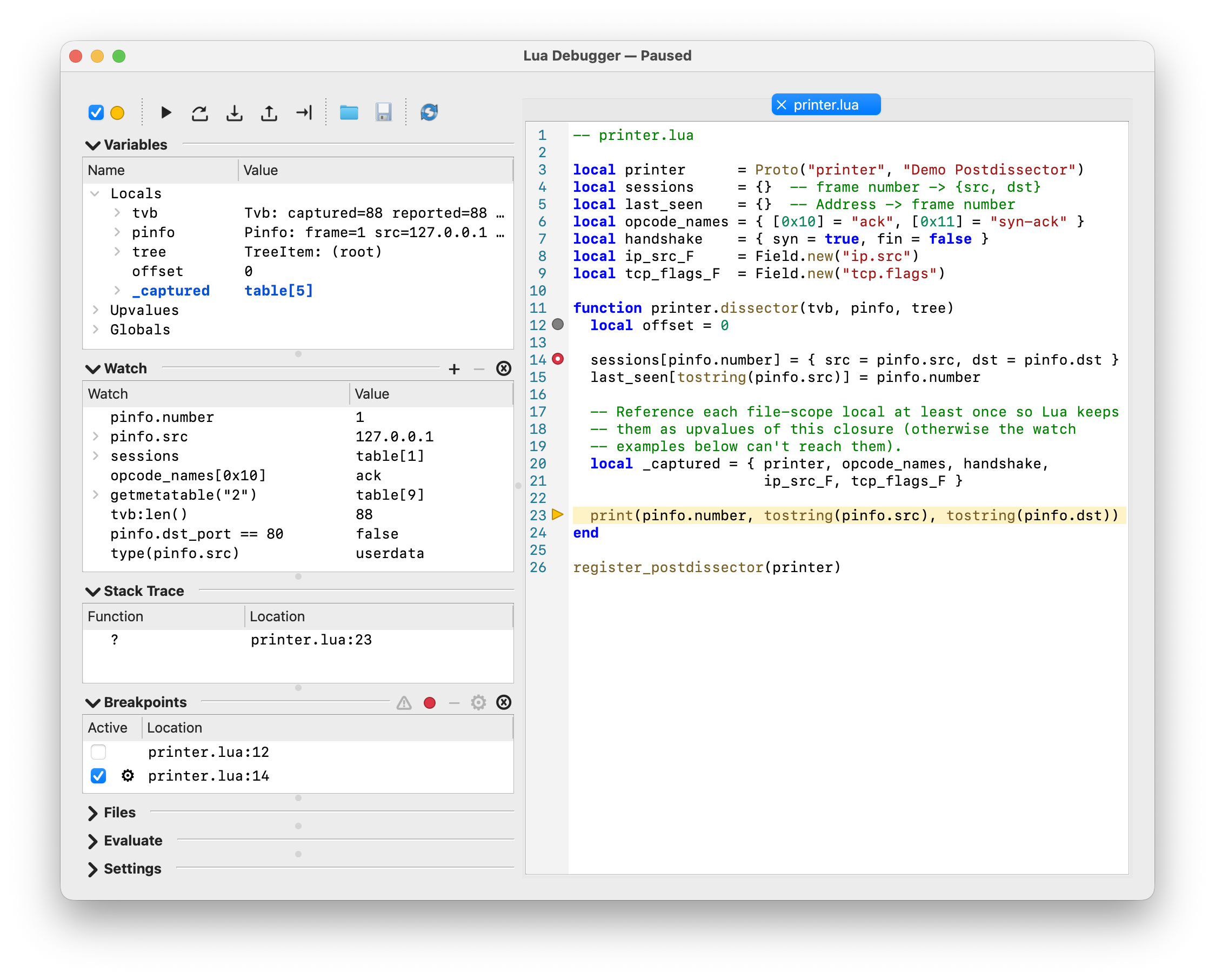
When your Lua code hits a breakpoint or the next step target, the debugger pauses. The dialog raises and activates with the paused line highlighted in the editor and the Variables, Watch, and Stack Trace panels repopulated; the rest of Wireshark is disabled and covered by a translucent vignette with a "Lua debugger paused" banner until you resume. Continue, Step, or closing the debugger return control to Lua so it can run the next line (or return from the current function).
Live capture is incompatible with this pause model — packets keep arriving from the capture device and would have to be dissected while a previous Lua call is still on the stack. The debugger is therefore forcibly suppressed for the duration of any live capture; see Section 14.2.1, “Live-capture suppression”.
A live capture keeps pulling packets off the interface and dissecting them for as long as the capture runs. Dissection routinely calls into Lua — every packet passes through any registered dissector, postdissector, or tap. Pausing Lua at a breakpoint while packets are still arriving would stall the capture pipeline on code that cannot make progress, or would try to call your Lua code again while its previous invocation is still frozen at the breakpoint.
To avoid that, the debugger auto-disables itself for the duration of any live capture:
- When a live capture starts, the debugger switches to Disabled if it was on, and breakpoints stop firing for the rest of the capture.
- When the capture ends, the debugger is restored to whatever enabled state you had before the capture started. Your breakpoints, watches, and open editor tabs are untouched.
- While a capture is active the Enabled checkbox in the dialog header is disabled and its tooltip explains why, and the status label reflects the suppressed state so it is always visible that the debugger is off for a reason.
If you need to step through a dissector on live traffic, stop the capture, re-enable the debugger if needed, and reload a saved capture file instead — offline dissection is fully compatible with pausing.
A small postdissector is enough to exercise everything the
debugger does. Save the following as printer.lua:
local printer      = Proto("printer", "Demo Postdissector")
local sessions     = {}  -- frame number -> {src, dst}
local last_seen    = {}  -- Address -> frame number
local opcode_names = { [0x10] = "ack", [0x11] = "syn-ack" }
local handshake    = { syn = true, fin = false }
local ip_src_F     = Field.new("ip.src")
local tcp_flags_F  = Field.new("tcp.flags")

function printer.dissector(tvb, pinfo, tree)
  local offset = 0

  sessions[pinfo.number] = { src = pinfo.src, dst = pinfo.dst }
  last_seen[tostring(pinfo.src)] = pinfo.number

  -- Reference each file-scope local at least once so Lua keeps
  -- them as upvalues of this closure (otherwise the watch
  -- examples below can't reach them).
  local _captured = { printer, opcode_names, handshake,
                      ip_src_F, tcp_flags_F }

  print(pinfo.number, tostring(pinfo.src), tostring(pinfo.dst))
end

register_postdissector(printer)
Every example later in this chapter resolves against names this
script defines, so you can paste any of them into the Watch
panel without setting up extra state. What’s in scope while
printer.dissector is paused:
-
Upvalues (file-scope locals captured by the dissector closure):
printer,sessions,last_seen,opcode_names,handshake,ip_src_F,tcp_flags_F. -
Locals:
tvb,pinfo,tree,offset. -
Globals of interest:
print,tostring,assert,string,type,getmetatable,Field,Proto,register_postdissector,get_version.
The local _captured = { … } line in the dissector body is
demo-only: Lua captures file-scope locals as upvalues only if the
closure references them, so each name has to be mentioned at least
once for it to show up under Upvalues. A real postdissector’s
protocol logic does the same work organically. opcode_names and
handshake are otherwise unused — they exist solely to seed
hex-keyed and boolean-keyed tables for the path-watch examples
below.
Field.new(…) is called at file scope on purpose: extractors
can only be constructed at script load, before any dissector or tap
callback runs. Inside the dissector callback the script references
ip_src_F / tcp_flags_F (and so do the watch examples below), but
never calls Field.new again.
Drop it into your personal plugins directory (the exact path on your install is also shown under → → → ). The canonical locations are:
-
Linux and macOS:
~/.local/lib/wireshark/plugins/ -
Windows:
%APPDATA%\Wireshark\plugins\
Then:
-
Pick → (
Ctrl+Shift+L) so Wireshark picks up the new file. The same shortcut also works from the Reload Lua Plugins toolbar action inside the Lua Debugger dialog once it’s open. - Open → and tick the Enabled checkbox in the dialog header.
-
Expand the Files section and double-click
printer.luato open it in the editor. -
Click in the gutter on a line inside
printer.dissectorto toggle a breakpoint (a red circle appears). - Load any capture file. Dissection starts, the breakpoint hits, and the debugger pauses — the paused line gets a yellow stripe (and a yellow right-pointing triangle in the gutter), the Enabled checkbox dot turns yellow, the window title changes to Lua Debugger — Paused, and the main window grays out behind a "Lua debugger paused" banner.
-
Inspect the paused state:
-
Variables shows Locals (
tvb,pinfo,tree), Upvalues, and Globals for the current frame. - Stack Trace shows the postdissector call on top of whatever frame drove the dissection.
-
Try Add Watch on
pinfo.src(via the Variables context menu or the+button in the Watch section header,Ctrl+Shift+W).
-
Variables shows Locals (
-
Use Step Over (
F10), Step Into (F11), or Continue (F5) to advance. The Watch tree updates on every pause; values that changed since the previous pause are drawn in a bold accent color and briefly flash.
The toolbar across the top of the dialog collects the debugger’s main actions. Every action has a keyboard shortcut that also works when the focus is inside the script editor.
The standard step controls:
| Action | Shortcut | Effect |
|---|---|---|
Continue |
|
Resume until the next breakpoint. |
Step Over |
|
Run the current line and pause on the next line in the same (or outer) stack frame; calls run to completion without pausing inside. |
Step Into |
|
Run the current line and pause on the very next Lua line, including lines inside functions called from the current line. |
Step Out |
|
Resume until the current function returns, then pause in the caller. On the outermost Lua frame this behaves like Continue. |
The remaining toolbar actions:
-
Run to this line (
Ctrl+F10) — set a one-shot target on the line under the editor cursor and resume; pause there when (and if) the target is reached. Enabled only while paused with an active editor tab. See Section 14.8, “Breakpoints”. -
Open File — open a
.luafile in a new editor tab. -
Save (
Ctrl+S) — write the active editor tab to disk. Enabled only when the active tab has unsaved changes. -
Reload Lua Plugins (
Ctrl+Shift+L) — re-run the full Lua plugin load sequence (global then personal plugin directories) in a fresh Lua VM. Breakpoints, watches, and editor tabs survive the reload; anything the previous Lua state had stashed in globals does not.
Next to the toolbar the dialog header carries the Enabled checkbox; its colored dot mirrors the current debugger state — see Section 14.1, “Introduction”.
The Variables collapsible section shows three roots:
- Locals — parameters and local variables for the currently selected stack frame.
- Upvalues — values the function actually references from its enclosing scope. Functions that do not close over anything have no upvalues.
- Globals — names from Lua’s global environment.
Globals resolves against _G first and then against the paused
frame’s _ENV upvalue. The _ENV fallback matters for scripts
loaded with a file environment (for example via dofile) — a
top-level my_proto = Proto.new(…) in such a script lands in the
file’s _ENV rather than _G, and the debugger still lists it
under Globals.
The tree is populated lazily: a row is only inspected when you expand it. Sub-trees stop at the same path-depth cap as Watch (see Section 14.6.2, “Path-watch syntax”).
The tree has two columns, Name and Value; the underlying
type is folded into the row tooltip rather than shown in its own
column. For userdata values (Wireshark class instances such as
Pinfo, Tvb, ProtoField), the tooltip reads userdata
(ClassName) when the instance metatable exposes a __name,
otherwise just userdata.
Functions are listed alongside other values (rendered as
function: 0xADDR, the standard Lua tostring shape) so callbacks,
locally-bound helpers, methods on userdata, and stdlib namespaces
like string and table all show up in their respective scopes.
Function rows are not expandable; to inspect what a function does,
view its source via Stack Trace once it is on the call stack.
Selecting a different frame in Stack Trace rebuilds the Variables tree for that frame.
A context menu on any row offers Copy Name, Copy Value (the
full, untruncated value — the tree itself truncates long values for
display), Copy Name & Value (name = value), Copy Path
(the canonical Variables-tree path, ready to paste into the Watch
panel or the Evaluate panel), and Add Watch (prefilled with
the row’s variable path; the menu label includes the path so you
can see exactly what would be added).
Both the Variables tree and the Watch tree highlight values that changed since the previous pause: the row is drawn in a bold accent foreground from the current theme and briefly flashes a softer highlight tint. New rows (a local that did not exist last pause, a key added to a table, a freshly appearing Watch child) receive the same treatment. Watch roots deliberately do not flash on first sighting — a new root is usually a spec you just typed.
The cue is anchored to the stack frame that was active when the pause started, because "the value changed" only makes sense against a comparable earlier reading:
- Selecting a different frame in the Stack Trace mid-pause shows an unrelated scope, so the cue is suppressed on Locals, Upvalues, and any unqualified or Locals.* / Upvalues.* watch rows while you are in a non-entry frame. Globals.* rows stay comparable across frame switches and keep their highlight.
- A pause that landed inside a different function than the previous pause also suppresses the cue on Locals and Upvalues, to avoid spuriously lighting up "every local is new" after stepping across a call or return. Pauses that hit the same function again — for example the next iteration of a loop, or a recurring dissector callback — still show the cue.
The change baseline is cleared, so the next pause shows no cue, after editing a watch’s spec, removing watches, reloading Lua plugins, or disabling the debugger. A failed watch lookup invalidates that one watch’s baseline only.
Empty strings count as real values for the comparison: a variable
whose value was "" last pause and is still "" now does not
flash. Single-stepping never flickers the Watch Value column
through its not-paused em-dash placeholder, even though a step
technically resumes and re-pauses; the tree repaints straight from
the new pause’s values.
The Watch section pins values that are re-evaluated on every
pause. Type any Lua expression into the Watch column —
tostring(pinfo.src), tvb:len(), pinfo.dst_port == 80,
assert(tvb:len() >= 20, "short IP header") — and the row updates
the next time the debugger pauses.
-
No leading
=orreturnis needed; value-returning expressions auto-return their value, and a bare function or method call shows what it returned. (The legacy=prefix from the Evaluate panel is still tolerated, just redundant here.) -
Bare identifiers resolve against the paused frame’s locals, then
upvalues, then globals; see Section 14.5, “Variables”. In
printer.lua,pinfo,tvb, andtreeare the parameters ofprinter.dissector;printer,sessions,last_seen,opcode_names,handshake,ip_src_F, andtcp_flags_Fare upvalues; and library names likestring,tostring, andFieldfall through to globals automatically. -
Tables — and Wireshark userdata with attribute getters or a
__pairsmetamethod — are expandable in the Watch tree. Children re-resolve against the current result on every pause; they do not snapshot. - Hovering a row shows its current type and a kind-of-watch hint — From: Locals/Upvalues/Globals for plain paths, Expression — re-evaluated on every pause. otherwise. Errors land in the row’s Value column with red error chrome and the unstripped Lua error in the tooltip.
For a goal-organized cheat sheet of expression shapes — formats, predicates, bit fields, ad-hoc tables, fallbacks, type inspection — see Section 14.6.3, “Expression patterns”.
Plain variable paths get extras. When the spec is a plain name
optionally chained with .field or [key] segments — for example
pinfo.src, Upvalues.sessions[1].src, opcode_names[0x10], or
just pinfo — the debugger recognizes the shape and routes the row
through a path watch fast path: a constrained but tree-aware
specialization of the general expression watcher. Anything that
isn’t a plain path (operators, calls, comparisons, table
constructors, …) falls through to the expression watcher
automatically; you don’t choose between the two, the panel routes
each row.
The path-watch fast path adds:
- Selection sync — clicking a path-watch row selects the matching Variables-tree row, and vice versa.
-
Stack-frame nudge —
Locals./ unqualified paths pick the innermost frame where the name resolves;Upvalues.picks the frame whose closure carries the upvalue;Globals.does not move the stack. - Sharper error chrome — a missing name produces Path not found: … pinpointing the missing segment instead of relaying a Lua runtime message.
- Cheaper re-resolution — the path is walked node-by-node against the live tables; it does not go through the Lua compiler.
- Section-aware tooltip — hovering reports which section the path resolved into (From: Locals, Upvalues, or Globals).
For the formal grammar of what counts as a "plain variable path", see Section 14.6.2, “Path-watch syntax”.
The section header carries three small controls to the right of the title rule:
-
+— Add Watch: insert a new top-level row and open its inline editor (same asCtrl+Shift+W). -
-— Remove Watch: remove the selected top-level watches. Disabled when no top-level watch row is selected. -
Ⓧ— Remove All Watches (Ctrl+Shift+K). Disabled when the Watch list is empty.
Rows are added by Add Watch (header +, Ctrl+Shift+W,
the Watch-tree context menu, the editor context menu, or
double-clicking the empty area below the last row), edited inline
via double-click or F2, removed via Delete /
Backspace or the - button, and reordered by drag. The
tree supports Ctrl / Shift-click to extend the
selection so a bulk delete removes every selected top-level row in
one shot. The right-click context menu offers Add Watch; on a
watch root also Duplicate Watch (Ctrl+Shift+D), Edit
Watch (F2), Copy Value (Ctrl+Shift+C), Remove
(Delete), and Remove All Watches (Ctrl+Shift+K);
on a sub-row only Add Watch and Copy Value. Committing an
empty spec removes the row. The Value column is always
read-only.
The Wireshark-specific behaviors:
- Error chrome. A row with an invalid path or a lookup failure is drawn with a red background and a tooltip that reports the error message.
- Not paused. When the debugger is not paused, the Value column shows a muted em dash. Hovering the em dash explains that watches are only evaluated while the debugger is paused.
- Changed-value cue. Identical treatment to Variables; see Section 14.5.1, “Changed-value cue”.
-
Selection sync. Selecting a watch row selects the matching
Variables row (and vice versa). Selecting a path-style watch root
also moves the Call Stack selection to a frame where that root
resolves —
Locals.…/ unqualified paths pick the innermost matching frame;Upvalues.…picks the frame whose closure carries that upvalue;Globals.…does not move the stack. Expression watches have no Variables-tree counterpart, so they do not participate in selection sync or stack-frame nudging. - Depth cap. Subtrees stop at the same depth limit as the Variables tree; see Section 14.6.2, “Path-watch syntax”. The sentinel child at the cap has the tooltip Maximum watch depth reached. This applies to expression-watch sub-elements as well: the subpath walked under the expression result counts toward the cap.
Expansion state is kept only for the current session; watches open collapsed the next time you start Wireshark.
The chapter intro called out that a Watch row whose contents look like a plain variable path gets the path-watch fast path — selection sync with the Variables tree, sharper error chrome, cheaper re-resolution, and so on. This subsection nails down what "plain variable path" means.
A path watch is one identifier followed by any number of .name or
[key] segments, optionally qualified by a section prefix.
Anything else — method calls, arithmetic, function calls,
comparisons, table constructors — is routed to the expression
watcher (see Section 14.6.3, “Expression patterns”) automatically;
there is no error and no UI toggle.
Examples.
-- A local in the current frame (a parameter of printer.dissector):
Locals.pinfo

-- A field on that local userdata:
pinfo.src

-- An upvalue table indexed by an integer key (printer.lua's
-- per-frame cache):
Upvalues.sessions[1]

-- A nested field reachable through the same path:
Upvalues.sessions[1].src

-- Hex and boolean keys (printer.lua's lookup tables):
Upvalues.opcode_names[0x10]
Upvalues.handshake[true]

-- An explicit Globals path (a Lua-side global function):
Globals.get_version

-- Unqualified — tried in locals, then upvalues, then globals:
sessions                  -- finds the upvalue
get_version               -- finds the global

-- _G aliases:
_G.get_version            -- same as Globals.get_version
_G                        -- same as Globals (whole section)
Prefixes. A Watch spec may start with one of the three debugger section prefixes:
-
Locals.name— a local in the current stack frame. -
Upvalues.name— an upvalue of the current stack frame’s function. -
Globals.name— a global, resolved through_Gfirst and then through the paused frame’s_ENVupvalue (see the note in Section 14.5, “Variables”).
The exact tokens Locals, Upvalues, and Globals (with no
trailing .) are also accepted and select the whole section’s
contents. _G is aliased to Globals and _G. to Globals.. A
bare path with no prefix (including a lone identifier) is resolved
in Locals, then Upvalues, then Globals, in that order, and
the UI rewrites the tooltip with the section that actually matched.
A common confusion: a file-scope local like printer.lua’s
`local sessions = {} is an upvalue of any function defined in
the same chunk, not a global. So the path is
Upvalues.sessions, not Globals.sessions. Globals are names that
were assigned without local (or that come from the standard
library, such as print, tostring, Field, or get_version).
What’s allowed inside [ ]. Bracket subscripts mirror Lua’s own
short-literal syntax and accept:
-
Integer keys — decimal or hex, optionally negative:
t[0],t[-1],t[0x1F],t[-0X1f]. -
Boolean keys — Lua-case only:
t[true],t[false].TrueandFALSEare parsed as identifiers, not booleans. - String keys — double- or single-quoted, with the standard Lua 5.x short-string escape set.
The decoded key is looked up exactly the way Lua itself indexes a
table, so any key type that a Lua table can carry is reachable. For
userdata (Wireshark class instances, e.g. Proto, Field), a
bracket key must be a string and is looked up as an attribute name,
the same as ud.name.
Anything that doesn’t match the grammar above is routed to the expression watcher. See When the path-watch fast path doesn’t apply in Section 14.6.3, “Expression patterns” for the full list of shapes that go that way.
Grammar. After canonicalization the Watch grammar is:
watch   := section "." body
         | section
         | body
section := "Locals" | "Upvalues" | "Globals"
body    := ident ( "." ident | "[" key "]" )*
ident   := [A-Za-z_] [A-Za-z0-9_]*
key     := integer | boolean | string
integer := "-"? ( decimal-digits | ("0x" | "0X") hex-digits )
boolean := "true" | "false"
string  := '"' ( char-except-"\"\\ | escape )* '"'
         | "'" ( char-except-'\\ | escape )* "'"
String escapes. String keys accept the Lua 5.x short-string
escape set: \a \b \f \n \r \t \v \\ \" \' \?, decimal bytes
\NNN (1–3 digits, value ≤ 255), hex bytes \xHH, Unicode code
points \u{H…} (1–8 hex digits, value ≤ 0x7FFFFFFF, UTF-8
encoded), and \z which skips the following whitespace. Raw
newlines inside a string key are rejected; use \n.
Canonicalization. Before the path is validated:
- Leading and trailing whitespace is trimmed.
-
_Gand_G.are rewritten toGlobalsandGlobals.. -
Spaces and tabs around
.are collapsed outside bracket literals, soGlobals . foo . barbecomesGlobals.foo.bar. -
Whitespace inside
[ … ]around the key is tolerated. -
String escapes inside
["…"]/['…']are decoded before lookup, sot["a\tb"]indexes the keya<TAB>b.
Depth cap. Path depth is capped at 32 — the count of . and [
in the canonical path. Paths that reach that limit are rejected.
The same cap applies to Variables and Watch sub-trees, with the
sentinel child carrying the tooltip Maximum watch depth reached.
The mini-blocks below are the cheat sheet for what kinds of Lua a
Watch row accepts when the spec isn’t a plain path. Each is
paste-and-run — drop a line into the Watch column and the row
updates on every pause. Names like pinfo, tvb, and tree refer
to whatever locals the current dissector exposes; substitute as
needed.
Format a value the way columns do.
-- Address as the canonical column string:
tostring(pinfo.src)

-- Endpoints in one row:
tostring(pinfo.src) .. " -> " .. tostring(pinfo.dst)

-- TCP/UDP port pair:
string.format("%d -> %d", pinfo.src_port, pinfo.dst_port)

-- A flag byte rendered like Wireshark does:
string.format("0x%02x", tvb:range(13,1):uint())
Use tostring() and string.format() exactly as you would in a
dissector callback. Wireshark’s userdata classes (Address,
Pinfo, Tvb, …) expose conversion via the standard __tostring
metamethod, so tostring(pinfo.src) is the canonical form — they
do not offer a :tostring() method. The :method syntax still
works on string locals (name:upper()).
Compute a derived number or boolean.
-- Bytes left to consume:
tvb:len() - offset

-- "Beyond frame N":
pinfo.number > 100

-- "Targets HTTP":
pinfo.dst_port == 80

-- First-pass dissection?
not pinfo.visited

-- Seconds since the previous captured frame, negated:
-pinfo.delta_ts
Inspect a derived value without expanding the underlying userdata
or table. Standard arithmetic, comparison, and unary operators all
work. Note that there is no __len metamethod on Tvb /
TvbRange, so use tvb:len() rather than #tvb.
Pick out a bit field.
-- (Offset 13 here is illustrative; substitute whatever byte
--  position is meaningful for the protocol you're inspecting.)

-- High bit of that byte:
tvb:range(13, 1):uint() & 0x80

-- Upper nibble of the same byte:
(tvb:range(13, 1):uint() >> 4) & 0x0F
Lua 5.3+ bitwise operators on integers (Wireshark’s floor). The
bundled bit library is also available if you prefer the
named-function form (bit.band(tvb:range(13, 1):uint(), 0x80)).
Read a previously-constructed Field.
-- printer.lua defines `ip_src_F` and `tcp_flags_F` at file scope:
ip_src_F()
(tcp_flags_F()).value
Calling a Field returns the most recent FieldInfo for the
current packet — handy when the local you want isn’t in scope but
the protocol field is. If the field is not present in the current
packet (e.g. tcp_flags_F() on a non-TCP frame) the call returns
nil, so (tcp_flags_F()).value errors with attempt to index a
nil value; guard with tcp_flags_F() and (tcp_flags_F()).value
when the protocol may be missing. Field.new(…) itself cannot
be called from a watch: extractors can only be constructed at
script load, before any dissector or tap callback runs (the watch
evaluates inside that callback). Define the Field once at file
scope, the way printer.lua does, and reference it by name in the
watch.
Index a table by a non-path key.
-- Hyphenated key in _G (no such global by default; the watcher
-- just returns nil):
_G["my-shared-state"]

-- A subtable indexed by the current frame number:
sessions[pinfo.number]

-- A userdata stringified for use as a stable table key:
last_seen[tostring(pinfo.src)]

-- Non-integer / boolean keys:
sessions[1.5]
handshake[true]
Path watches accept identifiers and short integer / boolean /
string keys; expressions accept anything Lua tables accept,
including hyphenated names, non-integer numbers, booleans
(including false), or a long-literal [[...]] string
(e.g. state[ [[multi-line key]] ]).
Userdata as a table key. Lua hashes table keys by raw identity
for userdata, ignoring __eq. Wireshark attribute getters like
pinfo.src and pinfo.dst return a fresh userdata wrapper on each
access, so t[pinfo.src] = … followed by t[pinfo.src] always
misses on the second read. Key by a stable representation
instead — tostring(pinfo.src) for an Address, pinfo.number
for per-frame uniqueness — which is why last_seen above keys by
tostring(pinfo.src).
Build an ad-hoc table.
-- A tuple of locals, expandable in the Watch tree:
{pinfo.src, pinfo.dst, pinfo.dst_port}

-- All return values of a multi-valued function:
{ string.find(tostring(pinfo.src), "(%d+)%.(%d+)") }
Expandable in the Watch tree without polluting the dissector with a temporary local. The second form captures every return value of a multi-valued function — see Capture all return values below.
Inspect type or metatable.
-- "userdata", "table", "string", ...:
type(pinfo.src)

-- Class-ish name on a Wireshark userdata
-- (Address, Pinfo, Tvb, ...):
getmetatable(pinfo.src).__name

-- Full metatable contents when something behaves unexpectedly:
getmetatable(tree)
Useful before assuming what a value is, especially when a row
reports an unexpected attempt to index a nil value. Note that
Wireshark userdata raise an error when indexed with an unknown
attribute — pinfo.src.__name does not fall back to nil, so
go through getmetatable(…) for the class name.
Predicates and "tell me when X changes".
-- Is this the first dissection of this frame?
not pinfo.visited

-- "Seen" or "first time" — flips colour as soon as it changes:
pinfo.visited and "seen" or "first time"

-- Fail loudly the moment an invariant breaks:
assert(tvb:len() >= 20, "short IP header")

-- "Frame is more than 30 s after the previous one":
pinfo.delta_ts > 30
A failing assert (or a bare error("…")) turns the row red
with the user-supplied message in the Value column — a
lightweight alternative to a conditional breakpoint for "tell me
when X changes". The row stays normal as long as the predicate
holds. The synthetic watch:1: prefix Lua adds to the message
is stripped from the cell text, so a failing
assert(..., "short IP header") reads simply
short IP header; the full prefixed message is preserved in
the row’s tooltip.
Conditional / fallback.
-- "Frame number where this source was last seen, or 'never'":
last_seen[tostring(pinfo.src)] or "never"

-- A two-state badge:
pinfo.visited and "seen" or "first time"
"Show this if available, otherwise that." The first branch
evaluates Lua-truthy, so a boolean like pinfo.visited works as
expected.
Capture all return values.
-- string.find returns (start, end, capture1, capture2, ...);
-- a bare watch only shows `start`, so wrap to capture them all:
{ string.find(tostring(pinfo.src), "(%d+)%.(%d+)") }
A bare string.find(…) watch shows only the first return
value. Wrap with { … } to get them as a sequence you can
expand.
When the path-watch fast path doesn’t apply. The shapes below cannot be expressed as a plain variable path, so a row that uses any of them is automatically routed to the expression watcher and gives up the path-watch extras (selection sync, stack-frame nudge, sharper error chrome, cheaper re-resolution).
-
Indexing a table by a non-path key — non-integer numbers
(
t[1.5]), booleans (t[true], includingfalse), or a long-literal[[...]]string. -
Indexing
_Gby a key that isn’t a Lua identifier —_G["weird-key-with-dashes"]. Path syntax does not alias_G[…]toGlobals.[…]; the expression watcher resolves it against the live_Gtable on every pause. - Any computation, transformation, or format applied to the value — operators, function or method calls, string formatting, type or metatable lookups.
-
Capturing multiple return values as a sequence (
{ f() }) instead of seeing only the first. -
An ad-hoc tuple (
{a, b, c}) you can expand in the Watch tree without adding a temporary local to the dissector.
In short: keep specs as plain paths whenever you can, and reach for the expression watcher only for the cases above (or when one of the patterns earlier in this subsection is what you actually want).
What to watch out for.
-
Locals are read-only.
foo = 42writes to_G.foo, not to a localfoo. Use the Evaluate panel anddebug.setlocal()if you really need to mutate a local. - Side effects persist. The expression runs in the live dissector Lua state. Mutating a global, a userdata field, or a shared table changes what subsequent dissection sees. Keep watch expressions read-only when you can.
-
Don’t put statements in a watch.
flag = trueand similar assignments do compile, but the implicitreturnmakes them illegal as a value expression, so the chunk is wrapped as a block and the row reportsnil. The side effect still happens — a bareflag = truewrites to_G.flag. Use the Evaluate panel for assignments, blocks, loops, or anything else with side effects you actually care about. -
Errors are scoped to one row. A failing expression marks its
row with the usual error chrome and the Lua error message in
the Value column; the rest of the Watch list keeps refreshing.
The synthetic
watch:1:prefix Lua adds to runtime errors is stripped from the cell text but kept in the row’s tooltip for diagnostics. -
Long-running expressions are aborted (Lua 5.4+). The same
instruction-count and call-depth caps that protect the
Evaluate panel apply to expression watches; a runaway
while true do endis killed with an error rather than freezing the GUI. On builds linked against Lua 5.3 the caps are inactive (Lua’s debug-hook gate cannot be reached safely from outside the engine’s private headers in that release), so a runaway watch can freeze Wireshark; a one-shot warning is logged the first time a watch or Evaluate expression is run. - Sub-element copy. Copy Value on a sub-element of an expression-watch root re-evaluates the expression and walks the same subpath, mirroring how path watches re-resolve on copy.
The Stack Trace panel lists the Lua call stack at the pause point, innermost frame first. Each row has two columns:
-
Function — the function’s name, or a fallback like
(main chunk)or(anonymous)when no name is available. C frames in the stack are shown for context. -
Location —
source:linefor the currently-executing line of that frame.
Selecting a row changes which frame provides Locals and Upvalues in the Variables tree. Globals are not affected. Double-clicking a Lua frame opens (or switches to) its source file and jumps to the current line. C frames cannot be opened.
A right-click context menu on a stack row offers Open Source
(same as double-click; disabled on C frames) and Copy Location
(copies source:line to the clipboard).
See Section 14.5.1, “Changed-value cue” for how the Stack Trace interacts with the changed-value cue.
The Breakpoints section lists every breakpoint the debugger knows about, with three columns:
- Active — a checkbox. Unchecking disables the breakpoint without removing it.
-
Hits — a compact summary of the row’s hit-count gate plus the running counter, so you can see at a glance "what kind of pause is armed and how close it is to firing" without hovering the row tooltip. The cell uses a tiny grammar that mirrors the inline editor’s mode dropdown:
-
≥N—frommode: pause from the N-th hit onwards. -
×N—everymode: pause on hits N, 2N, 3N, …. -
@N—oncemode: pause once on the N-th hit, then deactivate the row. -
The cell starts with the running hit counter; if a gate is set
it follows in parentheses, e.g.
3 (≥10)means "currently at 3 hits, armed at ≥10". With no hit gate the cell is just the counter. - Hover the column header to see the same grammar in tooltip form. To set or change the gate, edit the Location cell — see Section 14.8.2, “Conditions, hit counts, and logpoints”.
-
-
Location —
source:linefor the line of the breakpoint.
Rows whose source file no longer exists on disk are drawn with a warning icon, gray text in every cell (including Hits), and a disabled Active checkbox; their tooltip reads File not found: <path> so you can spot stale entries that the loader will never resolve.
Alongside line breakpoints, the debugger can also pause on any Lua runtime error — see Section 14.8.1, “Break on Error”.
Breakpoints are created and removed in several ways:
-
Click the gutter of the editor next to a line to toggle a
breakpoint. A red circle appears in the gutter for active
breakpoints; an inactive breakpoint is drawn as a gray circle.
Shift-clicking the gutter on an existing breakpoint toggles only its active state (red ↔ gray) without removing it; on a line with no breakpoint,Shift-click adds a disabled (gray) breakpoint, which is handy for pre-arming a line you want to break on later without paying the line-hook cost until you activate it. The gutter’s tooltip surfaces both behaviors. -
Use the editor context menu: Add Breakpoint / Remove
Breakpoint on the line under the cursor, or with the script
editor focused use
Ctrl+Shift+Bto toggle a breakpoint on the current line (same as the context-menu shortcuts). -
Run to this line (toolbar, editor context menu; only while
paused) sets a one-shot target on that line and resumes; with
the script editor focused,
Ctrl+F10does the same. The target clears itself the first time execution reaches it, and is also discarded by Continue or any Step. The target survives across dissector returns, so a line that is only reached on a later packet still pauses.
Looking for conditional breakpoints, hit counts, or logpoints? Edit the Location cell of a breakpoint row to attach any of those — see Section 14.8.2, “Conditions, hit counts, and logpoints”.
Double-clicking a row in the Breakpoints table opens the corresponding file in the editor and jumps to the line.
The section header carries five small controls to the right of the title rule, in left-to-right order:
-
⚠— Break on Error toggle. Gray when off, red when on. Click to flip; the setting is remembered across Wireshark restarts. See Section 14.8.1, “Break on Error”. -
a colored dot — the aggregate-active toggle. The dot mirrors the
gutter convention: gray when every breakpoint is inactive, red
when any breakpoint is active. Clicking it flips the aggregate
state in one shot — gray → activates every breakpoint, red →
deactivates every breakpoint. The control is disabled (and the
dot stays gray) when there are no breakpoints. Its tooltip
describes the click outcome and reminds you of the per-line
Ctrl+Shift+Bshortcut. -
-— Remove Breakpoint (Delete). Removes the selected rows; disabled when nothing is selected. -
⚙— Edit Breakpoint. Opens the inline editor on the focused row (or the first selected row), the same as double-clicking the Location cell or pressingF2. -
Ⓧ— Remove All Breakpoints (Ctrl+Shift+F9). Disabled when the Breakpoints list is empty.
The Breakpoints table supports Ctrl / Shift click
for multi-row selection. A right-click context menu groups its
entries by scope — first the actions that target the row under
the cursor, then the actions that target the whole table:
-
Edit… — opens the inline editor on the clicked row, same as
double-clicking Location or pressing
F2. Disabled on stale rows whose target file is no longer loaded. - Open Source — jumps the editor to the breakpoint’s file and line. Double-clicking Location also navigates here, in addition to opening the inline editor.
-
Reset Hit Count — clears
hit_countand the{delta}reference timestamp for the clicked row. Enabled when the row has a hit-count target or a counter greater than zero. -
Remove — drops the selected rows (
Delete/Backspacealso work). -
Reset All Hit Counts — clears
hit_countand the{delta}reference timestamp on every row that currently has a non-zero counter. -
Remove All Breakpoints — drops the whole list, same as the
Ⓧcontrol in the section header (labeled withCtrl+Shift+F9in the menu; the shortcut works from anywhere in the dialog).
Breakpoints survive Wireshark restarts. Adding a breakpoint automatically turns the debugger on if it was off — running with no line hook cannot trigger a pause.
In addition to line breakpoints, the debugger can pause whenever
your Lua code raises a runtime error — a failing assert, an
explicit error("…"), or an unhandled error such as attempt
to index a nil value. Break on Error is a single switch that
applies to every Lua callback the debugger sees; nothing is
attached per script or per line.
Toggle it from the Breakpoints section header. The setting is remembered across Wireshark restarts. Turning the button on automatically enables the debugger if it was off — a pause cannot fire while the line hook is not installed.
When Lua raises an error and Break on Error is on, the debugger pauses on the failing line. The pause behaves like a regular breakpoint: the editor jumps to that line, Variables, Watch, and Stack Trace repopulate against the paused frame, and the rest of Wireshark grays out (see Section 14.2, “Pause Behavior”). An inline bar under the editor shows the error message.
Live-capture suppression still applies: while a live capture is running the debugger is forcibly off, so Break on Error does not fire (see Section 14.2.1, “Live-capture suppression”). To debug an error you can only reproduce on live traffic, save the capture and reload it offline.
The Location cell of a breakpoint row is editable (double-click,
F2, or right-click → Edit) and lets you attach one of
three extras to the breakpoint. A white core inside the breakpoint
dot — in the Breakpoints list and in the editor gutter — marks
rows that carry an extra:
- Expression — a Lua expression evaluated each time control reaches the line. The breakpoint pauses only when the expression is truthy in the current frame; locals, upvalues, and globals are visible exactly as they are in Watch / Evaluate. Runtime errors are treated as false (no pause) and surface as a warning icon on the row.
-
Hit Count — gate the pause on a hit-counter.
0disables the gate. A small dropdown next to the integer picks the comparison mode:fromPause on every hit from N onwards — inclusive of the N-th hit (default; "skip the first N-1, then pause forever").
everyPause on hits N, 2N, 3N, … — sample a noisy loop without stopping on every iteration.
onceOne-shot. Pause on the N-th hit and deactivate the breakpoint so subsequent hits go through. The slot is consumed the moment the counter reaches N, even if the row’s Expression evaluates falsy or the row is a logpoint that emits and resumes — the row deactivates either way. The row’s Active checkbox visibly clears AND the runtime counter resets to zero in the same step, so re-ticking Active is enough to arm the next N-hit cycle without a separate Reset Hit Count.
The counter is per breakpoint and is not persisted across Wireshark restarts.
- Log Message — a template that is written to the Evaluate output (and to Wireshark’s debug log) each time the breakpoint fires — that is, after the Hit Count gate and any Expression allow it. By default execution continues without pausing; click the pause toggle on the editor row (the icon next to the Log Message field) to also pause after emitting (useful for "log-then-inspect" without duplicating the breakpoint). The line is emitted verbatim — there is no automatic file:line prefix; include the origin via the tags below if you want it.
The Log Message template uses {…} placeholders. {{ and
}} produce literal { / }. Anything inside {} that is not
one of the reserved tags below is evaluated as a Lua expression
in the paused frame and converted to text with the same coercion
tostring() performs; per-placeholder evaluation errors
substitute <error: …> without aborting the line.
The reserved tags below shadow any same-named Lua local /
upvalue / global. To log a Lua variable that happens to share a
name with a tag, wrap it: {tostring(filename)}.
Origin
|
|
Source file path (canonicalized). |
|
|
Last path component of |
|
|
1-based line number of the breakpoint. |
|
|
Running function’s name ( |
|
|
Frame kind: |
Counters and scope
|
|
This breakpoint’s cumulative hit counter — the number
of times the line has been reached since the row was created
or the counter was last reset. The counter advances on every
line hit, including hits skipped by the hit-count gate or a
falsy Expression; the log line itself only emits on hits the
gates pass, so the value rendered is the counter at the firing
moment (e.g. |
|
|
Lua-frame stack depth at the fire site. |
|
|
|
Time
|
|
Local wall-clock |
|
|
Local |
|
|
Unix time, seconds with millisecond fraction. |
|
|
Unix time as integer milliseconds. |
|
|
Milliseconds since the debugger was last attached. |
|
|
Milliseconds since this breakpoint last fired
( |
The mini-blocks below resolve against the names defined by the
printer.lua postdissector in Section 14.3, “Getting Started”:
locals tvb, pinfo, tree, offset inside printer.dissector,
upvalues sessions, last_seen, opcode_names, handshake,
ip_src_F, tcp_flags_F. Drop a breakpoint on any line of
printer.dissector and edit its Location cell to attach the
extras shown.
Expression — gate the pause on a Lua predicate.
-- Pause only after frame 100: pinfo.number > 100 -- Only on the first dissection of a frame: not pinfo.visited -- Only TLS in either direction: pinfo.dst_port == 443 or pinfo.src_port == 443 -- Frames whose IP source we have seen before: last_seen[tostring(pinfo.src)] ~= nil -- Bail-out invariant: pause if a length assumption breaks: tvb:len() < 20
A runtime error inside the expression is treated as false and
shows a warning icon on the row, so a typo or a nil index
silently disables the pause instead of stopping execution. See
Section 14.6.3, “Expression patterns” for the full menu of shapes
the same evaluator accepts.
Hit Count — gate the pause on a counter.
The integer field carries N; the dropdown next to it picks the comparison mode. The block below sketches the three shapes the gate can take (each line reads as "mode N" — the mode is the dropdown selection, N is what you type into the integer field):
from 10 -- ignore the first 9 hits, pause from hit 10 on
(default mode; "skip the warm-up")
every 100 -- sample a tight per-packet loop: pause on hits
100, 200, 300, …
once 5 -- one-shot debug: pause on hit 5 and clear the
row's Active checkbox; tick it again to re-arm
0 -- disable the gate (any mode); same as clearing
the field
The counter is per breakpoint and per Wireshark session. It is
preserved across edits to the Expression, the Hit Count
target or mode, and the Log Message — tuning the threshold
or switching from from to every mid-run will not throw away
the count you were watching, with one exception: lowering the
target below the current counter rolls the counter back to
0 so the breakpoint can resume waiting for "the next N
hits" instead of pausing on every line. Right-click the row
and choose Reset Hit Count — or Reset All Hit Counts on
the empty area of the table — to zero it explicitly. The
counter is not persisted across Wireshark restarts. Hit Count,
Expression, and Log Message on the same row run
in a strict order: hit-count → Expression → Log Message.
The hit-count gate runs first; only when it passes is the
Expression evaluated; only when the Expression is truthy
(or absent) does the Log Message emit and the row pause. So a
logpoint with a condition stays silent while the condition is
false, and an every 100 logpoint with tvb:len() > 1500 only
logs on the matching every-hundredth packet.
Log Message — show where the line hit.
{filename}:{line}
{basename}:{line} in {function}
{filename}:{line} ({what}) hits={hits} depth={depth}
[{thread}] {function}:{line}
{basename} is the readable form of {filename} — the script’s
filename without its directory, useful when most logs come from
one or two scripts and the absolute path is just noise.
{function} is ? for anonymous, tail, and main-chunk frames;
{what} (Lua / C / main / tail) disambiguates them.
{thread} is main for
the main coroutine and coro@<ptr> otherwise — handy when a
dissector is called from a tap callback that runs on its own
coroutine.
Log Message — wall-clock and intervals.
[{timestamp}] hit
[{datetime}] entered {function}
{epoch_ms} -- frame seen, ms since the Unix epoch
{elapsed} ms since the debugger was attached
loop iteration {hits} took {delta} ms since the previous fire
Use {timestamp} for short interactive sessions and {datetime}
for long-running captures where you may cross midnight. {delta}
reports 0 on the very first fire (and after Reset Hit Count /
Reset All Hit Counts), so a "took 0 ms" line in the log marks a
fresh counter rather than an instant fire.
Log Message — mixing tags with Lua expressions.
Anything inside {} that isn’t a reserved tag is evaluated as a
Lua expression in the paused frame and converted to text with the
same coercion tostring() performs, just like a Watch row.
frame {pinfo.number}: {tostring(pinfo.src)} -> {tostring(pinfo.dst)}
bytes_left={tvb:len() - offset} at {filename}:{line}
flags=0x{string.format("%02x", tvb:range(13, 1):uint())}
{tostring(pinfo.src)} last seen at frame {last_seen[tostring(pinfo.src)] or "never"}
{datetime} hit #{hits}: ports {pinfo.src_port}->{pinfo.dst_port}
Wireshark userdata classes (Address, Pinfo, Tvb, …) expose
their canonical text via __tostring, so wrap them in
tostring(…) instead of relying on a :tostring() method (the
class doesn’t have one). { is the only character that needs
escaping; {{ and }} produce literal braces:
state = {{ src={tostring(pinfo.src)}, dst={tostring(pinfo.dst)} }}
A per-placeholder runtime error becomes <error: …> inline, so
one bad expression in a long template doesn’t drop the rest of
the line. Edit the row’s Location cell to clear the bad
placeholder.
|
Logpoints on every packet of a large capture |
|---|---|
|
A logpoint that matches every packet of a multi-thousand-frame capture can fire thousands of times per second. The debugger coalesces those fires onto the GUI thread in a single drain per event-loop tick, and the Evaluate output keeps only the last ~5000 lines (older lines are evicted as new ones arrive), so the dialog stays responsive — but each fire still runs the template formatter on the Lua thread. To keep per-packet logpoints cheap on big captures:
|
The Files section is a tree of every Lua script the debugger knows about:
- every script the Lua loader has already loaded into the current session;
-
every
.luafile discovered under the global and personal plugin directories (shown even before it has been loaded, so you can open it in the editor and set breakpoints in advance).
Each leaf row’s tooltip is the absolute path of the script. Double-clicking a leaf opens the script in a new editor tab (or switches to the existing tab if it is already open). The tree is rebuilt whenever plugins are reloaded or a new script is loaded, so newly pulled-in `require`d files show up without restarting; the tree is fully expanded after every refresh.
A right-click context menu on a script leaf offers Open Source (same as double-click), Reveal in File Manager (opens the containing folder in the platform’s file browser), and Copy Path (copies the absolute path to the clipboard).
The Evaluate panel is an inline Lua REPL against the paused state. The top half is an input editor; the bottom half is a read-only log of previous expressions and their results.
-
Enter Lua code and press
Ctrl+Return(or click Evaluate) to run it against the paused state. The evaluator runs the code in a protected way, so runtime errors are caught and reported in the output rather than terminating Wireshark. -
No
=orreturnis needed — bare expressions auto-return their value, the same way Watch rows do (see Section 14.6, “Watch”). The legacy=exprprefix from older Lua REPLs is still tolerated, just redundant. -
Clear empties the output. To clear input, Select All
(
Ctrl+A) thenDeleteorBackspace.
The panel is enabled only while the debugger is paused. Typical uses:
-
Inspect a value —
pinfo.src,tostring(pinfo.dst), orsessions[pinfo.number]. -
Mutate state —
_G.my_flag = true,my_table.field = 99. (For read-only observation prefer the Watch panel; expression watches re-evaluate automatically on every pause without taking up the Evaluate output history.) - Run a one-off statement — set a global, push a row into a table, or call a logging helper.
Scope. The evaluator runs against the paused state with the
same custom _ENV as expression watches; bare identifiers
resolve against locals, then upvalues, then globals (see
Section 14.5, “Variables”). So pinfo.src works the same way
Locals.pinfo.src works, and library names like string and
tostring fall through to globals automatically.
Limitations.
-
Locals cannot be mutated by assignment. A statement like
foo = 42writes to\_G.foo, not to a localfoo. Usedebug.setlocal()if you really need to mutate a local. Locals with a assign method (pinfo.src_port) can be modified. - Mutating globals is destructive. Changes persist after Continue and will affect subsequent dissection.
-
Long-running expressions are aborted (Lua 5.4+). The
evaluator caps execution time so a runaway
while true do endcannot hang the GUI. On Lua 5.3 builds the cap is inactive (see Section 14.6, “Watch” for details).
After an evaluation the Stack Trace, Variables, and Watch panels are refreshed because the expression may have mutated state the other panels display.
The right-hand pane of the dialog is a multi-tab script editor.
Each tab hosts one .lua file. Standard text-editor behaviors
are all there: Find (Ctrl+F) with Find Next / Find
Previous / Replace / Replace All (case-sensitive, wraps); Go to
Line (Ctrl+G); Undo (Ctrl+Z), Redo
(Ctrl+Y / Ctrl+Shift+Z (macOS)), Cut / Copy / Paste,
Select All; a context menu mirroring those plus Add / Remove
Breakpoint and Run to this Line; tabs marked with a trailing *
for unsaved changes plus a save / discard prompt on close; a
monospace font that follows Wireshark’s main-window zoom so
Ctrl++ or Ctrl+= / Ctrl+- adjust the editor text size too.
Esc first hides any visible find / go-to-line bar; if
neither is shown, it queues a close of the dialog.
The debugger-specific behaviors:
-
Breakpoint gutter. Clicking the gutter toggles a breakpoint
on that line; see Section 14.8, “Breakpoints” for the full
set of gutter behaviors, including the
Shift-click variants for "toggle active" and "add disabled". - Paused-line bar. The line where execution is paused is drawn with a yellow stripe across the full width and a yellow right-pointing triangle in the gutter (overlaid on top of the breakpoint circle if one is set on that line); the cursor is moved to that line on pause.
- Lua-aware syntax highlighting using the active code-view theme; see Section 14.11.1, “Color theme” below.
-
Add Watch. The editor context menu’s Add Watch uses the
current selection if there is one, otherwise the Lua identifier
under the cursor. The selection is taken verbatim, so a path
(
pinfo.src) becomes a path watch and an expression (tostring(pinfo.src)) becomes an expression watch — see Section 14.6, “Watch”. When the debugger is not paused the new row’s value column shows a muted em dash until the next pause. -
Keyboard shortcuts. With the script editor focused,
Add Breakpoint
Ctrl+Shift+B, Add WatchCtrl+Shift+W, and Run to this lineCtrl+F10(available when debugger is paused).
The code-view theme has three modes: Auto (follow color scheme), Dark, and Light. The setting affects only the code editor (syntax coloring, background, cursor-line stripe); the tree panels use the normal Wireshark palette. The Dark and Light palettes are VS Code Dark+ / Light+ inspired so that Lua source colors match what most developers see in their primary editor. Auto resolves against the current Wireshark color scheme and reacts to palette changes in real time.
The choice is remembered across Wireshark restarts.
From a Lua author’s point of view the debugger is a thin layer around a single Lua feature — a line hook — plus a UI that knows how to inspect the Lua stack while that hook is stopped at a line:
Your Lua script
|
v
+---------------+ on every line:
| Lua VM | --- is this line a breakpoint
+-------+-------+ or the next step target?
| |
| run | pause
v v
(next Lua line) +---------------------+
| Debugger dialog |
| Stack / Variables |
| Watch / Evaluate |
+----------+----------+
|
| Continue / Step
v
(back to Lua VM)
While the debugger is Enabled, a line hook (the same mechanism
debug.sethook exposes to Lua) runs before every line of Lua
code and checks the current source and line against the
breakpoint list and any pending step target. Until a hit, scripts
run at full speed; the hook has no effect on dissector output.
When the hook decides to pause, your Lua code is frozen mid-line. The rest of Wireshark cannot dissect packets, run taps, or call any other Lua code until you resume — that is why the main window grays out and why live capture is not compatible with pausing (see Section 14.2.1, “Live-capture suppression”).
Everything shown in the Variables tree, Watch tree, and Stack Trace
is read directly from the paused Lua state through the standard
Lua reflection surface — debug.getlocal, debug.getupvalue,
and the Globals environment as described in
Section 14.5, “Variables”. Reload Lua Plugins in the toolbar
re-runs the full plugin load sequence in a fresh VM (see
Section 14.4, “Toolbar”); debugger state — breakpoints,
watches, open editor tabs, and the current theme — survives the
reload, anything the script stashed in globals does not.
The debugger never pauses. Check that Enabled is ticked and that you are not in a live capture — the debugger is forcibly disabled while live capture is running (see Section 14.2.1, “Live-capture suppression”). Check that the breakpoint file path matches the path the Lua loader actually used. A file opened via a symlink can end up with a different path than the loaded copy — in that case open the script from the Files tree (which always uses the loader’s path) and set the breakpoint from there.
Watch row shows red with "Path not found". The spec is a valid
watch path but did not resolve in the current scope. If the spec
is unqualified, try Locals., Upvalues., or Globals.
explicitly to see which section the symbol is actually in. For
scripts loaded via dofile whose globals live in _ENV, prefer
Globals.name over a bare name.
Watch row shows red with a Lua error message. The row is an expression watch (its tooltip says Expression — re-evaluated on every pause.) and either failed to compile or raised at runtime; the row’s text is the verbatim Lua error. The usual suspects are:
-
attempt to index a nil value— a name on the path isnilat this pause. Confirm it with a path watch on the same name, or use the Evaluate panel. -
attempt to perform arithmetic on a <kind> value— an operator received the wrong type; check withtype(…)first. -
'<eof>' expectedor'=' expected near …— the expression doesn’t parse. A common cause is putting a statement (an assignment,if,for,local) in the Watch column; use the Evaluate panel for those. -
A user-supplied message after
assertorerror— a predicate watch fired (see Predicates and "tell me when X changes" in Section 14.6.3, “Expression patterns”).
Evaluate reports "attempt to index a nil value". The paused
expression tried to dereference a field that is nil at this
pause. Use the Variables tree or a broader root expression to
confirm what is (and is not) bound at the pause point.
Changed-value cue cleared across a call/return. This is by design — see Section 14.5.1, “Changed-value cue”. The cue resumes on the next pause inside the original function.
The main window refuses to close while paused. Resume (Continue)
or Step first, then close. Close requests targeted at the main
window or Ctrl+Q while the debugger is paused are
deferred and re-delivered automatically once the pause ends, so
Wireshark never tries to shut down with Lua code still on the
stack. A shutdown request that arrived while a debugger editor
tab has unsaved changes runs the same save/discard/cancel flow
as closing the dialog before the shutdown can proceed.
Table of Contents
Wireshark can be logically separated into the backend (dissecting protocols, file loading and saving, capturing, etc.) and the frontend (the user interface).
The following frontends are currently maintained by the Wireshark development team:
- Wireshark, Qt based
- TShark, console based
This chapter is focused on the Wireshark frontend, and especially on the Qt interface.
Qt is a cross-platform application development framework. While we mainly use the core (QtCore) and user interface (QtWidgets) modules, it also supports a number of other modules for specialized application development, such as networking (QtNetwork) and web browsing (QtWebKit).
At the time of this writing (September 2016) most of the main Wireshark application has been ported to Qt. The sections below provide an overview of the application and tips for Qt development in our environment.
When creating or modifying Wireshark try to make sure that it will work well on Windows, macOS, and Linux. See Section 15.4, “Human Interface Reference Documents” for details. Additionally, try to keep the following in mind:
Workflow. Excessive navigation and gratuitous dialogs should be avoided or reduced. For example, compared to the legacy UI many alert dialogs have been replaced with status bar messages. Statistics dialogs are displayed immediately instead of requiring that options be specified.
Discoverability and feedback. Most users don’t like to read documentation and instead prefer to learn an application as they use it. Providing feedback increases your sense of control and awareness, and makes the application more enjoyable to use. Most of the Qt dialogs provide a “hint” area near the bottom which shows useful information. For example, the “Follow Stream” dialog shows the packet corresponding to the text under the mouse. The profile management dialog shows a clickable path to the current profile. The main welcome screen shows live interface traffic. Most dialogs have a context menu that shows keyboard shortcuts.
Qt Creator is a full-featured IDE and user interface editor. It makes adding new UI features much easier. It doesn’t work well on Windows at the present time, so it’s recommended that you use it on macOS or Linux.
To edit and build Wireshark using Qt Creator, open the top-level
CMakeLists.txt within Qt Creator. It should ask you to choose a build
location. Do so. It should then ask you to run CMake. Fill in any
desired build arguments (e.g. -D CMAKE_BUILD_TYPE=Debug or
-D ENABLE_CCACHE=ON) and click the button. When that
completes select → and make
sure wireshark is selected.
Note that Qt Creator uses output created by CMake’s “CodeBlocks” generator. If you run CMake outside of Qt Creator you should use the “CodeBlocks - Unix Makefiles” generator, otherwise Qt Creator will prompt you to re-run CMake.
Wireshark’s main entry point is in ui/qt/main.cpp. Command-line arguments
are processed there and the main application class (WiresharkApplication)
instance is created there along with the main window.
The main window along with the rest of the application resides in ui/qt. Due to its size the main window code is split into several modules, ui/qt/main_window.cpp, ui/qt/wireshark_main_window.cpp and ui/qt/wireshark_main_window_slots.cpp.
Most of the modules in ui/qt are dialogs. Although we follow Qt naming
conventions for class names, we follow our own conventions by separating file
name components with underscores. For example, ColoringRulesDialog is defined in
ui/qt/coloring_rules_dialog.cpp,
ui/qt/coloring_rules_dialog.h, and
ui/qt/coloring_rules_dialog.ui.
General-purpose dialogs are subclasses of QDialog. Dialogs that rely on the
current capture file can subclass WiresharkDialog, which provides methods and
members that make it easier to access the capture file and to keep the dialog
open when the capture file closes.
The code in the ui/qt directory uses three APIs: Qt (which uses upper camel case), GLib (which uses snake_case), and the Wireshark API (which also uses snake_case).
As a general rule, for names, Wireshark’s Qt code:
-
uses upper camel case, in which words in the name are not separated by underscores, and the first letter of each word is capitalized, for classes, for example,
PacketList; -
uses lower camel case, in which words in the name are not separated by underscores, and the first letter of each word other than the first word is capitalized, for methods, for example,
resetColumns; -
uses snake case, in which words in the name are separated by underscores, and the first letter of the word is not capitalized, for variables, with a trailing underscore used for member variables, for example,
packet_list_model_.
Dialogs that work with capture file information shouldn’t close just because the
capture file closes. Subclassing WiresharkDialog as described above can make
it easier to persist across capture files.
When you create a window with a row of standard “OK” and “Close” buttons at
the bottom using Qt Creator you will end up with a subclass of QDialog. This is
fine for traditional modal dialogs, but many times the “dialog” needs to behave
like a QWindow instead.
Modal dialogs should be constructed with QDialog(parent). Modeless dialogs
(windows) should be constructed with QDialog(NULL, Qt::Window). Other
combinations (particularly QDialog(parent, Qt::Window)) can lead to odd and
inconsistent behavior. Again, subclassing WiresharkDialog will take care of
this for you.
Most of the dialogs in ui/qt share many similarities, including method names, widget names, and behavior. Most dialogs should have the following, although it’s not strictly required:
-
An
updateWidgets()method, which enables and disables widgets depending on the current state and constraints of the dialog. For example, the Coloring Rules dialog disables the Save button if the user has entered an invalid display filter. -
A
hintLabel()widget subclassed fromQLabelorElidedLabel, placed just above the dialog button box. The hint label provides guidance and feedback to the user. -
A context menu (
ctx_menu_) for additional actions not present in the button box. -
If the dialog box contains a
QTreeWidgetyou might want to add your ownQTreeWidgetItemsubclass with the following methods:drawData()- Draws column data with any needed formatting.
colData()-
Returns the data for each column as a
QVariant. Used for copying as CSV, YAML, etc. operator<()- Allows sorting columns based on their raw data.
Wireshark’s C code and GLib use UTF-8 encoded character arrays. Qt
(specifically QString) uses UTF-16. You can convert a char * to a
QString using simple assignment. You can convert a QString to a
const char * using qUtf8Printable.
If you’re using GLib string functions or plain old C character array idioms in Qt-only code you’re probably doing something wrong, particularly if you’re manually allocating and releasing memory. QStrings are generally much safer and easier to use. They also make translations easier.
If you need to pass strings between Qt and GLib, you can use a number of convenience routines which are defined in ui/qt/utils/qt_ui_utils.h.
If you’re calling a function that returns wmem-allocated memory, it might make
more sense to add a wrapper function to qt_ui_utils than to call wmem_free in
your code.
Sometimes we have to call C++ functions from one of Wireshark’s C callbacks and pass C++ objects to or from C. Tap listeners are a common example. The C++ FAQ describes how to do this safely.
Tapping usually involves declaring static methods for callbacks, passing this
as the tap data.
Qt provides a convenient method for translating text: Qobject::tr(),
usually available as tr().
However, please avoid using tr() for static strings and define them in *.ui
files instead. tr() on manually created objects like QMenu are not
automatically retranslated and must instead be manually translated using
changeEvent() and retranslateUi(). See ui/qt/wireshark_main_window.cpp for an example
of this.
|
Note |
|---|---|
|
If your object life is short and your components are (re)created
dynamically then it is ok to use |
In most cases you should handle the changeEvent in order to catch
QEvent::LanguageChange.
Qt makes translating the Wireshark UI into different languages easy. To add a new translation, do the following:
- Run the following to generate/update your translation files, replacing XX with the ISO 639 language code:
lupdate -I. $(find ui/qt -name '*.cpp' -o -name '*.h' -o -name '*.ui') -ts ui/qt/wireshark_XX.ts
msginit --no-translator --input packaging/debian/po/templates.pot --output packaging/debian/po/XX.po
- Add ui/qt/wireshark_XX.ts to ui/qt/CMakeLists.txt.
- Add ui/qt/wireshark_XX.ts to .tx/config.
-
Translate with Qt Linguist:
linguist ui/qt/wireshark_XX.ts. - Do a test build and make sure the generated wireshark_XX.qm binary file is included.
-
Fill in the
msgStrfields in the XX.po file. - Push your changes to GitLab for review. See Section 3.10, “Contribute Your Changes” for details.
Alternatively you can put your QM file in the languages directory in the Wireshark user configuration directory ($XDG_CONFIG_HOME/wireshark/languages/ or $HOME/.wireshark/languages/ on UNIX).
For more information about Qt Linguist see its manual.
You can also manage translations online with Transifex. Translation resources are organized by type of translation and development branch:
- master
- Qt Linguist resources in the ui/qt in the master branch.
- debian
- GNU gettext resources in the packaging/debian directory in the master branch.
- qt-XY, master-XY
- Qt Linguist resources in the ui/qt in the X.Y release branch. For example, qt-34 matches the Wireshark 3.2 release branch.
- po-XY, debian-XY
- GNU gettext (.po) resources in the packaging/debian directory in the X.Y release branch. For example, po-34 matches the Wireshark 3.4 release branch.
Each week translations are automatically synchronized with the source code through the following steps:
-
Pull changes from Transifex by running
tx pull -f. -
Run
lupdateon the ts files. - Push and commit on GitLab.
-
Push changes to Transifex by running
tx push.
Qt provides a number of colors via the QPalette class. Use this class when you need a standard color provided by the underlying operating system.
Wireshark uses an extended version of the
Tango Color Palette
for many interface elements that require custom colors. This includes the
I/O graphs, sequence diagrams, and RTP streams. Please use this palette
(defined in ui/qt/utils/tango_colors.h and the
ColorUtils class in ui/qt/utils/color_utils.h) if QPalette
doesn’t meet your needs.
Wireshark supports dark themes (aka “dark mode”) on some platforms. We leverage Qt’s dark theme support when possible, but have implemented our own support and workarounds in some cases. You can ensure that your code includes proper dark theme support by doing the following:
-
You can use a macOS-style template icon by creating a monochrome SVG
document with “.template” appended to the name, e.g.
resources/stock_icons/24x24/edit-find.template.svg. -
Qt draws unvisited links Qt::blue no matter what. You can work
around this by using
ColorUtils::themeLinkBrush()andColorUtils::themeLinkStyle(). -
You can catch dark and light mode changes by handling
QEvent::ApplicationPaletteChange.
The main window has many QActions which are shared with child widgets. See ui/qt/proto_tree.cpp for an example of this.
To demonstrate the functionality of the plugin interface options, a
demonstration plugin exists (pluginifdemo). See Chapter 11, Plugins and
plugins/ui/pluginifdemo.
GammaRay lets you inspect the internals of a running Qt application similar to Spy++ on Windows.
The welcome page displays a rotating banner carousel with slides for events, sponsorship, and tips. Slide content and display configuration are loaded from JSON resource files at runtime rather than being hardcoded.
| Path | Purpose |
|---|---|
Default slide deck and configuration shipped in the source tree. |
|
JSON Schema for validating slide files. |
|
Banner images referenced by slides. All files in this directory are
automatically embedded via |
|
|
|
JSON loading, config merging, rotation logic, and rendering. |
|
QRC resource generation for Wireshark. |
|
QRC resource generation for Stratoshark. |
Slide files use the following structure:
{
    "schema_version": 1,
    "config": {
        "colors": {
            "default": { "start": "#333333", "end": "#222222", "degrees": 145 },
            "events": { "start": "#1a4a6e", "end": "#234d6e", "degrees": 145 },
            "seasonal": {
                "start": "#781E32", "end": "#641E64", "degrees": 145,
                "steps": ["#781E32", "#8C5014", "#327832", "#1E5A82", "#3C2882", "#641E64"]
            }
        },
        "types": {
            "events": { "randomized": false, "maxdisplay": 0, "only": false },
            "tips": { "randomized": true, "maxdisplay": 3 }
        }
    },
    "slides": [
        {
            "type": "events",
            "tag": "Conference",
            "title": "SharkFest'26 US",
            "description": "Nashville, Tennessee",
            "description_sub": "July 18-23, 2026",
            "body_text": "Join the annual Wireshark developer...",
            "button_label": "Learn More",
            "url": "https://sharkfest.wireshark.org/sfus/",
            "image": "sharkfestus.png",
            "date_from": "2025-12-01",
            "date_until": "2026-07-23"
        }
    ]
}
A formal JSON Schema is available at resources/json/slides.schema.json for editor-based and CI validation.
The type, title, description, and url fields are required per slide.
Slides missing any of these are skipped with a warning. The type must be one
of "events", "sponsorship", "tips", or "seasonal". Note that
"sponsorship" and "seasonal" are reserved for the predefined slides.json and cannot be used in custom slide files. All other slide fields are optional and default to empty strings.
The image field is a filename resolved at runtime under :/json/banners/. If
empty or missing, a generic semi-transparent overlay is shown instead.
The application field filters a slide to either "wireshark" or
"stratoshark". If omitted, the slide is shown in both applications.
The date_from and date_until fields use ISO 8601 format (YYYY-MM-DD).
Slides are hidden before date_from and after date_until. Omitting either
field removes that constraint.
date_month (1-12) and date_day (1-31) specify the exact day the slide should be shown each year. date_from and date_until will be ignored if these fields are present. For example, date_month=12 and date_day=25 will show the slide only on December 25th of each year.
The optional config section controls slide display behavior and colors.
Colors (config.colors): Per-type gradient color overrides with "start" and
"end" fields in #RRGGBB format. The "default" entry provides fallback
colors for types without explicit colors. Available keys: "default",
"events", "sponsorship", "tips", "seasonal".
Each color entry also supports the optional fields "degrees" (integer, 0-360)
for the gradient angle and "steps" (array of #RRGGBB hex strings) for
intermediate gradient color stops. When "steps" is provided, the colors are
distributed evenly across the gradient from 0.0 to 1.0 instead of using a
simple start/end pair.
Type settings (config.types): Per-type display settings. Available keys:
"events", "sponsorship", "tips", "seasonal". Each entry supports:
| Field | Description |
|---|---|
|
Boolean (default |
|
Integer (default |
|
Boolean (default |
|
Boolean (default |
All config fields are optional. Missing values use defaults. Config from a custom file merges over the predefined config on a per-type basis.
-
Edit resources/json/slides.json and add a new entry to the
slidesarray. - If the slide needs a banner image, place the file in resources/json/banners/. Recommended dimensions are 900x360 pixels (3x the logical 300x120 display area for HiDPI support). The image is scaled to fill the area and center-cropped. Top corners are rounded at 8px radius.
-
Use
date_fromanddate_untilto time-limit slides for specific events. -
Rebuild. CMake picks up new images automatically via
file(GLOB).
Distributors can inject additional slides without modifying the source tree
using the CUSTOM_SLIDES_JSON CMake variable:
cmake -DCUSTOM_SLIDES_JSON=/path/to/my_slides.json ..
The custom file uses the same JSON schema. Custom slides are merged with
predefined slides per type, respecting only and hidden flags. If the path
does not exist, it is silently ignored.
Custom file restrictions:
- Sponsorship slides are not allowed in custom files. Any sponsorship slides in a custom file are skipped with a warning during loading.
-
The
hiddenflag inconfig.typesis only valid in custom files. -
The
onlyflag in a custom file only takes effect if the predefinedslides.jsondoes not setonly=truefor that type.
|
Important |
|---|---|
|
Custom slides in publicly distributed binaries (e.g. Linux distribution packages) must adhere to the Wireshark Code of Conduct. Slides must not link to deceptive downloads, trick users into purchasing unrelated products, or otherwise exploit or mislead users. The welcome page is a trust surface — users expect its content to be relevant and honest. |
See also doc/README.slides for a standalone reference.
Wireshark runs on a number of platforms, primarily Windows, macOS, and Linux. It should conform to the Windows, macOS, GNOME, and KDE human interface guidelines as much as possible. Unfortunately, creating a feature that works well across these platforms can sometimes be a juggling act since the human interface guidelines for each platform often contradict one another. If you run into trouble you can ask the wireshark-dev mailing list as well as the User Experience Stack Exchange listed below.
For further reference, see the following:
- Android Design: https://developer.android.com/design/. Wireshark doesn’t have a mobile frontend (not yet, at least) but there is still useful information here.
- GNOME Human Interface Guidelines: https://developer.gnome.org/hig/
- KDE Human Interface Guidelines: https://hig.kde.org
- macOS Human Interface Guidelines: https://developer.apple.com/design/human-interface-guidelines/macos/overview/themes/
- Design guidelines for the Windows desktop: https://docs.microsoft.com/en-us/windows/desktop/uxguide/guidelines
- User Experience Stack Exchange: https://ux.stackexchange.com/
Table of Contents
The Wireshark sources include a collection of Python scripts that test
the features of Wireshark, TShark, Dumpcap, and other programs that
accompany Wireshark. These are located in the test directory of the
Wireshark source tree.
The command line options of Wireshark and its companion command line tools are numerous. These tests help to ensure that we don’t introduce bugs as Wireshark grows and evolves.
The recommended steps to prepare for and run tests with a UN*X toolchain:
-
Install two Python packages, pytest:
pip install pytest pytest-xdist -
Build programs (“wireshark”, “tshark”, etc.):
ninja -
Build additional programs for the “unittests” suite:
ninja test-programs -
Run tests in the build directory:
pytest
Replace ninja by make as needed.
If building with Microsoft Visual Studio the analogous steps are:
-
Install pytest Python packages:
python -m pip install pytest pytest-xdist -
Build programs:
msbuild /m /p:Configuration=RelWithDebInfo Wireshark.slnx -
Build test-programs:
msbuild /m /p:Configuration=RelWithDebInfo test-programs.vcxproj -
Run tests:
python -m pytest
|
Tip |
|---|---|
|
Depending on your PATH, you may need to run the pytest module as a
script from your Python interpreter, e.g, |
The test suite will attempt to test as much as possible and skip tests
when its dependencies are not satisfied. For example, packet capture
tests require a Loopback interface and capture privileges. To avoid
capture tests, pass the --disable-capture option.
List available tests with pytest --collectonly. Enable verbose output
with pytest --verbose. For more details, see Section 16.3, “Listing And Running Tests”.
You can also run the "ninja test" target instead of invoking pytest directly. This will automatically build the test programs dependency, so it may be preferred for that reason.
The following sections describes how the test suite is organized.
The testing framework can run programs and check their stdout, stderr, and exit codes. It cannot interact with the Wireshark UI. Tests cover capture, command line options, decryption, file format support and conversion, Lua scripting, and other functionality.
Available tests depend on the libraries with which Wireshark was built. For example, some decryption tests depend on a minimum version of Libgcrypt and Lua tests depend on Lua.
Capture tests depend on the permissions of the user running the test script. We assume that the test user has capture permissions on Windows and macOS and capture tests are enabled by default on those platforms.
|
Tip |
|---|---|
|
Build the "test-capture" target on Linux (using sudo) to set dumpcap permissions and enable capture tests. |
If a feature is unavailable, the test will be skipped. For example, if an old version of Libgcrypt is in use, then some decryption tests will be skipped while other tests can still run to completion.
The test suite uses pytest as a test runner. Tests are organized according to suites, cases, and individual tests. Suites correspond to Python modules that match the pattern “suite_*.py”. Cases correspond to one or more classes in each module, and case class methods matching the pattern ”test_*” correspond to individual tests. For example, the invalid capture filter test in the TShark capture command line options test case in the command line options suite has the ID “suite_clopts.py::TestTsharkCaptureClopts::test_tshark_invalid_capfilter”.
A test has typically additional dependencies, like the path to an executable, the path to a capture file, a configuration directory, the availability of an optional library, and so on.
pytest is a test framework which has full parallelization support (test-level instead of just suite-level), provides nice test reports, and allows modular fixtures.
A fixture is a function decorated with @pytest.fixture and can
either call pytest.skip("reason") to skip tests that depend on the
fixture, or return/yield a value.
Test functions (and other fixture functions) can receive the fixture
value by using the name of the fixture function as function parameters.
Common fixtures are available in fixtures_ws.py and includes
cmd_tshark for the path to the tshark executable and capture_file
for a factory function that produces the path to a capture file.
Tests are run with pytest. Pytest features versus the "unittest" standard library module include finer test selection, full parallelism, nicer test execution summaries, better output in case of failures (containing the contents of variables) and the ability to open the PDB debugger on failing tests.
To get started, install pytest 3.0 or newer and pytest-xdist:
# Install required packages on Ubuntu 18.04 or Debian jessie-backports
$ sudo apt install python3-pytest python3-pytest-xdist

# Install required packages on other systems
$ pip install pytest pytest-xdist
Run pytest in the Wireshark build directory, Wireshark binaries are assumed to
be present in the run subdirectory (or run\RelWithDebInfo on Windows).
# Run all tests
$ cd /path/to/wireshark/build
$ pytest

# Run all except capture tests
$ pytest --disable-capture

# Run all tests with "decryption" in its name
$ pytest -k decryption

# Run all tests with an explicit path to the Wireshark executables
$ pytest --program-path /path/to/wireshark/build/run
To list tests without actually executing them, use the --collect-only option:
# List all tests
$ pytest --collect-only

# List only tests containing both "dfilter" and "tvb"
$ pytest --collect-only -k "dfilter and tvb"
The test suite will fail tests when programs are missing. When only a subset of programs are built or when some programs are disabled, then the test suite can be instructed to skip instead of fail tests:
# Run tests when libpcap support is disabled (-DENABLE_PCAP=OFF) $ pytest --skip-missing-programs dumpcap,rawshark # Run tests and ignore all tests with missing program dependencies $ pytest --skip-missing-programs all
To open a Python debugger (PDB) on failing tests, use the --pdb option and
disable parallelism with the -n0 option:
# Run decryption tests sequentially and open a debugger on failing tests $ pytest -n0 --pdb -k decryption
Tests must be in a Python module whose name matches “suite_*.py”. The module must contain one or more subclasses with a name starting with "Test" something, for example "class TestDissectionHttp2:". Each test case method whose name starts with “test_” constitutes an individual test.
Success or failure conditions are signalled using regular assertions with the "assert" Python keyword.
Test dependencies (such as programs, directories, or the environment
variables) are injected through method parameters. Commonly used
fixtures include cmd_tshark and capture_file.
Processes (tshark, capinfos, etc.) are run using the "subprocess" Python module,
or the Wireshark subprocesstest module with some convenience functions.
Possible functions include subprocesstest.run(), subprocesstest.check_run()
or creating subprocess.Popen object if the utility functions are not sufficient for some reason.
Usually this is only required if two-way communication is performed with
the child process. subprocesstest.check_run() is exactly the same as
calling subprocesstest.run() with check=True as an argument, only
a bit more expressive.
Check the documentation for the Python subprocess module for a full description
of the arguments available to the subprocesstest.run() convenience wrapper
and the subprocess.Popen object.
All of the current tests run one or more of Wireshark’s suite of executables and either check their return code or their output. A simple example is “suite_clopts.py::TestBasicClopts::test_existing_file”, which reads a capture file using TShark and checks its exit code.
import subprocesstest
import pytest
class TestBasicClopts:
def test_existing_file(self, cmd_tshark, capture_file, test_env):
subprocess.check_run((cmd_tshark, '-r', capture_file('dhcp.pcap')), env=test_env)
Output can be checked using assert subprocesstest.grep_output(),
assert subprocesstest.count_output() or any other assert statement.
subprocesstest.check_run() also asserts that the child process returns
the value 0 as exit code.
import subprocesstest
import pytest
class TestDecrypt80211:
def test_80211_wpa_psk(self, cmd_tshark, capture_file, test_env):
tshark_proc = subprocesstest.run((cmd_tshark,
'-o', 'wlan.enable_decryption: TRUE',
'-Tfields',
'-e', 'http.request.uri',
'-r', capture_file('wpa-Induction.pcap.gz'),
'-Y', 'http',
), capture_output=True, env=test_env)
assert 'favicon.ico' in tshark_proc.stdout
Tests can be run in parallel. This means that any files you create must be unique for each test. Filenames based on the current test name are generated using fixtures such as "capture_file" and "result_file". By default pytest generates paths in the system’s temporary directory and the last three pytest runs are kept. Temporary files from older runs are automatically deleted.
You can create your own Python test files outside of the Wireshark source tree.
To include your tests when running the Wireshark test suite, simply add the
directory containing your test files to the pytest command line. Note that
filenames must match the same conventions as discussed above.
In order for your tests to have access to the Wireshark test fixtures, you will need this line in each test file:
from fixtures_ws import *
You may wish to define your own test fixtures — for example, a fixture similar
to capture_file but which gives the path to a file in your external test
directory. Here is an example Python file containing such a fixture. It presumes
a subdirectory named extra_captures which exists in the same directory, and
which contains your extra capture files.
# my_fixtures.py
# To use in your own tests, import like so:
# from my_fixtures import *
from pathlib import Path
import pytest
@pytest.fixture(scope='session')
def extra_file():
def resolver(filename):
return Path(__file__).parent.joinpath("extra_captures", filename)
return resolver
|
Note |
|---|---|
|
If you give your fixture the same name as an existing Wireshark fixture, any tests using your fixture library will lose access to the Wireshark fixture of the same name. This can lead to confusing behavior and is not recommended. |
Table of Contents
- 17.1. About ASN.1
- 17.2. ASN.1 Dissector Requirements
- 17.3. Understanding Error Messages
- 17.4. Hand-Massaging The ASN.1 File
- 17.5. Command Line Syntax
- 17.6. Generated Files
- 17.7. Step By Step Instructions
- 17.8. Hints For Using Asn2wrs
- 17.9. Simple ASN.1-Based Dissector
- 17.10. Conformance (.cnf) Files
- 17.11. Conformance File Directive Reference
The asn2wrs compiler can be used to create a dissector from an ASN.1 specification of a protocol.
It is a work in progress but has been used to create a number of dissectors.
It supports:
- ITU-T Recommendation X.680 (07/2002), Information technology - Abstract Syntax Notation One (ASN.1): Specification of basic notation
- ITU-T Recommendation X.681 (07/2002), Information technology - Abstract Syntax Notation One (ASN.1): Information object specification
- ITU-T Recommendation X.682 (07/2002), Information technology - Abstract Syntax Notation One (ASN.1): Constraint specification
- ITU-T Recommendation X.683 (07/2002), Information technology - Abstract Syntax Notation One (ASN.1): Parameterization of ASN.1 specifications
It has inbuilt support for:
- ITU-T Recommendation X.880 (07/1994), Information technology - Remote Operations: Concepts, model and notation
The most useful first step in writing an ASN.1-based dissector is to learn about ASN.1. There are a number of free resources available to help with this. One collection of such resources is maintained on the ASN.1 Consortium’s web site.
The compiler needs 4 input files: an ASN.1 description of a protocol, a .cnf file, and two template files. The ASN.1 specification may have to be edited to work, however work is in progress to at least read all ASN1 specifications. Changing the ASN1 file is being deprecated as this creates problems when updating protocols. The H.248 Binary encoding dissector is a good example of a dissector with relatively small changes.
A complete simple ASN1 UDP-based dissector is also available.
The usual way to build an ASN.1-based dissector is to put it into the epan/dissectors/asn1 subtree. This works well and is somewhat simpler than building as a plugin, but there are two reasons one might want to build as a plugin:
- To speed development, since only the plugin needs to be recompiled.
- To allow flexibility in deploying an updated plugin, since only the plugin needs to be distributed.
Reasons one might not want to build as a plugin:
- The code is somewhat more complex.
- The CMakeFile is quite a bit more complex.
- Building under the asn1 subtree keeps all such dissectors together.
If you still think you’d like to build your module as a plugin, see Building ASN1 Plugins.
When running asn2wrs, you could get the following errors:
-
A LexToken error (
main.ParseError: LexToken(DOT,'.',71)) means that something is not understood in the ASN1 file, line 71, around the dot (.) - can be the dot itself. -
A ParseError (
main.ParseError: LexToken(SEMICOLON,';',88)) means that the ';' (SEMICOLON) is not understood. Maybe removing it will work?
If a portion of your ASN.1 file is unsupported you can modify it by hand as needed. However, the preferred way to resolve the issue is to report it on the wireshark-dev mailing list or in the issue tracker so that asn2wrs can be improved.
ASN.1 to Wireshark dissector compiler
asn2wrs [-h|?] [-d dbg] [-b] [-p proto] [-c cnf_file] [-e] input_file(s) ...
-h|? : Usage
-b : BER (default is PER)
-u : Unaligned (default is aligned)
-p proto : Protocol name (implies -S). Default is module-name
from input_file (renamed by #.MODULE if present)
-o name : Output files name core (default is <proto>)
-O dir : Output directory for dissector
-c cnf_file : Conformance file
-I path : Path for conformance file includes
-e : Create conformance file for exported types
-E : Just create conformance file for exported types
-S : Single output for multiple modules
-s template : Single file output (template is input file
without .c/.h extension)
-k : Keep intermediate files though single file output is used
-L : Suppress #line directive from .cnf file
-D dir : Directory for input_file(s) (default: '.')
-N : No check for SIZE constraints
-r prefix : Remove the prefix from type names
input_file(s) : Input ASN.1 file(s)
-d dbg : Debug output, dbg = [l][y][p][s][a][t][c][m][o]
l - lex
y - yacc
p - parsing
s - internal ASN.1 structure
a - list of assignments
t - tables
c - conformance values
m - list of compiled modules with dependency
o - list of output files
Asn2wrs creates the following intermediate files:
- packet-proto-ett.c
- packet-proto-ettarr.c
- packet-proto-fn.c
- packet-proto-hf.c
- packet-proto-hfarr.c
- packet-proto-val.h
- packet-proto-exp.h
- packet-proto-table.c
- packet-proto-syn-reg.c
These files should be included in the template file as described in the conformance file examples. Some are optional.
- Create a directory for your protocol in the epan/dissectors/asn1 directory and put your ASN.1 file there.
- Copy CMakeLists.txt from another ASN.1 dissector and edit it to suit your needs.
- Create a .cnf file either by copying an existing one and editing it or using the empty example above.
- Create template files either by copying suitable existing ones and editing them or use the examples above, putting your protocol name in the appropriate places.
- Add your dissector to epan/dissectors/asn1/CMakeLists.txt
- Test generating your dissector by building the generate_dissector-*proto* target.
- Depending on the outcome you may have to edit your .cnf file, ASN.1 file etc…
- Build Wireshark.
Asn2wrs does not support all of ASN.1 yet. This means you might need to modify the ASN.1 definition before it will compile. This page lists some tips and tricks that might make your life easier.
COMPONENTS OF
Asn2wrs does not support the COMPONENTS OF directive. This means that you will have to modify the asn definition to manually remove all COMPONENTS OF directives. Fortunately this is pretty easy. COMPONENTS OF is a directive in ASN.1 which include all specified fields in the referenced SEQUENCE by those fields as if they had been explicitly specified.
Example
Assume you have some definition that looks like this:
Foo ::= SEQUENCE {
field_1 INTEGER,
field_2 INTEGER
}
Bar ::= SEQUENCE {
COMPONENTS OF Foo,
field_3 INTEGER
}
Since Asn2wrs can not handle COMPONENTS OF you will have to modify the ASN.1 file so that instead Bar will look like this :
Bar ::= SEQUENCE {
field_1 INTEGER,
field_2 INTEGER,
field_3 INTEGER
}
That was pretty easy wasn’t it?
Semicolon Characters
In some ASN1 you may have semicolon characters like this:
PBAddressString ::= SEQUENCE {
extension INTEGER(1), natureOfAddressIndicator INTEGER, numberingPlanInd INTEGER, digits OCTET STRING (SIZE(0..19))
};
You will have to remove the last semicolon character.
Parameters
Parameters will have to be replaced too. Something like this:
AChBillingChargingCharacteristics
{PARAMETERS-BOUND : bound} ::= OCTET STRING (SIZE (minAChBillingChargingLength ..
maxAChBillingChargingLength))
Will have to be replaced with the real values of the parameters:
AChBillingChargingCharacteristics ::= OCTET STRING (SIZE (5 .. 177))
Asn2wrs can handle the type ANY but not parameterized types. Fortunately this is easy to work around with small changes to the ASN file and some conformance file magic. Assuming you have a construct that looks something like this:
AlgorithmIdentifier ::= SEQUENCE {
algorithm ALGORITHM.&id({SupportedAlgorithms}),
parameters ALGORITHM.&Type({SupportedAlgorithms}{@algorithm}) OPTIONAL
}
Which is essentially a structure that takes two fields, one field being an object identifier and the second field that can be just about anything, depending on what object identifier was used. Here we just have to rewrite this SEQUENCE slightly so that it looks like this:
AlgorithmIdentifier ::= SEQUENCE {
algorithm OBJECT IDENTIFIER,
parameters ANY OPTIONAL
}
The only thing remaining now is to add the actual code to manage the dissection of this structure. We do this by using the \#.FN_BODY conformance file directive, which will replace the function body of a dissector with the contents that you specify in the conformance file. For this one we need a string where we store the OID from AlgorithmIdentifier/algorithm so that we can pick it up and act on later from inside the dissector for AlgorithmIdentifier/parameters. So we have to add something like this:
static char algorithm_id[64]; /* 64 chars should be enough? */
to the template file. Then we add the following to the conformance file:
#.FN_BODY AlgorithmIdentifier/algorithmId
offset = dissect_ber_object_identifier(false, pinfo, tree, tvb, offset,
hf_x509af_algorithm_id, algorithm_id);
#.FN_BODY AlgorithmIdentifier/parameters
offset=call_ber_oid_callback(algorithm_id, tvb, offset, pinfo, tree);
This example comes from the X509AF dissector. Please see the code there for more examples on how to do this.
There is currently a bug in Asn2wrs that makes it generate incorrect code for the case when tagged assignments are used. The bug is two-fold, first the generated code "forgets" to strip off the actual tag and length, second it fails to specify 'implicit_tag' properly.
A tagged assignment is something that looks like this example from the FTAM asn specification:
Degree-Of-Overlap ::=
[APPLICATION 30] IMPLICIT INTEGER {
normal(0), consecutive(1), concurrent(2)
}
I.e. an assignment that also specifies a tag value.
Until Asn2wrs is enhanced to handle these constructs you MUST add a workaround for it to the conformance file:
#.FN_BODY Degree-Of-Overlap int8_t class; bool pc, ind_field; int32_t tag; int32_t len1; /* * XXX asn2wrs can not yet handle tagged assignment yes so this * is some conformance file magic to work around that bug */ offset = get_ber_identifier(tvb, offset, &class, &pc, &tag); offset = get_ber_length(tree, tvb, offset, &len1, &ind_field); offset = dissect_ber_integer(true, pinfo, tree, tvb, offset, hf_index, NULL);
This tells Asn2wrs to not autogenerate any code at all for the Degree-Of-Overlap object instead it should use the code specified here. Note that we do have to specify the implicit_tag value explicitly and we can NOT use the parameter passed to the function from the caller (also due to the bug in Asn2wrs) this is the true parameter in the call to dissect_ber_integer(). We specify true here since the definition of Degree-Of-Overlap was using IMPLICIT tags and would have specified false if it was not.
The code above can be easily cut-n-pasted into the conformance file with
the exception of the last line that actually calls the next dissector
helper (…dissect_ber_integer… in this case).
The easiest way to find out exactly what this
final line should look like in the conformance file; just generate the
dissector first without this workaround and look at what call was
generated. Then put that line in the conformance directive and replace
implicit_tag with either true or false depending on whether IMPLICIT
is used or not.
Asn2wrs cannot handle untagged CHOICEs within either a SET or a SEQUENCE. For example:
MessageTransferEnvelope ::= SET {
...
content-type ContentType,
...
}
ContentType ::= CHOICE {
built-in BuiltInContentType,
extended ExtendedContentType
}
BuiltInContentType ::= [APPLICATION 6] INTEGER {
unidentified(0), external(1), interpersonal-messaging-1984(2), interpersonal-messaging-1988(22),
edi-messaging(35), voice-messaging(40)}
ExtendedContentType ::= OBJECT IDENTIFIER
The Asn2wrs SET/SEQUENCE parsing only looks one level deep into the dissection tree and does not have access to class/tags of the elements in the CHOICE.
As with COMPONENTS OF, the solution is to expand the CHOICE in-line within the SET or SEQUENCE, but make sure that each element of the CHOICE is marked as OPTIONAL. For example,
MessageTransferEnvelope ::= SET {
...
built-in BuiltInContentType OPTIONAL,
extended ExtendedContentType OPTIONAL
...
}
This isn’t an entirely correct ASN.1 definition, but should allow successful parsing.
When importing a module using #.INCLUDE in the conformance file, this may introduce a definition from the module which contradicts the definition used in the current ASN.1 file. For example, the X.509 Authentication Framework defines Time as
Time ::= CHOICE {utcTime UTCTime,
generalizedTime GeneralizedTime
}
whereas X.411 defines Time as
Time ::= UTCTime
This can lead to failure to decode the ASN.1 as, in the example, Asn2wrs will be passed the wrong attributes when trying to decode an X.411 time. In order to solve this problem, (if you don’t want to globally change the conflicting name within the ASN.1 module), then you must add an appropriate #.TYPE_ATTR into the conformance file before the #.INCLUDE line. For example
#.TYPE_ATTR Time TYPE = FT_STRING DISPLAY = BASE_NONE STRING = NULL BITMASK = 0
The following snippets show the different files that make up a dissector for a “FOO” protocol dissector.
README.txt.
FOO protocol dissector
----------------------
This trivial dissector is an example for the struggling dissector developer (me included)
of how to create a dissector for a protocol that is encapsulated in UDP packets
for a specific port, and the packet data is ASN1 PER encoded.
The thing that took me a while to figure out was that in order to see my packet
dissected on the detail pane, I had to:
1. Tell the compiler which block in the ASN1 definition is a PDU definition by adding
FOO-MESSAGE under the #.PDU directive in the foo.cnf file
2. Add a call to dissect_FOO_MESSAGE_PDU() function in the dissect_foo() function in the
packet-foo-template.c file.
To build and test it:
1. in foo directory, run make
2. run make copy_files
3. add packet-foo.c and packet-foo.h to epan/dissectors/Makefile.common
4. run top level make
CAVEAT: Makefile.nmake was not tested .
You can take it from here :-)
--00--
foo.asn.
-- FOO PROTOCOL
--
FOO-PROTOCOL DEFINITIONS AUTOMATIC TAGS ::=
BEGIN
-- General definitions
MessageId ::= INTEGER (0..65535)
FlowId ::= INTEGER (0..65535)
MessageData ::= SEQUENCE {
name OCTET STRING(SIZE(10)),
value OCTET STRING(SIZE(10))
}
FOO-MESSAGE ::= SEQUENCE {
messageId MessageId,
flowId FlowId,
messageData MessageData
}
END
foo.cnf.
# foo.cnf # FOO conformation file # $Id$ #.MODULE_IMPORT #.EXPORTS #.PDU FOO-MESSAGE #.NO_EMIT #.TYPE_RENAME #.FIELD_RENAME #.END
packet-foo-template.h.
/* packet-foo.h * Routines for foo packet dissection * * Wireshark - Network traffic analyzer * By Gerald Combs <[email protected]> * Copyright 1998 Gerald Combs * * SPDX-License-Identifier: GPL-2.0-or-later */ #ifndef PACKET_FOO_H #define PACKET_FOO_H #endif /* PACKET_FOO_H */
packet-foo-template.c.
/* packet-foo.c * Routines for FOO packet dissection * * Wireshark - Network traffic analyzer * By Gerald Combs <[email protected]> * Copyright 1998 Gerald Combs * * SPDX-License-Identifier: GPL-2.0-or-later */ #include "config.h" #include <glib.h> #include <epan/packet.h> #include <epan/conversation.h> #include <stdio.h> #include <string.h> #include "packet-per.h" #include "packet-foo.h" #define PNAME "FOO Protocol" #define PSNAME "FOO" #define PFNAME "foo" #define FOO_PORT 5001 /* UDP port */ static dissector_handle_t foo_handle; void proto_reg_handoff_foo(void); void proto_register_foo(void); /* Initialize the protocol and registered fields */ static int proto_foo; static int global_foo_port = FOO_PORT; #include "packet-foo-hf.c" /* Initialize the subtree pointers */ static int ett_foo; #include "packet-foo-ett.c" #include "packet-foo-fn.c" static void dissect_foo(tvbuff_t *tvb, packet_info *pinfo, proto_tree *tree) { proto_item *foo_item = NULL; proto_tree *foo_tree = NULL; int offset = 0; /* make entry in the Protocol column on summary display */ if (check_col(pinfo->cinfo, COL_PROTOCOL)) col_set_str(pinfo->cinfo, COL_PROTOCOL, PNAME); /* create the foo protocol tree */ if (tree) { foo_item = proto_tree_add_item(tree, proto_foo, tvb, 0, -1, ENC_NA); foo_tree = proto_item_add_subtree(foo_item, ett_foo); dissect_FOO_MESSAGE_PDU(tvb, pinfo, foo_tree); } } /*--- proto_register_foo -------------------------------------------*/ void proto_register_foo(void) { /* List of fields */ static hf_register_info hf[] = { #include "packet-foo-hfarr.c" }; /* List of subtrees */ static int *ett[] = { &ett_foo, #include "packet-foo-ettarr.c" }; /* Register protocol */ proto_foo = proto_register_protocol(PNAME, PSNAME, PFNAME); /* Register fields and subtrees */ proto_register_field_array(proto_foo, hf, array_length(hf)); proto_register_subtree_array(ett, array_length(ett)); } /*--- proto_reg_handoff_foo ---------------------------------------*/ void proto_reg_handoff_foo(void) { static bool inited = false; if( !inited ) { foo_handle = create_dissector_handle(dissect_foo, proto_foo); dissector_add("udp.port", global_foo_port, foo_handle); inited = true; } }
CMakeLists.txt.
set( PROTOCOL_NAME foo )
set( PROTO_OPT )
set( EXT_ASN_FILE_LIST
)
set( ASN_FILE_LIST
Foo.asn
)
set( EXTRA_DIST
${ASN_FILE_LIST}
packet-${PROTOCOL_NAME}-template.c
${PROTOCOL_NAME}.cnf
)
set( SRC_FILES
${EXTRA_DIST}
${EXT_ASN_FILE_LIST}
)
set( A2W_FLAGS )
ASN2WRS()
The .cnf file tells the compiler what to do with certain things, such as skipping auto generation for some ASN.1 entries. They can contain the following directives:
- #.OPT
- Compiler options.
- #.MODULE and #.MODULE_IMPORT
- Assign Wireshark protocol name to ASN.1 module name.
- #.INCLUDE
- Include another conformance file.
- #.EXPORTS
- Export type or information object class.
- #.PDU, #.PDU_NEW, #.REGISTER, #.REGISTER_NEW, and #.SYNTAX
- Create PDU functions and register them optionally to dissector table.
- #.CLASS
- Declare or define information object class.
- #.ASSIGNED_OBJECT_IDENTIFIER
- Declare assigned object identifier.
- #.TABLE_HDR, #.TABLE_BODY, and #.TABLE_FTR
- User tables.
- #.OMIT_ASSIGNMENT, #.NO_OMIT_ASSGN, #.OMIT_ALL_ASSIGNMENTS, #.OMIT_ASSIGNMENTS_EXCEPT, #.OMIT_ALL_TYPE_ASSIGNMENTS, #.OMIT_TYPE_ASSIGNMENTS_EXCEPT, #.OMIT_ALL_VALUE_ASSIGNMENTS, and #.OMIT_VALUE_ASSIGNMENTS_EXCEPT
- Ignore assignments from ASN.1 source.
- #.NO_EMIT and #.USER_DEFINED
- See linked text for info.
- #.VIRTUAL_ASSGN, #.SET_TYPE, #.MAKE_ENUM, #.MAKE_DEFINES, and #.ASSIGN_VALUE_TO_TYPE
- Unknown.
- #.TYPE_RENAME, #.FIELD_RENAME, and #.TF_RENAME
- Type/field renaming
- #.IMPORT_TAG, #.TYPE_ATTR, #.FIELD_ATTR
- Type attributes
- #.FN_HDR, #.FN_BODY, #.FN_FTR, and #.FN_PARS
- Type function modification
- #.END
- End of directive
- #.END_OF_CNF
- End of conformance file
#.MODULE IMPORT
InformationFramework x509if
#.INCLUDE ../x509if/x509if_exp.cnf
#.EXPORTS +
ObjectName
#.PDU
ObjectName
#.REGISTER
Certificate B "2.5.4.36" "id-at-userCertificate"
#.SYNTAX
ObjectName [FriendlyName]
#.NO_EMIT ONLY_VALS
# this can be used with: [WITH_VALS|WITHOUT_VALS|ONLY_VALS]
# using NO_EMIT NO_VALS means it won't generate value_string array for it
Type1
#.USER DEFINED
Type1 [WITH_VALS|WITHOUT_VALS|ONLY_VALS]
#.TYPE_RENAME
#.FIELD_RENAME
#.TYPE_ATTR Ss-Code TYPE = FT_UINT16 DISPLAY = BASE_HEX STRINGS = VALS(ssCode_vals)
# This entry will change the hf definition from the auto-generated one for Ss-Code ::= OCTET STRING(SIZE(1))
{ &hf_gsm_map_ss_Code,
{ "ss-Code", "gsm_map.ss_Code",
FT_BYTES, BASE_HEX, NULL, 0, "", HFILL }},
# to:
{ &hf_gsm_map_ss_Code,
{ "ss-Code", "gsm_map.ss_Code",
FT_UINT16, BASE_HEX, VALS(ssCode_vals), 0, "", HFILL }},
In the proto_abbr-template.c file the corresponding value string must be inserted. As an example the following would be included in proto_abbr-template.c to define ssCode_vals:
static const value_string ssCode_vals[] = {
{ 0, "ssCodeString 1" }, /* The string for value 0 */
{ 1, "String 2" }, /* String for value 1 */
{ 5, "String for value 5" }, /* Value String 5 */
{ 0, NULL } /* Null terminated array */
}
Note that the NULL value must be the final entry and that the index values need not be consecutive.
Foo is expressed in different ways depending on where you want to insert your code and the ASN.1 code in question.
- Foo
- Foo/foo
- Foo/_item/foo
For Tagged type use:
Foo/_untag
#.FN_HDR Foo
/* This is code to be inserted into the dissector for Foo BEFORE the BER/PER helper is called. */
tvbuff_t *out_tvb;
fragment_data *fd_head;
tvbuff_t *next_tvb = NULL;
#.FN_BODY Foo
/* This here is code to replace the actual call to the helper completely. */
offset = dissect_ber_octet_string(implicit_tag, pinfo, tree, tvb, offset, hf_index, &out_tvb);
/* Putting %(DEFAULT_BODY)s inside #.FN_BODY will insert the original code there. */
#.FN_FTR Foo
/* This is code to be inserted into the dissector for Foo AFTER the ber/per helper has returned called. */
if (foo_reassemble) {
...
}
#.FN_PARS
#.END
Example template.h file. Replace all PROTOCOL/protocol references with the name of your protocol.
/* packet-protocol.h * Routines for Protocol packet dissection * * $Id$ * * Wireshark - Network traffic analyzer * By Gerald Combs <[email protected]> * Copyright 1998 Gerald Combs * * SPDX-License-Identifier: GPL-2.0-or-later */ #ifndef PACKET_PROTOCOL_H #define PACKET_PROTOCOL_H #include "packet-protocol-exp.h" #endif /* PACKET_PROTOCOL_H */
Example template.c file. Replace all PROTOCOL/protocol references with the name of your protocol.
/* packet-protocol.c * Routines for PROTOCOL packet dissection * * $Id$ * * Wireshark - Network traffic analyzer * By Gerald Combs <[email protected]> * Copyright 1998 Gerald Combs * * SPDX-License-Identifier: GPL-2.0-or-later */ #include "config.h" #include <glib.h> #include <epan/packet.h> #include <epan/conversation.h> #include <stdio.h> #include <string.h> #include "packet-ber.h" #include "packet-protocol.h" #define PNAME "This Is The Protocol Name" #define PSNAME "PROTOCOL" #define PFNAME "protocol" /* Initialize the protocol and registered fields */ int proto_protocol; #include "packet-protocol-hf.c" /* Initialize the subtree pointers */ #include "packet-protocol-ett.c" #include "packet-protocol-fn.c" /*--- proto_register_protocol ----------------------------------------------*/ void proto_register_protocol(void) { /* List of fields */ static hf_register_info hf[] = { #include "packet-protocol-hfarr.c" }; /* List of subtrees */ static int *ett[] = { #include "packet-protocol-ettarr.c" }; /* Register protocol */ proto_protocol = proto_register_protocol(PNAME, PSNAME, PFNAME); /* Register fields and subtrees */ proto_register_field_array(proto_protocol, hf, array_length(hf)); proto_register_subtree_array(ett, array_length(ett)); } /*--- proto_reg_handoff_protocol -------------------------------------------*/ void proto_reg_handoff_protocol(void) { #include "packet-protocol-dis-tab.c" }
The following directives can be used in conformance (.cnf) files:
Some of the other directives in the Asn2wrs conformance file consists of multiple lines. The .END directive is used to terminate such a directive. All other “.” directives (except #.INCLUDE and #.IMPORT) automatically act as an implicit #.END directive which is why you will not see many #.END directives in the conformance files for the dissectors shipped with Wireshark.
This directive in the Asn2wrs conformation file is used to export functions for type decoding from the dissector.
#.EXPORTS TypeName [WITH_VALS|WITHOUT_VALS|ONLY_VALS] [WS_VAR] [NO_PROT_PREFIX] ... #.END
Options:
- WITH_VALS (default): Exports dissection function and value string table if present.
- WITHOUT_VALS: Exports only the dissection function.
- ONLY_VALS: Exports only the value string table.
- WS_VAR and WS_VAR_IMPORT: Used for value string table so as it can be exported from libwireshark.dll.
- NO_PROT_PREFIX: - value string table name does not have protocol prefix
Sometimes, like when we have ANY types, we might want to replace whatever function body that Asn2wrs generates with code of our own. This is what this directive allows us to do.
Asn2wrs can handle the type ANY but we have to help it by adding some small changes to the conformance file. Assuming you have a construct that looks something like this:
AlgorithmIdentifier ::= SEQUENCE {
algorithm OBJECT IDENTIFIER,
parameters ANY OPTIONAL
}
To handle this we need to specify our own function bodies to both the algorithm and the parameters fields, which we do using the #.FN_BODY directive.
This particular example also requires us to keep some state between the two field dissectors, namely the OBJECT IDENTIFIER from algorithm which specifies what the content of parameters is. For this one we need a string where we store the oid from AlgorithmIdentifier/algorithm so that we can pick it up and act on later from inside the dissector for AlgorithmIdentifier/parameters. So we have to add:
static char algorithm_id[64]; /* 64 chars should be enough? */
to the template file as a placeholder to remember which OID we picked up. Then we add to the conformance file:
#.FN_BODY AlgorithmIdentifier/algorithmId
offset = dissect_ber_object_identifier(false, pinfo, tree, tvb, offset,
hf_x509af_algorithm_id, algorithm_id);
#.FN_BODY AlgorithmIdentifier/parameters
offset=call_ber_oid_callback(algorithm_id, tvb, offset, pinfo, tree);
The dissector body we specified for AlgorithmIdentifier/algorithmId here stores the retrieved OID inside the variable algorithm_id we specified. When we later come to the dissector for AlgorithmIdentifier/parameters we pick this OID up from the static variable and just pass it on to the ber/oid dissector helper.
This example comes from the X509AF dissector. Please see the code there for more examples on how to do this.
These directives in the Asn2wrs conformation file are used to manage references to external type definitions, i.e. IMPORTS. The examples below are all from the X.509 Authentication Framework (x509af) dissector source code in Wireshark.
This is an example from the X509AF dissector which amongst other things imports definitions from X.509 InformationFramework:
IMPORTS
Name, ATTRIBUTE, AttributeType, MATCHING-RULE, Attribute
FROM InformationFramework informationFramework
Which tells the Asn2wrs compiler that the types 'Name', 'ATTRIBUTE', 'AttributeType', 'MATCHING-RULE' and 'Attribute' are declared inside the external InformationFramework ASN module and that they are referenced from this module. In order for Asn2wrs to generate correct code for the dissection it is necessary to give it some help by telling what kind of types these are, i.e. are they INTEGERs or SEQUENCEs or something else.
In order to be able to access these functions from this module it is important that these types have been declared as #.EXPORTS in the X509 InformationFramework dissector so that they are exported and that we can link to them.
First we need to tell Asn2wrs which protocol name Wireshark uses for the functions in this external import, so that Asn2wrs can generate suitable function call signatures to these external functions. We do this by adding a directive to the conformation file :
#.MODULE_IMPORT InformationFramework x509if
Where InformationFramework is the ASN name for the module used in the asn IMPORTS declaration and that x509if is the name we use inside Wireshark for this protocol. This tells Asn2wrs that the function name to call to dissect Name would be dissect_x509if_Name(…). Without this knowledge Asn2wrs would not know which function name to generate.
Second, in order for Asn2wrs to generate correct code it also needs to know the BER type and class of these types that are imported, since that would affect how they are to be encoded on the wire. This information about what kind of BER attributes these imported types have are done using the #.INCLUDE and/or #.IMPORT directives in the conformance file:
#.INCLUDE ../x509if/x509if_exp.cnf #.IMPORT ../pkix1implicit/pkix1implicit_exp.cnf
See #.EXPORTS for a description and examples of these types of include files.
These two directives in the conformance file for Asn2wrs can be used to suppress generation of dissectors and/or value_strings and similar for a protocol. This is useful when there are types in the asn definition that either Asn2wrs can not handle or if we want to handle the dissection ourself inside the template file to do additional state keeping or things that Asn2wrs does not know how to manage.
These two directives are very similar. The only difference between is that #.NO_EMIT will suppress emitting the dissector for that function and also any value_strings while #.USER_DEFINED will emit declarations instead of definitions.
I.e. #.USER_DEFINED will emit declarations such
as
extern const value_string Type_vals[];
and
[static] int dissect_Proto_Type(…);
Use #.NO_EMIT if you don’t need to call this function at all from anywhere (except from the template itself) and use #.USER_DEFINED is better if you implement the function inside the template but still want to allow it to be called from other places.
#.USER_DEFINED TypeName [WITH_VALS|WITHOUT_VALS|ONLY_VALS] ... #.END
#.NO_EMIT TypeName [WITH_VALS|WITHOUT_VALS|ONLY_VALS] ... #.END
Options:
- WITH_VALS (default): Both dissection function and value string table are user defined and not emitted.
- WITHOUT_VALS: Only dissection function is user defined and not emitted.
- ONLY_VALS: Only value string table is user defined and not emitted.
This directive in the Asn2wrs conformation file will generate a wrapper function around an object dissector. This is useful if there is an object inside the ASN.1 definition that we really want to register as a protocol dissector or if we want it to have a well known signature.
The wrapper functions that are created will all be named and have the following signature:
static void dissect_ProtocolName_ObjectName(tvbuff_t *tvb, packet_info *pinfo, proto_tree *tree);
Notice that this is exactly the same signature as dissector_t which is used by all dissector entry points.
To get Asn2wrs to generate such wrapper functions you just have to list all objects one by one on the lines following the #.PDU declaration.
#.PDU SomeObject
This will result in Asn2wrs creating this wrapper function in the packet-foo.c dissector file:
static void dissect_SomeObject_PDU(tvbuff_t *tvb, packet_info *pinfo, proto_tree *tree) {
dissect_foo_SomeObject(false, ...
}
This function can then later be called or referenced from the template file or even exported.
This directive in the Asn2wrs conformation file can be used to register a dissector for an object to an OID. This is very useful for X.509 and similar protocols where structures and objects are frequently associated with an OID. In particular, some of the structures here encode an OID in a field and then the content in a different field later, and how that field is to be dissected depends on the previously seen OID.
One such example can be seen in the ASN.1 description for X.509/AuthenticationFramework which has a structure defined such as
AlgorithmIdentifier ::= SEQUENCE {
algorithm ALGORITHM.&id({SupportedAlgorithms}),
parameters ALGORITHM.&Type({SupportedAlgorithms}{@algorithm}) OPTIONAL
}
Which means that the parameters field in this structure, what this field contains and how it is to be dissected depends entirely upon what OID is stored inside algorithm. A whole bunch of protocols use similar types of constructs. While dissection of this particular structure itself currently has to be hand implemented inside the template (see x509af for examples of how this very structure is handled there). The #.REGISTER option in the conformance file will at least make it easy and painless to attach the actual OID to dissector mappings.
To get Asn2wrs to generate such automatic registration of OID to dissector mappings just use the #.REGISTER directive in the conformation file.
#.REGISTER Certificate B "2.5.4.36" "id-at-userCertificate"
Which will generate the extra code to make sure that anytime Wireshark needs to dissect the blob associated to the OID "2.5.4.36" it now knows that that is done by calling the subroutine to dissect a Certificate in the current protocol file. The "id-at-userCertificate" is just a free form text string to make Wireshark print a nice name together with the OID when it presents it in the decode pane. While this can be just about anything you want I would STRONGLY use the name used to this object/oid in the actual ASN.1 definition file.
During the compilation phase Asn2wrs will put all the extra registration code for this in the include file
packet-protocol-dis-tab.c.
Make sure that you include this file from the template file or the registration to an OID will never occur. #include "packet-protocol-dis-tab.c" should be included from the proto_reg_handoff_protocol function in the template file.
The various dissectors we have for X.509 such as the X.509AF which contains several examples of how to use this option. That dissector can also serve as an example on how one would handle structures of the type AlgorithmIdentifier above. Asn2wrs can NOT handle these types of structures so we need to implement them by hand inside the template.
As with the original license and documentation distributed with Wireshark, this document is covered by the GNU General Public License (GNU GPL).
If you haven’t read the GPL before, please do so. It explains all the things that you are allowed to do with this code and documentation.
GNU GENERAL PUBLIC LICENSE
Version 2, June 1991
Copyright (C) 1989, 1991 Free Software Foundation, Inc.
<https://fsf.org/>
Everyone is permitted to copy and distribute verbatim copies
of this license document, but changing it is not allowed.
Preamble
The licenses for most software are designed to take away your
freedom to share and change it. By contrast, the GNU General Public
License is intended to guarantee your freedom to share and change free
software--to make sure the software is free for all its users. This
General Public License applies to most of the Free Software
Foundation's software and to any other program whose authors commit to
using it. (Some other Free Software Foundation software is covered by
the GNU Library General Public License instead.) You can apply it to
your programs, too.
When we speak of free software, we are referring to freedom, not
price. Our General Public Licenses are designed to make sure that you
have the freedom to distribute copies of free software (and charge for
this service if you wish), that you receive source code or can get it
if you want it, that you can change the software or use pieces of it
in new free programs; and that you know you can do these things.
To protect your rights, we need to make restrictions that forbid
anyone to deny you these rights or to ask you to surrender the rights.
These restrictions translate to certain responsibilities for you if you
distribute copies of the software, or if you modify it.
For example, if you distribute copies of such a program, whether
gratis or for a fee, you must give the recipients all the rights that
you have. You must make sure that they, too, receive or can get the
source code. And you must show them these terms so they know their
rights.
We protect your rights with two steps: (1) copyright the software, and
(2) offer you this license which gives you legal permission to copy,
distribute and/or modify the software.
Also, for each author's protection and ours, we want to make certain
that everyone understands that there is no warranty for this free
software. If the software is modified by someone else and passed on, we
want its recipients to know that what they have is not the original, so
that any problems introduced by others will not reflect on the original
authors' reputations.
Finally, any free program is threatened constantly by software
patents. We wish to avoid the danger that redistributors of a free
program will individually obtain patent licenses, in effect making the
program proprietary. To prevent this, we have made it clear that any
patent must be licensed for everyone's free use or not licensed at all.
The precise terms and conditions for copying, distribution and
modification follow.
GNU GENERAL PUBLIC LICENSE
TERMS AND CONDITIONS FOR COPYING, DISTRIBUTION AND MODIFICATION
0. This License applies to any program or other work which contains
a notice placed by the copyright holder saying it may be distributed
under the terms of this General Public License. The "Program", below,
refers to any such program or work, and a "work based on the Program"
means either the Program or any derivative work under copyright law:
that is to say, a work containing the Program or a portion of it,
either verbatim or with modifications and/or translated into another
language. (Hereinafter, translation is included without limitation in
the term "modification".) Each licensee is addressed as "you".
Activities other than copying, distribution and modification are not
covered by this License; they are outside its scope. The act of
running the Program is not restricted, and the output from the Program
is covered only if its contents constitute a work based on the
Program (independent of having been made by running the Program).
Whether that is true depends on what the Program does.
1. You may copy and distribute verbatim copies of the Program's
source code as you receive it, in any medium, provided that you
conspicuously and appropriately publish on each copy an appropriate
copyright notice and disclaimer of warranty; keep intact all the
notices that refer to this License and to the absence of any warranty;
and give any other recipients of the Program a copy of this License
along with the Program.
You may charge a fee for the physical act of transferring a copy, and
you may at your option offer warranty protection in exchange for a fee.
2. You may modify your copy or copies of the Program or any portion
of it, thus forming a work based on the Program, and copy and
distribute such modifications or work under the terms of Section 1
above, provided that you also meet all of these conditions:
a) You must cause the modified files to carry prominent notices
stating that you changed the files and the date of any change.
b) You must cause any work that you distribute or publish, that in
whole or in part contains or is derived from the Program or any
part thereof, to be licensed as a whole at no charge to all third
parties under the terms of this License.
c) If the modified program normally reads commands interactively
when run, you must cause it, when started running for such
interactive use in the most ordinary way, to print or display an
announcement including an appropriate copyright notice and a
notice that there is no warranty (or else, saying that you provide
a warranty) and that users may redistribute the program under
these conditions, and telling the user how to view a copy of this
License. (Exception: if the Program itself is interactive but
does not normally print such an announcement, your work based on
the Program is not required to print an announcement.)
These requirements apply to the modified work as a whole. If
identifiable sections of that work are not derived from the Program,
and can be reasonably considered independent and separate works in
themselves, then this License, and its terms, do not apply to those
sections when you distribute them as separate works. But when you
distribute the same sections as part of a whole which is a work based
on the Program, the distribution of the whole must be on the terms of
this License, whose permissions for other licensees extend to the
entire whole, and thus to each and every part regardless of who wrote it.
Thus, it is not the intent of this section to claim rights or contest
your rights to work written entirely by you; rather, the intent is to
exercise the right to control the distribution of derivative or
collective works based on the Program.
In addition, mere aggregation of another work not based on the Program
with the Program (or with a work based on the Program) on a volume of
a storage or distribution medium does not bring the other work under
the scope of this License.
3. You may copy and distribute the Program (or a work based on it,
under Section 2) in object code or executable form under the terms of
Sections 1 and 2 above provided that you also do one of the following:
a) Accompany it with the complete corresponding machine-readable
source code, which must be distributed under the terms of Sections
1 and 2 above on a medium customarily used for software interchange; or,
b) Accompany it with a written offer, valid for at least three
years, to give any third party, for a charge no more than your
cost of physically performing source distribution, a complete
machine-readable copy of the corresponding source code, to be
distributed under the terms of Sections 1 and 2 above on a medium
customarily used for software interchange; or,
c) Accompany it with the information you received as to the offer
to distribute corresponding source code. (This alternative is
allowed only for noncommercial distribution and only if you
received the program in object code or executable form with such
an offer, in accord with Subsection b above.)
The source code for a work means the preferred form of the work for
making modifications to it. For an executable work, complete source
code means all the source code for all modules it contains, plus any
associated interface definition files, plus the scripts used to
control compilation and installation of the executable. However, as a
special exception, the source code distributed need not include
anything that is normally distributed (in either source or binary
form) with the major components (compiler, kernel, and so on) of the
operating system on which the executable runs, unless that component
itself accompanies the executable.
If distribution of executable or object code is made by offering
access to copy from a designated place, then offering equivalent
access to copy the source code from the same place counts as
distribution of the source code, even though third parties are not
compelled to copy the source along with the object code.
4. You may not copy, modify, sublicense, or distribute the Program
except as expressly provided under this License. Any attempt
otherwise to copy, modify, sublicense or distribute the Program is
void, and will automatically terminate your rights under this License.
However, parties who have received copies, or rights, from you under
this License will not have their licenses terminated so long as such
parties remain in full compliance.
5. You are not required to accept this License, since you have not
signed it. However, nothing else grants you permission to modify or
distribute the Program or its derivative works. These actions are
prohibited by law if you do not accept this License. Therefore, by
modifying or distributing the Program (or any work based on the
Program), you indicate your acceptance of this License to do so, and
all its terms and conditions for copying, distributing or modifying
the Program or works based on it.
6. Each time you redistribute the Program (or any work based on the
Program), the recipient automatically receives a license from the
original licensor to copy, distribute or modify the Program subject to
these terms and conditions. You may not impose any further
restrictions on the recipients' exercise of the rights granted herein.
You are not responsible for enforcing compliance by third parties to
this License.
7. If, as a consequence of a court judgment or allegation of patent
infringement or for any other reason (not limited to patent issues),
conditions are imposed on you (whether by court order, agreement or
otherwise) that contradict the conditions of this License, they do not
excuse you from the conditions of this License. If you cannot
distribute so as to satisfy simultaneously your obligations under this
License and any other pertinent obligations, then as a consequence you
may not distribute the Program at all. For example, if a patent
license would not permit royalty-free redistribution of the Program by
all those who receive copies directly or indirectly through you, then
the only way you could satisfy both it and this License would be to
refrain entirely from distribution of the Program.
If any portion of this section is held invalid or unenforceable under
any particular circumstance, the balance of the section is intended to
apply and the section as a whole is intended to apply in other
circumstances.
It is not the purpose of this section to induce you to infringe any
patents or other property right claims or to contest validity of any
such claims; this section has the sole purpose of protecting the
integrity of the free software distribution system, which is
implemented by public license practices. Many people have made
generous contributions to the wide range of software distributed
through that system in reliance on consistent application of that
system; it is up to the author/donor to decide if he or she is willing
to distribute software through any other system and a licensee cannot
impose that choice.
This section is intended to make thoroughly clear what is believed to
be a consequence of the rest of this License.
8. If the distribution and/or use of the Program is restricted in
certain countries either by patents or by copyrighted interfaces, the
original copyright holder who places the Program under this License
may add an explicit geographical distribution limitation excluding
those countries, so that distribution is permitted only in or among
countries not thus excluded. In such case, this License incorporates
the limitation as if written in the body of this License.
9. The Free Software Foundation may publish revised and/or new versions
of the General Public License from time to time. Such new versions will
be similar in spirit to the present version, but may differ in detail to
address new problems or concerns.
Each version is given a distinguishing version number. If the Program
specifies a version number of this License which applies to it and "any
later version", you have the option of following the terms and conditions
either of that version or of any later version published by the Free
Software Foundation. If the Program does not specify a version number of
this License, you may choose any version ever published by the Free Software
Foundation.
10. If you wish to incorporate parts of the Program into other free
programs whose distribution conditions are different, write to the author
to ask for permission. For software which is copyrighted by the Free
Software Foundation, write to the Free Software Foundation; we sometimes
make exceptions for this. Our decision will be guided by the two goals
of preserving the free status of all derivatives of our free software and
of promoting the sharing and reuse of software generally.
NO WARRANTY
11. BECAUSE THE PROGRAM IS LICENSED FREE OF CHARGE, THERE IS NO WARRANTY
FOR THE PROGRAM, TO THE EXTENT PERMITTED BY APPLICABLE LAW. EXCEPT WHEN
OTHERWISE STATED IN WRITING THE COPYRIGHT HOLDERS AND/OR OTHER PARTIES
PROVIDE THE PROGRAM "AS IS" WITHOUT WARRANTY OF ANY KIND, EITHER EXPRESSED
OR IMPLIED, INCLUDING, BUT NOT LIMITED TO, THE IMPLIED WARRANTIES OF
MERCHANTABILITY AND FITNESS FOR A PARTICULAR PURPOSE. THE ENTIRE RISK AS
TO THE QUALITY AND PERFORMANCE OF THE PROGRAM IS WITH YOU. SHOULD THE
PROGRAM PROVE DEFECTIVE, YOU ASSUME THE COST OF ALL NECESSARY SERVICING,
REPAIR OR CORRECTION.
12. IN NO EVENT UNLESS REQUIRED BY APPLICABLE LAW OR AGREED TO IN WRITING
WILL ANY COPYRIGHT HOLDER, OR ANY OTHER PARTY WHO MAY MODIFY AND/OR
REDISTRIBUTE THE PROGRAM AS PERMITTED ABOVE, BE LIABLE TO YOU FOR DAMAGES,
INCLUDING ANY GENERAL, SPECIAL, INCIDENTAL OR CONSEQUENTIAL DAMAGES ARISING
OUT OF THE USE OR INABILITY TO USE THE PROGRAM (INCLUDING BUT NOT LIMITED
TO LOSS OF DATA OR DATA BEING RENDERED INACCURATE OR LOSSES SUSTAINED BY
YOU OR THIRD PARTIES OR A FAILURE OF THE PROGRAM TO OPERATE WITH ANY OTHER
PROGRAMS), EVEN IF SUCH HOLDER OR OTHER PARTY HAS BEEN ADVISED OF THE
POSSIBILITY OF SUCH DAMAGES.
END OF TERMS AND CONDITIONS
How to Apply These Terms to Your New Programs
If you develop a new program, and you want it to be of the greatest
possible use to the public, the best way to achieve this is to make it
free software which everyone can redistribute and change under these terms.
To do so, attach the following notices to the program. It is safest
to attach them to the start of each source file to most effectively
convey the exclusion of warranty; and each file should have at least
the "copyright" line and a pointer to where the full notice is found.
<one line to give the program's name and a brief idea of what it does.>
Copyright (C) <year> <name of author>
This program is free software; you can redistribute it and/or modify
it under the terms of the GNU General Public License as published by
the Free Software Foundation; either version 2 of the License, or
(at your option) any later version.
This program is distributed in the hope that it will be useful,
but WITHOUT ANY WARRANTY; without even the implied warranty of
MERCHANTABILITY or FITNESS FOR A PARTICULAR PURPOSE. See the
GNU General Public License for more details.
You should have received a copy of the GNU General Public License
along with this program; if not, see <https://www.gnu.org/licenses/>.
Also add information on how to contact you by electronic and paper mail.
If the program is interactive, make it output a short notice like this
when it starts in an interactive mode:
Gnomovision version 69, Copyright (C) year name of author
Gnomovision comes with ABSOLUTELY NO WARRANTY; for details type `show w'.
This is free software, and you are welcome to redistribute it
under certain conditions; type `show c' for details.
The hypothetical commands `show w' and `show c' should show the appropriate
parts of the General Public License. Of course, the commands you use may
be called something other than `show w' and `show c'; they could even be
mouse-clicks or menu items--whatever suits your program.
You should also get your employer (if you work as a programmer) or your
school, if any, to sign a "copyright disclaimer" for the program, if
necessary. Here is a sample; alter the names:
Yoyodyne, Inc., hereby disclaims all copyright interest in the program
`Gnomovision' (which makes passes at compilers) written by James Hacker.
<signature of Moe Ghoul>, 1 April 1989
Moe Ghoul, President of Vice
This General Public License does not permit incorporating your program into
proprietary programs. If your program is a subroutine library, you may
consider it more useful to permit linking proprietary applications with the
library. If this is what you want to do, use the GNU Library General
Public License instead of this License.